
1. Уводзіны
This manual provides detailed instructions for the setup, operation, maintenance, and troubleshooting of your NIMO Mini PC Desktop, Model DNB1. Please read this manual thoroughly before using the device to ensure proper functionality and to maximize your user experience. Keep this manual for future reference.

Image 1.1: The NIMO Mini PC Desktop DNB1, a compact and powerful computing device.
2. Што ў скрынцы
Carefully unpack your NIMO Mini PC Desktop and verify that all items listed below are included:
- NIMO Mini PC Desktop (DNB1)
- Кіраўніцтва карыстальніка (гэты дакумент)
- Мантажны кранштэйн
- Адаптар сілкавання

Image 2.1: Contents of the NIMO Mini PC Desktop packaging, including the Mini PC, user manual, VESA mount, and power adapter.
3. Прадукт скончыўсяview
The NIMO Mini PC Desktop DNB1 is designed for versatility and performance. Familiarize yourself with its various ports and features.
3.1. Front and Rear Panel Interfaces

Малюнак 3.1: Падрабязны view of the NIMO Mini PC Desktop DNB1's interfaces, including USB, HDMI, LAN, Type-C, and power ports.
- Порт DC-IN: Падключаецца да адаптара сілкавання.
- Парты USB 3.2 тыпу A (x3): For connecting peripherals such as keyboards, mice, and external storage devices.
- Парты HDMI 2.0 (x2): For connecting to displays, supporting up to 4K resolution.
- Порт лакальнай сеткі (гігабітны Ethernet): Для падлучэння да правадной сеткі.
- Аўдыяпорт: Для падлучэння навушнікаў або знешніх дынамікаў.
- Type-C Port (Multifunction): Падтрымлівае перадачу дадзеных і вывад на дысплей.
- Счытвальнік SD-карт: Для чытання і запісу на карты памяці SD.
- Кнопка харчавання: Каб уключыць або выключыць прыладу.
- Кнопка скіду: Каб перазагрузіць прыладу.
4. Кіраўніцтва па наладцы
Follow these steps to set up your NIMO Mini PC Desktop.
4.1. Пачатковае падключэнне
- Падключэнне перыферыйных прылад: Connect your keyboard, mouse, and any other USB devices to the available USB 3.2 ports.
- Падключыць дысплей(ы): Connect your monitor(s) to the HDMI 2.0 ports. The Mini PC supports up to three 4K displays simultaneously.
- Падключэнне да сеткі (неабавязкова): For a wired internet connection, connect an Ethernet cable to the LAN port. For wireless, ensure your WiFi network is available during initial setup.
- Падключыце харчаванне: Plug the power adapter into the DC-IN port on the Mini PC, then plug the adapter into a power outlet.
4.2. VESA Mount Installation
The included VESA mount allows you to attach the Mini PC to the back of a compatible monitor or to a wall, saving desk space.
- Attach the VESA bracket to the back of your monitor using the provided screws. Ensure the monitor has VESA mounting holes (typically 75x75mm or 100x100mm).
- Slide the NIMO Mini PC Desktop onto the mounted bracket until it clicks securely into place.
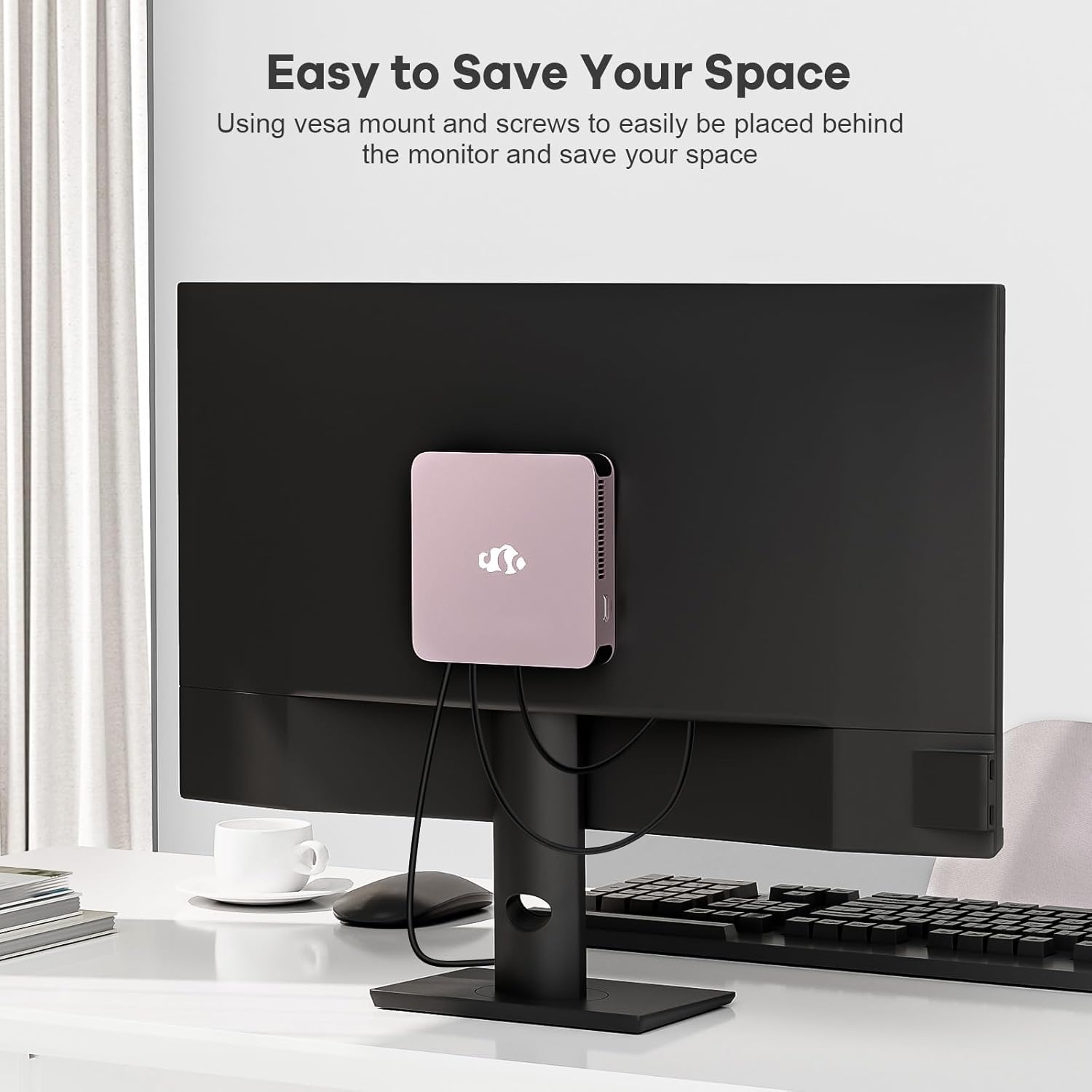
Image 4.1: The NIMO Mini PC Desktop DNB1 mounted on the back of a monitor using the VESA bracket, demonstrating space-saving placement.
5. Інструкцыя па эксплуатацыі
5.1. Уключэнне / выключэнне харчавання
- Каб уключыць: Press the Power Button once. The power indicator light will illuminate.
- Каб выключыць: From the operating system, select 'Shut Down'. Alternatively, press and hold the Power Button for 5-7 seconds to force a shutdown (use only when necessary).
5.2. Пачатковая загрузка і ўстаноўка Windows 11
Upon first power-on, the system will guide you through the Windows 11 setup process. Follow the on-screen prompts to configure language, region, network, and user accounts.
5.3. Падключэнне да сетак
- Правадное злучэнне: If an Ethernet cable is connected to the LAN port, the system will automatically detect and connect to the wired network.
- Бесправадное падключэнне (Wi-Fi 6): Access the network settings in Windows 11, select your desired WiFi network, and enter the password.
- Падключэнне Bluetooth (Bluetooth 5.2): Enable Bluetooth in Windows 11 settings, search for devices, and pair with your Bluetooth peripherals.
5.4. Using Multiple Displays
The NIMO Mini PC supports up to three 4K displays. Connect your monitors to the available HDMI and Type-C ports. Windows 11 display settings allow you to extend, duplicate, or show only on one display.

Image 5.1: The NIMO Mini PC Desktop DNB1 supporting a triple monitor 4K display setup, enhancing productivity and multimedia experiences.
6. Тэхнічнае абслугоўванне
Правільнае абслугоўванне забяспечвае даўгавечнасць і аптымальную прадукцыйнасць вашага міні-ПК.
- Уборка: Use a soft, dry cloth to clean the exterior of the Mini PC. For dust in vents, use compressed air. Do not use liquid cleaners directly on the device.
- Вентыляцыя: Ensure the ventilation openings are not blocked to prevent overheating. Operate the device in a well-ventilated area.
- Абнаўленні праграмнага забеспячэння: Regularly update your Windows operating system and drivers to maintain security and performance.
- Рэзервовае капіраванне даных: Перыядычна рабіце рэзервовыя копіі важных дадзеных на знешні дыск або ў воблачнае сховішча.
7. Выпраўленне непаладак
У гэтым раздзеле разглядаюцца распаўсюджаныя праблемы, з якімі вы можаце сутыкнуцца.
7.1. Няма ўлады
- Пераканайцеся, што адаптар сілкавання надзейна падключаны як да міні-ПК, так і да спраўнай разеткі.
- Праверце працаздольнасць разеткі, падключыўшы да яе іншую прыладу.
- Праверце адаптар сілкавання на наяўнасць бачных пашкоджанняў.
7.2. Няма вываду на дысплей
- Confirm that the monitor is powered on and set to the correct input source (HDMI, Type-C).
- Check that the HDMI or Type-C cable is securely connected to both the Mini PC and the monitor.
- Паспрабуйце іншы кабель дысплея або манітор, калі такі маецца.
7.3. Няма падключэння да Інтэрнэту
- Wired: Ensure the Ethernet cable is properly connected and your router/modem is working.
- Бесправадная сувязь: Check WiFi settings in Windows 11, ensure WiFi is enabled, and you are connected to the correct network with the correct password. Restart your router/modem if necessary.
7.4. Перыферыйныя прылады не рэагуюць
- Паспрабуйце падключыць перыферыйную прыладу да іншага порта USB.
- Пераканайцеся, што драйверы перыферыйных прылад усталяваныя і абноўленыя.
- Test the peripheral on another computer if possible.
8. Тэхнічныя характарыстыкі
Detailed technical specifications for the NIMO Mini PC Desktop DNB1.
| Асаблівасць | Спецыфікацыя |
|---|---|
| мадэль | DNB1 |
| Працэсар | Intel 12th Gen N100 (up to 3.4 GHz) |
| Ядра/патокі | 4 ядраў / 4 патокаў |
| Графіка | Графіка Intel UHD |
| АЗП | 16 ГБ DDR5 |
| Захоўванне | 512 ГБ PCIe SSD |
| Максімальны дазвол экрана | 3840x2160 пікселяў (4K) |
| Вывад дысплея | 2x HDMI 2.0, 1x Type-C (supports triple display) |
| Парты USB | 3x USB 3.2 Type-A, 1x USB Type-C |
| Сетка | Gigabit Ethernet (LAN), WiFi 6 |
| Bluetooth | Bluetooth 5.2 |
| Аперацыйная сістэма | Windows 11 |
| Вага прадмета | 1.76 фунта |
| Крыніца харчавання | DC |

Image 8.1: Summary of key features including Intel 12th Gen N100 processor, 4K Ultra HD support, Bluetooth 5.2, LPDDR5, WiFi 6, and PCIe SSD.
9. Гарантыя і падтрымка
NIMO is committed to providing excellent customer service and product reliability.
- Палітыка вяртання: You may request a return or exchange within 90 days of purchase.
- Тэхнічная падтрымка: The NIMO Mini PC Desktop comes with 2 years of technical support. If you encounter any issues, please contact our dedicated customer support team for assistance.
For support, please refer to the contact information provided with your purchase or visit the official NIMO webсайт.