
Thundeal TD93 Pro
Кіраўніцтва карыстальніка міні-праектара Thundeal TD93 Pro
Model: TD93 Pro | Brand: Thundeal
1. Уводзіны
This manual provides detailed instructions for the setup, operation, and maintenance of your Thundeal TD93 Pro Mini Projector. Please read this manual thoroughly before using the product to ensure proper functionality and to extend its lifespan.

Image 1.1: Thundeal TD93 Pro Mini Projector overview.
2. Што ў скрынцы
Праверце, ці ўсе пералічаныя ніжэй прадметы ўваходзяць у вашу ўпакоўку:
- Thundeal TD93 Pro Projector
- Пульт дыстанцыйнага кіравання
- Шнур харчавання
- Кіраўніцтва карыстальніка (гэты дакумент)
- AV-кабель
- Кабель HDMI
- Вечка аб'ектыва праектара

Image 2.1: Package contents of the TD93 Pro Projector.
3. Product Specifications and Features
3.1. Тэхнічныя характарыстыкі
| Нумар мадэлі | TD93 Pro (Item Model Number: TD97) |
| Роднае дазвол | 1920 x 1080 (Full HD) |
| Падтрымка максімальнага дазволу | 2K 4K UHD (from HD Signal) |
| Яркасць | 12000 люмен |
| Каэфіцыент кантраснасці | 15000:1 |
| Суадносіны бакоў | 4:3 / 16:9 / Аўтаматычны |
| Аперацыйная сістэма | АС Android 9.0 |
| Бесправоднае падключэнне | 2.4G / 5G WiFi, Bluetooth-compatible |
| Памяць | RAM 1G DDR3 + ROM 8G |
| Карэкцыя Keystone | 6D Keystone (4-point corner +/- 60°, Vertical +/- 60°) |
| Функцыя маштабавання | 50-100% Proportional Reduction |
| Памер праекцыі | 49 to 300 inches (recommended 93-150 inches) |
| Адлегласць праекцыі | 1.6 to 6.5 meters (recommended 3-5 meters) |
| Lamp Тэрмін жыцця | 50,000 гадзіны |
| Аўдыё | Built-in 5W stereo speakers with SRS sound system |
| Асаблівасці | 3D-Ready (Red-Blue 3D), Auto Horizontal Keystone, Built-In Wi-Fi, Portable, Dust Removal Net |
3.2. Асноўныя магчымасці
- Візуальныя эфекты высокай выразнасці: Native 1080P resolution with support for 2K/4K UHD signals, delivering clear and vibrant images.
- Smart Android OS: Integrated Android 9.0 operating system allows direct app downloads and streaming.
- Двухдыяпазонны Wi-Fi: 2.4G and 5G WiFi connectivity for stable and fast wireless streaming and screen mirroring.
- Злучэнне Bluetooth: Падключыце знешнія дынамікі або навушнікі Bluetooth для палепшанага гуку.
- Advanced Image Correction: 6D Keystone correction (4-point and vertical) for flexible placement and precise image alignment.
- Гнуткая праекцыя: Adjustable zoom from 50% to 100% and support for screen sizes up to 300 inches.
- Даўгавечны Лamp: Святлодыёд lamp designed for up to 50,000 hours of operation.
- Multi-Media Compatibility: Supports various input sources including HDMI, USB, AV, and direct office file прайграванне праз USB.

Image 3.1: Visual comparison of projector brightness and resolution.
4. Кіраўніцтва па наладцы
4.1. Размяшчэнне праектара
The projector can be placed in various positions to suit your viewing environment:
- На працоўным стале: Размясціце праектар на ўстойлівай, роўнай паверхні.
- На штатыве: Utilize the 6mm screw hole on the bottom for tripod mounting.
- Ceiling Hoisting: Mount the projector to the ceiling using a compatible hanger.
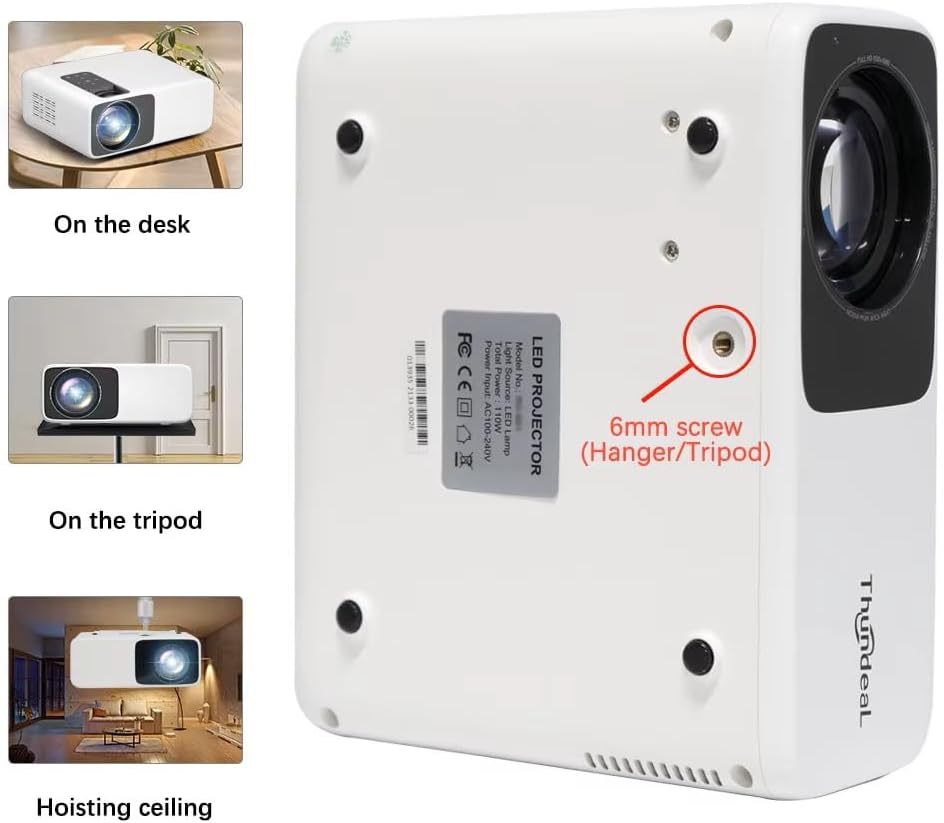
Image 4.1: Projector placement options and mounting point.
Для аптым viewing, ensure the projector is positioned perpendicular to the screen or wall. Adjust the projection distance (1.6 to 6.5 meters) to achieve your desired screen size (49 to 300 inches). A distance of 3-5 meters for a 93-150 inch screen is recommended for eye comfort.
4.2. Падключэнне сілкавання
- Падключыце шнур харчавання да ўваходнага порта харчавання праектара.
- Падключыце другі канец шнура харчавання да звычайнай электрычнай разеткі.
- Націсніце кнопку харчавання на праектары або пульце дыстанцыйнага кіравання, каб уключыць яго.
5. Інструкцыя па эксплуатацыі
5.1. Multi-Media Connections
The TD93 Pro projector offers various ports for connecting external devices:
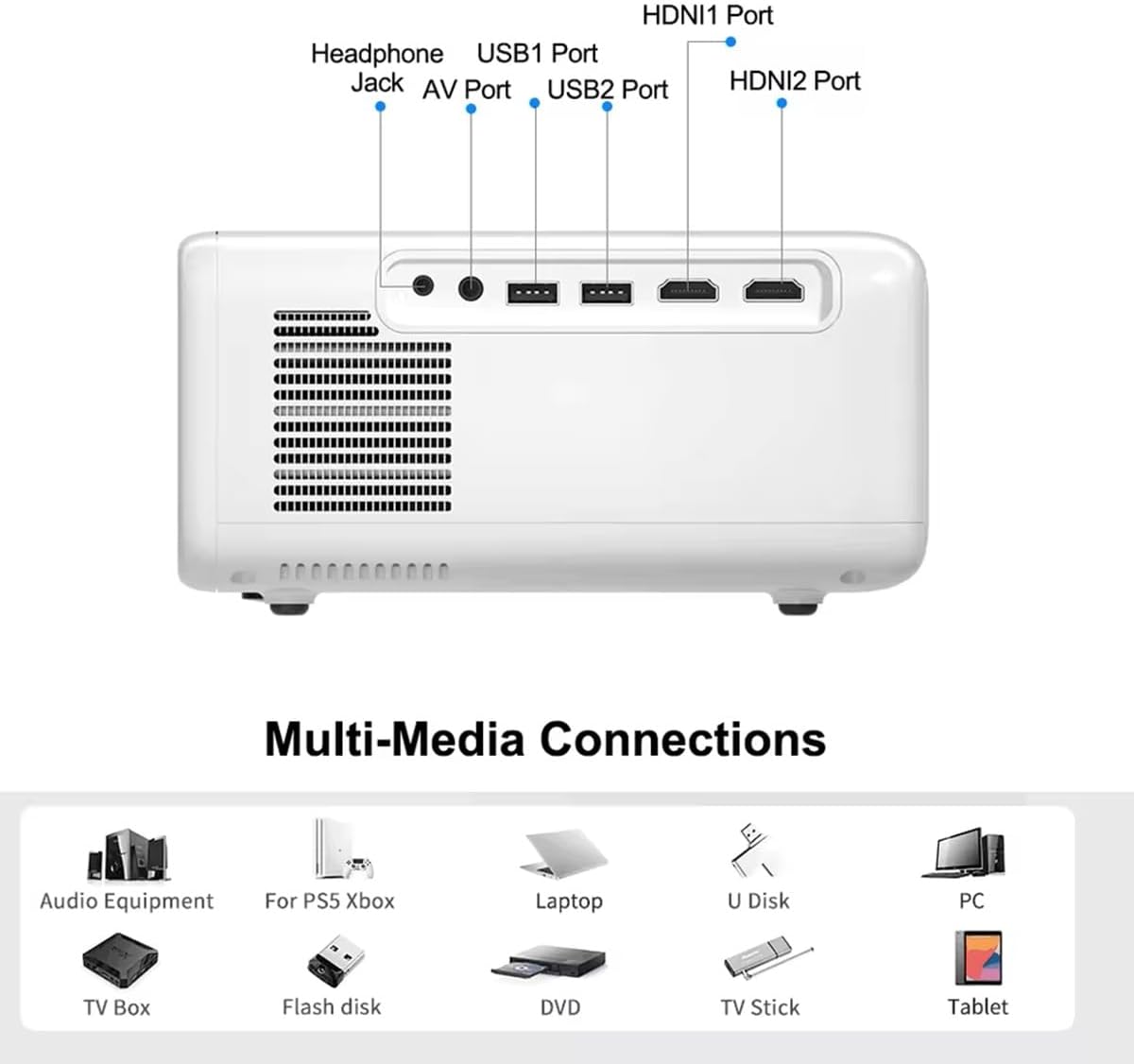
Image 5.1: Available multimedia connection ports.
- HDMI Ports (HDMI1, HDMI2): Connect devices such as TV boxes, gaming consoles (PS5, Xbox), laptops, or Blu-ray players.
- USB-парты (USB1, USB2): Connect USB flash drives for direct media playback (photos, videos, office documents).
- AV-порт: Падключыце старыя прылады з дапамогай AV-кабеля, які ўваходзіць у камплект.
- Раз'ём для навушнікаў (3.5 мм): Падключыце знешнія навушнікі або дынамікі.
To switch input sources, use the "Source" button on the remote control or the projector's control panel and select the desired input (HDMI1, HDMI2, AV, USB).
5.2. Бесправадное падключэнне
5.2.1. WiFi Connection (2.4G/5G)
The projector supports dual-band WiFi for internet access and network features:
- Navigate to the "Settings" menu on the projector's Android interface.
- Select "Network & Internet" and then "Wi-Fi".
- Уключыце Wi-Fi і абярыце патрэбную сетку са спісу.
- Увядзіце пароль, калі будзе прапанавана, і падключыцеся.
5.2.2. Злучэнне Bluetooth
Connect Bluetooth-compatible audio devices like speakers or headphones:
- Go to "Settings" > "Connected devices" > "Bluetooth".
- Уключыце Bluetooth.
- Перавядзіце прыладу Bluetooth у рэжым спалучэння.
- Выберыце сваю прыладу са спісу даступных прылад для спалучэння.
5.3. Screen Mirroring (Airplay/WiFi-Display)
Wirelessly display content from your Android or iOS phone:

Image 5.2: Screen mirroring from iOS and Android devices.
- Ensure both your projector and mobile device are connected to the same Wi-Fi network.
- On the projector's main interface, select the "Screen Mirroring" or "Airplay/WiFi-Display" application.
- For iOS devices: Open Control Center, tap "Screen Mirroring" or "AirPlay Mirroring", and select the projector from the list.
- For Android devices: Open the notification panel, find "Cast", "Smart View", "Wireless Display", or similar function, and select the projector.
5.4. Карэкціроўка выявы
5.4.1. Keystone Correction (6D)
The projector features 6D keystone correction to adjust image shape:
- Вертыкальнае трапецаедальнае скажэнне: Adjust +/- 60 degrees vertically using the remote control.
- 4-Point Corner Keystone: Adjust each of the four corners independently by +/- 60 degrees for side projection or irregular surfaces. This allows for precise rectangular image alignment.
Access keystone settings via the projector's menu or dedicated buttons on the remote.
5.4.2. Функцыя маштабавання
Adjust the display size from 50% to 100% proportionally without moving the projector. This feature is useful for fine-tuning the image size to fit your screen or wall.
Access the zoom function through the projector's menu settings.
5.5. Android OS and App Usage
The integrated Android 9.0 OS allows you to download and install applications directly from the Play Store. Ensure the projector is connected to Wi-Fi to access online services and apps.
- Play Store: Access the Google Play Store to download streaming apps, games, and utilities.
- Прайграванне мультымедыя: Use pre-installed media players or download alternatives (e.g., VLC player for AC3 audio support).
6. Тэхнічнае абслугоўванне
6.1. Выдаленне пылу
The projector is equipped with a built-in dust net for easy cleaning. Regularly clean the dust net to maintain optimal performance and prevent overheating. Press to pop out the dust net for cleaning.
6.2. Сістэма астуджэння
The advanced cooling system is designed to dissipate heat efficiently and extend the lamp's lifespan. Ensure proper ventilation around the projector and avoid blocking air vents during operation.
6.3. Лamp Тэрмін жыцця
Святлодыёд lamp has an estimated lifespan of 50,000 hours. No lamp replacement is typically required during the product's operational life under normal usage conditions.
7. Выпраўленне непаладак
7.1. No Image Displayed
- Праверце, ці ўключаны праектар.
- Verify the input source is correctly selected (e.g., HDMI1, USB).
- Пераканайцеся, што ўсе кабелі надзейна падключаны.
- Adjust focus and keystone correction.
7.2. Няма гуку
- Праверце ўзровень гучнасці на праектары і падлучанай прыладзе-крыніцы.
- Ensure external speakers or headphones are properly connected and powered on if used.
- If using an external source, verify its audio output settings.
- For AC3 audio, ensure you are using a compatible player like VLC.
7.3. Connectivity Issues (WiFi/Bluetooth)
- Ensure WiFi is enabled and you are connected to the correct network.
- Restart the projector and your router/Bluetooth device.
- For screen mirroring, confirm both devices are on the same Wi-Fi network.
7.4. Image is Blurry or Distorted
- Адрэгулюйце кольца факусоўкі на аб'ектыве праектара.
- Use the keystone correction features to correct any trapezoidal distortion.
- Пераканайцеся, што паверхня праекцыі роўная і гладкая.
8. Гарантыя і падтрымка
Каб атрымаць інфармацыю аб гарантыі і тэхнічнай падтрымцы, звярніцеся да дакументацыі, прадстаўленай падчас пакупкі, або звярніцеся да прадаўца. Захоўвайце чэк аб пакупцы як пацверджанне пакупкі.