
Уводзіны
This manual provides detailed instructions for the setup, operation, maintenance, and troubleshooting of your 3nStar SC415 Handheld Barcode Scanner. The SC415 is designed for efficient and reliable data collection, capable of reading both 1D and 2D barcodes, including those displayed on mobile device screens. Its autosense feature and included base allow for versatile handheld and hands-free operation.
Кампаненты прадукту
- 3nStar SC415 Handheld Barcode Scanner
- Кабель USB
- Scanner Base for hands-free operation
Настройка
Follow these steps to set up your 3nStar SC415 barcode scanner:
- Падключыце USB-кабель: Insert the USB cable into the port at the bottom of the scanner. Connect the other end of the USB cable to an available USB port on your computer or POS system.
- Ўстаноўка драйвера: Сканер звычайна працуе па прынцыпе «падключы і працуй». Ваша аперацыйная сістэма павінна аўтаматычна выявіць і ўсталяваць неабходныя драйверы. Дачакайцеся завяршэння ўсталёўкі.
- Размяшчэнне асновы: Place the scanner base on a stable, flat surface. The base allows for hands-free scanning using the autosense feature.
- Place Scanner in Base: Gently place the SC415 scanner into the base. Ensure it is seated securely. The scanner will automatically switch to autosense mode when placed in the base.
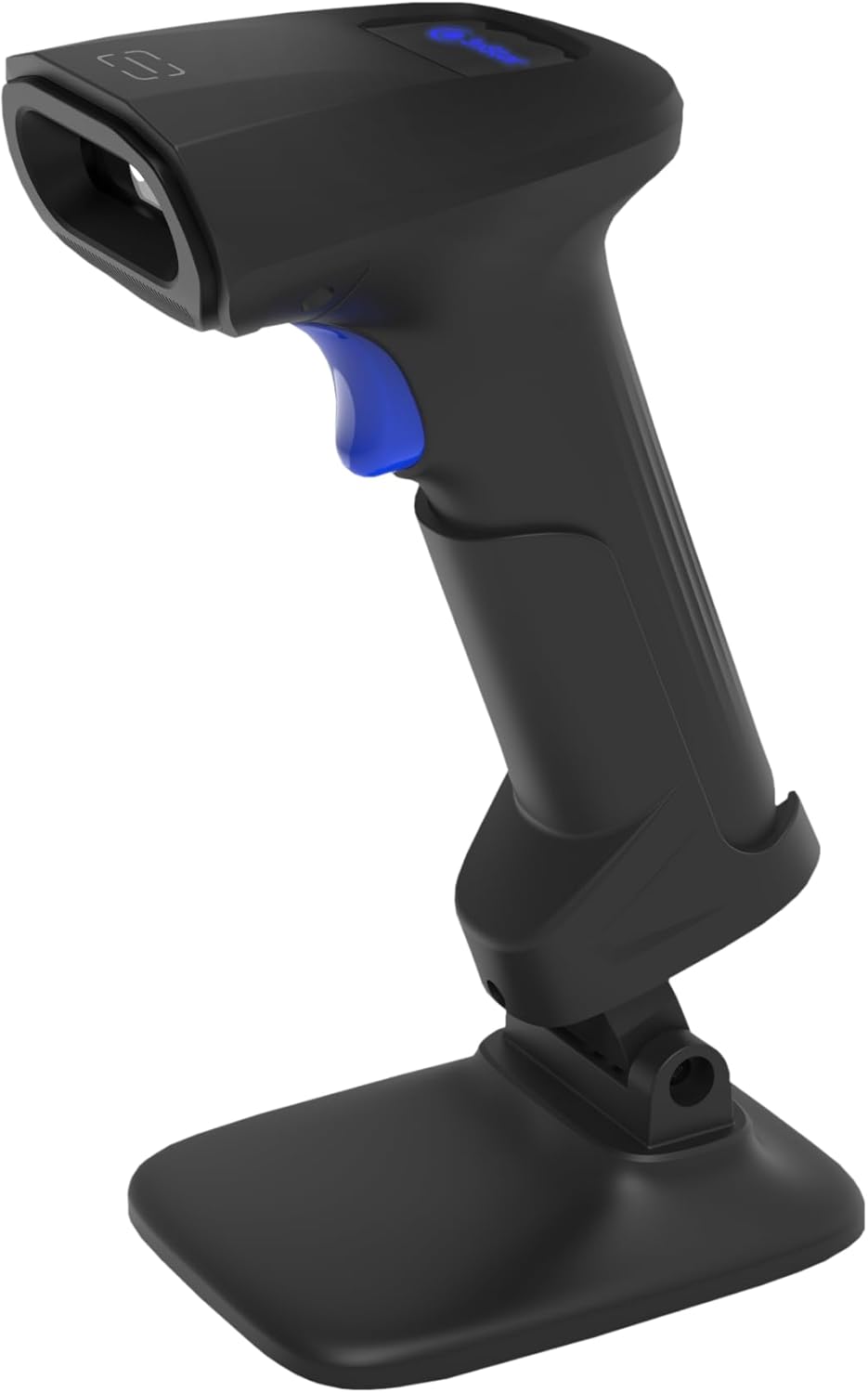
Image: The 3nStar SC415 barcode scanner securely placed in its dedicated base, ready for hands-free operation. The base provides stability and enables the autosense scanning mode.
Інструкцыя па эксплуатацыі
The SC415 scanner offers flexible operation modes:
Ручнае сканіраванне
- Трымайце сканер: Зручна трымайце сканер у руцэ.
- Aim at Barcode: Point the scanning window towards the barcode you wish to read.
- Націсніце курок: Press the trigger button located on the handle. A red aiming beam will appear.
- Scan Confirmation: Once the barcode is successfully read, the scanner will emit an audible beep and/or a visual indicator (e.g., LED flash). The data will be transmitted to your connected device.

Image: The 3nStar SC415 barcode scanner shown in a handheld position, illustrating how to grip the device for manual scanning. The blue trigger button is visible for activation.
Autosense (Hands-Free) Scanning
When the scanner is placed in its base, it automatically enters autosense mode:
- Размясціць элемент: Present the barcode of the item in front of the scanner's window.
- Аўтаматычнае сканаванне: The scanner will automatically detect the barcode and read it without requiring you to press the trigger.
- Scan Confirmation: A successful scan will be indicated by an audible beep and/or visual cue.
Scanning Mobile Phone Screens
The SC415 is capable of reading barcodes directly from mobile device screens. Ensure the screen brightness is adequate and avoid glare for optimal performance.
Тэхнічнае абслугоўванне
Належнае абслугоўванне забяспечвае даўгавечнасць і аптымальную прадукцыйнасць вашага сканера:
- Ачыстка акна сканавання: Выкарыстоўвайце мяккую тканіну без ворса, злёгкуampened with water or a mild, non-abrasive cleaner, to wipe the scanning window. Avoid using harsh chemicals, solvents, or abrasive materials, as these can damage the window.
- Ачыстка Casing: Працярыце вонкавую паверхню casinпрацярыце мяккай сухой тканінай.
- Праверка кабеля: Periodically check the USB cable for any signs of wear, cuts, or damage. Replace if necessary.
- захоўванне: Калі сканер не выкарыстоўваецца, захоўвайце яго ў чыстым, сухім месцы, удалечыні ад экстрэмальных тэмператур і прамых сонечных прамянёў.
Ліквідацыю непаладак
If you encounter issues with your SC415 scanner, refer to the following common problems and solutions:
| праблема | Магчымая прычына | Рашэнне |
|---|---|---|
| Сканер не ўключаецца | USB-кабель не падключаны або няспраўны. | Ensure the USB cable is securely connected to both the scanner and the host device. Try a different USB port or cable. |
| Сканер не чытае штрых-коды | Barcode damaged or poorly printed. Incorrect aiming. Scanner not configured for barcode type. | Ensure the barcode is clear and undamaged. Aim the scanner directly at the center of the barcode. Refer to the programming guide (if available) to ensure the scanner supports the barcode type. |
| No data transmitted after scan | Incorrect interface settings. Host device not ready to receive input. | Verify the scanner is recognized by the host device (e.g., check Device Manager). Ensure the application on your computer is active and ready to receive keyboard input. |
| Autosense mode not working | Scanner not properly seated in base. Autosense feature disabled. | Ensure the scanner is firmly placed in its base. If issues persist, consult the full programming manual for autosense activation settings. |
Калі гэтыя дзеянні не вырашаць вашу праблему, звярніцеся ў службу падтрымкі кліентаў.
Тэхнічныя характарыстыкі
Key technical specifications for the 3nStar SC415 Handheld Barcode Scanner:
| Асаблівасць | Дэталь |
|---|---|
| мадэль | SC415 |
| Хуткасць сканавання | 60 старонак у секунду |
| Тэхналогія падлучэння | Кабель USB |
| Крыніца харчавання | Правадная электрычная |
| Сумяшчальныя прылады | Desktop, Laptop, POS systems |
| Вага прадмета | 4.5 унцыі |
| Памеры ўпакоўкі | 8.66 х 5.12 х 4.33 цалі |
| Вытворца | 3nStar |
Інфармацыя аб гарантыі
The 3nStar SC415 Handheld Barcode Scanner is covered by a manufacturer's warranty. For specific details regarding warranty duration and terms, please refer to the warranty card included with your product or visit the official 3nStar webсайт.
Падтрымка кліентаў
For further assistance, technical support, or inquiries regarding your 3nStar SC415 scanner, please contact 3nStar customer service. You can find contact information on the official 3nStar webна сайце або праз дакументацыю да вашага прадукту.
Наведайце ст 3nStar Store for more information on 3nStar products.