
Уводзіны
Thank you for choosing the SENGBIRCH Keyboard Case for your Lenovo Tab M11 11" 2024. This manual provides essential information for the proper setup, operation, and maintenance of your new keyboard case. Please read it thoroughly before use to ensure optimal performance and longevity of the product.
Змест пакета
- 1 x Protective Case with Bluetooth Keyboard
- 1 х кабель для зарадкі USB-C
- 1 х Кіраўніцтва карыстальніка
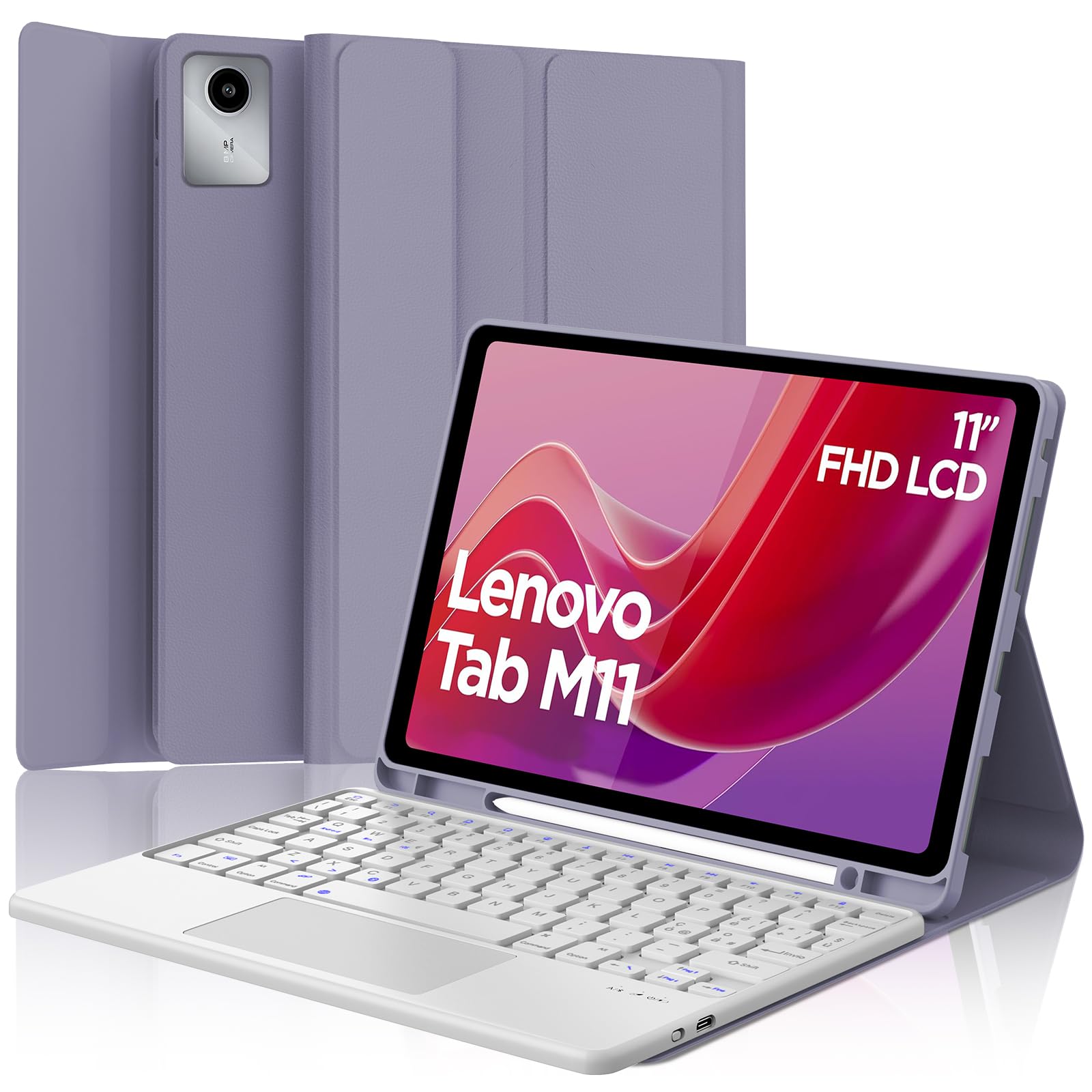
Image: The SENGBIRCH Keyboard Case for Lenovo Tab M11 11" 2024, showcasing the keyboard and protective cover.
Інструкцыя па наладзе
1. Праверка сумяшчальнасці
This keyboard case is specifically designed for the Lenovo Tab M11 11" 2024 (Models TB330FU/TB330XU). Please verify your tablet model before proceeding.

Image: A visual guide illustrating compatibility with the Lenovo Tab M11 11" 2024 and incompatibility with other models like Lenovo Tab M10 Plus Gen 3 and Lenovo Tab M10.
2. Зарадка клавіятуры
- Падключыце зарадны кабель USB-C з камплекта да зараднага порта клавіятуры.
- Падключыце другі канец кабеля да адаптара харчавання USB (не ўваходзіць у камплект) або да USB-порта кампутара.
- Індыкатар зарадкі загарыцца. Поўная зарадка зойме 2-3 гадзіны.

Image: Close-up of the keyboard showing the USB-C charging port and a charging cable connected, indicating battery life and silent scissor keys.
3. Спарванне Bluetooth
- Ensure the keyboard is charged. Turn on the keyboard by sliding the power switch.
- Націсніце Злучыцца button on the keyboard (usually indicated by a Bluetooth icon). The Bluetooth indicator light will start blinking.
- On your Lenovo Tab M11, go to Налады > Bluetooth і ўключыце Bluetooth.
- Your tablet will search for available devices. Select "Bluetooth Keyboard" or a similar name from the list.
- Once paired, the Bluetooth indicator light on the keyboard will stop blinking.

Image: A diagram illustrating the wireless Bluetooth connection of the keyboard to various devices, including smartphones, tablets, and laptops, supporting iOS, Android, and Windows operating systems.
4. Inserting the Tablet into the Case
Carefully align your Lenovo Tab M11 with the protective case. Ensure all ports, buttons, and the camera are correctly aligned with the case's precise cutouts. The magnetic design will help secure the tablet and keyboard in place.
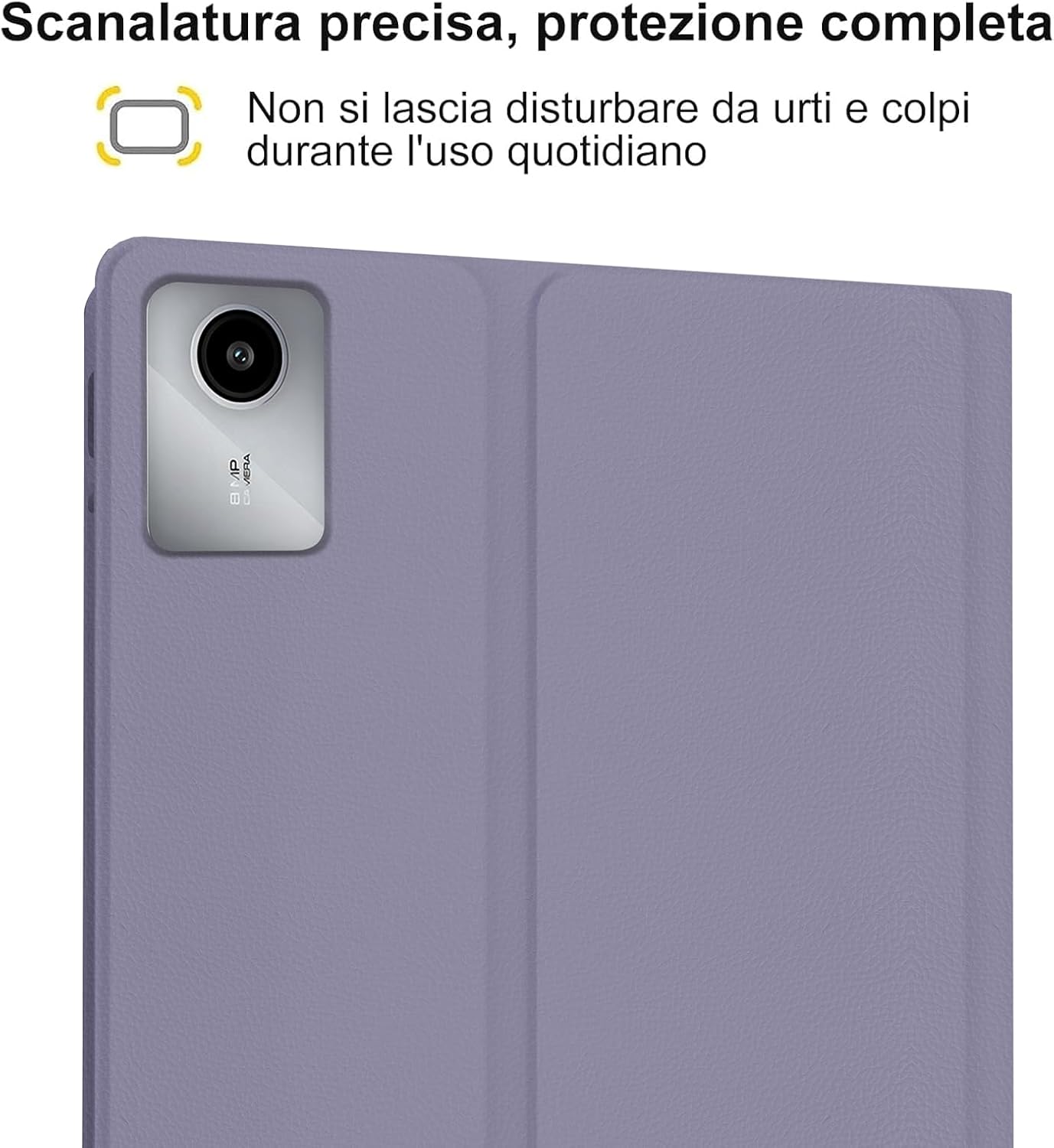
Image: A close-up of the tablet's camera module perfectly aligned with the precise cutout in the protective case, emphasizing full protection against daily impacts.
Інструкцыя па эксплуатацыі
1. Using the Keyboard
The keyboard features an Italian QWERTY layout. It provides a tactile typing experience with scissor-key mechanisms for comfortable and efficient input. Familiarize yourself with the function keys (Fn) for shortcuts.

Выява: Падрабязны view of the Italian QWERTY keyboard layout, highlighting its magnetic attachment, over 100 hours of battery life, and USB-C charging capability.
2. Using the Trackpad
The integrated trackpad allows for precise navigation and control, similar to a laptop. It supports multi-touch gestures (e.g., two-finger scroll, pinch-to-zoom) depending on your tablet's operating system settings.
3. Рэгуляванне падсветкі
The keyboard features 7-color backlighting with 3 adjustable brightness levels. Use the dedicated backlight key (often indicated by a light bulb icon or Fn + a specific key) to cycle through colors and brightness settings.
4. Automatic Wake/Sleep Function
The case supports automatic wake/sleep functionality. Opening the case will wake your tablet, and closing it will put your tablet to sleep, conserving battery life.

Image: Two illustrations demonstrating the automatic wake-up function when the case is opened and the automatic sleep function when the case is closed.
5. Рэгуляваны Viewвуглавыя куты
The case allows you to adjust the tablet's viewing angle for comfortable use, whether typing, watching videos, or browsing. The non-slip grooves ensure stability at various angles.
Image: A diagram showing the tablet case propped up at different viewing angles (120°, 125°, 130°) with non-slip grooves for stability, illustrating ergonomic viewныя пазіцыі.
Тэхнічнае абслугоўванне
Чыстка корпуса і клавіятуры
- Працярыце вонкавую паверхню корпуса мяккай губкайamp тканінай. Пазбягайце агрэсіўных хімічных рэчываў або абразіўных ачышчальнікаў.
- For the keyboard, use a soft, dry cloth or a can of compressed air to remove dust and debris from between the keys.
- Перад чысткай пераканайцеся, што клавіятура выключана.
Сыход за батарэяй
- Рэгулярна зараджайце клавіятуру, каб падтрымліваць яе ў працоўным стане.
- Пазбягайце частай поўнай разрадкі акумулятара.
- Калі клавіятура захоўваецца працяглы час, зарадзіце яе прыкладна да 50% і захоўвайце ў прахалодным, сухім месцы.
Ліквідацыю непаладак
Клавіятура не падключаецца праз Bluetooth
- Праверце акумулятар: Пераканайцеся, што клавіятура цалкам зараджана.
- Цыкл харчавання: Выключыце клавіятуру, а затым зноў уключыце.
- Паўторная пара: Delete the keyboard from your tablet's Bluetooth device list and attempt to pair it again.
- Tablet Bluetooth: Ensure your tablet's Bluetooth is enabled and functioning correctly.
Падсвятленне не працуе
- Праверце магутнасць: Пераканайцеся, што клавіятура мае дастатковы зарад батарэі.
- Клавіша падсветкі: Press the backlight key (or Fn + backlight key) to cycle through brightness levels and colors.
Trackpad Not Responding
- Злучэнне Bluetooth: Пераканайцеся, што клавіятура правільна падключана праз Bluetooth.
- Перазапуск: Выключыце і ўключыце клавіятуру.
- Tablet Settings: Check your tablet's settings for trackpad or mouse options to ensure it's enabled.
Праблемы з зарадкай
- Праверка кабеля: Пераканайцеся, што кабель USB-C надзейна падключаны як да клавіятуры, так і да крыніцы харчавання.
- Крыніца харчавання: Try a different USB power adapter or computer USB port.
- Пашкоджанне кабеля: Inspect the charging cable for any signs of damage.
Тэхнічныя характарыстыкі
| Асаблівасць | Дэталь |
|---|---|
| Марка | СЕНГБЕРОЗА |
| Сумяшчальныя прылады | Lenovo Tab M11 11" 2024 (TB330FU/TB330XU) |
| Тэхналогія падлучэння | Bluetooth |
| Апісанне клавіятуры | Accessible (Italian QWERTY Layout) |
| Асаблівасць | Trackpad, Backlit Keyboard (7 colors, 3 brightness levels) |
| Крыніца харчавання | Працуе ад батарэі (літый-палімерная) |
| Тэрмін службы батарэі (бесперапыннае выкарыстанне) | Да 24 гадзін (3 дзён) |
| Час чакання | 3 месяцаў |
| Час зарадкі | 2-3 гадзіны (праз USB-C) |
| Матэрыял | TPU, ABS, Synthetic Leather |
| Вага прадмета | 700 г |
| Памеры ўпакоўкі | 26 х 18 х 3 см |
Інфармацыя аб гарантыі
This SENGBIRCH product comes with a двухгадовая гарантыя from the date of purchase. This warranty covers manufacturing defects and issues arising from normal use. It does not cover damage caused by misuse, accidents, unauthorized modifications, or normal wear and tear.
Калі ласка, захавайце доказы пакупкі для прэтэнзій па гарантыі.
Падтрымка
If you encounter any problems or have questions regarding your SENGBIRCH Keyboard Case, please do not hesitate to contact our customer support team. We are committed to providing satisfactory service and assistance.
For support, please refer to the contact information provided on the product packaging or the official SENGBIRCH webсайт.