
1. Уводзіны
This manual provides detailed instructions for the setup, operation, and maintenance of your Transformers GK01 Wireless Mechanical Keyboard. The GK01 is a versatile keyboard featuring tri-mode connectivity (Bluetooth 5.0, 2.4GHz wireless, and USB-C wired), a 101-key layout, RGB backlighting, and hot-swappable switches for a customizable typing experience.

Figure 1.1: Transformers GK01 Wireless Mechanical Keyboard.
2. Змесціва ўпакоўкі
Калі ласка, пераканайцеся, што ўсе пералічаныя ніжэй прадметы ўваходзяць у ваш пакет:
- Transformers GK01 Wireless Mechanical Keyboard
- Кабель USB-C да USB-A
- Бесправадны USB-адаптар 2.4 ГГц
- 2-у-1 Keycap і здымнік выключальніка
- Кіраўніцтва карыстальніка (гэты дакумент)
- Запасныя перамыкачы (2 штукі)
- Чахол для клавіятуры
3. Налада і падключэнне
3.1. Tri-Mode Connection Overview
The GK01 keyboard supports three connection modes: USB-C wired, 2.4GHz wireless, and Bluetooth 5.0. You can connect to up to five devices simultaneously and switch between them seamlessly.

Figure 3.1: Tri-Mode Connection Capabilities.
3.2. Правадное падключэнне USB-C
- Знайдзіце порт USB-C на клавіятуры.
- Падключыце адзін канец кабеля USB-C, які ўваходзіць у камплект, да клавіятуры.
- Connect the other end of the USB-C cable to an available USB-A port on your computer.
- Клавіятура будзе аўтаматычна распазнана і гатовая да выкарыстання.
3.3. Бесправадное злучэнне 2.4 ГГц
- Locate the 2.4GHz wireless USB dongle.
- Падключыце электронны ключ да даступнага порта USB-A на вашым кампутары.
- On the keyboard, ensure the mode switch (usually on the side or back) is set to 2.4GHz mode.
- The keyboard should connect automatically. If not, press Fn + R каб пачаць спалучэнне.

Figure 3.2: USB-C Port and 2.4GHz Dongle Location.
3.4. Падключэнне Bluetooth 5.0
The keyboard supports connecting to up to three Bluetooth devices (BT1, BT2, BT3).
- On the keyboard, set the mode switch to Bluetooth mode.
- Каб перайсці ў рэжым спалучэння для пэўнага канала Bluetooth, націсніце і ўтрымлівайце Fn + Q (для BT1), Fn + W (для BT2), або Fn + E (for BT3) for 3-5 seconds until the indicator light flashes rapidly.
- On your device (PC, tablet, smartphone), open Bluetooth settings and search for new devices.
- Select "Transformers GK01" from the list of available devices.
- Once connected, the indicator light on the keyboard will stop flashing.
- Каб пераключыцца паміж падлучанымі прыладамі Bluetooth, проста націсніце Fn + Q, Fn + W, або Fn + E.
4. Асноўная аперацыя
4.1. Keyboard Layout and Anti-Ghosting
The GK01 features a 101-key layout, providing a full set of keys including a numeric keypad. All keys are equipped with anti-ghosting technology, ensuring that every keystroke is registered accurately, even when multiple keys are pressed simultaneously.
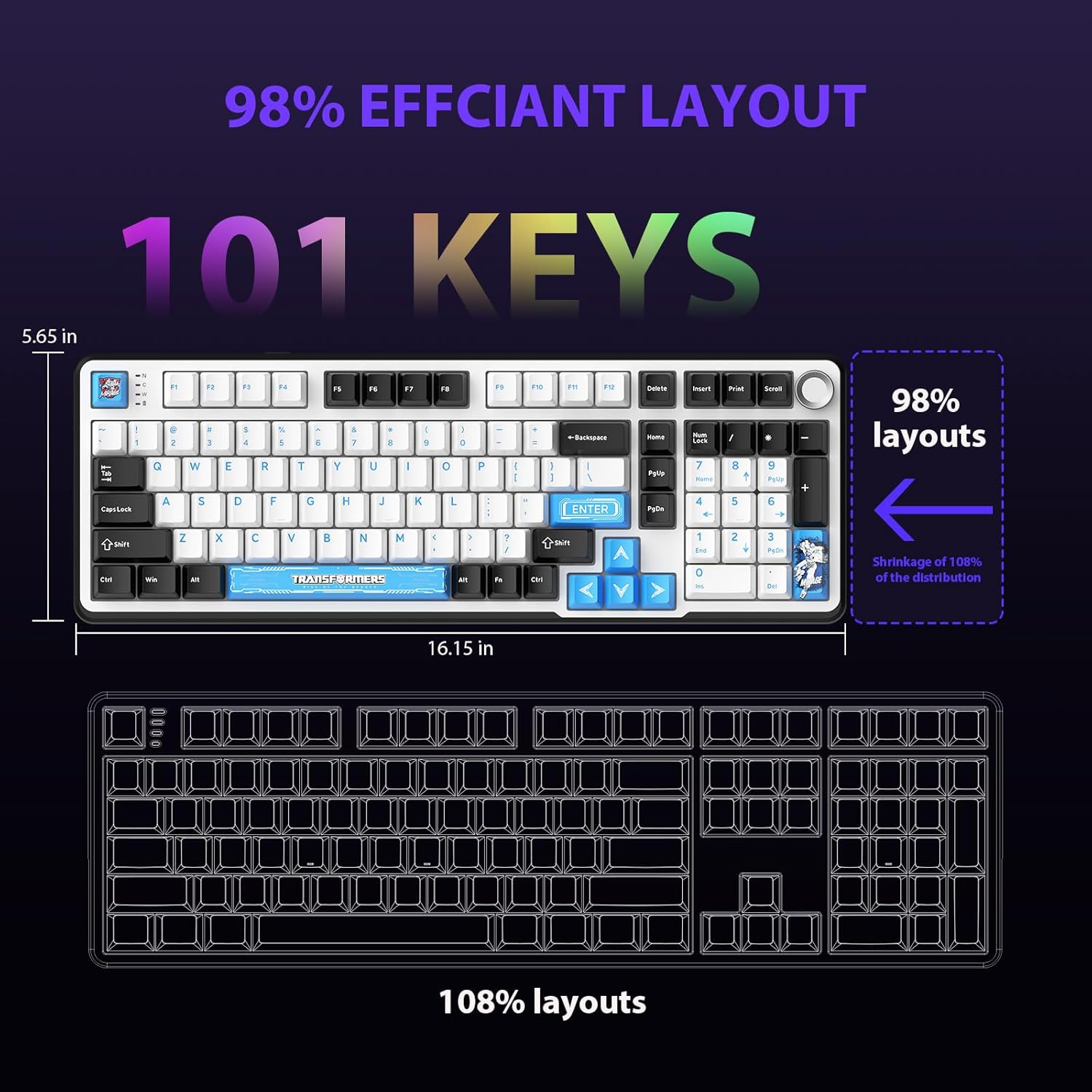
Figure 4.1: 101-Key Layout.
4.2. Multimedia Control Knob
The dedicated knob located on the top right of the keyboard provides convenient multimedia control:
- Паварот па гадзіннікавай стрэлцы: Павялічыць гучнасць.
- Павярнуць супраць гадзіннікавай стрэлкі: Паменшыць гучнасць.
- Націсніце ўніз: Уключыць/выключыць гук.
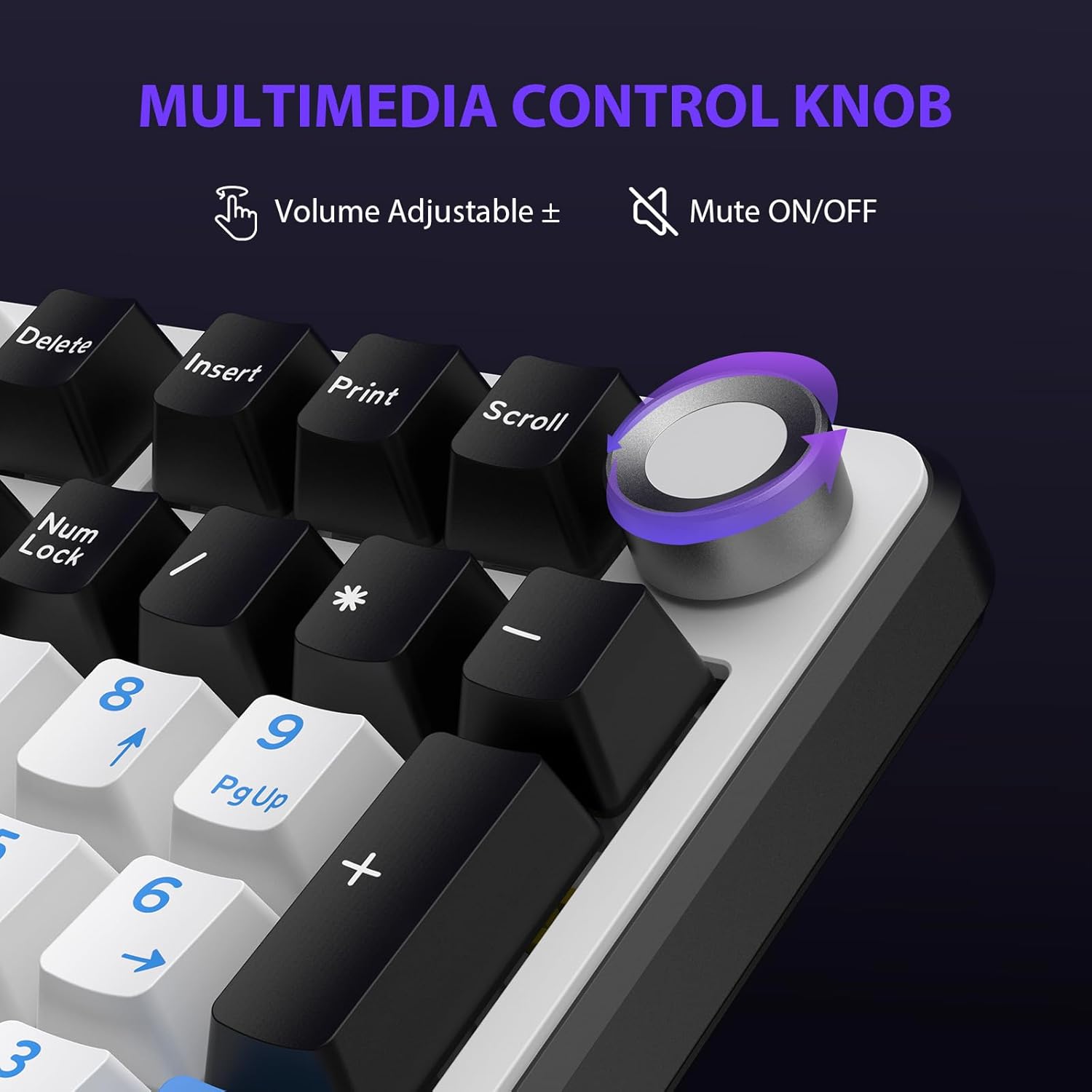
Figure 4.2: Multimedia Control Knob.
4.3. Кіраванне падсветкай RGB
The GK01 keyboard features 16.8 million color RGB backlighting with various effects.
- Fn + [Right Arrow]: Adjust 5 brightness levels.
- Fn + [Left Arrow]: Adjust 5 speed levels for dynamic effects.
- Fn + [Уставіць]: Switch between 20 different backlight modes.
- Fn + [Увядзіце]: Switch color order within certain modes.
- Fn + [X]: Turn off light / activate power-saving mode.
- Fn + [Backspace]: Switch color order within certain modes.

Figure 4.3: RGB Backlight Controls.
5. Пашыраныя магчымасці
5.1. Камутатары з магчымасцю гарачай замены
The GK01 keyboard is equipped with pre-lubricated Cybertron linear switches and supports solder-free hot-swapping. This allows you to easily replace switches with compatible 3-pin or 5-pin mechanical switches without soldering.
Каб замяніць перамыкач:
- Using the provided 2-in-1 keycap and switch puller, gently remove the keycap from the desired switch.
- Insert the switch puller onto the switch, ensuring it grips the top and bottom clips of the switch.
- Акуратна пацягніце перамыкач прама ўверх, каб зняць яго з друкаванай платы.
- Сумясціце кантакты новага перамыкача з адтулінамі на друкаванай плаце. Пераканайцеся, што кантакты размешчаны прама, каб пазбегнуць згінання.
- Моцна націсніце на новы перамыкач, пакуль ён не пстрыкне.
- Зноў прымацуйце каўпачок клавішы.

Figure 5.1: Hot-Swappable Switch Replacement.
5.2. Programmable Software
The GK01 supports custom software for advanced customization, including key remapping, macro creation, and detailed RGB lighting effects.
- The software is compatible only with the Windows operating system.
- The keyboard must be connected via USB-C wired mode to use the software.
- For driver download, please visit the official Transformers Keyboard website or refer to the link provided in the product packaging.
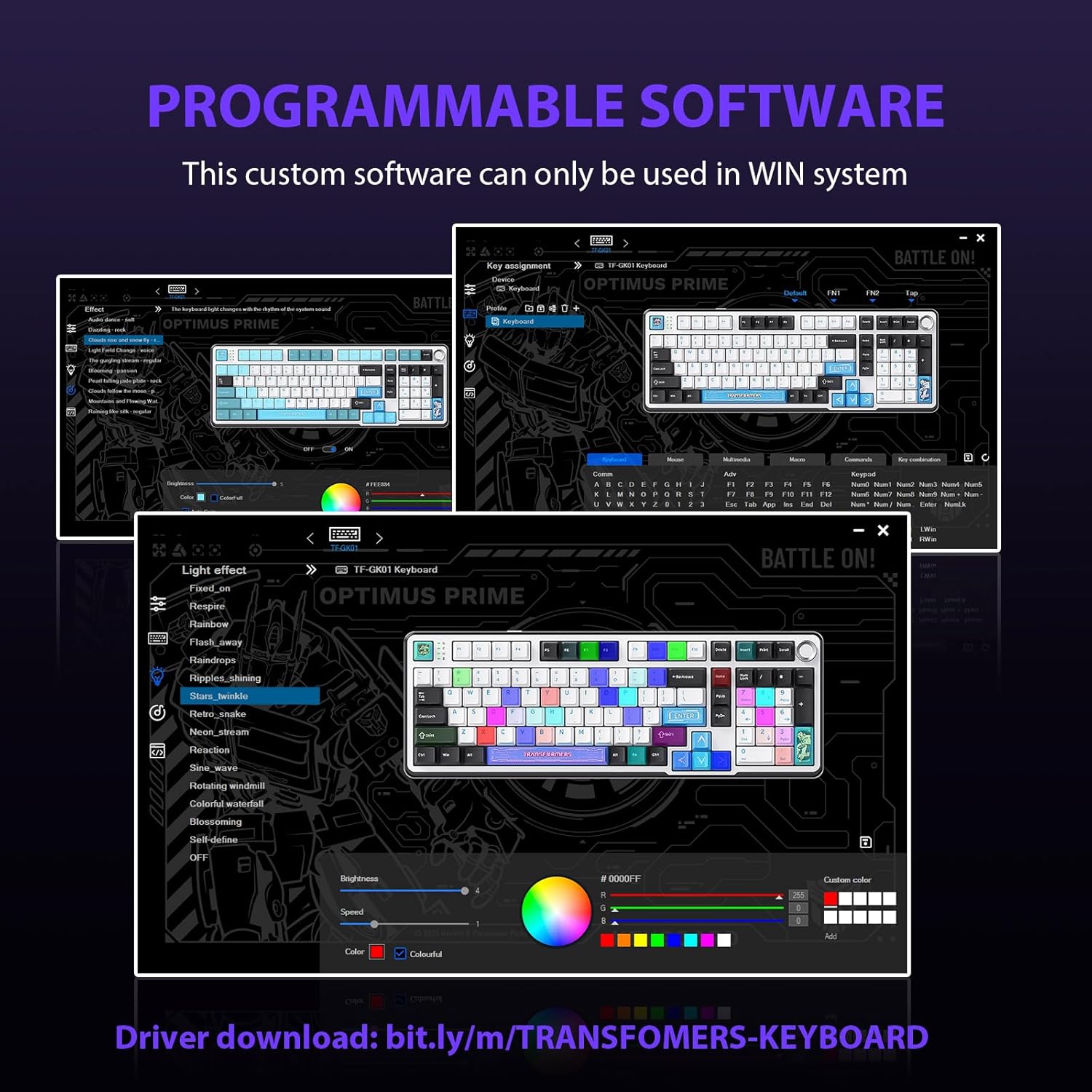
Figure 5.2: Programmable Software Interface.
5.3. Gasket Mounted Structure
The keyboard features a five-layer sound-absorbing and shock-absorbing gasket mounted structure. This design effectively reduces hollow noise and provides a softer, more consistent typing feel by isolating the plate from the case.
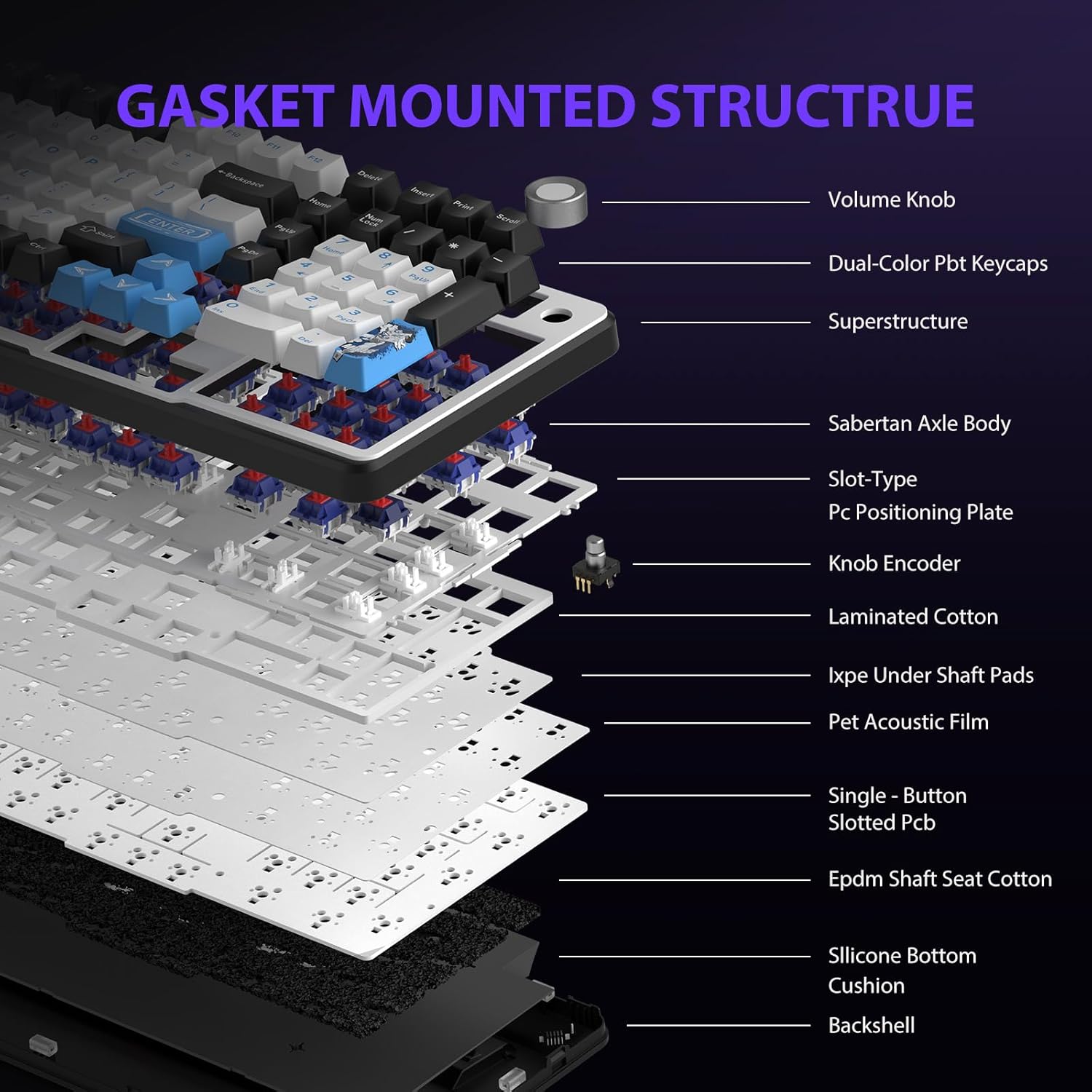
Figure 5.3: Gasket Mounted Structure Components.
6. Кіраванне батарэяй
The GK01 keyboard is equipped with a 4000mAh rechargeable battery.
- Зарадка: Connect the keyboard to a USB power source using the provided USB-C cable. The indicator light will show charging status.
- Тэрмін службы батарэі: A fully charged battery provides extended usage time. Actual battery life may vary based on usage patterns and RGB lighting intensity.
- Энергазберажэнне: The keyboard will enter a power-saving sleep mode after a period of inactivity to conserve battery. Press any key to wake it up.
7. Тэхнічнае абслугоўванне
7.1. Чыстка клавіятуры
- Перад чысткай адключыце клавіятуру ад усіх крыніц харчавання.
- Выкарыстоўвайце мяккую безворсовую тканіну, злёгку dampпрамыйце вадой або мяккім ачышчальным растворам, каб праціраць клавішы і корпус.
- Для выдалення пылу і смецця паміж клавішамі выкарыстоўвайце сціснутае паветра або невялікую шчотку.
- Пазбягайце выкарыстання агрэсіўных хімікатаў або абразіўных матэрыялаў.
7.2. Сыход за клавішамі і перамыкачамі
- The PBT keycaps are designed for durability and fade resistance.
- Refer to Section 5.1 for instructions on safely removing and replacing keycaps and switches.
- Ensure the keyboard feet are clean and free of debris for stable placement.

Figure 7.1: Adjustable Keyboard Feet.
8. Выпраўленне непаладак
| праблема | Магчымая прычына | Рашэнне |
|---|---|---|
| Клавіятура не рэагуе ў бесправадным рэжыме. | Low battery, incorrect mode selected, dongle not connected, Bluetooth not paired. | Charge the keyboard. Ensure the mode switch is set correctly (2.4GHz or BT). Re-insert the 2.4GHz dongle. Re-pair Bluetooth connection. Try wired mode to confirm keyboard functionality. |
| Клавішы не рэгіструюцца або ўводзяцца два разы. | Loose switch, software issue, debris under keycap. | Ensure switches are fully seated. Clean under keycaps. If using programmable software, ensure it's updated or try resetting keyboard settings. |
| RGB-падсветка не працуе або завісла. | Падсветка выключана, канфлікт праграмнага забеспячэння. | Прэса Fn + X to toggle backlight. Check programmable software settings. |
| Немагчыма падключыцца праз Bluetooth. | Keyboard not in pairing mode, device Bluetooth off, interference. | Ensure keyboard is in Bluetooth pairing mode (Fn + Q/W/E long press). Ensure device Bluetooth is on and discoverable. Move closer to the device. |
9. Тэхнічныя характарыстыкі
| Асаблівасць | Дэталь |
|---|---|
| Нумар мадэлі | TF-GK01 |
| Сувязь | Bluetooth 5.0, бесправадная сувязь 2.4 ГГц, правадны USB-C |
| Тып клавіятуры | Механічны |
| Макет | 101 клавішы (поўнапамерныя) |
| Выключальнікі | Pre-lubed Cybertron Linear Switches, Hot-Swappable (3-pin/5-pin compatible) |
| Клавішы | Heat-sublimated PBT |
| Падсвятленне | RGB (16.8 Million Colors, 20 modes, music rhythm effects via driver) |
| Ёмістасць батарэі | 4000 мАг |
| Памеры прадукту | 16.15 х 5.65 х 1.63 цалі (41.02 х 14.35 х 4.14 см) |
| Вага прадмета | 2.24 фунта (1.02 кг) |
| Сумяшчальныя прылады | Ноўтбук, ПК, смартфон, планшэт |
| Асаблівасці | Anti-Ghosting (all keys), Multimedia Control Knob, Programmable Keys (via software), Rechargeable |
10. Гарантыя і падтрымка
For information regarding warranty coverage, technical support, or service inquiries, please refer to the warranty card included with your product or visit the official Transformers Keyboard webсайт.
вытворца: Трансформеры