
Уводзіны
This manual provides comprehensive instructions for the setup, operation, maintenance, and troubleshooting of your KOORUI GN10 27-inch QHD 240Hz Mini-LED Gaming Monitor. Please read this manual thoroughly before using the product to ensure proper functionality and to prevent damage.
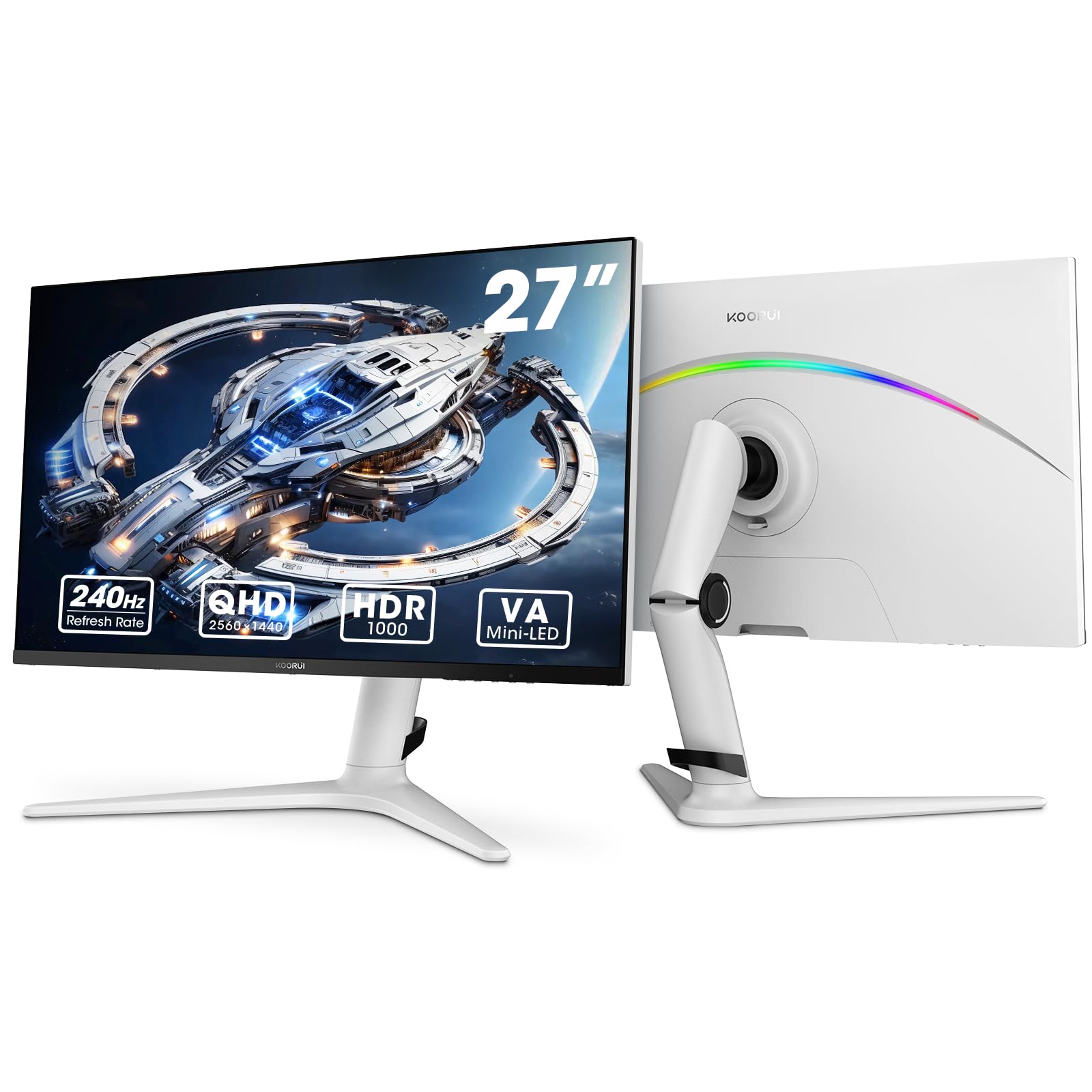
Figure 1: KOORUI GN10 27-inch QHD 240Hz Mini-LED Gaming Monitor.
1. Настройка
1.1 Распакоўка і змесціва ўпакоўкі
Асцярожна выміце ўсе кампаненты з упакоўкі. Праверце наяўнасць усіх пералічаных ніжэй элементаў:
- KOORUI GN10 Monitor
- Падстаўка для манітора (аснова і кранштэйны)
- Сілавы кабель
- Кабель HDMI (x2)
- Кабель DisplayPort (DP)
- Кіраўніцтва карыстальніка (гэты дакумент)
1.2 Зборка падстаўкі
Каб сабраць падстаўку для манітора, выканайце наступныя дзеянні:
- Attach the stand arm to the monitor panel. Ensure it clicks securely into place or is fastened with screws if provided.
- Connect the stand base to the stand arm. Tighten any screws to secure the base.
- Змесціце сабраны манітор на ўстойлівую, роўную паверхню.

Figure 2: Monitor stand showing height, tilt, swivel, and pivot adjustments.
The ergonomic stand allows for height, tilt, swivel, and pivot adjustments to optimize your viewкут нахілу.

Малюнак 3: Памеры манітора для планавання размяшчэння.
1.3 Падключэнне да прылад
The monitor supports multiple input sources. Connect your computer or gaming console using the provided cables.
- DisplayPort (DP): For optimal performance, especially at 240Hz refresh rate and QHD resolution, use the DisplayPort cable.
- HDMI: Two HDMI 2.0 ports are available for connecting other devices such as gaming consoles (PS5, Xbox, Switch) or additional computers.
- Аўдыёвыхад: Connect external speakers or headphones to the 3.5mm audio output jack.

Малюнак 4: Задняя частка view of the monitor showing available ports (Audio Out, DP 1.4, HDMI 2.0 x2) and VESA mount points.
1.4 Першапачатковае ўключэнне
- Падключыце кабель харчавання да манітора, а затым да разеткі.
- Press the power button, usually located on the back or bottom of the monitor, to turn it on.
- The monitor will automatically detect the input source. If not, use the OSD menu to select the correct input.
2. Інструкцыя па эксплуатацыі
2.1 Экраннае меню (OSD).
The OSD menu allows you to adjust various monitor settings. Access the OSD menu using the joystick or buttons typically located on the back or bottom of the monitor.
Common OSD menu options include:
- Налады малюнка: Яркасць, кантраснасць, рэзкасць, гама.
- Налады колеру: Color Temperature, Hue, Saturation, Color Space (sRGB, DCI-P3).
- Выбар уводу: Ручное пераключэнне паміж уваходамі DisplayPort і HDMI.
- Аўдыё: Рэгуляванне гучнасці для аўдыёвыхаду.
- Гульнявыя асаблівасці: Adaptive Sync, Response Time (Overdrive), Game Modes.
- Налады экраннага меню: Мова, час чакання экраннага меню, празрыстасць.
2.2 Налады дысплея
The KOORUI GN10 monitor offers advanced display features for an enhanced visual experience.
- дазвол: The native resolution is QHD (2560 x 1440). Ensure your connected device is set to this resolution for optimal clarity.
- Частата абнаўлення: Supports up to 240Hz. Configure your graphics card settings to utilize this high refresh rate for smoother motion.
- Час водгуку: Features a 1ms (GtG) response time, reducing motion blur and ghosting in fast-paced content.
- HDR 1000: High Dynamic Range 1000 provides superior contrast and color depth. Enable HDR in your operating system and monitor settings for compatible content.

Figure 5: Visual comparison illustrating the enhanced contrast and detail with HDR 1000 enabled.

Figure 6: Comparison of QHD (2560x1440) and FHD (1920x1080) resolutions, highlighting increased detail with QHD.
2.3 Гульнявыя функцыі
The monitor includes features designed to enhance your gaming experience:
- Adaptive Sync (G-Sync Compatible): Synchronizes the monitor's refresh rate with your GPU's frame rate to eliminate screen tearing and stuttering. Ensure this feature is enabled in both the monitor OSD and your graphics card control panel.
- Game Display Modes: Access specific on-screen overlays via the OSD menu, such as:
- Крыжык: Забяспечвае экранны прыцэл для паляпшэння прыцэльвання.
- Таймер: Displays a countdown timer.
- Лічыльнік FPS: Shows your current frames per second.
- RTS Counter: A specific counter for Real-Time Strategy games.

Figure 7: Illustration of various exclusive game display modes and Adaptive Sync functionality.

Figure 8: Visual representation of smooth gaming experience with 240Hz refresh rate and 1ms response time.
2.4 RGB-асвятленне
The monitor features a crescent RGB light strip on the back. This lighting can be customized through the OSD menu to match your preference or gaming setup.

Малюнак 9: Задняя частка view of the monitor highlighting the customizable RGB light strip.
3. Тэхнічнае абслугоўванне
3.1 Чыстка манітора
Каб падтрымліваць знешні выгляд і прадукцыйнасць манітора, выконвайце наступныя рэкамендацыі па чыстцы:
- Заўсёды выключайце манітор і адключайце кабель сілкавання ад сеткі перад чысткай.
- Выкарыстоўвайце мяккую безворсовую тканіну, злёгку dampвадой або неабразіўным ачышчальнікам для экрана.
- Не распыляйце ачышчальнік непасрэдна на экран. Спачатку нанясіце яго на тканіну.
- Пазбягайце выкарыстання спірту, аміяку або абразіўных ачышчальнікаў, бо яны могуць пашкодзіць паверхню экрана.
- Акуратна працярыце экран, каб выдаліць пыл і плямы.
- Ачысціце манітор casinпрацярыце мяккай сухой тканінай.
3.2 Агульны догляд
- Не кладзіце цяжкія прадметы на манітор або яго кабелі.
- Не падвяргайце манітор уздзеянню прамых сонечных прамянёў, празмернага нагрэву або моцнага холаду.
- Keep the monitor away from liquids and high humidity environments.
- Забяспечце дастатковую вентыляцыю вакол манітора, каб прадухіліць перагрэў.
4. Выпраўленне непаладак
Калі ў вас узніклі праблемы з маніторам, звярніцеся да наступных распаўсюджаных праблем і іх рашэнняў:
| праблема | Магчымая прычына | Рашэнне |
|---|---|---|
| Няма выявы на экране |
|
|
| Мігценне або скажэнне выявы |
|
|
| Няма гуку з аўдыёвыхаду |
|
|
| Адаптыўная сінхранізацыя не працуе |
|
|
Калі праблема не знікне пасля выкарыстання гэтых рашэнняў, звярніцеся ў службу падтрымкі кліентаў.
5. Тэхнічныя характарыстыкі
| Асаблівасць | Дэталь |
|---|---|
| Марка | КООРУІ |
| Нумар мадэлі | GN10 |
| Памер экрана | 27 цалі |
| дазвол | QHD Wide 1440p (2560 x 1440) |
| Суадносіны бакоў | 16:9 |
| Паверхня экрана | Матавы |
| Каэфіцыент кантраснасці | 20,000,000:1 |
| Частата абнаўлення | 240 Гц |
| Тэхналогія адлюстравання | Міні-святлодыёд |
| Viewing кут | 178 градусаў |
| Яркасць | 350 Кандэла |
| Колеравая гама | 100% sRGB, 95% DCI-P3 |
| Час водгуку | 1 Millisecond (GtG) |
| Парты HDMI | 2 (HDMI 2.0) |
| DisplayPort | 1 (DP 1.4) |
| Аўдыёвыхад | так |
| Адаптыўная сінхранізацыя | Сумяшчальны з G-Sync |
| Дадатковыя магчымасці | Flicker-Free, Frameless, Height Adjustable, Tilt Adjustable, Swivel Adjustable, Rotatable |
| Колер | Белы/Шэры |
| Тып мацавання | Desk Mount, VESA 75x75mm compatible |
6. Гарантыя і падтрымка
6.1 Інфармацыя аб гарантыі
The KOORUI GN10 monitor comes with a 3-гадовая абмежаваная гарантыя. The display screen is backed for 1 year, and other accessories for 3 years. A 12-month replacement service is also provided for eligible issues.
This warranty covers manufacturing defects and malfunctions under normal use. It does not cover damage caused by misuse, accidents, unauthorized modifications, or external factors.
6.2 Падтрымка кліентаў
For technical assistance, warranty claims, or inquiries regarding missing accessories, please contact KOORUI customer support. Have your product model (GN10) and purchase information ready when contacting support.
Contact information can typically be found on the KOORUI official webсайт або праз каналы падтрымкі вашага прадаўца.
7. Відэадэманстрацыя прадукту
Відэа 1: Афіцыйнае відэа пра прадуктasing the KOORUI GN10 Gaming Monitor's features and design.