
Уводзіны
Thank you for choosing the Rapoo 9390M Wireless Multi-Mode Keyboard and Mouse Combo. This ultra-slim set offers versatile connectivity options, including 2.4 GHz wireless and Bluetooth 4.0/5.0, allowing seamless switching between multiple devices. Designed for efficiency and comfort, this combo features a full-size QWERTZ keyboard with multimedia keys and an ambidextrous optical mouse.
This manual provides essential information for setting up, operating, and maintaining your new Rapoo 9390M combo. Please read it carefully before use.
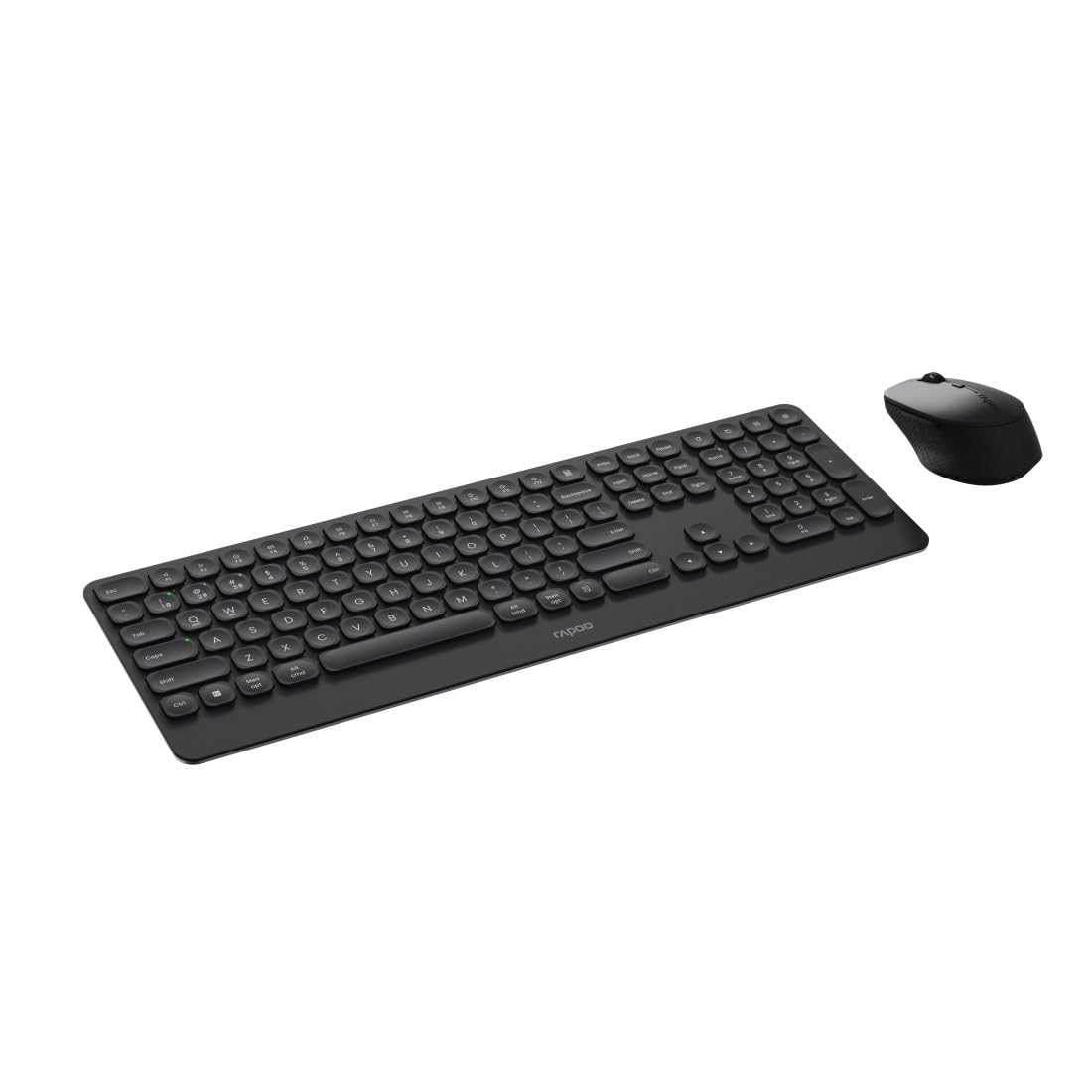
Image: The Rapoo 9390M wireless keyboard and mouse combo, showcasing its sleek design and full QWERTZ layout.
Настройка
1. Устаноўка батарэі
The Rapoo 9390M combo requires batteries for operation. Ensure correct polarity when inserting.
- Клавіятура: Requires 2 x AAA alkaline batteries.
- Мыш: Requires 1 x AA alkaline battery.
Batteries are included in the package.

Выява: Side profile of the Rapoo 9390M keyboard and mouse, illustrating their ultra-slim design. Battery compartments are typically located on the underside of each device.
2. Connecting the Devices
The Rapoo 9390M supports multi-mode connectivity: 2.4 GHz wireless via USB receiver and Bluetooth 4.0/5.0.
2.1. Бесправадное злучэнне 2.4 ГГц
- Insert the USB receiver into an available USB Type-A port on your computer or device.
- Уключыце клавіятуру і мыш, выкарыстоўваючы адпаведныя выключальнікі харчавання.
- Прылады павінны аўтаматычна падключыцца да вашага кампутара.
2.2. Злучэнне Bluetooth
The keyboard can pair with up to 3 Bluetooth devices, and the mouse with up to 2.
Keyboard Bluetooth Pairing:
- Уключыце клавіятуру.
- Націсніце і ўтрымлівайце fn+1, fn+2, або fn+3 for 3 seconds to select a Bluetooth channel. The indicator light will flash slowly.
- Open Bluetooth settings on your device (PC, laptop, tablet, TV).
- Пошук "Rapoo BT3.0 Keyboard" or "Rapoo BT5.0 Keyboard" and select to pair.
- Пасля спалучэння індыкатар перастане міргаць.
Mouse Bluetooth Pairing:
- Уключыце мышку.
- Press the Bluetooth pairing button on the underside of the mouse. The indicator light will flash slowly.
- Адкрыйце налады Bluetooth на прыладзе.
- Пошук "Rapoo BT3.0 Mouse" or "Rapoo BT5.0 Mouse" and select to pair.
- Пасля спалучэння індыкатар перастане міргаць.
Інструкцыя па эксплуатацыі
1. Пераключэнне паміж падлучанымі прыладамі
The Rapoo 9390M allows you to switch between multiple connected devices (up to 4 for keyboard, 3 for mouse, including 2.4 GHz).
- Клавіятура: Прэса fn+1, fn+2, fn+3 (for Bluetooth devices) or fn+4 (for 2.4 GHz USB receiver) to switch between paired devices.
- Мыш: Press the mode switch button on the underside of the mouse to cycle between Bluetooth 1, Bluetooth 2, and 2.4 GHz modes.
2. Функцыі клавіятуры
The keyboard features a full QWERTZ layout with 110 keys, including a numeric keypad and dedicated function keys.
- Мультымедыйныя ключы: Use the function keys (F1-F12) in combination with the Fn key to access multimedia controls (e.g., volume, play/pause, browser).
- Browser Buttons: Dedicated keys for browser functions may be present.

Выява: зверху ўніз view of the Rapoo 9390M keyboard and mouse, highlighting the QWERTZ key layout and mouse button configuration.
3. Функцыі мышы
The optical mouse features 5 buttons, including a scroll wheel, and adjustable DPI.
- Рэгуляванне DPI: The mouse supports a DPI range of up to 2400. A dedicated DPI button (often located near the scroll wheel) allows you to cycle through different sensitivity levels.
- Амбідэкстральны дызайн: The mouse is designed for comfortable use by both right-handed and left-handed users.
Тэхнічнае абслугоўванне
1. Уборка
To ensure optimal performance and longevity, keep your keyboard and mouse clean.
- Выкарыстоўвайце мяккую безворсовую тканіну, злёгку dampзмыць вадой або мяккім мыйным растворам.
- Пазбягайце агрэсіўных хімікатаў, абразіўных ачышчальнікаў або празмернай вільгаці.
- Для клавіятуры выкарыстоўвайце сціснутае паветра, каб выдаліць пыл і смецце паміж клавішамі.
2. Замена батарэі
When the battery indicator light flashes or performance degrades, it's time to replace the batteries.
- Open the battery compartment on the underside of the keyboard (2x AAA) and mouse (1x AA).
- Выміце старыя батарэйкі і ўтылізуйце іх адказна ў адпаведнасці з мясцовымі правіламі.
- Insert new alkaline batteries, ensuring correct polarity.
- Надзейна зачыніце батарэйны адсек.
Ліквідацыю непаладак
Праблемы з падключэннем
- No connection (2.4 GHz): Ensure the USB receiver is securely plugged into a working USB port. Try a different USB port. Ensure the keyboard and mouse are powered on.
- Няма падключэння (Bluetooth): Ensure Bluetooth is enabled on your device. Re-initiate the pairing process as described in the Setup section. Ensure the keyboard/mouse is in Bluetooth mode and not 2.4 GHz mode.
- Перарывістае падключэнне: Move the devices closer to the receiver/device. Avoid placing the devices near other wireless interference sources (e.g., Wi-Fi routers, other wireless peripherals).
Input Not Registering / Lag
- Праверце батарэйкі: Low batteries can cause performance issues. Replace them if necessary.
- Пераключэнне рэжымаў: Ensure the keyboard and mouse are set to the correct connection mode (2.4 GHz or Bluetooth) for the device you are using.
- Перазапуск прылад: Turn off and on the keyboard, mouse, and your computer/device.
Тэхнічныя характарыстыкі
| Асаблівасць | Апісанне |
|---|---|
| мадэль | 9390М |
| Сувязь | 2.4 GHz RF (USB Type-A receiver), Bluetooth 4.0, Bluetooth 5.0 |
| Раскладка клавіятуры | КВЭРТЦ (нямецкая) |
| Клавішы клавіятуры | 110 keys, Scissor mechanism, Laser engraved keycaps |
| Асаблівасці клавіятуры | Multimedia keys, Browser buttons, Ultra-slim design, Aluminum base |
| Датчык мышкі | Аптычны |
| Мыш DPI | Да 2400 DPI |
| Кнопкі мышкі | 5 buttons (including scroll wheel) |
| Дызайн мышкі | Ambidextrous, High-quality plastic |
| Працоўны дыяпазон | Да 10 метраў |
| Сумяшчальнасць з АС | Windows XP / Vista / 7 / 8 / 10 / 11 |
| Крыніца харчавання | Battery powered (Alkaline) |
| Батарэі ўваходзяць у камплект | Yes (2x AAA for keyboard, 1x AA for mouse) |
| Памеры клавіятуры (Ш х Г х В) | 42.6 х 14.3 х 2 см |
| Вага клавіятуры | 409 г |
| Mouse Dimensions (W x D x H) | 6.6 х 10.4 х 3.7 см |
| Вага мышы | 60 г |
Гарантыя і падтрымка
For warranty information and technical support, please refer to the warranty card included in your product packaging or visit the official Rapoo webсайт. Захоўвайце пацвярджэнне пакупкі для прэтэнзій па гарантыі.


