
Уводзіны
This user manual provides detailed instructions for the C idea CM817 Pro Max 8-inch Tablet. Please read this manual thoroughly before using your device to ensure proper operation and to maximize its features. Keep this manual for future reference.
Змест пакета
Праверце наяўнасць усіх прадметаў у камплекце:
- C idea CM817 Pro Max 8-inch Tablet
- Адаптар для зарадкі
- USB-кабель C
- Кіраўніцтва карыстальніка (гэты дакумент)
- Stylus Pen (if included in your specific package)
- Keyboard (if included in your specific package)
- Mouse (if included in your specific package)

Image: The C idea CM817 Pro Max tablet shown with its common accessories, which may include a keyboard, mouse, charging adapter, USB-C cable, and stylus pen.
Прадукт скончаныview
Familiarize yourself with the physical components of your C idea CM817 Pro Max tablet.

Image: A diagram illustrating the various ports and buttons on the C idea CM817 Pro Max tablet, including the front camera, rear camera, power button, volume controls, speakers, TF/SIM card slot, USB-C port, and headphone jack.
- Пярэдняя камера: Для відэазванкоў і сэлфі.
- Задняя камера: Для здымкі фота і відэа.
- Кнопка ўключэння/выключэння: Press and hold to power on/off or restart. Press briefly to wake/sleep the screen.
- Кнопкі гучнасці: Adjust the tablet's audio volume.
- Дакладчыкі: Вывад аўдыё.
- TF/SIM Slot: Insert a TF (MicroSD) card for expandable storage or a SIM card for cellular connectivity.
- Порт USB-C: For charging the tablet and connecting to a computer for data transfer.
- Раз'ём для навушнікаў: Падключыце навушнікі 3.5 мм.
Настройка
1. Зарадка планшэта
Before first use, fully charge the tablet. Connect the USB-C cable to the tablet's USB-C port and the other end to the charging adapter. Plug the adapter into a power outlet. The battery indicator on the screen will show charging status.
2. Уключэнне / выключэнне харчавання
- Уключэнне: Press and hold the Power On/Off button until the C idea logo appears.
- Выключэнне: Press and hold the Power On/Off button until the power options menu appears, then select "Power off".
- Перазапуск: У меню параметраў харчавання абярыце «Перазагрузка».
3. Пачатковая налада
Upon first power-on, follow the on-screen prompts to configure your tablet:
- Выберыце жаданую мову.
- Падключыцеся да сеткі Wi-Fi.
- Увайдзіце ў свой уліковы запіс Google або стварыце новы. Гэта неабходна для загрузкі праграм з крамы Google Play.
- Наладзьце блакаванне экрана (PIN-код, узор або пароль).
- Review і прыняць умовы.
4. Устаўка SIM-карт і карт MicroSD
Locate the TF/SIM slot on the side of the tablet. Use the provided SIM ejector tool (if applicable) to open the tray. Carefully place your SIM card and/or MicroSD card into the designated slots, ensuring correct orientation. Close the tray securely.
Інструкцыя па эксплуатацыі
1. Базавая навігацыя
- Націсніце: Націсніце на значок, каб адкрыць праграму або выбраць элемент.
- Правядзіце пальцам: Правядзіце пальцам па экране, каб пракручваць старонкі або змест.
- Дробка: Выкарыстоўвайце два пальцы, каб павялічваць або памяншаць маштаб малюнкаў і web старонкі.
- Галоўны экран: Галоўны экран, дзе вы можаце атрымаць доступ да праграм і віджэтаў.
- Панэль апавяшчэнняў: Правядзіце пальцам уніз ад верхняй часткі экрана, каб атрымаць доступ да апавяшчэнняў і хуткіх налад.

Image: The C idea CM817 Pro Max tablet showcasing its Android home screen, featuring various application icons and a clean user interface.
2. Wi-Fi and Cellular Connectivity
Каб падключыцца да Wi-Fi, перайдзіце па спасылцы Налады > Сетка і інтэрнэт > Wi-Fi. Turn Wi-Fi on and select your desired network. Enter the password if prompted. For cellular data, ensure a SIM card is inserted and go to Налады > Сетка і Інтэрнэт > Мабільная сетка to configure data settings.
3. Выкарыстанне камеры
Open the Camera app from the home screen or app drawer. Tap the shutter button to take a photo. Switch between the 5MP front camera and 8MP rear camera using the camera switch icon. You can also record videos.
4. Кіраванне сховішчам
Your tablet comes with 512GB of internal storage and supports up to 512GB expandable storage via a MicroSD card. To view выкарыстанне памяці, перайдзіце да Налады > Сховішча. Regularly clear unnecessary files and uninstall unused apps to maintain performance.

Image: Multiple C idea tablets demonstrating the ample storage capacity, highlighting 8GB RAM, 512GB internal ROM, and support for an additional 512GB via TF (MicroSD) card.
5. Тэрмін службы батарэі
The 8000mAh battery provides extended usage. To optimize battery life, reduce screen brightness, disable Wi-Fi/Bluetooth when not in use, and close background apps. You can monitor battery usage in Налады > Акумулятар.
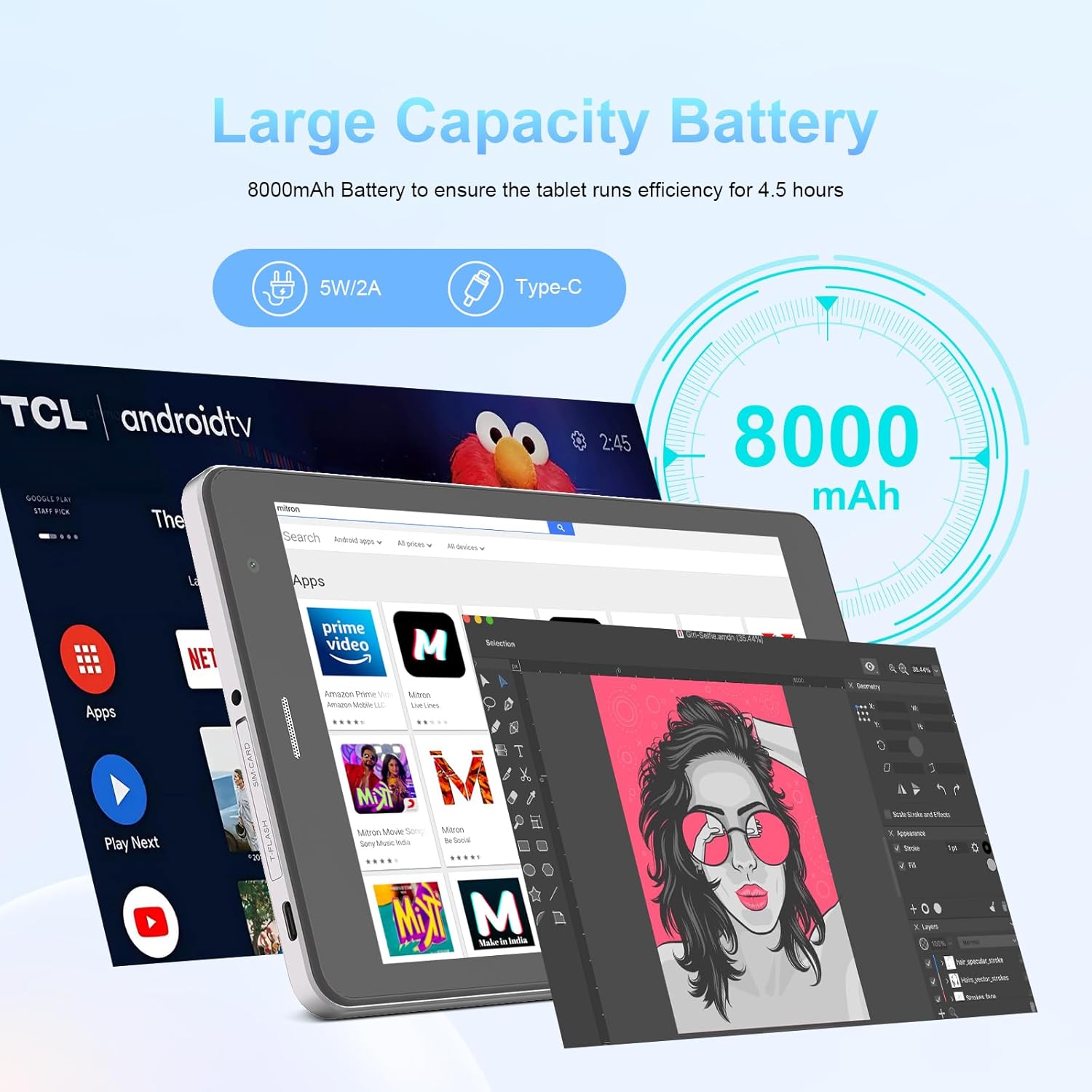
Image: The C idea CM817 Pro Max tablet, emphasizing its 8000mAh large capacity battery, designed for extended operational hours.
6. Налады дысплея
The tablet features an 8-inch 1280x800 IPS HD display. Adjust brightness, font size, and display timeout in Налады > Дысплей для камфортнага viewвопыту.

Image: The C idea CM817 Pro Max tablet showcasing its 8-inch IPS HD screen with a resolution of 800x1280 pixels, providing clear visuals.
Тэхнічнае абслугоўванне
1. Уборка
Use a soft, lint-free cloth to clean the screen and body of the tablet. Do not use abrasive cleaners or solvents, as they may damage the surface. Avoid getting moisture into ports.
2. Абнаўленне праграмнага забеспячэння
Regularly check for system updates to ensure your tablet has the latest features and security patches. Go to Налады > Сістэма > Абнаўленне сістэмы каб праверыць і ўсталяваць абнаўленні.
3. Сыход за батарэяй
To prolong battery lifespan, avoid exposing the tablet to extreme temperatures. Do not let the battery completely drain frequently. Use the original charger or a certified compatible charger.
Ліквідацыю непаладак
- Планшэт не ўключаецца: Ensure the tablet is charged. Press and hold the Power On/Off button for at least 10-15 seconds to force a restart.
- Праблемы з падключэннем Wi-Fi: Перазапусціце маршрутызатар Wi-Fi і планшэт. Забудзьцеся пра сетку ў наладах Wi-Fi і падключыцеся зноў.
- Павольная прадукцыйнасць: Close unused apps, clear cache (Settings > Storage), and restart the tablet. Consider uninstalling large or unnecessary applications.
- Камера не працуе: Ensure the Camera app has necessary permissions (Settings > Apps > Camera > Permissions). Restart the tablet.
- Сховішча запоўнена: Выдаліце старыя фота/відэа, выдаліце невыкарыстоўваныя праграмы або перанясіце files to an inserted MicroSD card.
- Збоі ў праграмах: Ачысціце кэш і даныя праграмы (Налады > Праграмы > [Назва праграмы] > Памяць > Ачысціць кэш/Ачысціць даныя). Калі праблема не знікне, выдаліце і пераўсталюйце праграму.
Тэхнічныя характарыстыкі
| Асаблівасць | Дэталь |
|---|---|
| Марка | С ідэя |
| Назва мадэлі | CM817 Pro Max |
| Аперацыйная сістэма | Android 15 |
| Працэсар | Octa-core (MediaTek) |
| АЗП | 8 ГБ |
| Унутраная памяць (ROM) | 512 ГБ |
| Сховішча з магчымасцю пашырэння | Up to 512GB (via TF/MicroSD card) |
| Памер экрана | 8 цалі |
| Дазвол экрана | 1280 x 800 пікселяў (IPS HD) |
| Пярэдняя камера | 5 МП |
| Задняя камера | 8 МП |
| Ёмістасць батарэі | 8000 мАг (літый-палімерны) |
| Сувязь | Wi-Fi, 5G SIM, Bluetooth |
| Парты | USB-C, раз'ём для навушнікаў 3.5 мм |
| Вага прадмета | 1 кг 80 г |
| Памеры ўпакоўкі | 29.8 х 18 х 6.4 см |
Гарантыя і падтрымка
For warranty information and technical support, please refer to the warranty card included in your package or contact C idea customer service. Keep your purchase receipt as proof of purchase.