
KOOSMILE N150 (P8)
KOOSMILE N150 8-inch 2-in-1 Mini Laptop User Manual
Model: N150 (P8)
1. Уводзіны
This manual provides essential information for the setup, operation, maintenance, and troubleshooting of your KOOSMILE N150 8-inch 2-in-1 Mini Laptop. Please read this manual thoroughly before using the device to ensure proper functionality and to prevent damage.
2. Змесціва ўпакоўкі
Праверце наяўнасць усіх прадметаў у камплекце:
- KOOSMILE N150 8-inch 2-in-1 Mini Laptop x1
- PD Adapter x1
- Active Stylus x1
- Кабель HDMI x1
- HUB x1
- Кіраўніцтва карыстальніка x1
- Data Cables x2
3. Прадукт скончыўсяview
Familiarize yourself with the components and ports of your mini laptop.
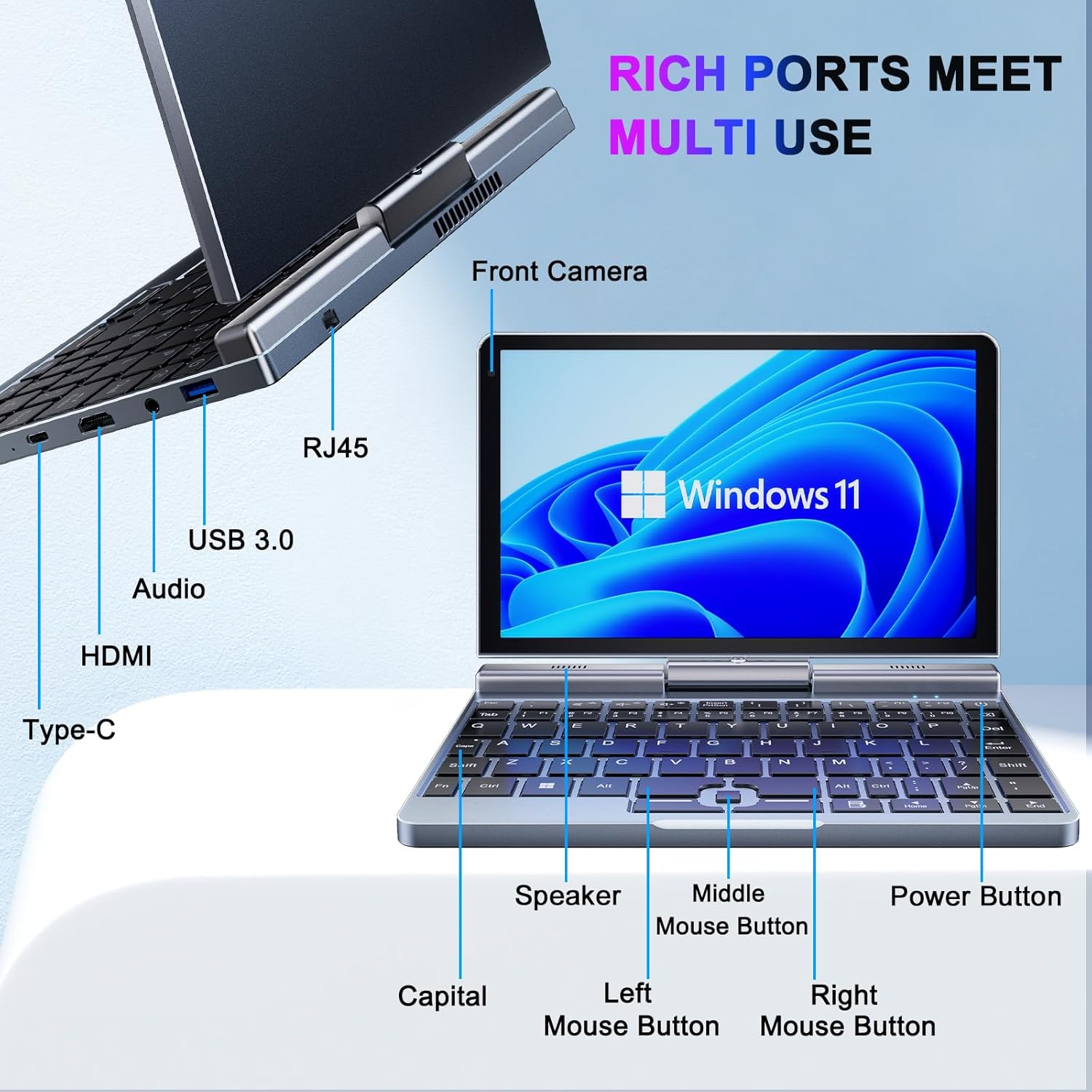
Малюнак 3.1: KOOSMILE N150 Mini Laptop with labeled ports and buttons. Key components include the Front Camera, RJ45 port, USB 3.0 port, Audio jack, HDMI port, Type-C port, Speaker, Middle Mouse Button, Left Mouse Button, Right Mouse Button, Capital indicator, and Power Button.
3.1 Асноўныя магчымасці
- Працэсар: Intel N150 (4 cores/4 threads, up to 3.6GHz)
- Аперацыйная сістэма: Windows 11 Pro
- Дысплей: 8-inch HD Touch Screen (1280x800 pixels)
- Памяць: 12GB LPDDR5 RAM (4800 MHz)
- захоўванне: 512GB or 1TB M.2 SSD (expandable up to 2TB)
- Падключэнне: Wi-Fi 6 (802.11ax), Bluetooth 5.2, Gigabit Ethernet (via RJ45)
- парты: USB 3.0, USB Type-C, HDMI, Headphone Jack
- Камера: Пярэдняя камера 2 МП
- дызайн: 180° Rotating Screen, 2-in-1 Convertible (Laptop/Tablet mode), CNC-machined full-metal body
- Вага: Прыблізна 0.78 кг (1.72 фунта)
4. Настройка
4.1 Першапачатковая зарадка
- Connect the provided PD Adapter to the USB Type-C port on the laptop.
- Падключыце адаптар да электрычнай разеткі.
- Allow the device to charge fully before first use. A full charge is indicated by the charging LED changing color or turning off.
- Заўвага: Use only the provided PD adapter or a compatible Type-C charger with sufficient voltage (e.g., a laptop or Steamdeck charger) to ensure proper charging. Standard phone USB blocks may not provide enough power.
4.2 Першая загрузка і ўстаноўка Windows
- Press and hold the Power Button (refer to Image 3.1) until the screen illuminates.
- Follow the on-screen instructions to complete the Windows 11 Pro setup process. This typically includes selecting your region, language, connecting to a Wi-Fi network, and creating a user account.
5. Інструкцыя па эксплуатацыі
5.1 Уключэнне/выключэнне харчавання і рэжым сну
- Уключэнне: Націсніце кнопку харчавання.
- Рэжым сну: Briefly press the Power Button while the device is on. Press again to wake.
- Выключыць: Click the Windows Start button, then Power, and select "Shut down."
- Перазапуск: Click the Windows Start button, then Power, and select "Restart."
5.2 Выкарыстанне функцыянальнасці «2 у 1»
The laptop features a 180° rotating screen, allowing it to transform into various modes.
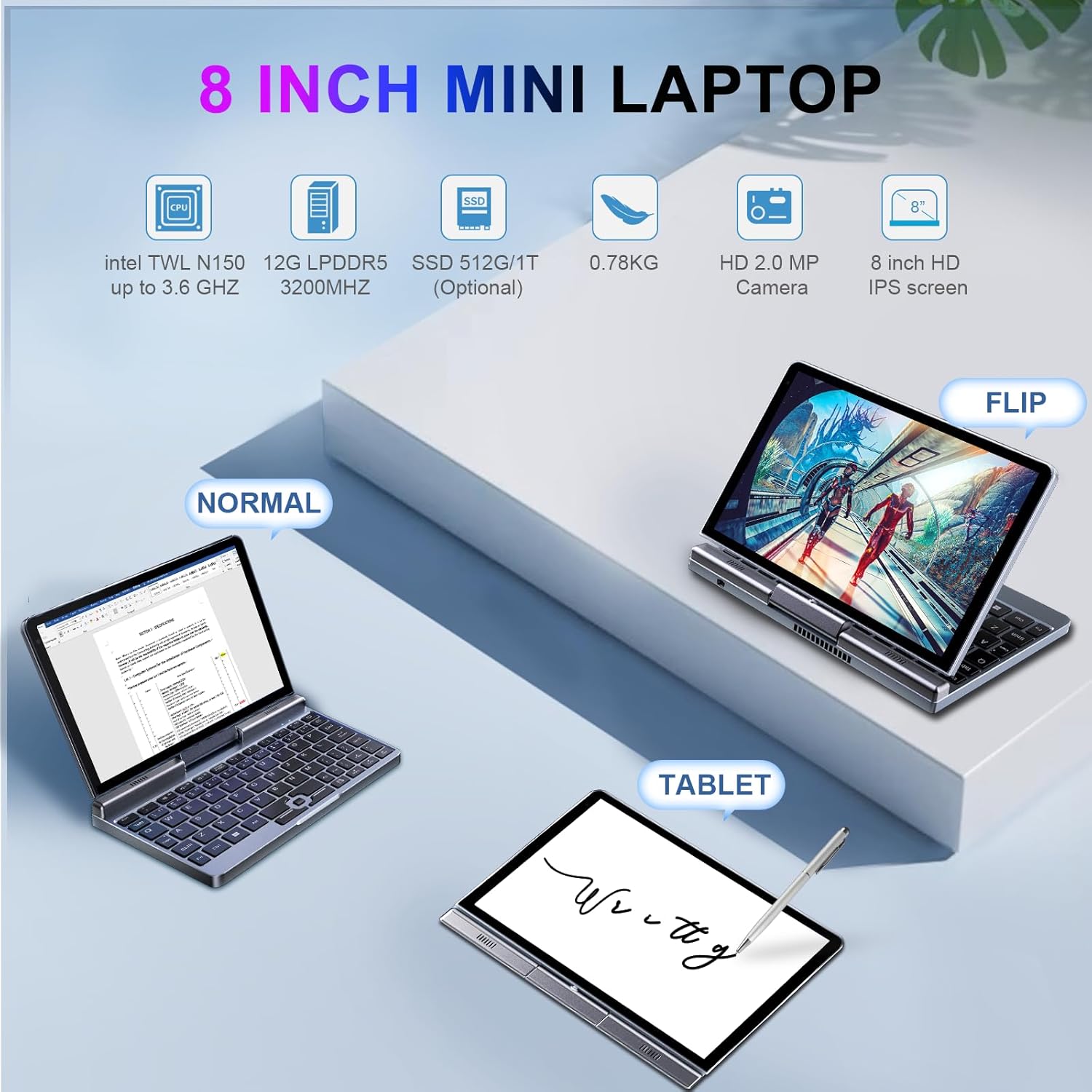
Малюнак 5.1: Demonstrates the KOOSMILE N150 Mini Laptop in its three primary modes: Normal (traditional laptop), Flip (tent mode), and Tablet (screen folded back). This highlights the device's versatility for different usage scenarios.
- Рэжым ноўтбука: Standard configuration for typing with the physical keyboard.
- Tent Mode (Flip): Rotate the screen 180 degrees and stand the device in a tent shape for media consumption or presentations.
- Рэжым планшэта: Fold the screen completely back against the base for a full touchscreen experience. The physical keyboard will automatically disable in this mode.
5.3 Touch Screen and Stylus Usage
- The 8-inch HD screen supports multi-touch gestures.
- Use the included Active Stylus for precise input, drawing, or note-taking, especially in Tablet mode.
5.4 Падключэнне знешніх дысплеяў
The laptop supports external displays via HDMI and USB Type-C (DisplayPort out).

Малюнак 5.2: The KOOSMILE N150 Mini Laptop connected to an external monitor, demonstrating its capability for multi-screen display and enhanced productivity. The image shows the laptop displaying a document while the external monitor shows a larger view of the same document.

Малюнак 5.3: The KOOSMILE N150 Mini Laptop configured as a micro desktop, connected to two external monitors, a keyboard, and a mouse. This setup illustrates its potential for multi-tasking and extended workspace.
- Connect an HDMI cable from the laptop's HDMI port to your external display.
- Alternatively, use a USB Type-C to DisplayPort cable or adapter for compatible monitors.
- Прэса Клавіша Windows + P to open the Project menu and select your desired display mode (e.g., Duplicate, Extend, Second screen only).
5.5 Падключэнне да сеткі
- Wi-Fi: Access Wi-Fi settings via the Windows taskbar icon to connect to available wireless networks.
- Bluetooth: Enable Bluetooth in Windows settings to pair with Bluetooth devices like headphones or keyboards.
- Ethernet: Connect an Ethernet cable to the RJ45 port for a wired network connection.
6. Тэхнічнае абслугоўванне
6.1 Ачыстка
- Выкарыстоўвайце мяккую тканіну без ворса для чысткі экрана і вонкавых паверхняў.
- Для ўстойлівых плям злёгку пачысціцеampПрацярыце тканіну вадой або растворам для чысткі экрана. Пазбягайце агрэсіўных хімічных рэчываў.
- Перад чысткай пераканайцеся, што прылада выключана і адключана ад сеткі.
6.2 Сыход за акумулятарам
- Каб падоўжыць тэрмін службы батарэі, пазбягайце экстрэмальных тэмператур.
- Не дапускайце частай поўнай разрадкі акумулятара.
- If storing the device for an extended period, charge it to approximately 50-70%.
6.3 Абнаўленне праграмнага забеспячэння
- Рэгулярна правярайце наяўнасць абнаўленняў Windows і ўсталёўвайце іх, каб забяспечыць аптымальную прадукцыйнасць і бяспеку. Перайдзіце па спасылцы Налады > Цэнтр абнаўлення Windows.
7. Выпраўленне непаладак
| праблема | Магчымае рашэнне |
|---|---|
| Прылада не ўключаецца. |
|
| Акумулятар не зараджаецца. |
|
| Праблемы з падключэннем да Wi-Fi. |
|
| Touchscreen or stylus not responding. |
|
| Device runs hot during use. |
|
8. Тэхнічныя характарыстыкі
| Асаблівасць | Дэталь |
|---|---|
| мадэль | P8 (N150) |
| Працэсар | Intel N150 (4 cores/4 threads, up to 3.6GHz) |
| Графіка | Інтэграваная відэакарта Intel UHD |
| Аперацыйная сістэма | Windows 11 Pro |
| Дысплей | 8-inch HD Touch Screen, 1280 x 800 pixels |
| АЗП | 12 ГБ LPDDR5 (4800 МГц) |
| Захоўванне | 512GB or 1TB M.2 SSD (Expandable up to 2TB) |
| Бесправоднае падключэнне | Wi-Fi 6 (802.11ax), Bluetooth 5.2 |
| Парты | 1x USB 3.0, 1x USB Type-C (DisplayPort out), 1x HDMI, 1x Headphone Jack, 1x RJ45 (Ethernet) |
| Камера | Пярэдняя камера 2 МП |
| акумулятар | 36.5 WH Lithium Polymer |
| Памеры (ДхШхВ) | 7.87 х 5.51 х 0.79 цалі |
| Вага | 1.72 фунта (0.78 кг) |
| Колер | Шэры |
9. Гарантыя і падтрымка
KOOSMILE provides a 1-year warranty for this product. For technical support, warranty claims, or any inquiries, please contact KOOSMILE customer support. Contact details can typically be found on the KOOSMILE official webсайт або праз вашу платформу для пакупак.
Інтэрнэт-рэсурсы і часта задаваныя пытанні таксама могуць быць даступныя на KOOSMILE Store.