
FIREBAT MN56, A6
FIREBAT Mini PC MN56 and A6 Series User Manual
Models: MN56 (Ryzen7 8745HS) & A6 (Ryzen7 6800H)
1. Уводзіны
This user manual provides detailed instructions for setting up, operating, maintaining, and troubleshooting your FIREBAT Mini PC. This guide covers both the MN56 model (featuring AMD Ryzen 7 8745HS) and the A6 model (featuring AMD Ryzen 7 6800H). Please read this manual thoroughly before using your device to ensure proper operation and longevity.
The FIREBAT Mini PCs are designed for a wide range of applications, from home and office use to education and light gaming, offering powerful performance in a compact form factor.

Figure 1.1: FIREBAT MN56 (white) and A6 (black) Mini PCs. The MN56 model is shown with RGB lighting and a vertical stand, while the A6 model is a compact black cube.
2. Інфармацыя па бяспецы
Каб пазбегнуць траўмаў, паражэння электрычным токам, пажару і пашкоджання прылады, калі ласка, выконвайце наступныя меры бяспекі:
- Use only the power adapter provided with your Mini PC.
- Не падвяргайце прыладу ўздзеянню вады, вільгаці або экстрэмальных тэмператур.
- Пазбягайце размяшчэння прылады пад прамымі сонечнымі прамянямі або побач з крыніцамі цяпла.
- Ensure proper ventilation; do not block the ventilation openings.
- Не спрабуйце разбіраць або рамантаваць прыладу самастойна. Звяртайцеся да кваліфікаванага персаналу па любыя паслугі па абслугоўванні.
- Трымайце прыладу далей ад моцных магнітных палёў.
- Асцярожна звяртайцеся з прыладай, каб пазбегнуць фізічных пашкоджанняў.
3. Кіраўніцтва па наладцы
3.1. Змесціва ўпакоўкі
Before proceeding, verify that all items are present in your package:
- FIREBAT Mini PC (MN56 or A6 model)
- Адаптар сілкавання
- Кабель HDMI
- Кіраўніцтва карыстальніка (гэты дакумент)
- (Optional) VESA Mount Bracket and Screws
3.2. Падключэнне перыферыйных прылад
Follow these steps to connect your Mini PC to a display and other essential peripherals:
- Падключэнне дысплея: Use the provided HDMI cable or a DisplayPort (DP) cable to connect your monitor to the corresponding port on the Mini PC. Both models support triple display output via HDMI, DisplayPort, and USB-C.
- Падключэнне клавіятуры і мышы: Plug your USB keyboard and mouse into any available USB-A ports on the Mini PC.
- Падключэнне да сеткі (неабавязкова): For a wired internet connection, connect an Ethernet cable from your router to the LAN port(s) on the Mini PC. Both models feature 2.5Gbps LAN ports.
- Падключыце харчаванне: Plug the power adapter into the DC-IN port on the Mini PC, then plug the other end into a power outlet.
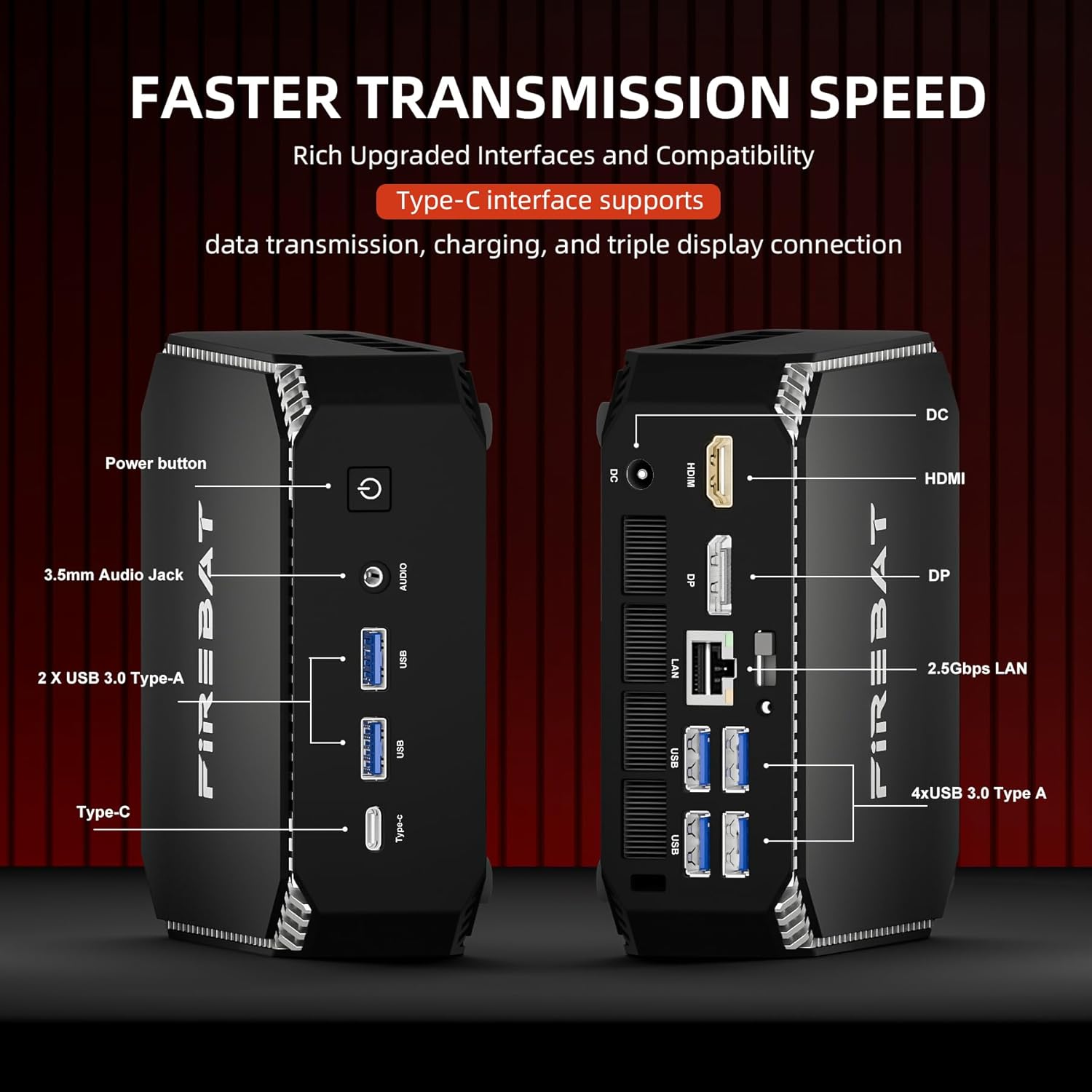
Малюнак 3.1: Закончанаview of ports on the FIREBAT A6 Mini PC, including Power button, 3.5mm Audio Jack, USB 3.0 Type-A, Type-C, DC-IN, HDMI, DisplayPort, and 2.5Gbps LAN ports.
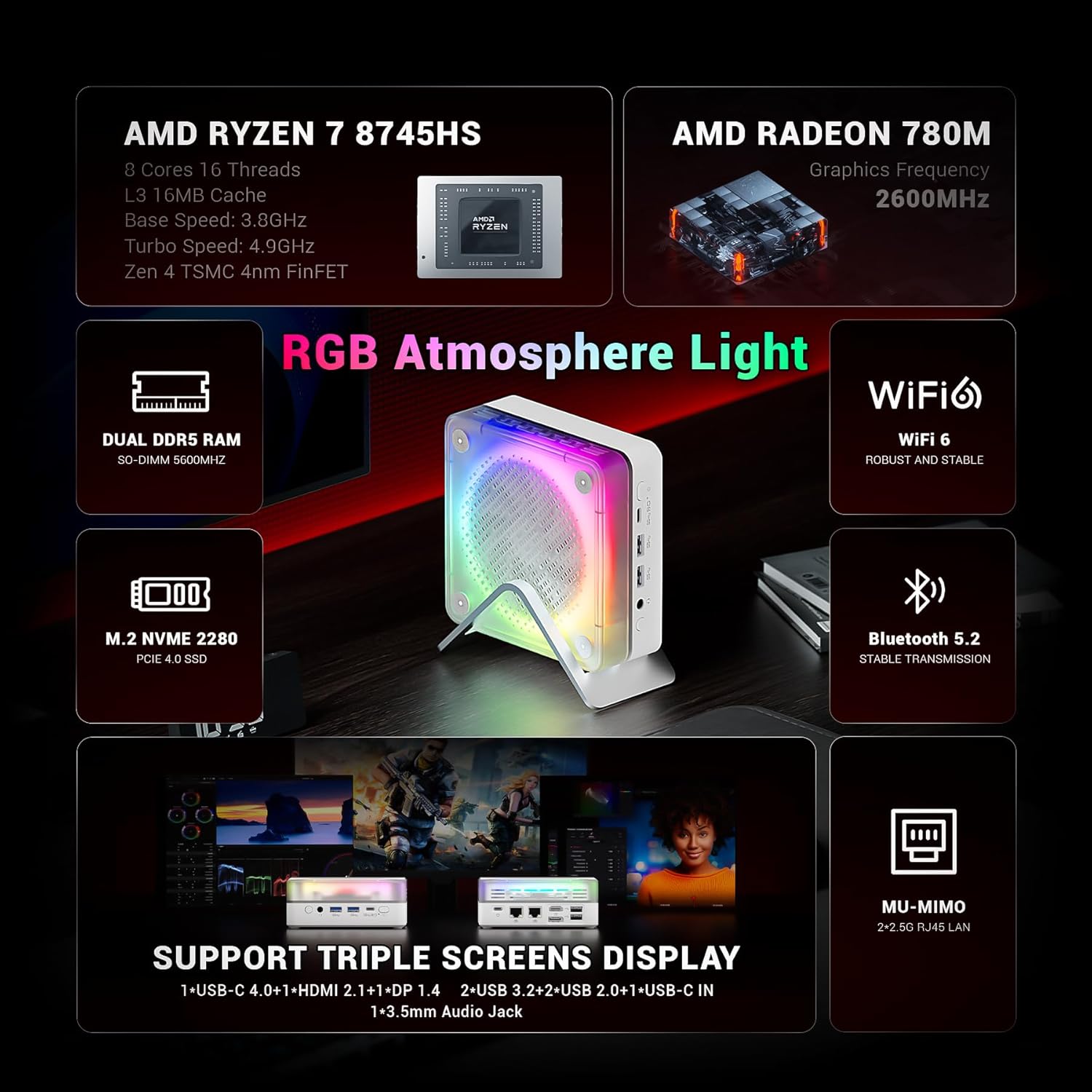
Figure 3.2: The MN56 model also features multiple USB ports, HDMI, DisplayPort, and USB-C for display output, along with dual 2.5Gbps LAN ports.
3.3. Пачатковае ўключэнне
After connecting all peripherals:
- Press the Power button located on the Mini PC. The power indicator light will illuminate.
- The Mini PC will boot up. Follow the on-screen instructions to complete the initial Windows setup (if applicable).
4. Інструкцыя па эксплуатацыі
4.1. Кіраванне харчаваннем
- Уключэнне: Націсніце кнопку харчавання.
- Выключыць: Націсніце кнопку «Пуск» у Windows, а затым выберыце «Харчаванне» > «Завяршыць працу».
- Перазапуск: Націсніце кнопку «Пуск» у Windows, а затым выберыце «Харчаванне» > «Перазагрузка».
- сон: Націсніце кнопку «Пуск» у Windows, а затым выберыце «Харчаванне» > «Сон».
4.2. Канфігурацыя дысплея
Both MN56 and A6 models support triple display output, allowing you to connect up to three monitors simultaneously for enhanced productivity.
- Connect your monitors to the HDMI, DisplayPort, and USB-C video output ports.
- In Windows, right-click on the desktop and select "Display settings" to configure your multiple displays (extend, duplicate, or show only on one).
Figure 4.1: The MN56 Mini PC demonstrating support for triple screen display configurations via USB-C, HDMI, and DisplayPort.
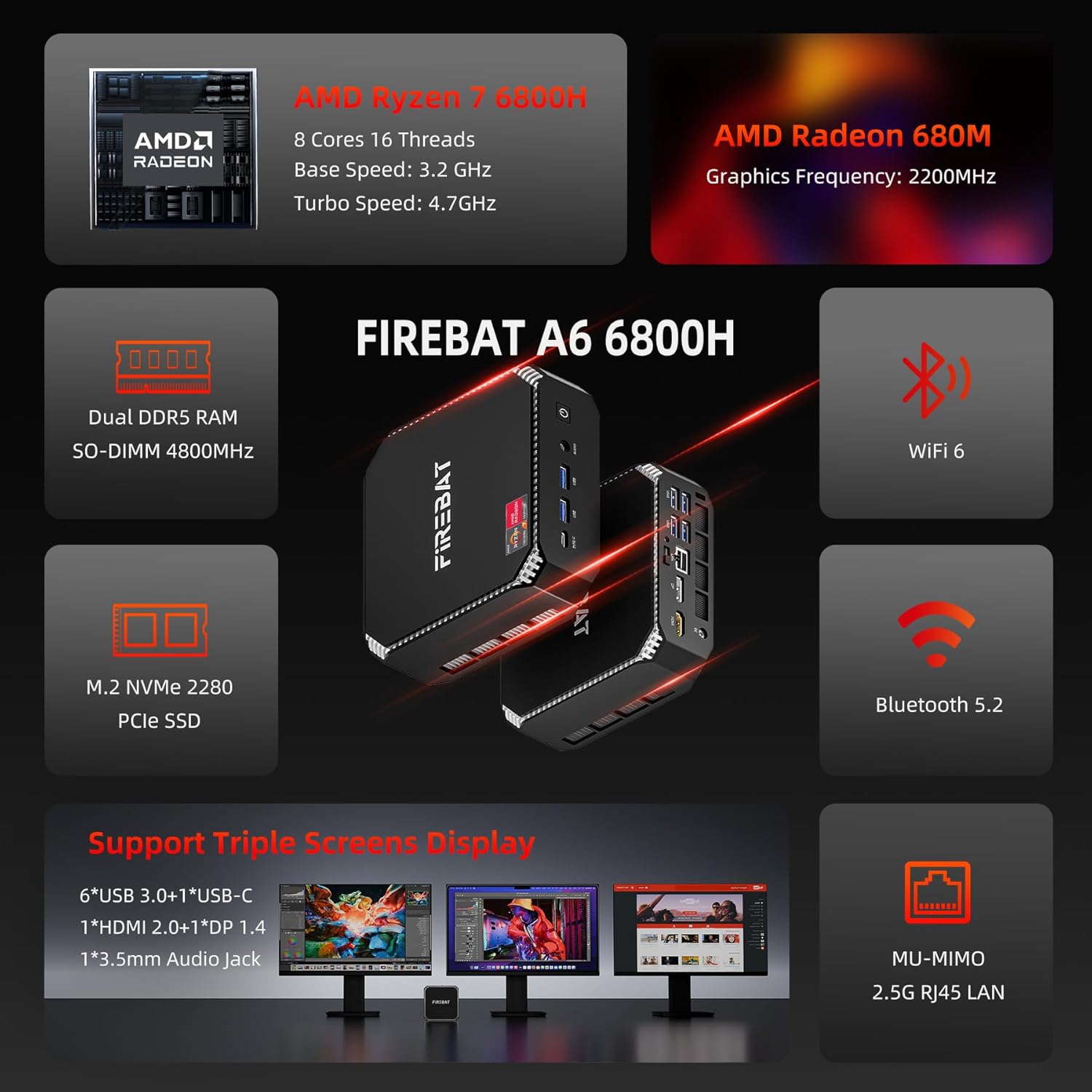
Figure 4.2: The A6 Mini PC also supports triple screen display, offering versatile connectivity options for multiple monitors.
4.3. Сетка і падключэнне
- Wi-Fi: Both models support Wi-Fi 6 for robust and stable wireless connections. To connect, click the Wi-Fi icon in the taskbar, select your network, and enter the password.
- Bluetooth: Integrated Bluetooth 5.2 allows for stable transmission to connect wireless peripherals like keyboards, mice, and headphones. Enable Bluetooth in Windows settings to pair devices.
- Правадная лакальная сетка: Utilize the dual 2.5Gbps RJ45 LAN ports for high-speed wired network connections.
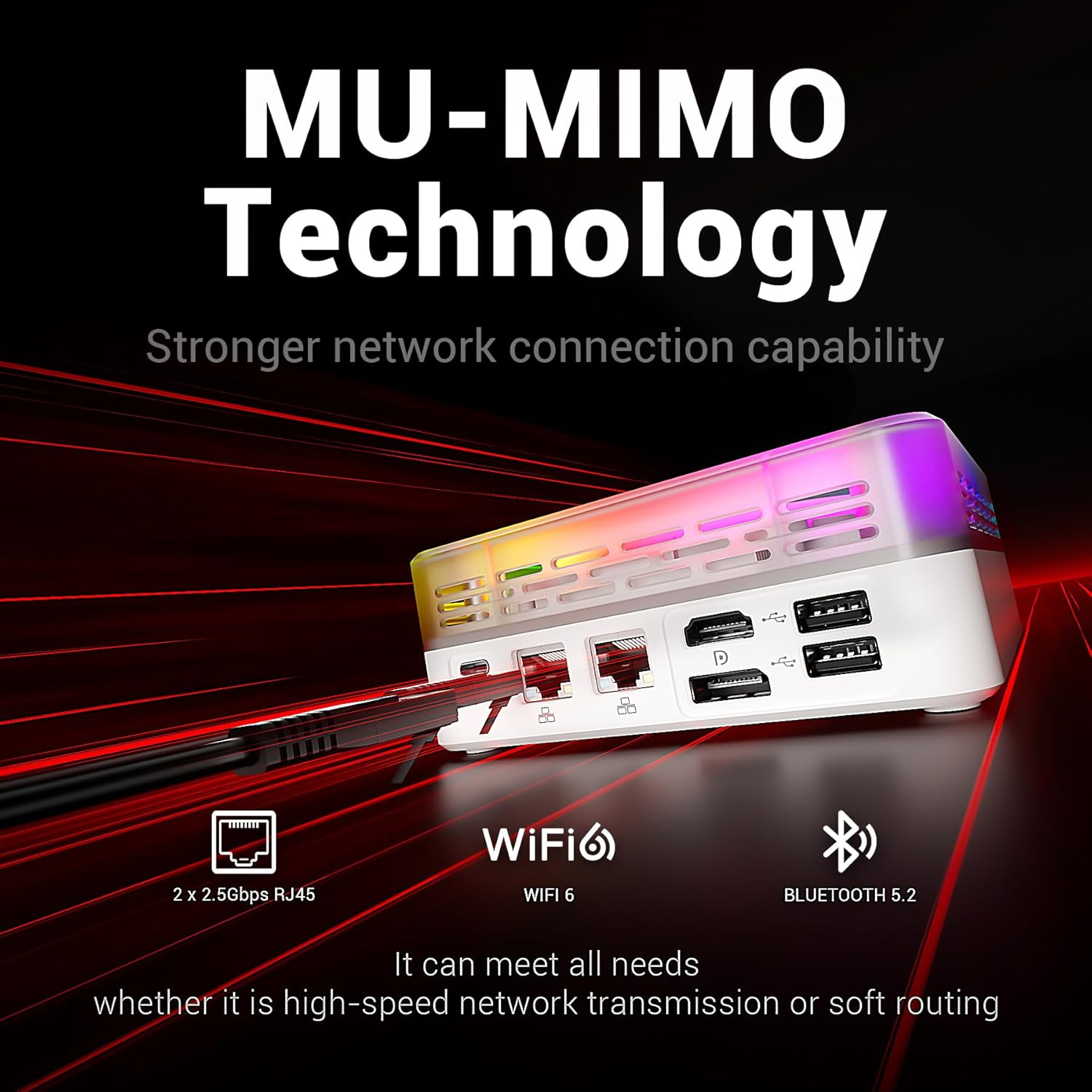
Figure 4.3: The MN56 Mini PC highlights its MU-MIMO Technology, Wi-Fi 6, Bluetooth 5.2, and dual 2.5Gbps RJ45 LAN ports for superior network connectivity.
4.4. Пашырэнне сховішча
Both Mini PC models come with M.2 NVMe 2280 PCIe SSDs for fast storage. If you need to expand storage, consult a qualified technician or refer to the detailed upgrade guide available on the FIREBAT website for compatible M.2 SSDs.
5. Тэхнічныя характарыстыкі
5.1. FIREBAT MN56 Model (White)
| Асаблівасць | Дэталь |
|---|---|
| Працэсар | AMD Ryzen 7 8745HS (8 Cores, 16 Threads, L3 16MB Cache, Base Speed: 3.8GHz, Turbo Speed: 4.9GHz, Zen 4 TSMC 4nm FinFET) |
| Графіка | AMD Radeon 780M (Graphics Frequency: 2600MHz, 12 graphics card cores) |
| АЗП | 32GB Dual DDR5 RAM (SO-DIMM 5000MHz) |
| Захоўванне | 1TB M.2 NVMe 2280 PCIe 4.0 SSD |
| Сетка | Wi-Fi 6, Bluetooth 5.2, 2 x 2.5Gbps RJ45 LAN |
| Відэавыхад | Triple Screens Display (USB-C 4.0+HDMI 2.1+DP 1.4) |
| Парты | USB-C 4.0, HDMI 2.1, DisplayPort 1.4, USB 3.2, USB 2.0, 3.5mm Audio Jack, DC-IN, 2x 2.5Gbps LAN |
| Астуджэнне | Dual Fans with High-efficiency Thermal Grease (65W stable performance release) |

Figure 5.1: Detailed specifications of the Ryzen 7 8745HS processor in the MN56 model.
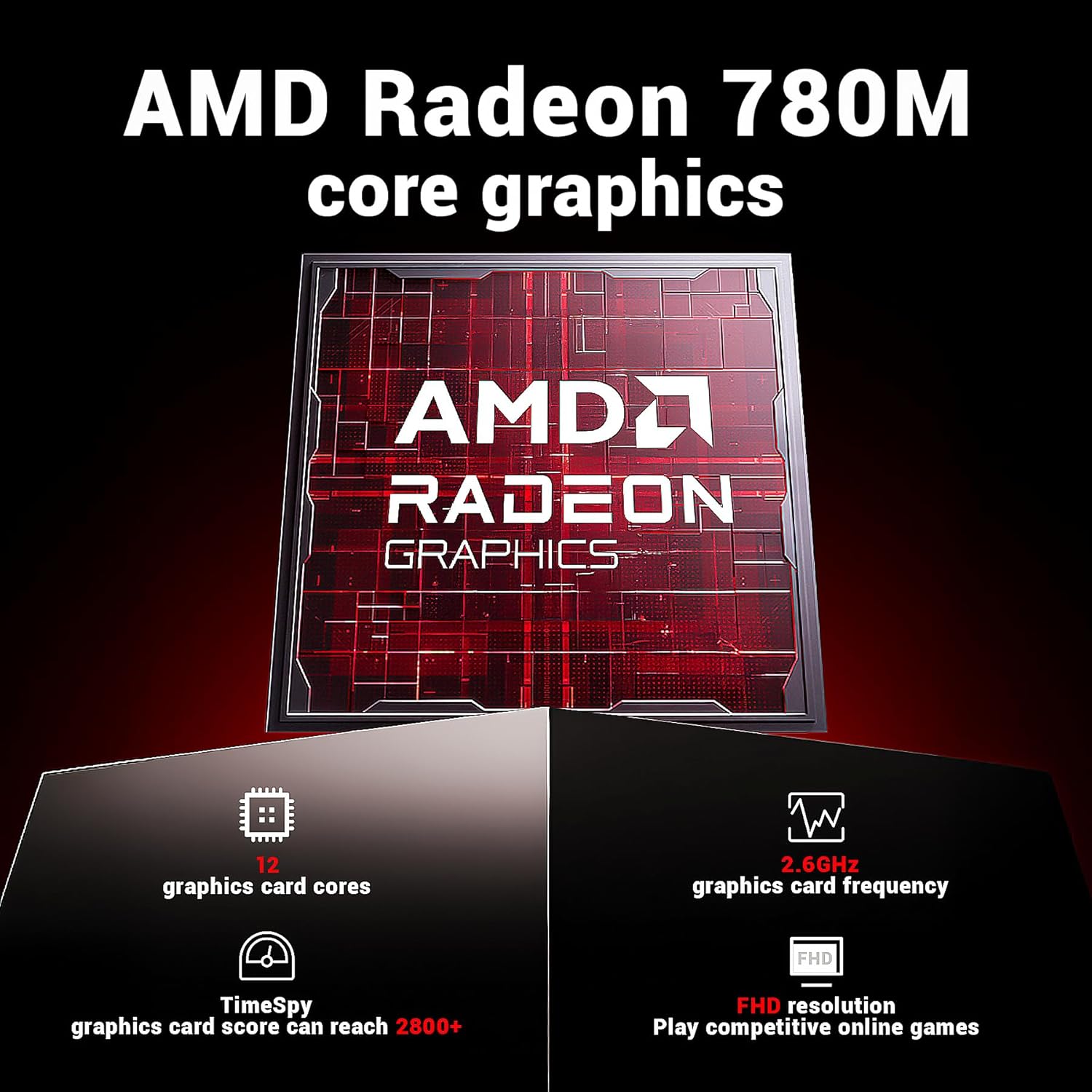
Figure 5.2: Detailed specifications of the AMD Radeon 780M core graphics in the MN56 model.

Figure 5.3: Illustration of the dual fan cooling system in the MN56 Mini PC, designed for efficient heat dissipation.
5.2. FIREBAT A6 Model (Black)
| Асаблівасць | Дэталь |
|---|---|
| Працэсар | AMD Ryzen 7 6800H (8 Cores, 16 Threads, Base Speed: 3.2GHz, Turbo Speed: 4.7GHz) |
| Графіка | AMD Radeon 680M (Graphics Frequency: 2200MHz) |
| АЗП | 16GB Dual DDR5 RAM (SO-DIMM 4800MHz) |
| Захоўванне | 512GB M.2 NVMe 2280 PCIe SSD |
| Сетка | Wi-Fi 6, Bluetooth 5.2, 2.5G RJ45 LAN |
| Відэавыхад | Triple Screens Display (6x USB 3.0+1x USB-C, 1x HDMI 2.0+1x DP 1.4) |
| Парты | Power button, 3.5mm Audio Jack, 2x USB 3.0 Type-A, Type-C, DC-IN, HDMI, DisplayPort, 4x USB 3.0 Type-A, 2x 2.5Gbps LAN |
Малюнак 5.4: Закончанаview of the FIREBAT A6 Mini PC's key specifications, including CPU, GPU, RAM, storage, and connectivity.
6. Тэхнічнае абслугоўванне
Рэгулярнае тэхнічнае абслугоўванне дапамагае забяспечыць даўгавечнасць і аптымальную прадукцыйнасць вашага міні-ПК.
- Уборка: Use a soft, dry cloth to wipe the exterior of the Mini PC. For dust accumulation in vents, use compressed air. Ensure the device is powered off and unplugged before cleaning.
- Абнаўленні праграмнага забеспячэння: Regularly check for and install operating system updates (e.g., Windows Updates) and driver updates for your hardware. This improves security, performance, and compatibility.
- Тэрмакіраванне: Ensure the Mini PC is placed in a well-ventilated area. Do not obstruct the air vents. The dual-fan cooling system is designed to maintain optimal temperatures, but proper airflow is crucial.
- Рэзервовае капіраванне даных: Перыядычна рабіце рэзервовыя копіі важных дадзеных на знешні дыск або ў воблачнае сховішча, каб прадухіліць іх страту.
7. Выпраўленне непаладак
У гэтым раздзеле разглядаюцца распаўсюджаныя праблемы, з якімі вы можаце сутыкнуцца, і прапануюцца магчымыя рашэнні.
| праблема | Магчымая прычына | Рашэнне |
|---|---|---|
| Няма харчавання / Прылада не ўключаецца | Power adapter not connected, faulty power outlet, power button issue. | Ensure power adapter is securely connected to both the Mini PC and a working power outlet. Try a different outlet. |
| Няма адлюстравання на маніторы | Incorrect cable connection, monitor input not selected, display driver issue. | Check HDMI/DP/USB-C cable connections. Ensure monitor is set to the correct input source. Try a different display cable or monitor. |
| Праблемы з падключэннем да Wi-Fi | Incorrect Wi-Fi password, router issue, driver issue. | Verify Wi-Fi password. Restart your router. Check Wi-Fi drivers in Device Manager. |
| Павольнае выкананне | Занадта шмат запушчаных праграм, недастаткова аператыўнай памяці, перагрэў, поўная памяць. | Close unnecessary applications. Ensure proper ventilation. Free up disk space. Check for background processes. |
| Peripheral not recognized (USB, Bluetooth) | Driver issue, faulty peripheral, port issue. | Try a different USB port or re-pair Bluetooth device. Update drivers for the peripheral. |
If the problem persists after trying these solutions, please contact FIREBAT customer support.
8. Гарантыя і падтрымка
FIREBAT is committed to providing high-quality products and excellent customer service.
- Інфармацыя аб гарантыі: For detailed warranty terms and conditions, please refer to the warranty card included with your product or visit the official FIREBAT webсайт. Гарантыйнае пакрыццё звычайна распаўсюджваецца на дэфекты матэрыялаў і вырабу пры нармальным выкарыстанні.
- Тэхнічная падтрымка: If you encounter any issues not covered in this manual or require further assistance, please contact our support team.
Кантактная інфармацыя:
- электронная пошта: support@firebatpc.com
- Webсайт: www.firebatpc.com
When contacting support, please have your product model (MN56 or A6) and purchase information ready to expedite the process.