
NIMO Nimo N156
NIMO 15.6" FHD Business Laptop User Manual
Model: Nimo N156
Уводзіны
This user manual provides comprehensive instructions for setting up, operating, maintaining, and troubleshooting your NIMO 15.6" FHD Business Laptop. Please read this manual carefully before using your device to ensure optimal performance and longevity. Keep this manual for future reference.
Што ў скрынцы
Праверце наяўнасць усіх прадметаў у камплекце:
- 1 x Nimo N156 Laptop
- 1 x Type-C 100W PD Fast Charger
- 1 х Кіраўніцтва карыстальніка (гэты дакумент)
- Windows 11 Home (pre-installed)
- 2 Years Warranty, 90 Days Return information
Прадукт скончаныview
Familiarize yourself with the key components of your NIMO laptop.

Малюнак 1: Фронт view of the NIMO 15.6 inch FHD Business Laptop, showcasing its full HD IPS display, Intel Core i5 processor, fingerprint reader, Type-C PD charger port, and backlit keyboard.

Малюнак 2: Close-up of the NIMO laptop's backlit full keyboard, highlighting the integrated webcam shield, fingerprint sensor, and numeric keypad for enhanced productivity and security.

Малюнак 3: Diagram illustrating the multiple ports on the NIMO laptop, including Micro SD slot, USB 2.0, USB 3.0, Headphone Jack, Kensington lock, Type-C (multifunction), Type-C (PD Charger Only), HDMI, and Charge LED.
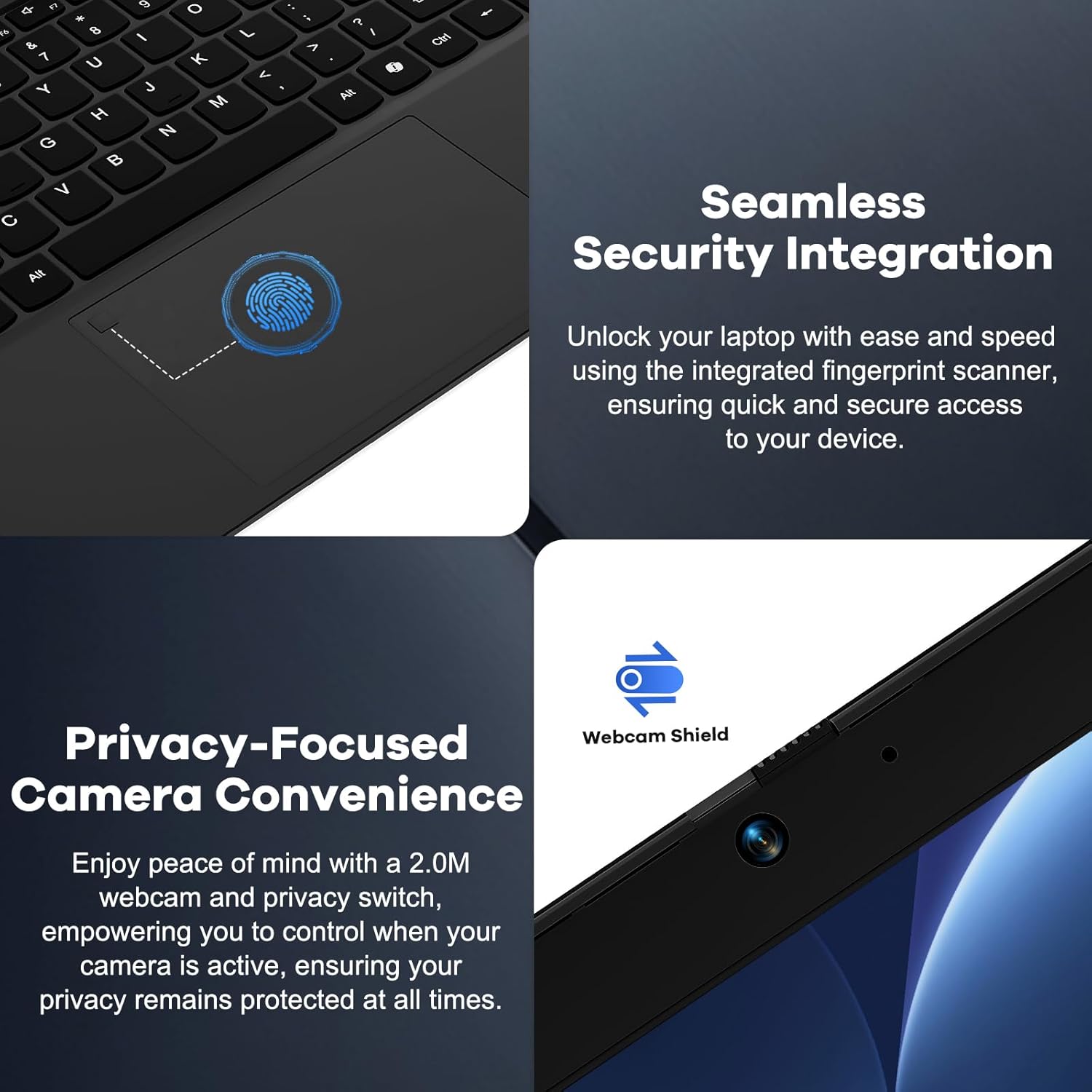
Малюнак 4: Details on the seamless security integration with the fingerprint sensor for quick login and the privacy-focused camera convenience with a built-in webcam shield.

Малюнак 5: The compact 100W GaN Type-C PD Fast Charger included with the NIMO laptop, capable of charging to 50% in 15 minutes and compatible with various devices.
Настройка
1. Пачатковае ўключэнне
- Распакуйце: Акуратна дастаньце ноўтбук і ўсе аксэсуары з упакоўкі.
- Падключыце харчаванне: Plug the 100W GaN Type-C PD Fast Charger into a power outlet and connect the USB-C cable to the laptop's Type-C charging port. The Charge LED will illuminate.
- Першая загрузка: Open the laptop lid. The system may power on automatically or you may need to press the power button (located on the top right of the keyboard).
- Настройка Windows: Выконвайце інструкцыі на экране, каб завяршыць працэс налады Windows 11 Home. Гэта ўключае выбар рэгіёна, мовы, падключэнне да сеткі Wi-Fi і стварэнне ўліковага запісу карыстальніка.
2. Падключэнне перыферыйных прылад
Your NIMO laptop offers various ports for connecting external devices:
- USB прылады: Connect USB flash drives, external hard drives, mice, or keyboards to the USB 2.0 or USB 3.0 ports.
- Знешні дысплей: Выкарыстоўвайце порт HDMI для падключэння знешняга манітора або праектара.
- Аўдыё: Plug headphones or external speakers into the 3.5mm Headphone Jack.
- Карты памяці: Insert a Micro SD card into the Micro SD slot for additional storage.
Інструкцыя па эксплуатацыі
1. Асноўная аперацыя
- Уключэнне/выключэнне харчавання: Press the power button to turn the laptop on. To shut down, click the Start button in Windows, then Power > Shut down.
- Рэжым сну: Close the lid or click the Start button, then Power > Sleep to put the laptop into sleep mode.
- Fingerprint Login: Utilize the integrated fingerprint sensor for quick and secure login to Windows. Register your fingerprints through Windows Settings > Accounts > Sign-in options.
- Клавіятура з падсветкай: The keyboard features backlighting for low-light conditions. Use the dedicated function key (Fn + F key combination, typically F3 or F4) to toggle or adjust the backlight brightness.
- WebКанфідэнцыяльнасць камеры: The laptop includes a physical webcam shield. Slide the switch next to the webcam to cover or uncover the camera lens for privacy.
2. Функцыі Windows 11
Your laptop comes with Windows 11 Home pre-installed. Explore its features for enhanced productivity and entertainment:
- Snap Layouts: Easily organize open windows on your screen.
- Фішкі: Атрымлівайце доступ да персаналізаванай інфармацыі з першага погляду.
- Крама Microsoft: Спампаваць і ўсталяваць праграмы.
- Бяспека: Windows Defender provides built-in antivirus and firewall protection.
Тэхнічнае абслугоўванне
- Уборка: Use a soft, lint-free cloth to clean the screen and chassis. For stubborn smudges, slightly dampПрацярыце тканіну вадой або растворам для чысткі экрана. Пазбягайце агрэсіўных хімічных рэчываў.
- Сыход за батарэяй: Каб падоўжыць тэрмін службы батарэі, пазбягайце частай поўнай разрадкі батарэі. Рэкамендуецца падтрымліваць узровень зарада батарэі ў межах ад 20% да 80%, калі гэта магчыма. Захоўвайце ноўтбук у прахалодным, сухім месцы, калі ён не выкарыстоўваецца працяглы час.
- Абнаўленні праграмнага забеспячэння: Regularly check for and install Windows updates and driver updates to ensure system stability and security. Go to Windows Settings > Windows Update.
- Кіраванне сховішчам: Перыядычна прыбірайце непатрэбнае files and applications to free up storage space and improve performance.
Ліквідацыю непаладак
| праблема | Магчымая прычына | Рашэнне |
|---|---|---|
| Ноўтбук не ўключаецца. | Праблема з нізкім узроўнем зарада батарэі або адаптарам харчавання. | Ensure the charger is properly connected and the power outlet is working. Allow the laptop to charge for at least 30 minutes before attempting to power on again. |
| Дысплей пусты або мігціць. | Incorrect display settings or driver issue. | Паспрабуйце падключыць знешні манітор, каб праверыць, ці праблема ў дысплеі ноўтбука. Абнавіце драйверы відэакарты. Перазагрузіце ноўтбук. |
| Праблемы з падключэннем да Wi-Fi. | Incorrect network settings or driver issue. | Ensure Wi-Fi is enabled. Restart your router and laptop. Update Wi-Fi drivers. Forget and reconnect to the network. |
| Не працуе падсветка клавіятуры. | Backlight feature is off or driver issue. | Press the Fn + F key combination (e.g., F3 or F4) to toggle the backlight. Check keyboard settings in Windows. |
If the problem persists, please refer to the Warranty and Support section for assistance.
Тэхнічныя характарыстыкі
| Асаблівасць | Дэталь |
|---|---|
| Марка | NIMO |
| Назва мадэлі | Nimo N156 |
| Памер экрана | 15.6 цалі |
| Дазвол экрана | 1920 x 1080 пікселяў (FHD IPS) |
| Працэсар | Intel Core i5-12450H (8 ядраў, да 4.4 ГГц) |
| АЗП | 8 GB DDR4 (Upgradable) |
| Жорсткі дыск | 256 GB PCIe SSD (Upgradable) |
| Графічны супрацэсар | Убудаваная графіка Intel |
| Аперацыйная сістэма | Windows 11 хатняя |
| Бесправадны тып | 802.11a/b/g/n/ac (WiFi 6) |
| Bluetooth | BT5.2 |
| Парты | 1x USB 2.0, 3x USB 3.0, Type-C (PD Charger Only), Type-C (Multifunction), HDMI, Headphone Jack, Micro SD Slot |
| Адаптар сілкавання | 100W GaN Type-C PD Fast Charger |
| Сярэдні тэрмін службы батарэі | 5 Hours (54Wh Smart Battery for up to 9 Hours Standby) |
| Вага прадмета | 3.8 фунта |
| Памеры прадукту | 14.07 х 8.98 х 0.76 цалі |
| Асаблівасці | Backlit Keyboard, Fingerprint Reader, HD Audio, Memory Card Slot, Numeric Keypad, Webcam Shield |
Гарантыя і падтрымка
NIMO stands behind the quality of its products. Your NIMO laptop comes with the following:
- 2-гадовая гарантыя: A 2-Year Warranty from NIMO Direct Inc. covers manufacturing defects and hardware failures.
- 90-дзённы вяртанне без праблем: Для вашага спакою скарыстайцеся 90-дзённай палітыкай вяртання.
- 24/7 Dedicated Support: For any issues or inquiries, dedicated support is available to provide instant resolution.
For warranty claims or technical assistance, please contact NIMO customer support through the contact information provided on the official NIMO webсайт або дакументы аб куплі.
Відэа: Надview of the NIMO laptop, highlighting its features, performance, and the comprehensive 90-day return policy and 2-year warranty, demonstrating NIMO's commitment to customer satisfaction.