
Уводзіны
This manual provides comprehensive instructions for the setup, operation, and maintenance of your memzuoix WM125B Wireless Mouse. Designed for comfort and precision, this 2.4GHz wireless mouse offers adjustable DPI settings and broad compatibility for various computing needs.
Асноўныя характарыстыкі:
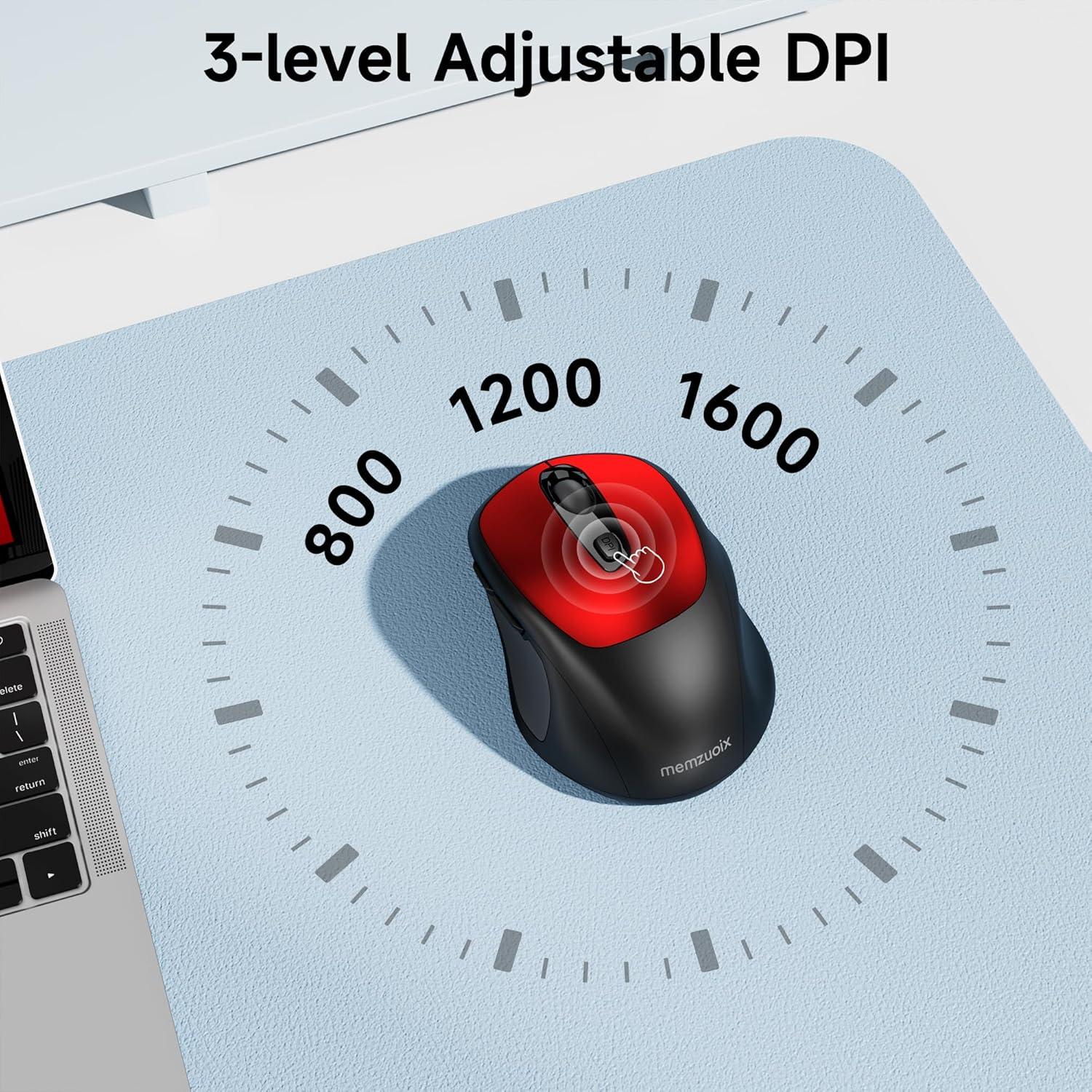
- 3 рэгуляваных узроўняў DPI: Easily switch between 800, 1200, and 1600 DPI for optimal control.
- Ergonomic & Ambidextrous Design: Contoured shape with rubberized side grips for comfortable use by both left and right-handed users.
- Plug & Play 2.4GHz Nano Receiver: Instant connectivity without software installation, offering a reliable 33ft range.
- Трывалая зборка: Buttons and scroll wheel tested for 10 million clicks, ensuring long-term reliability.
- Універсальная сумяшчальнасць: Works seamlessly with Windows, macOS, Linux, and ChromeOS devices.
- Партатыўны дызайн: Lightweight and compact, ideal for travel and on-the-go use.
Кіраўніцтва па ўстаноўцы
1. Усталюйце батарэі
- Знайдзіце вечка адсека для батарэй на ніжняй частцы мышы.
- Акуратна зрушце або падніміце вечка, каб адкрыць адсек.
- Устаўце дзве батарэйкі тыпу ААА, сачыце за правільнай палярнасцю (+/-).
- Зачыніце вечка батарэйнага адсека, пакуль яна надзейна не зашчоўкнецца.

2. Падключыце USB-прыёмнік
- Locate the nano USB receiver, typically stored within the battery compartment of the mouse.
- Plug the USB receiver into an available USB port on your computer (PC, Mac, laptop, etc.).
- The computer should automatically detect and install the necessary drivers. No additional software installation is required.

Інструкцыя па эксплуатацыі
1. Уключэнне/выключэнне харчавання
Locate the ON/OFF switch on the underside of the mouse. Slide the switch to the 'ON' position to activate the mouse. Slide it to 'OFF' when not in use to conserve battery life.
2. Функцыі кнопак
- Левая кнопка: Функцыя асноўнага націску.
- Правая кнопка: Функцыя другаснага кліку (кантэкстнае меню).
- Кола пракруткі: Пракручванне дакументаў уверх/уніз і web старонкі. Таксама можна націснуць для адкрыцця функцыі сярэдняй кнопкай мышы.
- Кнопка DPI: Cycles through DPI settings (800/1200/1600).
- Кнопка "Наперад": Перамяшчаецца наперад web браўзэры або file даследчыкі.
- Кнопка "Назад": Пераходзіць назад у web браўзэры або file даследчыкі.
3. Рэгуляванне адчувальнасці DPI
Націсніце Кнопка DPI located below the scroll wheel to cycle through the available sensitivity settings: 800 DPI (for precise control), 1200 DPI (standard use), and 1600 DPI (for faster cursor movement). The mouse will indicate the change, often with a brief LED flash.
Тэхнічнае абслугоўванне
1. Уборка
Каб падтрымліваць аптымальную прадукцыйнасць, рэгулярна чысціце мыш. Выкарыстоўвайце мяккую тканіну без ворса, злёгку змочануюampened with water or a mild cleaning solution. Avoid harsh chemicals or abrasive materials. Ensure no liquid enters the mouse's internal components.
2. Замена батарэі
When the mouse's performance degrades or it stops responding, it may be time to replace the batteries. Follow the steps in the 'Install Batteries' section of this manual to replace the two AAA batteries. Dispose of old batteries responsibly according to local regulations.
Ліквідацыю непаладак
- Мышка не рэагуе:
- Ensure the mouse is switched 'ON' using the power switch on the underside.
- Праверце, ці правільна ўсталяваныя батарэйкі і ці дастаткова яны зараджаныя. Пры неабходнасці замяніце іх.
- Пераканайцеся, што USB-прыёмнік надзейна падключаны да спраўнага USB-порта вашага кампутара. Паспрабуйце іншы USB-порт.
- Перазагрузіце кампутар.
- Cursor movement is erratic or inaccurate:
- Ensure the mouse is used on a clean, non-reflective surface. Avoid glass or highly reflective surfaces.
- Працярыце аптычны датчык на ніжняй частцы мышы мяккай тканінай.
- Try adjusting the DPI setting using the DPI button.
- Connection issues or frequent disconnections:
- Ensure the mouse is within the effective operating range (approximately 33 feet) of the USB receiver.
- Avoid using the mouse near strong electromagnetic interference sources (e.g., other wireless devices, large metal objects).
- Re-pair the mouse with the receiver if possible (refer to manufacturer's website for specific pairing instructions if needed, as this model is typically plug-and-play).
Тэхнічныя характарыстыкі
| Асаблівасць | Дэталь |
|---|---|
| Марка | memzuoix |
| Нумар мадэлі | WM125B |
| Тэхналогія падлучэння | Бесправадная сувязь 2.4 ГГц (USB Nano Receiver) |
| Ўзроўні DPI | 800/1200/1600 |
| Колькасць кнопак | 6 (Left, Right, Scroll Wheel, DPI, Forward, Backward) |
| Тэхналогія выяўлення руху | Аптычны |
| Крыніца харчавання | 2 х ААА батарэі (не ўключаны) |
| Вага прадмета | 3.2 унцыі |
| Памеры ўпакоўкі | 4.8 х 3.23 х 1.85 цалі |
| Колер | Чырвоны |
| Сумяшчальнасць | PC, Mac, Laptop (Windows, macOS, Linux, ChromeOS) |
Гарантыя і падтрымка
The memzuoix WM125B Wireless Mouse comes with a standard manufacturer's warranty. For specific warranty details, return policies, or technical support, please refer to the product packaging or contact memzuoix customer service directly through their official webсайт або прадаўца, дзе быў набыты тавар.
Каб атрымаць дадатковую дапамогу, наведайце memzuoix Store on Amazon.