
1. Прадукт скончыўсяview
The EWEADN G10 Wired Gaming Mouse is designed for an optimal gaming and computing experience. It features an ergonomic design, adjustable DPI settings, vibrant RGB backlighting, and quiet click buttons for minimal disturbance.

Малюнак 1: Зверху ўніз view of the EWEADN G10 Wired Gaming Mouse, showcasing its white and gray body with blue and orange accents and a braided USB cable.
2. Настройка і ўстаноўка
The EWEADN G10 mouse is designed for simple plug-and-play functionality, requiring no additional drivers or software for basic operation.
2.1 Падключэнне мышы
- Locate an available USB-A port on your computer (PC, Windows laptop, etc.).
- Insert the USB connector of the EWEADN G10 mouse into the USB-A port.
- The mouse will be automatically recognized by your operating system and ready for use instantly.

Figure 2: The EWEADN G10 mouse connected to a laptop, highlighting its USB-A port and enhanced nylon braided cable for easy plug-and-play setup.
2.2 Сумяшчальнасць сістэмы
The mouse is widely compatible with various Windows operating systems:
- Windows 7
- Windows 8
- Windows 10
- Windows 11

Figure 3: Illustration of the EWEADN G10 mouse's broad compatibility with various Microsoft Windows operating systems.
3. Інструкцыя па эксплуатацыі
3.1 Функцыі кнопак
The EWEADN G10 mouse features 6 buttons for enhanced control and functionality:
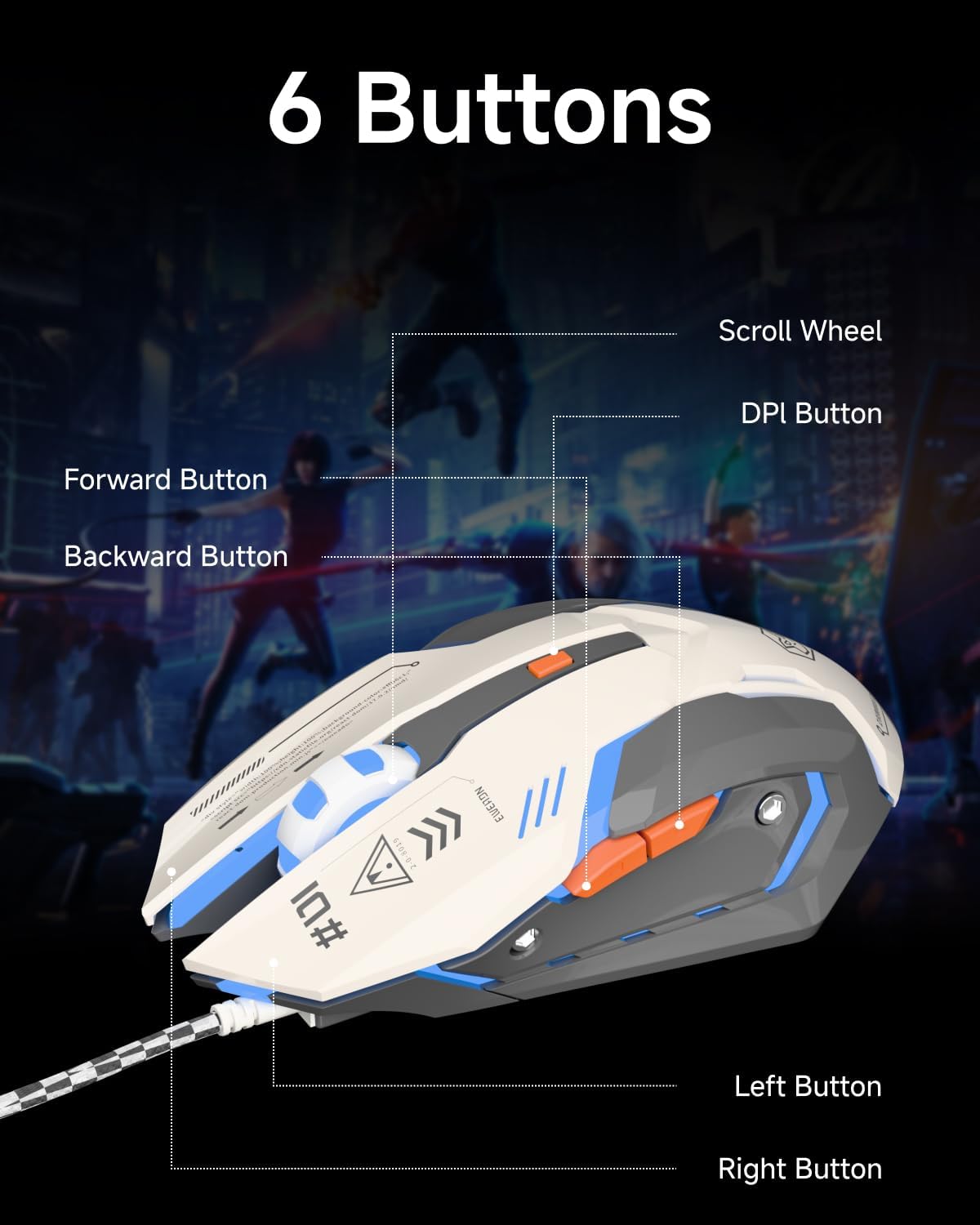
Figure 4: A detailed diagram illustrating the placement and labeling of the six functional buttons on the EWEADN G10 gaming mouse.
- Левая кнопка: Standard left-click function. Designed for quiet operation.
- Правая кнопка: Standard right-click function. Designed for quiet operation.
- Кола пракруткі: For vertical scrolling. Also functions as a clickable middle button.
- Кнопка DPI: Рэгулюе адчувальнасць мышы (DPI).
- Кнопка "Наперад": Перамяшчаецца наперад web браўзэры або file даследчыкі.
- Кнопка "Назад": Пераходзіць назад у web браўзэры або file даследчыкі.
3.2 Рэгуляванне DPI
The mouse offers 4 adjustable DPI levels to suit different tasks and preferences, from precise aiming to rapid cursor movement.
- Узроўні DPI: 800, 1200, 2400, 3200
- To cycle through DPI settings, press the Кнопка DPI located behind the scroll wheel. Each press will switch to the next DPI level.

Figure 5: The EWEADN G10 mouse showcasing its adjustable DPI settings, allowing users to switch between 800, 1200, 2400, and 3200 DPI for varied precision needs.
3.3 Кіраванне падсветкай RGB
The EWEADN G10 features dynamic RGB backlighting with multiple modes and colors.
- To activate the RGB backlight, press and hold the Кнопка DPI на працягу 3 секунд.
- To switch between backlight modes (e.g., 4-color dynamic breathing, monochrome glow), use the DPI + Left Button or DPI + правая кнопка камбінацыі.
- The available dynamic backlighting colors include blue, pink, red, and purple.

Figure 6: The EWEADN G10 mouse illuminated with its 4-color dynamic breathing light, cycling through blue, red, purple, and pink.
3.4 Ergonomics and Quiet Operation
The mouse is designed for comfort during extended use and features quiet click buttons.
- Эрганамічны дызайн: The shape is crafted to fit approximately 98% of hand sizes, providing a comfortable grip for various styles (fingertip, palm, claw). This design aims to reduce fatigue during long gaming sessions or work.
- Бясшумныя клікі: The left and right mouse buttons are engineered for noise-free operation, making it ideal for quiet environments such as libraries, shared workspaces, or late-night use.

Figure 7: The EWEADN G10 mouse demonstrating its silent click capability, ensuring minimal noise disturbance, even in quiet environments.
4. Тэхнічнае абслугоўванне і догляд
Proper maintenance ensures the longevity and optimal performance of your EWEADN G10 mouse.
- Уборка: Выкарыстоўвайце мяккую сухую тканіну для працірання паверхні мышы. Для выдалення ўстойлівага бруду злёгку працярыцеampen the cloth with water or a mild electronics cleaner. Avoid using harsh chemicals or abrasive materials.
- Сыход за кабелем: Avoid sharp bends or kinks in the USB cable. Do not pull the mouse by its cable. Store the cable neatly when not in use to prevent damage.
- захоўванне: Захоўвайце мыш у чыстым, сухім месцы, удалечыні ад экстрэмальных тэмператур і прамых сонечных прамянёў.
- Трываласць: The mouse is built with over 3 million clicks durability for long-lasting performance.
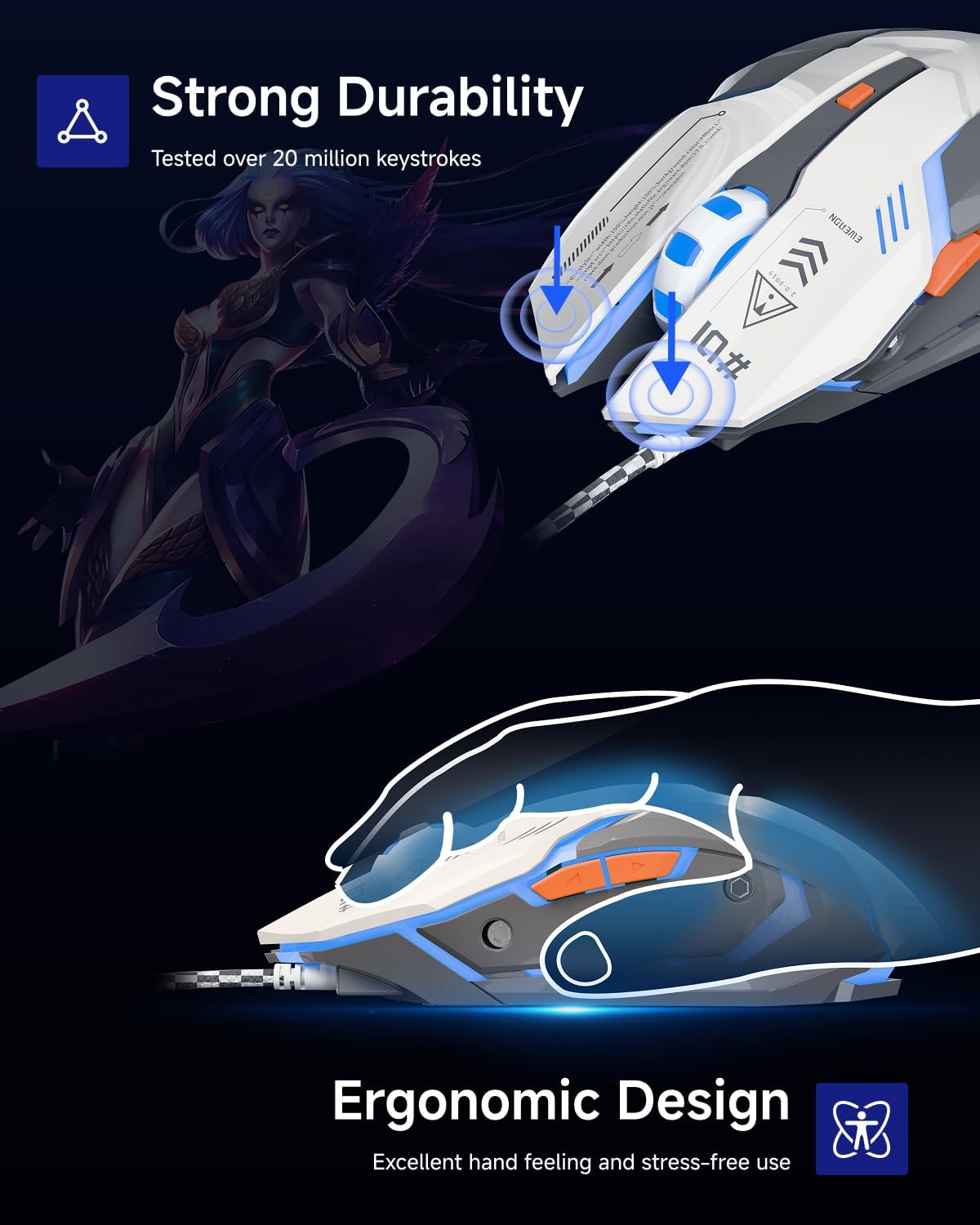
Figure 8: The EWEADN G10 mouse emphasizing its robust construction and ergonomic shape, designed for extended use and comfort.
5. Выпраўленне непаладак
If you encounter issues with your EWEADN G10 mouse, refer to the following common problems and solutions:
| праблема | Магчымая прычына | Рашэнне |
|---|---|---|
| Мышка не рэагуе / Курсор не рухаецца. | Loose USB connection, faulty USB port, or driver issue. |
|
| RGB backlight is off or not changing modes. | Backlight not activated or incorrect button combination used. |
|
| DPI sensitivity is not changing. | DPI button not pressed correctly. |
|
| Scroll wheel rattles or feels loose. | Manufacturing tolerance or normal characteristic. |
|
| Mouse feels cheap or plasticky. | Subjective perception, material choice for cost-effectiveness. |
|
6. Тэхнічныя характарыстыкі прадукту
| Асаблівасць | Дэталь |
|---|---|
| Нумар мадэлі | G10 |
| Марка | SEUNKWANG |
| Вытворца | ЭВІДН |
| Тэхналогія падлучэння | Правадны (USB-A) |
| Ўзроўні DPI | 800, 1200, 2400, 3200 (рэгуляваны) |
| Гузікі | 6 (Left, Right, Scroll Wheel, DPI, Forward, Backward) |
| Асаблівасці | RGB LED Lights, Lightweight, Portable, Soundless (Quiet Clicks), Ergonomic Design |
| Тэхналогія выяўлення руху | Аптычны |
| Памеры прадукту | 5 х 2.7 х 0.1 цалі |
| Вага прадмета | 6 унцыі |
| Даўжыня шнура | 4.2 FT (approx. 1.3 meters) |
7. Гарантыя і падтрымка
For detailed warranty information, please refer to the documentation included with your product purchase. Warranty terms and conditions may vary by region and retailer.
For technical support, product inquiries, or further assistance, please visit the official SEUNKWANG store or contact their customer service directly.
Афіцыйная крама брэнда: Крама SEUNKWANG на Amazon