
Уводзіны
This manual provides detailed instructions for the ATTACK SHARK G3 Tri-Mode Wireless Gaming Mouse. Please read this manual thoroughly before use to ensure proper operation and to maximize your experience with the product.
The ATTACK SHARK G3 is a high-performance gaming mouse designed for versatility and precision. It offers three connectivity modes: 2.4GHz wireless, Bluetooth 5.2, and wired USB-C, allowing seamless switching between various devices and setups. Featuring a lightweight design, a high-precision PAW3311 sensor, and programmable buttons, the G3 is engineered for both gaming and productivity.
Змест пакета
- ATTACK SHARK G3 Wireless Gaming Mouse
- USB-C кабель для зарадкі/дадзеных
- USB-прыёмнік 2.4 ГГц
- Кіраўніцтва карыстальніка
Прадукт скончаныview
Familiarize yourself with the components of your ATTACK SHARK G3 mouse.

Выява: зверху ўніз view of the ATTACK SHARK G3 Wireless Gaming Mouse in Berry Red, showing the left and right click buttons, scroll wheel, and two side buttons on the left.
- Левая кнопка мышы: Стандартная асноўная функцыя мышы.
- Правая кнопка мышы: Стандартная другасная функцыя мышы.
- Кола пракруткі: For scrolling and middle-click function.
- Side Buttons (x2): Default to Forward/Backward, programmable via software.
- DPI Button (underside): Цыклічнае пераключэнне паміж зададзенымі ўзроўнямі DPI.
- Mode Switch (underside): Toggles between 2.4GHz, Bluetooth, and Wired modes.
- Порт USB-C: Для праваднога падключэння і зарадкі.
- 2.4GHz USB Receiver Storage: Located on the underside of the mouse.

Выява: Выстава калажаўasing key features of the G3 mouse, including its 59g ultra-light design, 500mAh battery, PixArt PAW3311 sensor, 25000 DPI capability, Huano Blue Shell Pink Dot Switches, and Tri-mode connectivity.
Настройка
1. Падключэнне ў правадным рэжыме
- Connect the USB-C end of the provided cable to the mouse.
- Падключыце канец кабеля USB-A да даступнага порта USB на вашым кампутары.
- Ensure the mode switch on the underside of the mouse is set to the "Wired" position.
- The mouse will be recognized by your computer and is ready for use.
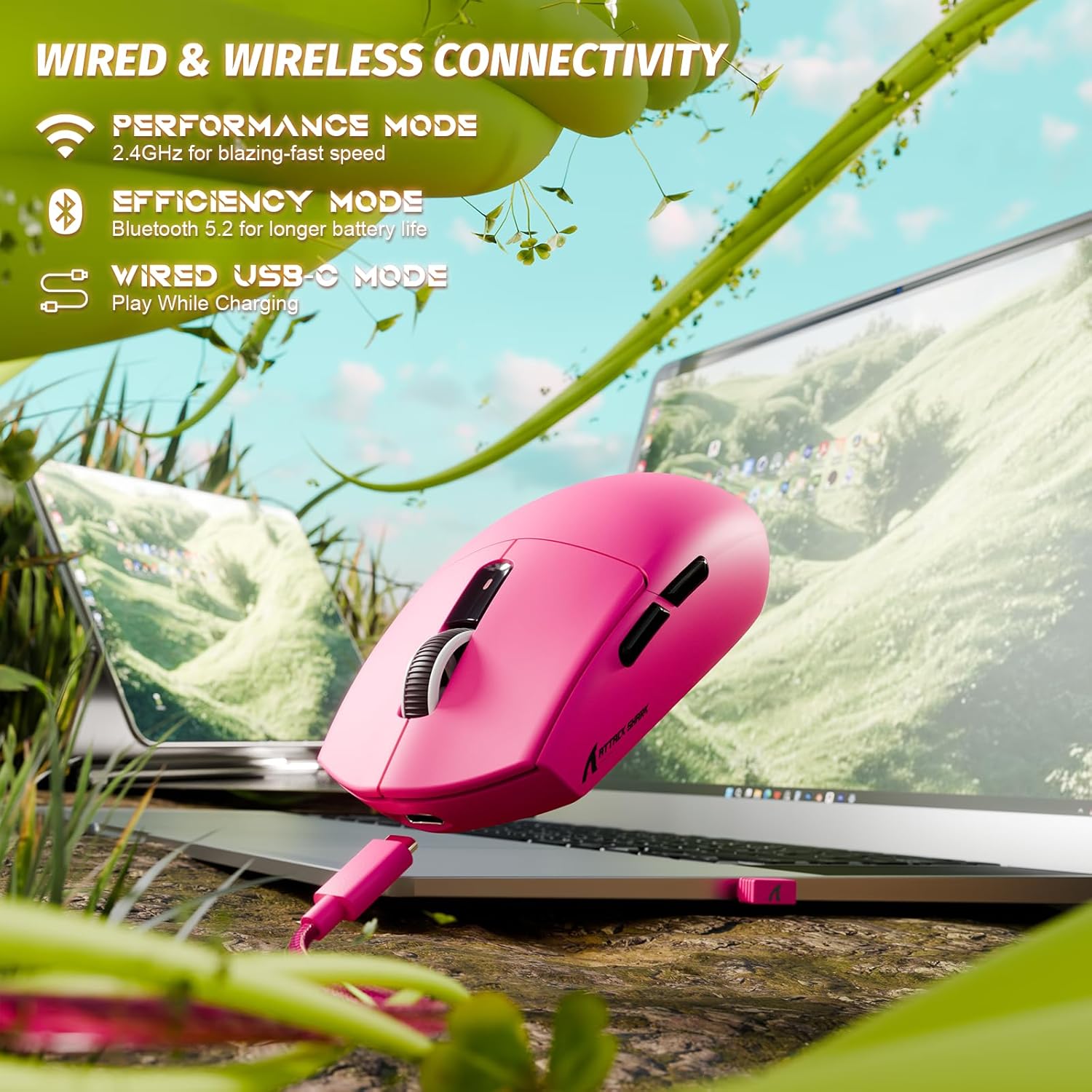
Image: The ATTACK SHARK G3 mouse connected to a laptop via its USB-C cable, illustrating the wired connectivity option.
2. 2.4GHz Wireless Mode Connection
- Locate the 2.4GHz USB receiver stored on the underside of the mouse.
- Падключыце USB-прыёмнік да вольнага порта USB на вашым кампутары.
- Set the mode switch on the underside of the mouse to the "2.4G" position.
- The mouse should automatically connect to the receiver. If not, press and hold the DPI button and a side button simultaneously for 3 seconds to initiate pairing.
3. Bluetooth 5.2 Mode Connection
- Set the mode switch on the underside of the mouse to the "BT" (Bluetooth) position.
- The mouse will enter pairing mode, indicated by a blinking LED light.
- На вашым камп'ютары або прыладзе перайдзіце ў налады Bluetooth.
- Пошук new devices and select "ATTACK SHARK G3" from the list.
- Выконвайце любыя падказкі на экране, каб завяршыць працэс спалучэння.
Інструкцыя па эксплуатацыі
Рэгуляванне DPI
The ATTACK SHARK G3 features a PAW3311 sensor with adjustable DPI settings. You can cycle through preset DPI levels by pressing the DPI button located on the underside of the mouse. For fine adjustments and custom DPI profiles, use the dedicated driver software.

Выява: буйны план view of the PixArt PAW3311 sensor inside the mouse, highlighting its capabilities such as 1000Hz polling rate, 25000 DPI max, and 40G acceleration.
Праграмуемыя кнопкі і праграмнае забеспячэнне
The G3 mouse includes 5 programmable buttons. To customize button functions, create macros, and adjust settings like polling rate and Lift-Off Distance (LOD), download and install the official ATTACK SHARK driver software from the manufacturer's website. The software allows for personalized configurations to suit your specific needs.

Image: A screenshot of the ATTACK SHARK G3 customization software interface, showing options for mouse settings, DPI settings, parameter settings, macro editing, and personal center.
Зарадка мышы
The mouse is equipped with a built-in 500mAh rechargeable lithium-ion battery. When the battery is low, the LED indicator will signal. Connect the mouse to your computer using the provided USB-C cable to charge. The mouse can be used normally while charging in wired mode.

Image: The ATTACK SHARK G3 mouse in a natural setting, emphasizing its 500mAh battery capacity for extended use.
Тэхнічнае абслугоўванне
- Уборка: Use a soft, dry cloth to clean the mouse surface. For stubborn dirt, a slightly damp можна выкарыстоўваць тканіну, каб не дапусціць траплення вільгаці ўнутраныя кампаненты.
- Сыход за датчыкам: Для забеспячэння дакладнага адсочвання падтрымлівайце аптычны датчык на ніжняй частцы мышы ў чысціні і без пылу і смецця.
- Тэрмін службы батарэі: Каб падоўжыць тэрмін службы батарэі, пазбягайце частай поўнай разрадкі мышы. Зараджайце яе, калі з'явіцца індыкатар нізкага зараду батарэі.
- захоўванне: When not in use for extended periods, store the mouse in a cool, dry place.

Image: An inverted view of the ATTACK SHARK G3 mouse, showcasing its double-layer mouse feet for smooth gliding and stability.
Ліквідацыю непаладак
- Мышка не рэагуе:
- Пераканайцеся, што мыш зараджана.
- Check the mode switch (2.4G, BT, Wired) is set correctly.
- For 2.4GHz, ensure the USB receiver is securely plugged in. Try a different USB port.
- For Bluetooth, ensure Bluetooth is enabled on your device and the mouse is paired.
- Try connecting in wired mode to confirm functionality.
- Няправільнае адсочванне:
- Ачысціце аптычны датчык на ніжняй частцы мышы.
- Пераканайцеся, што вы карыстаецеся мышшу на адпаведнай паверхні (напрыклад, кілімку для мышы).
- Adjust DPI settings via the DPI button or software.
- Праблемы з падключэннем:
- Каб паменшыць перашкоды, перамясціце мыш бліжэй да прымача/прылады.
- Avoid using the 2.4GHz receiver near other wireless devices that may cause interference.
- Re-pair the mouse in 2.4GHz or Bluetooth mode if connection is lost.
- Праграма не распазнае мыш:
- Ensure the mouse is connected in wired or 2.4GHz mode (Bluetooth may not be supported by all software).
- Перазапусціце праграму і/або камп'ютар.
- Reinstall the driver software.
Тэхнічныя характарыстыкі
| Асаблівасць | Дэталь |
|---|---|
| мадэль | G3 |
| Сувязь | Бесправадная сувязь 2.4 ГГц, Bluetooth 5.2, правадны USB-C |
| Датчык | Аптычны датчык PixArt PAW3311 |
| Дыяпазон DPI | 800–30 000 DPI (рэгуляванае) |
| Адсочванне хуткасці | IPS 400 |
| Паскарэнне | 40G |
| Стаўка апытання | 1000Hz (Wired/2.4GHz) |
| Гузікі | 5 праграмуемых кнопак |
| Выключальнікі | Huano Blue Shell Pink Dot Switches (80 million clicks) |
| акумулятар | 500mAh Rechargeable Lithium-ion |
| Вага мышы | Прыблізна 59 г (2.08 унцый) |
| Сумяшчальнасць | PC, Mac (Windows/macOS) |
Гарантыя і падтрымка
ATTACK SHARK products are designed and manufactured to the highest quality standards. For warranty information and technical support, please refer to the official ATTACK SHARK webсайт або звярніцеся непасрэдна ў службу падтрымкі кліентаў. Захоўвайце пацвярджэнне пакупкі для прэтэнзій па гарантыі.
For further assistance, visit the official ATTACK SHARK store: ATTACK SHARK Store