
1. Уводзіны
This manual provides detailed instructions for the setup, operation, maintenance, and troubleshooting of your Tabwee T90 Android 16 Tablet. Please read this manual thoroughly before using your device to ensure proper functionality and to maximize your user experience.

Image: The Tabwee T90 tablet shown with its full suite of accessories, including a detachable keyboard, wireless mouse, stylus, protective case, charging adapter, and USB cable. This illustrates the complete package contents.
2. Змесціва ўпакоўкі
Праверце наяўнасць усіх прадметаў у камплекце:
- Tabwee T90 Tablet
- Bluetooth клавіятура
- Бесправадная мыш
- Стылус
- Ахоўны футляр
- Ахоўная фільм
- Power Adapter (Type-C)
- USB-кабель для перадачы дадзеных (тыпу C)
- Кіраўніцтва карыстальніка

Image: A visual representation of the Tabwee T90 tablet's dimensions and all components included in the retail package, such as the tablet, keyboard, mouse, stylus, and various cables and covers.
3. Пачатковая налада
3.1 Зарадка планшэта
Before first use, fully charge the tablet using the provided Type-C power adapter and USB cable. The charging port is located on the side of the tablet.

Image: The Tabwee T90 tablet being charged via its Type-C port, highlighting its 8000mAh battery and estimated usage times for various activities like web browsing, video playback, gaming, and music.
3.2 Уключэнне/выключэнне
- Каб уключыць: Націсніце і ўтрымлівайце кнопку харчавання, пакуль не загарыцца экран.
- Каб выключыць: Press and hold the Power button, then select "Power Off" from the options.
3.3 Пачатковая канфігурацыя
Follow the on-screen prompts to complete the initial setup, including:
- Выбар мовы
- Падключэнне да сеткі Wi-Fi
- Уваход у ўліковы запіс Google
- Налады даты і часу
- Security settings (PIN, pattern, password, or face recognition)

Image: A collage of screenshots demonstrating key Android 16 features such as real-time notifications, robust security measures, access to the Google Play Store for app downloads, and options for regional language optimization.
3.4 Падключэнне аксесуараў
The Tabwee T90 comes with a Bluetooth keyboard and mouse. To connect them:
- Enable Bluetooth on your tablet via Settings > Connected devices > Bluetooth.
- Put the keyboard/mouse into pairing mode (refer to their individual manuals if needed).
- Select the accessory from the list of available devices on your tablet to pair.
The stylus pen does not require pairing.
4. Кіраванне планшэтам
4.1 Інтэрфейс Android 16
The Tabwee T90 runs on Android 16, offering an intuitive and enhanced user experience with improved security and performance. Features include real-time notifications, efficient multitasking, and smart operational capabilities.
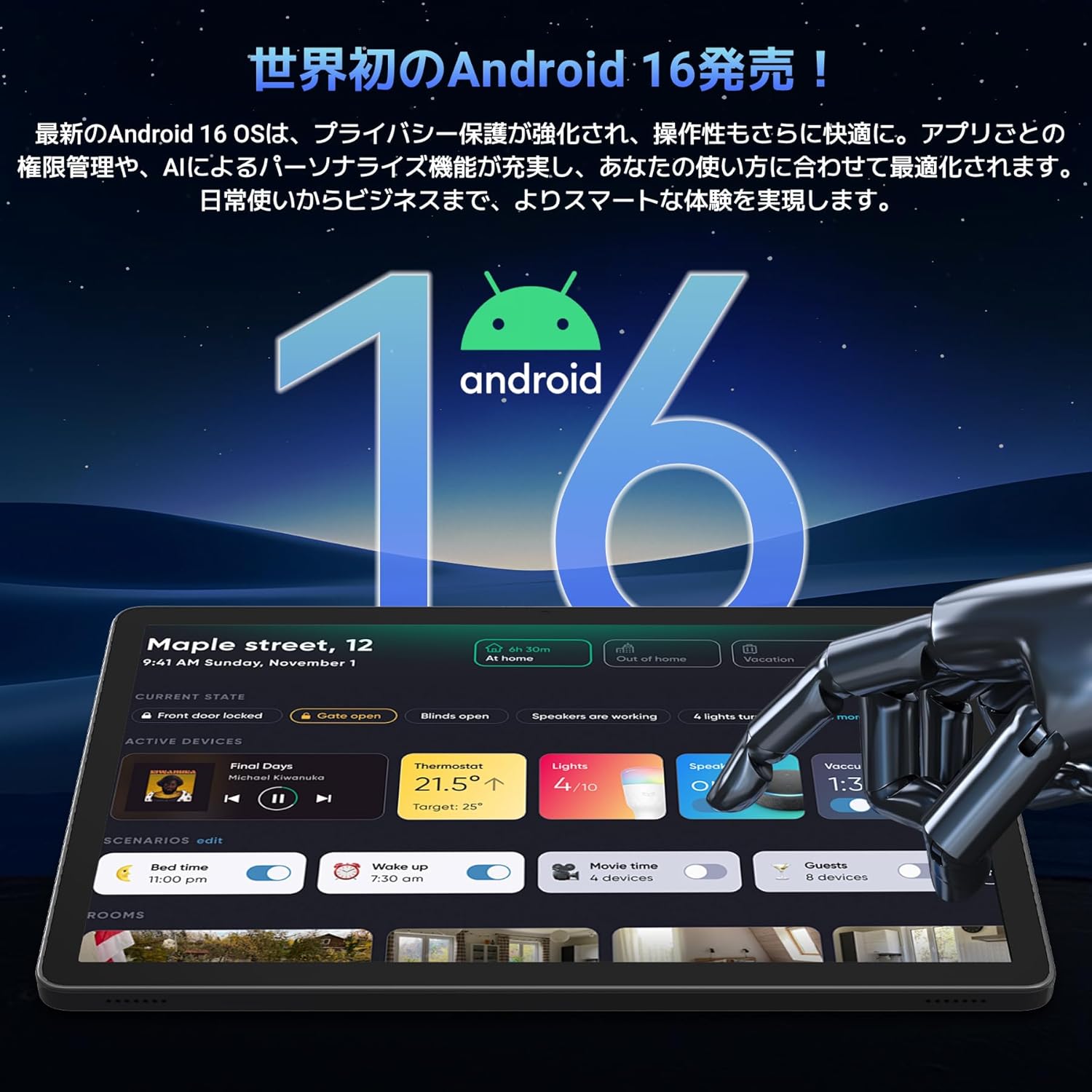
Image: A visual representation of the Android 16 operating system logo and its modern interface displayed on the Tabwee T90 tablet, emphasizing its new features and design.
4.2 Display and Media Playback
The 11-inch FHD IPS display (1920x1200 resolution) provides clear and vibrant visuals. With Widevine L1 support, you can stream high-definition content (1080p and above) from services like Netflix and Amazon Prime Video.

Image: The Tabwee T90 tablet showcasing a high-definition video of a baseball game, demonstrating its 11-inch FHD display and compatibility with streaming platforms like Netflix, YouTube, HBO, and Prime Video via Widevine L1.
4.3 Camera and Imaging
The tablet features a 5MP front camera for video calls and selfies, and a 13MP rear camera for capturing photos. Android 16's AI image processing enhances photo quality, and HEVC video encoding ensures stable editing and improved video quality. Google Lens integration allows for smart recognition, scanning, translation, and search functions.
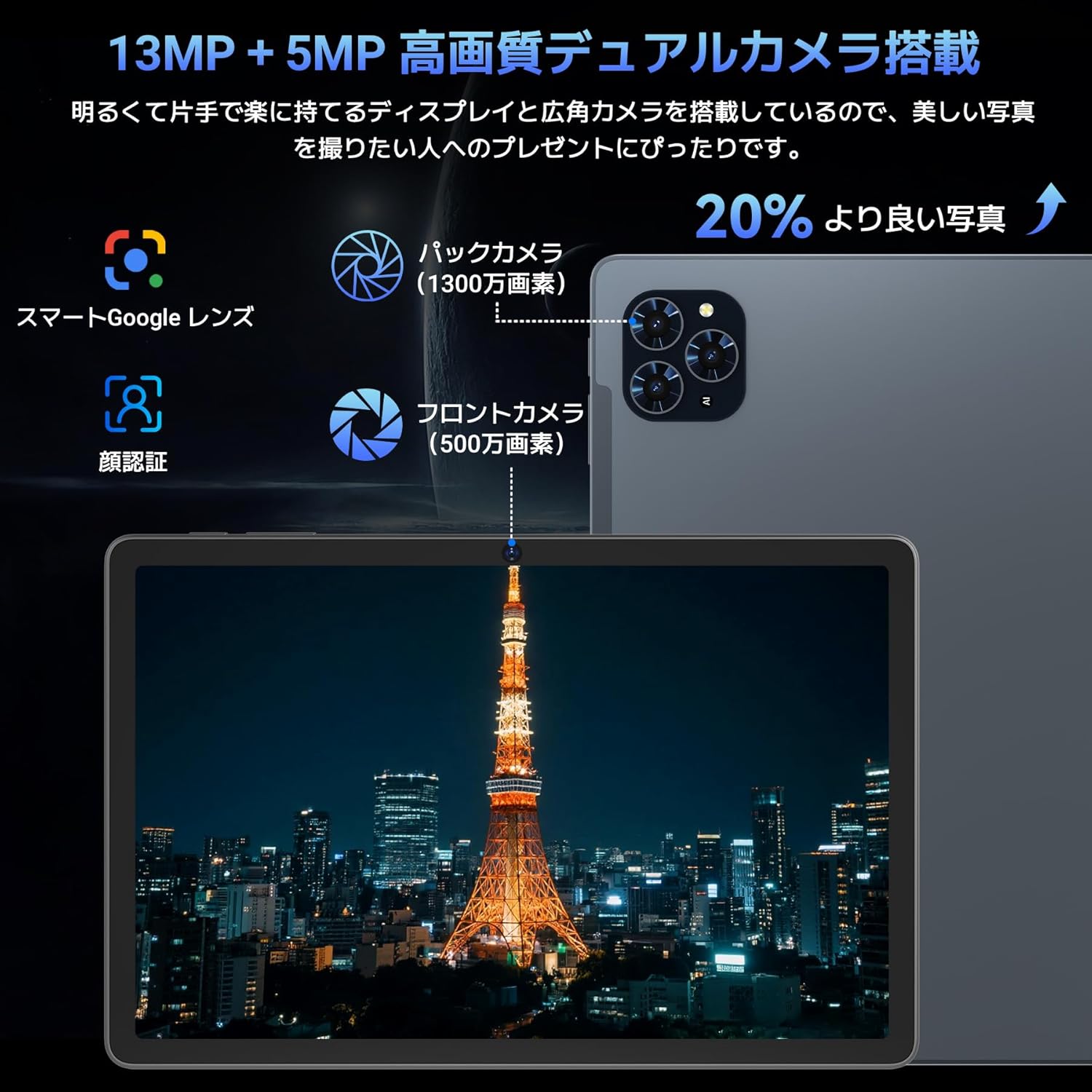
Выява: Падрабязны view of the Tabwee T90 tablet's camera system, indicating a 13MP rear camera and a 5MP front camera. An example photo of Tokyo Tower is displayed on the screen, illustrating image capture capabilities.
4.4 Распазнаванне твараў
Utilize the face recognition feature for quick and secure unlocking of your tablet. Set it up in Settings > Security & privacy > Face unlock.
4.5 Інтэграцыя са штучным інтэлектам Gemini
The tablet integrates with Gemini AI, optimizing performance across various scenarios. This AI assists with content recommendations, image processing, and semantic understanding, enhancing daily operations.

Image: A conceptual image depicting Gemini AI as a robotic figure interacting with multiple tablet screens, symbolizing its ability to support various tasks like email composition, schedule management, and information retrieval, enhancing user productivity.
4.6 Custom Keyboard Shortcuts
After connecting a Bluetooth keyboard, you can set custom shortcut keys to launch frequently used applications with a single press. Navigate to Settings > System > Keyboard > Keyboard shortcuts to configure.
5. Тэхнічнае абслугоўванне
5.1 Ачыстка
- Выкарыстоўвайце мяккую тканіну без ворса для чысткі экрана і корпуса планшэта.
- Пазбягайце выкарыстання агрэсіўных хімікатаў або абразіўных матэрыялаў.
- Для ўстойлівых плям злёгкуampпрацярыце тканіну вадой або сродкам для чысткі экранаў, прызначаным для электронікі.
5.2 Сыход за акумулятарам
- Пазбягайце ўздзеяння экстрэмальных тэмператур на планшэт.
- Не дапускайце частай поўнай разрадкі акумулятара.
- Выкарыстоўвайце толькі зарадную прыладу, якая ўваходзіць у камплект, або сертыфікаваную сумяшчальную зарадную прыладу.
5.3 Абнаўленне праграмнага забеспячэння
Рэгулярна правярайце наяўнасць абнаўленняў сістэмы і ўсталёўвайце іх, каб забяспечыць аптымальную прадукцыйнасць і бяспеку. Перайдзіце ў Налады > Сістэма > Абнаўленне сістэмы.
6. Выпраўленне непаладак
6.1 Планшэт не ўключаецца
- Пераканайцеся, што планшэт дастаткова зараджаны. Падключыце яго да зараднай прылады як мінімум на 30 хвілін.
- Націсніце і ўтрымлівайце кнопку харчавання на працягу 10-15 секунд, каб выканаць прымусовы перазапуск.
6.2 Праблемы з падключэннем да Wi-Fi
- Перазагрузіце Wi-Fi-роўтар і планшэт.
- Забудзьцеся пра сетку ў наладах планшэта і падключыцеся зноў.
- Пераканайцеся, што вы знаходзіцеся ў зоне дзеяння сігналу Wi-Fi.
6.3 Аксесуары не падключаюцца
- Ensure Bluetooth is enabled on the tablet.
- Check that the accessory is in pairing mode and has sufficient battery.
- Try restarting both the tablet and the accessory.
6.4 Павольная праца
- Зачыніце непатрэбныя фонавыя праграмы.
- Ачысціце кэш часта выкарыстоўваных праграм (Налады > Праграмы > [Назва праграмы] > Памяць і кэш > Ачысціць кэш).
- Пераканайцеся, што ёсць дастаткова месца для захоўвання.
- Перыядычна перазагружайце планшэт.
7. Тэхнічныя характарыстыкі
| Асаблівасць | Дэталь |
|---|---|
| Марка | TABWEE |
| Назва мадэлі | Т90 |
| Аперацыйная сістэма | Android 16 |
| працэсар | Unisoc T615 Octa-core (2x Cortex-A75 @ 2.0GHz, 6x Cortex-A55 @ 1.8GHz) |
| графічны працэсар | Малі-G57 |
| АЗП | 8 ГБ (пашыраецца да 24 ГБ з дапамогай віртуальнай аператыўнай памяці) |
| Унутраная памяць | 128 ГБ |
| Сховішча з магчымасцю пашырэння | Up to 2TB via microSD card (not included) |
| Памер экрана | 11 цаляў |
| Тып дысплея | IPS FHD |
| дазвол | 1920 х 1200 пікселяў |
| Пярэдняя камера | 5 МП |
| Задняя камера | 13 МП |
| Ёмістасць батарэі | 8000 мАг |
| Порт для зарадкі | Тып-C |
| Сувязь | Wi-Fi (2.4G/5G, 802.11ac), Bluetooth 5.0 |
| Вага | 1.37 кг (прыбл. 3.02 фунта) |
| Памеры | 29.1 х 20 х 5.7 см (упакоўка) |
| Сертыфікаты | PSE, GITEKI, GMS |

Image: A detailed diagram illustrating the Unisoc T615 Octa-core CPU, highlighting its architecture with Cortex-A75 and Cortex-A55 cores, Mali-G52 MP1 GPU, and 12nm low power consumption, indicating its high performance.

Image: The Tabwee T90 tablet's screen showing multiple applications, emphasizing its 128GB internal storage and support for up to 2TB external storage, with examples of how many photos, songs, and videos can be stored.
8. Гарантыя і падтрымка
The Tabwee T90 Tablet comes with a Гарантыя 2 год. This warranty covers manufacturing defects and ensures product quality.
8.1 Зварот у службу падтрымкі
If you encounter any issues or have questions, please contact customer support through your Amazon account:
- Go to your Amazon account > Order History > Select the relevant order.
- Click on the seller's name (TABWEE Official Store).
- Use the "Ask a question" option to send an email.
Support is available from 9:00 AM to 6:00 PM (excluding holidays). Inquiries will be responded to as quickly as possible.

Image: An illustration representing customer support, featuring a person wearing a headset and working on a laptop, symbolizing assistance for product inquiries and warranty claims.