
Vetroo M06
Vetroo M06 Micro-ATX/Mini-ITX Gaming PC Case Instruction Manual
Мадэль: M06
Уводзіны
This manual provides detailed instructions for the installation, operation, and maintenance of your Vetroo M06 Micro-ATX/Mini-ITX Gaming PC Case. Please read this manual thoroughly before beginning assembly to ensure proper setup and optimal performance.

Image: The Vetroo M06 Micro-ATX/Mini-ITX Gaming PC Case in black, showcasing its mesh front panel and side window, viewрэд з кута.
Асноўныя характарыстыкі
- Кампактны дызайн: Micro-ATX / Mini-ITX form factor with a high-airflow mesh front panel, designed for space-efficient builds.
- Аптымізаванае астуджэнне: Supports up to five 120mm fans and a 240mm top-mounted liquid radiator for efficient thermal management.
- GPU Compatibility: Accommodates graphics cards up to 355mm in length.
- Flexible PSU Mounting: Features an adjustable power supply installation area with a maximum length of 160mm.
- Сучасная сувязь: Front panel includes USB Type-C and USB 3.0 ports for convenient peripheral access.
Змест пакета
Перад пачаткам усталёўкі пераканайцеся, што ўсе кампаненты наяўныя:
- Vetroo M06 PC Case
- Скрынка з аксэсуарамі (шрубы, распоркі, кабельныя сцяжкі)
- SFX PSU Bracket (1x)
- Кіраўніцтва карыстальніка (гэты дакумент)
Тэхнічныя характарыстыкі
| Асаблівасць | Дэталь |
|---|---|
| Назва мадэлі | М06 |
| Тып корпуса | Міні-вежа |
| Сумяшчальнасць матчыных поплаткаў | Micro ATX, Mini ITX |
| Памеры прадукту (Д х Ш х У) | 15.55 цалі х 7.87 цалі х 13.07 цалі (395 мм х 200 мм х 332 мм) |
| Вага прадмета | 13.37 фунта (6.06 кг) |
| Матэрыял | Acrylonitrile Butadiene Styrene (ABS), SPCC (0.8mm metal plate) |
| Максімальная даўжыня GPU | 355 мм |
| Максімальная вышыня працэсарнага кулера | 165 мм |
| Максімальная даўжыня БП | 160mm (Adjustable mounting) |
| Падтрымка фанатаў | Да 5 х 120 мм вентылятараў |
| Падтрымка радыятара | 1 x 240mm (Top) |
| Пярэднія парты I / O | 1 x USB Type-C, 1 x USB 3.0, HD Audio, Power Button, Reset Button |

Image: Diagram illustrating the compact dimensions of the Vetroo M06 PC case, measuring 15.5 inches in depth, 7.8 inches in width, and 13.0 inches in height.

Image: A detailed diagram outlining the compatibility specifications for the Vetroo M06 PC case, including maximum CPU cooler height (165mm), GPU length (355mm), PSU length (160mm), and supported motherboard form factors (M-ATX/ITX).
Настройка і ўстаноўка
Before starting, ensure you have a clean, static-free workspace. Refer to your component manuals for specific installation details.
1. Устаноўка мацярынскай платы
- Remove the side panel(s) of the case.
- Install the necessary motherboard standoffs into the case tray according to your motherboard's form factor (Micro-ATX or Mini-ITX).
- Акуратна ўстаўце матчыну плату на апоры, сумясціўшы адтуліны для шруб.
- Замацуеце матчыну плату шрубамі.
2. Усталёўка відэакарты
- Remove the appropriate PCIe slot covers from the rear of the case.
- Insert your graphics card into the primary PCIe slot on your motherboard.
- Замацуеце відэакарту да корпуса шрубамі.
- Connect any required PCIe power cables from your power supply to the GPU.
3. Устаноўка БП
- Determine the desired mounting position for your power supply. The Vetroo M06 supports adjustable PSU mounting.
- If using an SFX power supply, attach the included SFX bracket to the PSU.
- Slide the power supply into its designated bay and secure it with screws from the rear of the case.
- Route the necessary power cables to your components.

Выява: Унутраная view of the Vetroo M06 PC case highlighting the three adjustable mounting positions for ATX/SFX power supplies, along with an illustration of the included SFX bracket.
4. Storage Installation (HDD/SSD)
- Locate the designated mounting points for 3.5" HDDs and 2.5" SSDs.
- Secure your storage drives using the provided screws.
- Connect SATA data and power cables to each drive.
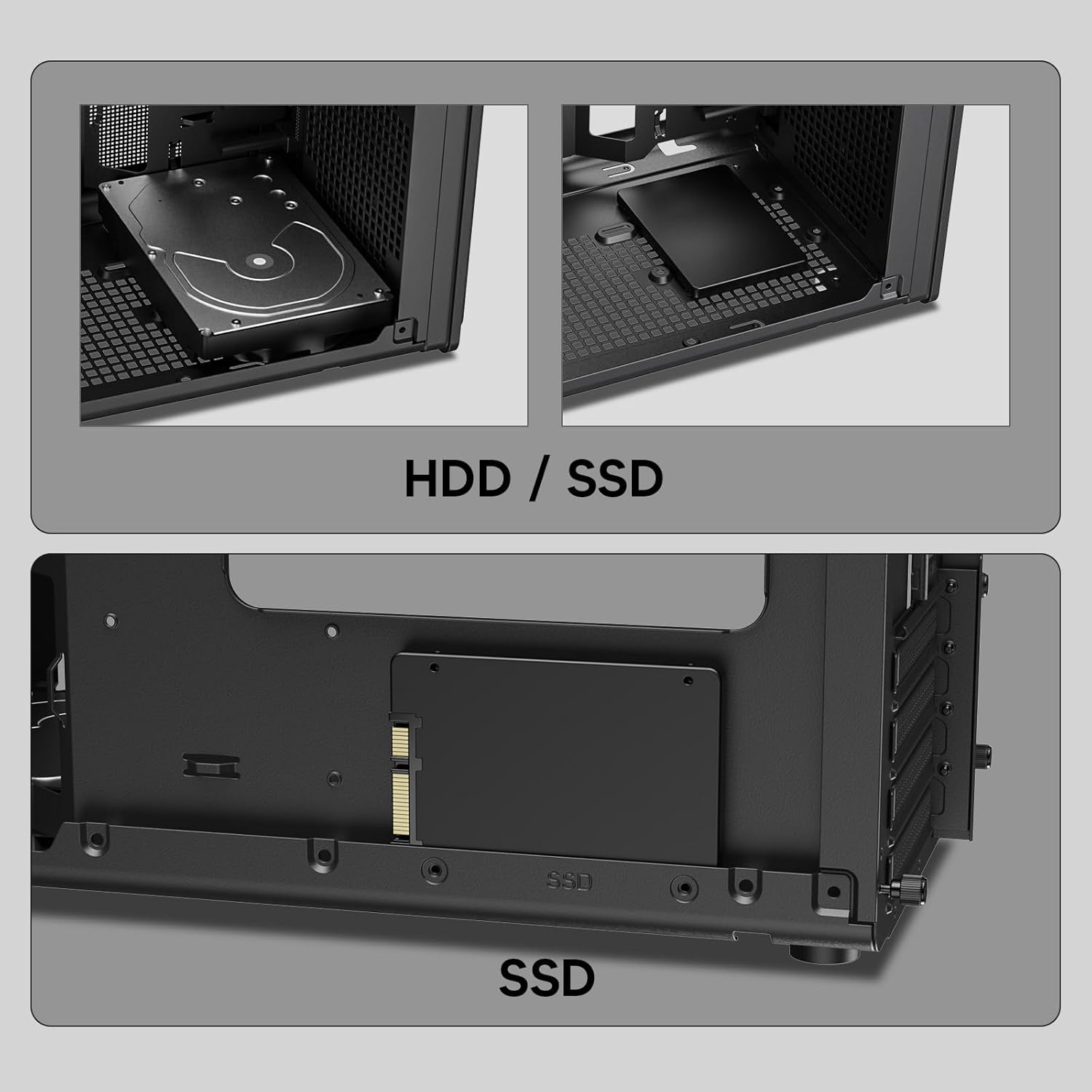
Выява: Крупны план views of the Vetroo M06 PC case interior, demonstrating the mounting options for both 3.5-inch Hard Disk Drives (HDDs) and 2.5-inch Solid State Drives (SSDs).
5. Усталёўка сістэмы астуджэння (вентылятары/радыятар)
- Identify the fan mounting locations (up to five 120mm fans).
- Mount fans using appropriate screws, ensuring correct airflow direction.
- For liquid cooling, install a 240mm radiator at the top mounting position, securing it with screws.
- Connect fan and pump cables to your motherboard or fan controller.
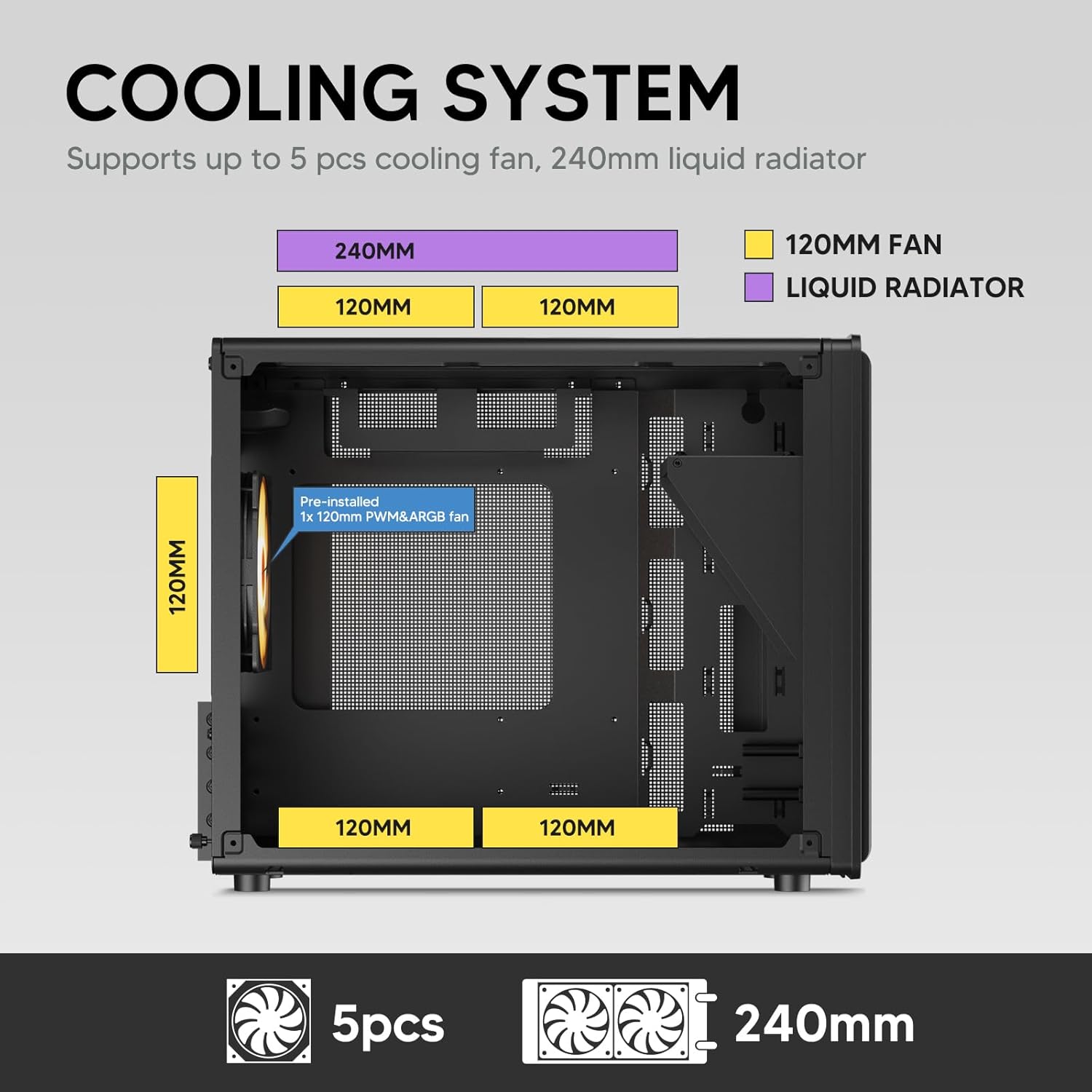
Image: A diagram illustrating the cooling system layout within the Vetroo M06 PC case, detailing the positions for up to five 120mm fans and a 240mm liquid radiator at the top.
6. Падключэнні панэлі ўводу/вываду
- Connect the front panel cables (Power, Reset, USB 3.0, USB Type-C, HD Audio) to the corresponding headers on your motherboard. Refer to your motherboard manual for header locations.

Image: A close-up of the Vetroo M06 PC case's front I/O panel, clearly labeling the Power button, Reset button, USB 3.0 port, HD Audio jack, and USB Type-C port.
Інструкцыя па эксплуатацыі
Once all components are installed and cables are connected, replace the side panels. Connect your peripherals (monitor, keyboard, mouse) and power cable to the PSU. Press the power button on the front panel to start your system.
Кіраванне паветраным патокам
The Vetroo M06 case features an excellent airflow design with mesh panels to facilitate optimal cooling. Ensure fans are installed to create a balanced airflow, typically with intake fans at the front/bottom and exhaust fans at the rear/top.

Image: An exploded diagram of the Vetroo M06 PC case, illustrating the intended airflow patterns with blue arrows indicating cool air intake and red arrows showing warm air exhaust through its mesh panels.
Тэхнічнае абслугоўванне
Regular maintenance helps prolong the life of your PC components and ensures optimal performance.
- Ачыстка ад пылу: Перыядычна чысціце пылавыя фільтры і ўнутраныя кампаненты сціснутым паветрам. Перад чысткай пераканайцеся, што сістэма выключана і адключана ад сеткі.
- Кабельнае кіраванне: Verify that internal cables are neatly routed and do not obstruct airflow.
- Праверка кампанентаў: Ensure all screws are tight and components are securely seated.

Image: A close-up shot of the Vetroo M06 PC case, featuring a digital caliper measuring the thickness of the metal plate, which is specified as 0.8mm, highlighting the case's robust construction.
Ліквідацыю непаладак
Калі ў вас узніклі праблемы, звярніцеся да наступных распаўсюджаных крокаў па ліквідацыі непаладак:
- Сістэма не ўключаецца:
- Check all power connections, including the PSU to wall outlet, PSU to motherboard (24-pin and CPU 8-pin), and front panel power switch cable to motherboard.
- Пераканайцеся, што перамыкач блока харчавання знаходзіцца ў становішчы «ON».
- Няма вываду на дысплей:
- Verify that your monitor is connected to the graphics card (not the motherboard's integrated graphics ports, unless you are using integrated graphics).
- Пераўсталюйце відэакарту і модулі аператыўнай памяці.
- Праблемы з перагрэвам:
- Пераканайцеся, што ўсе вентылятары корпуса круцяцца і правільна арыентаваны для аптымальнага патоку паветра.
- Check CPU cooler installation and thermal paste application.
- Ачысціце вентылятары і фільтры ад назапашвання пылу.
- Не працуюць USB-парты:
- Verify that the front panel USB 3.0 and USB Type-C cables are correctly connected to the motherboard headers.
Гарантыя і падтрымка
Vetroo products are designed for quality and reliability. For warranty information and technical support, please visit the official Vetroo webсайт або звярніцеся ў службу падтрымкі кліентаў. Захоўвайце пацвярджэнне пакупкі для прэтэнзій па гарантыі.
Vetroo Official Webсайт: Vetroo Store on Amazon
For further assistance, please refer to the contact information provided with your product packaging or on the official Vetroo support channels.