
1. Уводзіны і большview
Welcome to your new DigiLand 10.1-inch Android Tablet MID1050. This manual provides essential information for setting up, operating, and maintaining your device. The tablet features a 10.1-inch display, an Octa-core processor, 6GB RAM, 32GB internal storage (expandable), and runs on Android 15. Please read this manual thoroughly to ensure proper use and to maximize your tablet's potential.
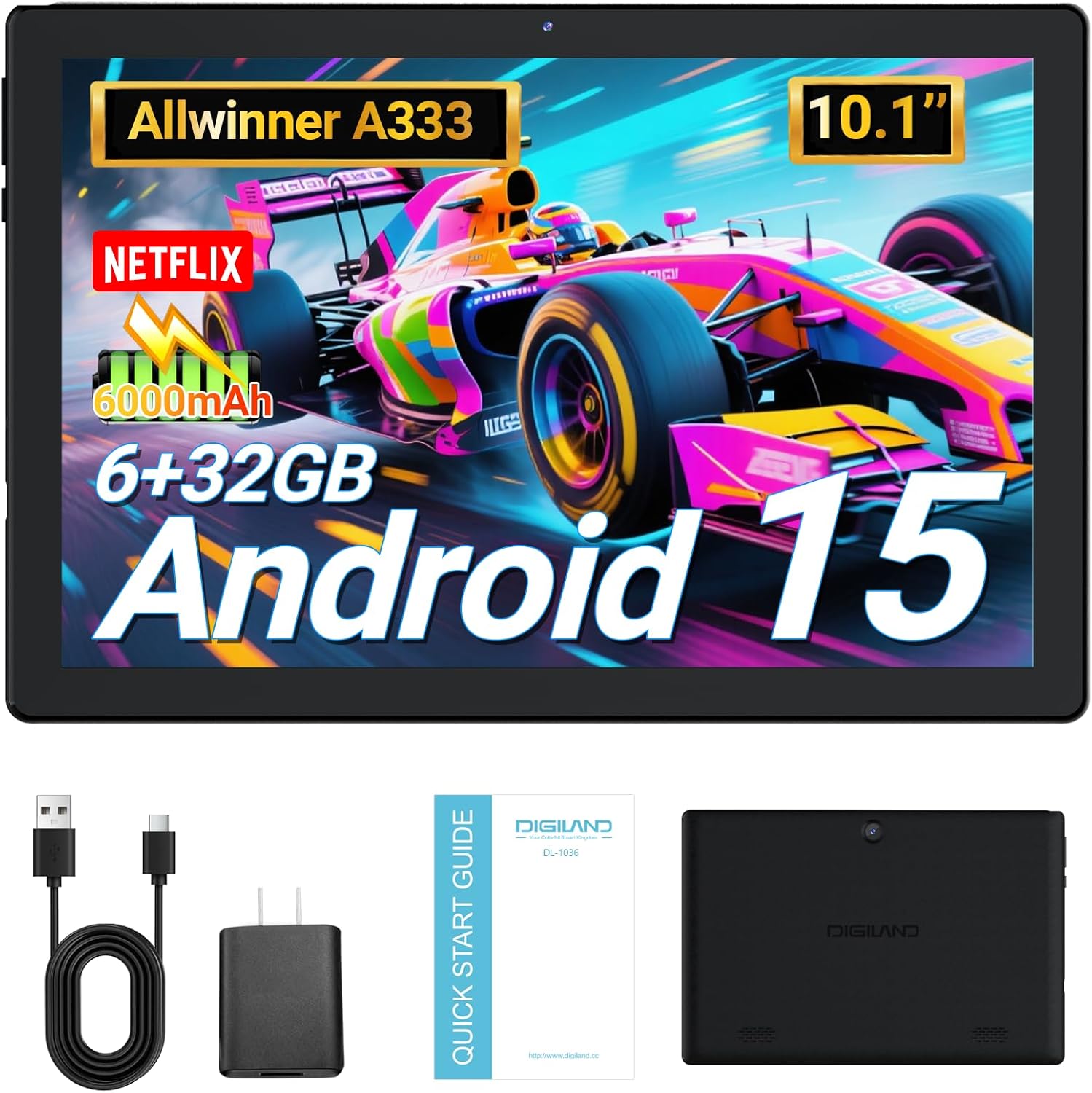
Image: DigiLand 10.1-inch Android Tablet MID1050.
2. Асаблівасці прадукту
- Latest Android 15 System: Experience enhanced compatibility, faster response times, and smoother operation. The tablet is GMS certified and comes with Google Play pre-installed, supporting popular social applications.
- Высокая прадукцыйнасць: Equipped with a high-performance Octa-core CPU, 6GB RAM (expandable to 3+3GB), and 32GB ROM. Storage can be expanded up to 1TB using an SD card.
- Шматфункцыянальны дызайн: Features a 5MP rear camera and a 2MP front camera. Includes Bluetooth 5.0, built-in GPS, 5G WiFi, FM radio, dual-speakers, and a 3.5mm headphone jack.
- 10.1-inch HD Screen: Enjoy a clear and vibrant visual experience with an 800x1280 IPS display. The 6000mAh rechargeable battery provides 8-10 hours of mixed use.

Выява: Зверхуview of DigiLand Android Tablet features.
3. Што ў скрынцы
Upon unboxing your DigiLand tablet, please ensure all the following items are present:
- 1 x DigiLand 10.1-inch Android Tablet
- 1 х USB-кабель
- 1 x 5V/1A Power Adapter (US regulations)
- 1 х Кіраўніцтва карыстальніка (гэты дакумент)
- 1 х гарантыйны талон
- 1 x Children's Silicone Case
4. Кіраўніцтва па наладцы
4.1 Зарадка планшэта
Before first use, fully charge your tablet. Connect the provided USB cable to the tablet's Type-C port and the power adapter. Plug the adapter into a standard electrical outlet. The battery indicator on the screen will show charging status.
4.2 Уключэнне/выключэнне
- Каб уключыць: Press and hold the Power button (located on the side) until the DigiLand logo appears.
- Каб выключыць: Націсніце і ўтрымлівайце кнопку харчавання, затым абярыце «Выключыць харчаванне» з опцый на экране.
4.3 Пачатковая налада
Upon first power-on, follow the on-screen prompts to configure your tablet:
- Выберыце жаданую мову.
- Падключыцеся да сеткі Wi-Fi.
- Увайдзіце ў свой уліковы запіс Google або стварыце новы.
- Review і прыняць умовы.
- Наладзьце блакаванне экрана (PIN-код, узор або пароль).
4.4 Устаўка карты MicroSD
To expand storage, locate the MicroSD card slot on the side of the tablet. Gently insert the MicroSD card (up to 1TB supported) into the slot until it clicks into place. Ensure the card is oriented correctly.

Image: Diagram showing the location of ports and buttons on the DigiLand Android Tablet.
5. Інструкцыя па эксплуатацыі
5.1 Асноўная навігацыя
The tablet uses a multi-touch display. Common gestures include:
- Націсніце: Выберыце элемент або адкрыйце праграму.
- Правядзіце пальцам: Пракручваць экраны або спісы.
- Дробка: Павялічваць або памяншаць маштаб малюнкаў і web старонкі.
- Доўгі націск: Доступ да кантэкстных меню або перамяшчэнне значкоў.
5.2 Падключэнне да Wi-Fi
Каб падключыцца да Інтэрнэту:
- Перайсці да Налады > Сетка і інтэрнэт > Wi-Fi.
- Уключыць/выключыць Wi-Fi On.
- Выберыце патрэбную сетку са спісу.
- Увядзіце пароль, калі будзе прапанавана, а затым націсніце Злучыцца.
5.3 Спалучэнне па Bluetooth
Каб падключыцца да прылад Bluetooth:
- Перайсці да Налады > Падключаныя прылады > Bluetooth.
- Пераключыць Bluetooth On.
- Пераканайцеся, што ваша прылада Bluetooth знаходзіцца ў рэжыме спалучэння.
- Select your device from the 'Available devices' list and follow any on-screen instructions to complete pairing.
5.4 Выкарыстанне камеры
Планшэт абсталяваны франтальнай камерай на 2 Мп і задняй камерай на 5 Мп.
- Адкрыйце Камера праграму з галоўнага экрана або з меню праграм.
- Націсніце кнопку спуску засаўкі, каб зрабіць фотаздымак.
- Пераключайцеся паміж пярэдняй і задняй камерамі з дапамогай значка камеры.
- Выберыце рэжым відэа для запісу відэа.

Image: Capturing moments with the tablet's cameras.
5.5 Кіраванне праграмамі
Download and manage applications:
- Усталяваць праграмы: Адкрыйце Крама Google Play праграма, знайдзіце патрэбную праграму і націсніце Усталяваць.
- Выдаленне праграм: Long-press an app icon on the home screen or app drawer, then drag it to 'Uninstall' or go to Налады > Праграмы > выберыце праграму > Выдаліць.

Image: The tablet's screen showing various applications.
5.6 Шматзадачнасць на падзеленым экране
The tablet supports split-screen mode for multitasking:
- Адкрыйце першае прыкладанне, якім хочаце скарыстацца.
- Правядзіце пальцам уверх ад ніжняй часткі экрана і ўтрымлівайце, каб атрымаць доступ да нядаўніх праграм.
- Tap the app icon at the top of the first app's card, then select 'Split screen'.
- Choose the second app from your recent apps or app drawer to fill the other half of the screen.

Image: Tablet displaying two applications simultaneously in split-screen mode.
5.7 Video Playback Demonstration
Watch this video for a demonstration of the tablet's functions and video playback capabilities.
Video: Android 15 Tablet Product Function Demonstration by GuYi-USA. This video showcases the tablet's interface and media playback.
6. Тэхнічнае абслугоўванне
6.1 Чыстка планшэта
Use a soft, lint-free cloth to clean the screen and body of the tablet. Avoid using abrasive cleaners, alcohol, or harsh chemicals, as these can damage the screen and finish.
6.2 Сыход за акумулятарам
- Пазбягайце ўздзеяння на планшэт экстрэмальных тэмператур (высокіх або нізкіх).
- Charge the battery regularly, but avoid leaving it fully charged or fully depleted for extended periods.
- Выкарыстоўвайце толькі зарадную прыладу, якая ўваходзіць у камплект, або сертыфікаваную сумяшчальную зарадную прыладу.
6.3 Абнаўленне праграмнага забеспячэння
Regularly check for and install software updates to ensure your tablet has the latest features, security patches, and optimal performance. Go to Налады > сістэма > Абнаўленне сістэмы.
6.4 Кіраванне сховішчам
Каб падтрымліваць аптымальную прадукцыйнасць, перыядычна кіруйце сховішчам планшэта:
- Выдаліце невыкарыстоўваныя праграмы.
- Ачысціць кэш праграм (Налады > Праграмы > выберыце праграму > Сховішча і кэш > Ачысціць кэш).
- Вялікі перавод files (photos, videos) to cloud storage or an external MicroSD card.
7. Выпраўленне непаладак
Калі ў вас узніклі праблемы з планшэтам, звярніцеся да наступных распаўсюджаных праблем і рашэнняў:
| праблема | Рашэнне |
|---|---|
| Tablet will not turn on | Ensure the battery is sufficiently charged. Connect the tablet to the charger for at least 30 minutes before attempting to power on again. |
| Праблемы з падключэннем да Wi-Fi | Check if your Wi-Fi router is working correctly. Restart both the router and the tablet. Forget the network in tablet settings and reconnect. |
| Праграмы завісаюць або выходзяць з ладу | Clear the app's cache (Settings > Apps > [App Name] > Storage & cache > Clear cache). If the problem persists, try uninstalling and reinstalling the app. |
| Павольнае выкананне | Close unnecessary background applications. Free up storage space by deleting old fileабо выдаленне невыкарыстоўваных праграм. Перазагрузіце планшэт. |
| Экран не рэагуе | Perform a forced restart by holding the Power button for about 10-15 seconds until the tablet restarts. |
8. Тэхнічныя характарыстыкі
Key technical specifications for the DigiLand 10.1-inch Android Tablet MID1050:
| Асаблівасць | Дэталь |
|---|---|
| Нумар мадэлі | Сярэдзіна 1050 |
| Аперацыйная сістэма | Android 15 |
| Памер экрана | 10.1 цалі |
| Максімальны дазвол экрана | 800x1280 IPS-дысплей |
| Працэсар | Octa-core (A133P) |
| АЗП | 6 ГБ |
| Унутраная памяць | 32 ГБ (пашырэнне да 1 ТБ з дапамогай карты TF) |
| Пярэдняя камера | 2 МП |
| Задняя камера | 5 МП |
| Ёмістасць батарэі | 6000mAh (Approx. 8-10 hours mixed use) |
| Бесправоднае падключэнне | 5G WiFi (802.11g) |
| Bluetooth | 5.0 |
| Памеры (ДхШхВ) | 10.1 х 5.5 х 0.3 цалі |
| Вага прадмета | 2.01 фунта |
9. Гарантыя і падтрымка
9.1 Гарантыя на выраб
The DigiLand 10.1-inch Android Tablet MID1050 comes with a one-year warranty from the date of purchase. This warranty covers manufacturing defects and ensures the product meets quality standards.
9.2 Падтрымка кліентаў
For any quality problems, technical assistance, or warranty claims, please contact our customer service team. You can reach us via your Amazon Purchase Record. We are committed to ensuring customer satisfaction and providing the best possible service.