
Tukio TX02
Tukio Air Tracker Tags Кіраўніцтва карыстальніка
Мадэль: TX02
Уводзіны
The Tukio Air Tracker Tags are designed to help you keep track of your valuable items using Apple's Find My network. These MFi certified Bluetooth trackers offer reliable item location, long battery life, and robust design for everyday use. This manual provides comprehensive instructions for setting up, operating, and maintaining your Air Tracker Tags.

Figure 1: Tukio Air Tracker Tags (Black and White)
Што ў скрынцы
Your Tukio Air Tracker Tags пакет уключае наступныя рэчы:
- 2 x Air Tags
- 2 x Protective Silicone Cases
- 2 х брелокаў
- 2 х шнуркоў
- 2 x CR2032 Batteries (pre-installed in the product)
- 1 х Кіраўніцтва карыстальніка

Малюнак 2: Змест пакета
Настройка
The Tukio Air Tracker Tags are designed for easy setup with your Apple devices. Please ensure your iOS device is updated to iOS 17/iPadOS 17/macOS 14 or above for full functionality, especially for sharing features.
Connecting to Apple Find My App
- Prepare the Tracker: Ensure the tracker has a working CR2032 battery installed. The batteries are pre-installed.
- Актывуйце трэкер: Hold the function button on the tracker for 2 seconds until you hear a "Di" sound, confirming activation.
- Адкрыйце праграму «Знайсці маю»: On your iPhone or iPad, open the pre-installed "Find My" app. Ensure Bluetooth and network functions are enabled on your device.
- Дадаць новы элемент: In the "Find My" app, navigate to the "Items" tab. Tap the "+" icon and then select "Add Other Item" (Note: This is not for "Add AirTag").
- Падключыць: Bring the Tukio Air Tracker Tag close to your iPhone. The app will search for and detect "Lucid tag". Tap "Connect" and follow the on-screen prompts until the setup is complete.

Figure 3: Initial Setup Steps

Figure 4: Detailed Connection Process
Заўвага аб сумяшчальнасці: Tukio Air Tracker Tags are only compatible with iOS devices (iPhone, iPad, Mac) and do not support Android devices.

Figure 5: iOS Compatibility
Інструкцыя па эксплуатацыі
Once your Tukio Air Tracker Tag is connected, you can utilize various features within the Apple Find My app to locate and manage your items.
Locating Nearby Items (Within Bluetooth Range)
When your item is within Bluetooth range (up to 200 feet or 60 meters), you can use the "Play Sound" feature to pinpoint its exact location.
- Адкрыйце праграму «Find My» на прыладзе iOS.
- Select the specific Air Tracker Tag from the "Items" tab.
- Tap "Play Sound". The tracker will emit an 80-100dB beep to help you find it.
- Alternatively, you can ask Siri for assistance by saying, "Hey Siri, where is my [item name]?"

Figure 6: Locating Items with Sound

Figure 7: High Volume Alert

Figure 8: Siri Integration
Locating Far Away Items (Outside Bluetooth Range)
If your item is out of Bluetooth range, the vast Apple Find My network can help you locate it. Hundreds of millions of Apple devices anonymously and securely relay the location of your tracker to the Find My app.
- Адкрыйце праграму «Знайсці мяне».
- Select your Air Tracker Tag from the "Items" tab.
- The app will display the last known location of your item on the map.
- You can get directions to the last known location directly from the app.
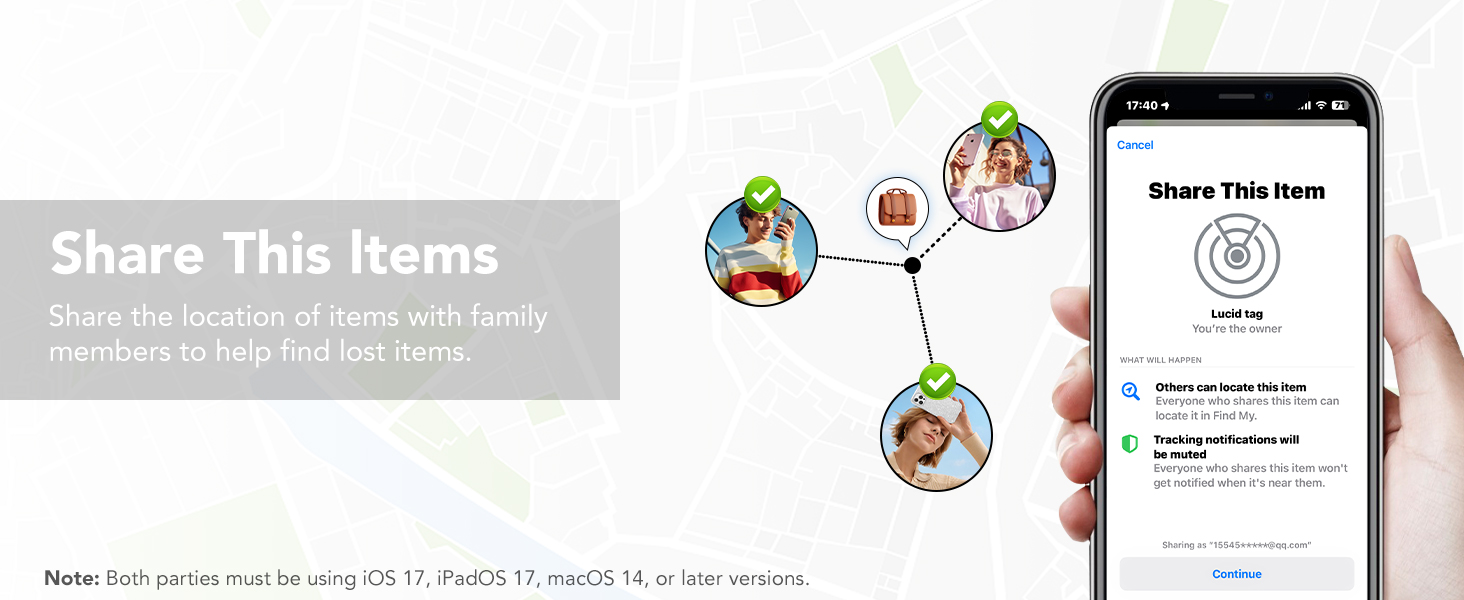
Figure 9: Global Tracking

Figure 10: Finding Items Far Away
Left-Behind Reminders
Receive instant notifications on your iOS device if you leave your Air Tracker Tag behind or if it goes out of Bluetooth range. This feature helps prevent items from being lost.

Figure 11: Left-Behind Notification

Figure 12: Left-Behind Remind Feature
Lost Mode Activation
If your item is truly lost, you can activate "Lost Mode" in the Find My app. This allows anyone who finds your tag to securely access your contact information, helping facilitate its return.
- In the "Find My" app, select your Air Tracker Tag.
- Scroll down and select "Lost Mode".
- Follow the prompts to enter your contact information (phone number or email address).
- When someone finds your tag and scans it with their NFC-enabled smartphone, they will see your contact details.

Figure 13: Lost Mode Interface

Figure 14: Activating Lost Mode
Sharing Items with Family and Friends
With iOS 17 and later, you can share your Air Tracker Tags with up to 5 other individuals in the "Find My" app. This is ideal for items used by multiple family members or friends, allowing everyone to track the item's location.
- Ensure all participating iOS devices are updated to iOS 17/iPadOS 17/macOS 14 or above.
- In the "Find My" app, select the item you wish to share.
- Tap "Share This Item" and follow the instructions to add family members or friends.
- Note: Borrowers will not receive tracking notifications when the item moves with them.

Figure 15: Sharing Items
Тэхнічнае абслугоўванне
Замена батарэі
The Tukio Air Tracker Tags use replaceable CR2032 batteries, offering up to 1 year of uninterrupted use. The device will notify you when the battery is low.
- Turn the stainless steel battery cover counter-clockwise to remove it.
- Устаўце новую батарэю CR2032 станоўчым (+) бокам уверх.
- Align the battery cover and press it gently.
- Rotate the battery cover clockwise to tighten it securely.

Figure 16: Replaceable Battery

Малюнак 17: Папярэджанне аб нізкім узроўні зарада батарэі

Figure 18: Battery Replacement Steps
Воданепранікальны і пыланепранікальны
The Tukio Air Tracker Tags have an IP67 rating, meaning they can withstand immersion in water up to 3 feet (1 meter) for 30 minutes. This makes them suitable for outdoor activities and provides protection against dust and splashes.
Ліквідацыю непаладак
If you encounter any issues with your Tukio Air Tracker Tags, калі ласка, звярніцеся да наступных распаўсюджаных рашэнняў:
- Праблемы з падключэннем: Ensure Bluetooth is enabled on your iOS device and the tracker is within range. Try restarting your iOS device and the tracker (by removing and reinserting the battery).
- Tracker Not Found: Verify the tracker's battery is not depleted. If the tracker was previously connected, check its last known location in the Find My app.
- Гук не прайграваецца: Check the volume settings on your iOS device. Ensure the tracker is within Bluetooth range.
- Resetting the Tracker: To restore factory settings, press the function button 6 times quickly, then hold it down on the 7th press until you hear a long beep.
For further assistance, please refer to the detailed instructions in the included user manual or contact our customer support team.
Тэхнічныя характарыстыкі
| Асаблівасць | Дэталь |
|---|---|
| Памеры прадукту | 1.22 х 1.22 х 0.35 цалі (30.9 мм х 30.9 мм х 8.3 мм) |
| Вага прадмета | 0.494 унцый (прыблізна 14 г) |
| Нумар мадэлі | TX02 |
| Батарэі | Патрабуюцца 2 літый-металічныя батарэйкі (CR2032) (у камплекце) |
| Тэхналогія падлучэння | Bluetooth |
| Асаблівасці | Alert Notification, Shock Resistant, Battery Life Indicator, Location History, Water Resistant (IP67) |
| Прыкладанне, якое падтрымліваецца | Find My Phone (Apple Find My network) |
| Колер | Black and White (for this 2-pack variant) |
| Вытворца | Tukio |

Малюнак 19: Памеры і характарыстыкі прадукту
Гарантыя і падтрымка
Tukio stands behind the quality of its products. Your Tukio Air Tracker Tags прыйсці з а Гарантыя 2 год.
For any questions, technical support, or warranty claims, please contact our customer service team. We offer 24-hour customer service response каб дапамагчы вам.
You can find contact information on our official webсайт або праз вашу платформу для пакупак.

Figure 20: Track Your Luggage
Ask a question about this manual
Ask about setup, troubleshooting, compatibility, parts, safety, or missing instructions. Manuals+ will review the question and use this page’s manual context to help answer it.