
1. Уводзіны
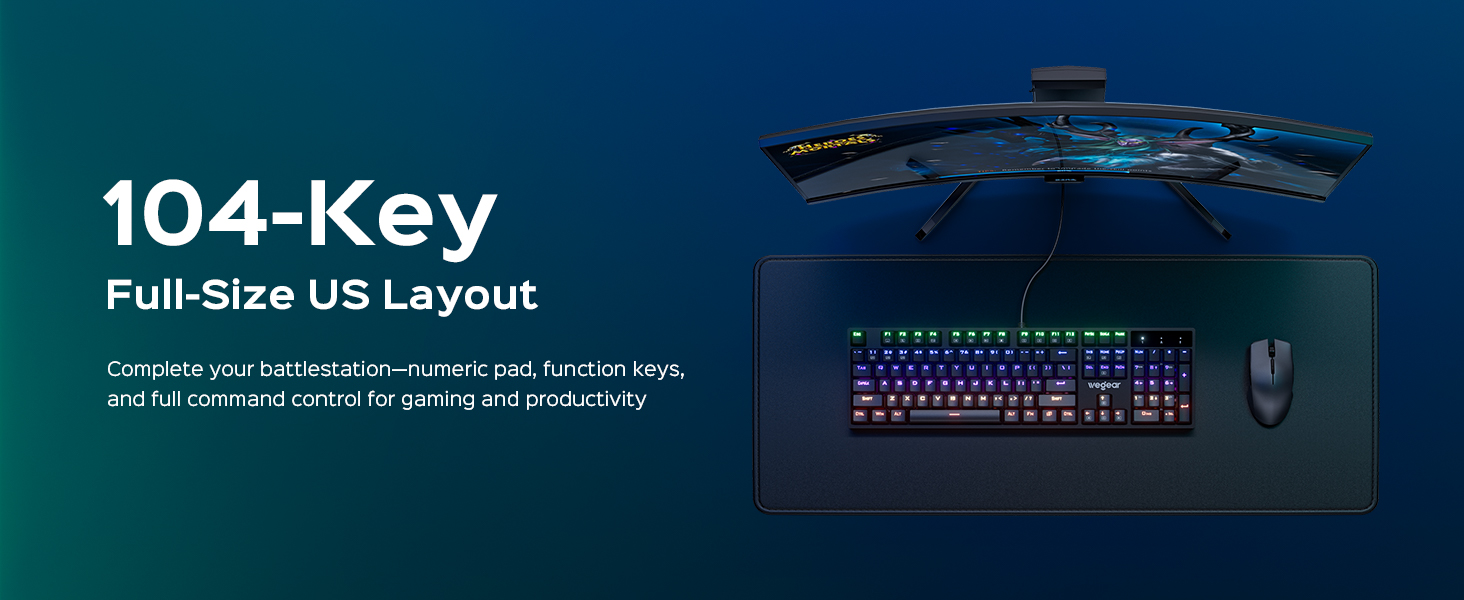
Thank you for choosing the wegear GK1 Mechanical Gaming Keyboard. This full-size, 104-key wired keyboard is designed for precision, durability, and an immersive user experience. Featuring professional Blue switches, vibrant RGB backlighting, and advanced anti-ghosting technology, it is suitable for both intense gaming sessions and efficient productivity tasks.
This manual provides detailed instructions for setting up, operating, maintaining, and troubleshooting your new keyboard. Please read it thoroughly to ensure optimal performance and longevity of your device.
2. Змесціва ўпакоўкі
- wegear GK1 Mechanical Gaming Keyboard
- Кіраўніцтва карыстальніка
3. Настройка
3.1 Падключэнне клавіятуры
The wegear GK1 is a wired keyboard designed for plug-and-play functionality. No additional drivers are typically required for basic operation on most operating systems.
- Locate an available USB-A port on your computer (Laptop, PC, Tablet).
- Plug the USB-A connector of the keyboard cable into the USB-A port on your computer.
- The keyboard's RGB backlighting should illuminate, indicating a successful connection. Your computer will automatically detect and install the necessary drivers.
3.2 Рэгуляванне нахілу клавіятуры
For enhanced ergonomic comfort, the keyboard features adjustable tilt stands on its underside.
- Gently flip the keyboard over.
- Locate the two foldable kickstands at the top corners of the keyboard.
- Flip out the kickstands to achieve a 7° ergonomic tilt, or keep them folded for a flat typing experience.
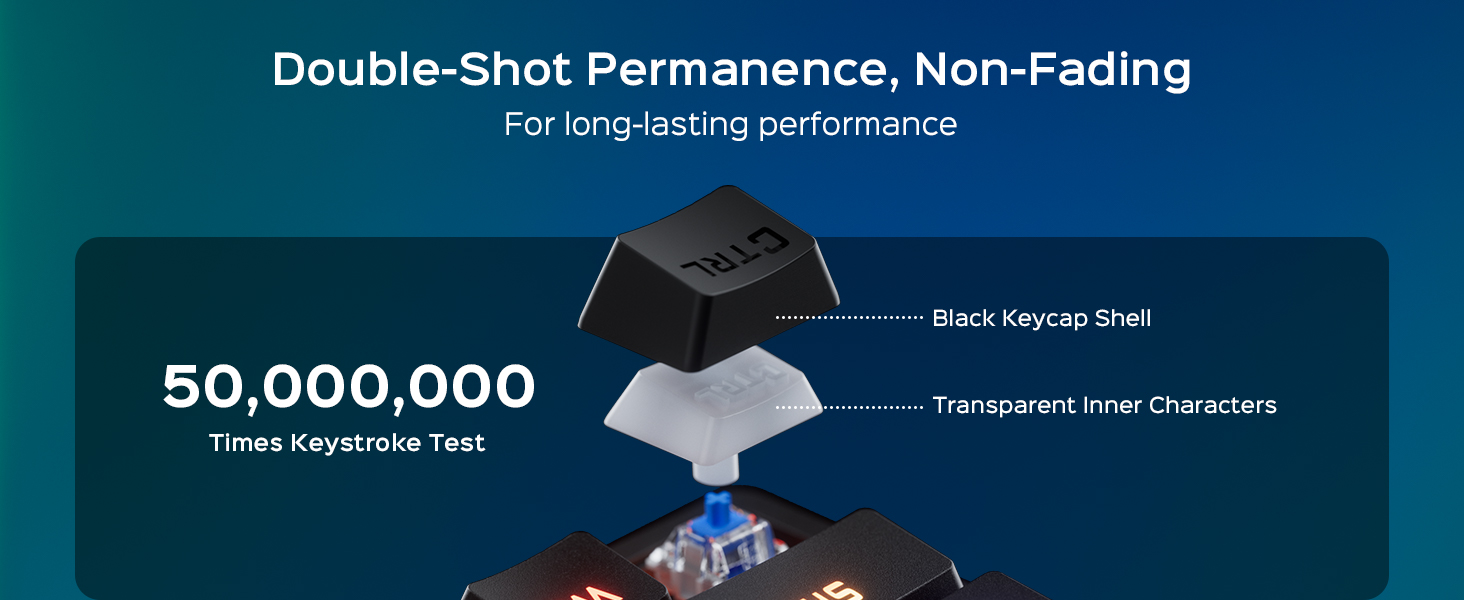
Image: The wegear GK1 keyboard demonstrating its ergonomic 7-degree adjustable tilt for comfortable typing.

Image: A user's hands positioned comfortably on the wegear GK1 keyboard, highlighting the ergonomic design for reduced wrist strain.
4. Інструкцыя па эксплуатацыі
4.1 Mechanical Blue Switches
The wegear GK1 keyboard features professional Blue mechanical switches, known for their tactile bump and crisp audible click. This provides satisfying feedback for both typing and gaming, enhancing precision and responsiveness.
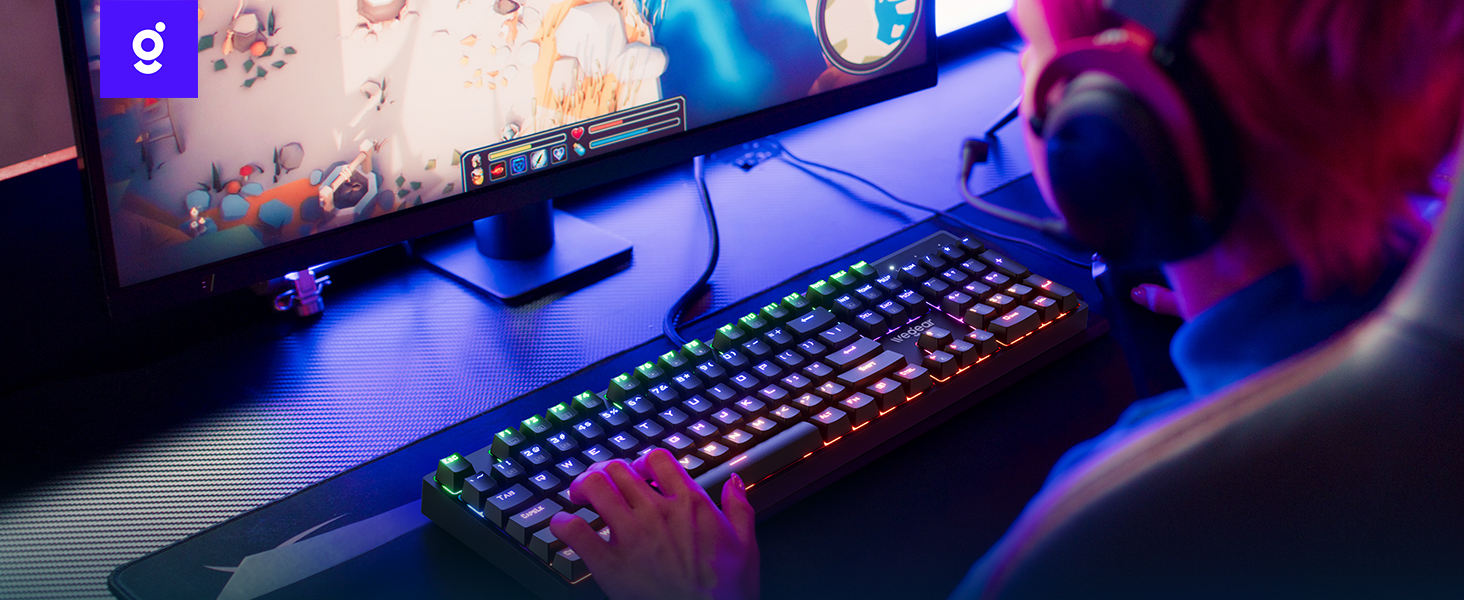
Image: A detailed diagram illustrating the internal mechanism of a clicky blue mechanical switch, emphasizing its tactile bump and crisp acoustic feedback.
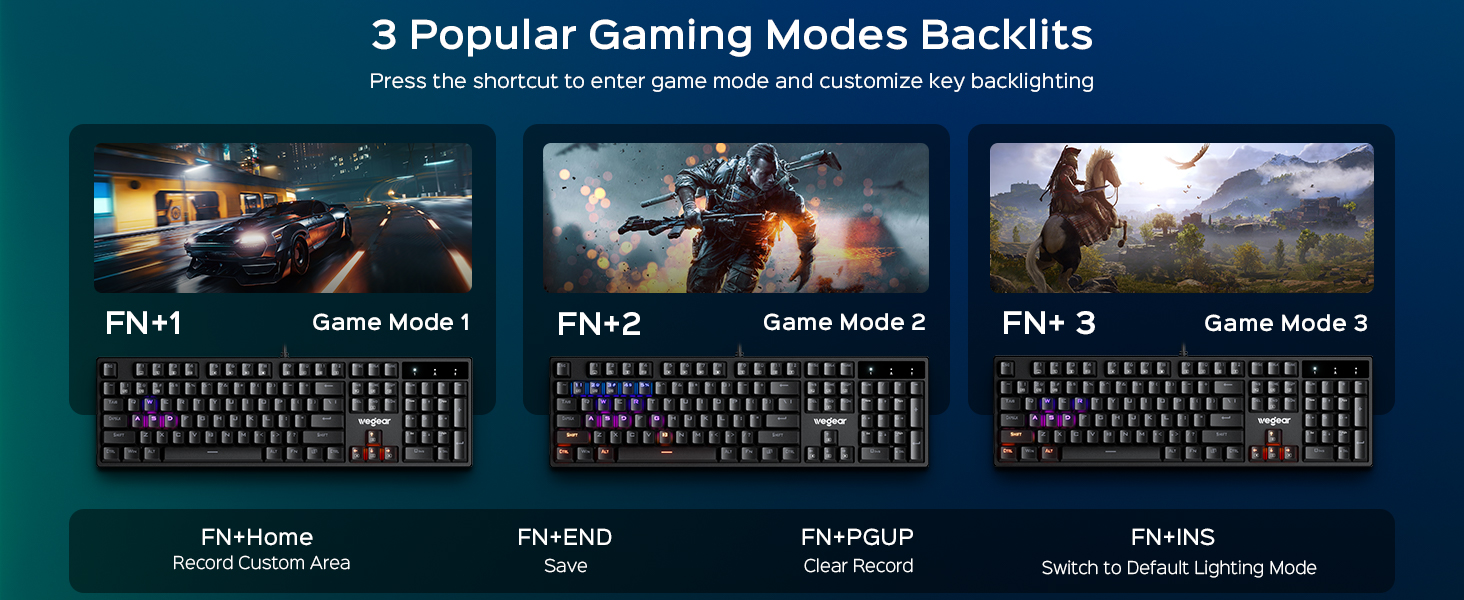
Image: A close-up of a finger pressing a blue mechanical switch on the wegear GK1 keyboard, illustrating the tactile and auditory feedback.
4.2 Падсвятленне RGB
The keyboard features dynamic RGB backlighting with 11 distinct modes, adjustable brightness, and speed settings to customize your visual experience.
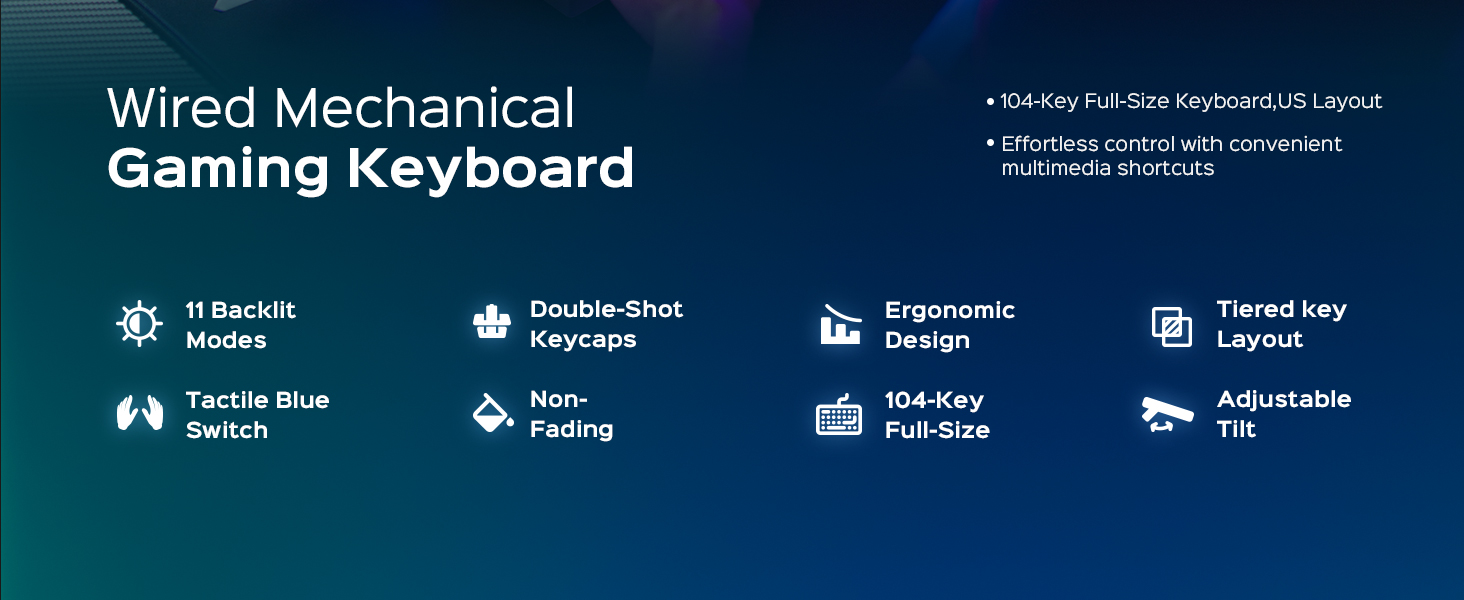
Image: The wegear GK1 keyboard displaying its dynamic RGB lightscape with various backlight modes, brightness levels, and adjustable speeds.
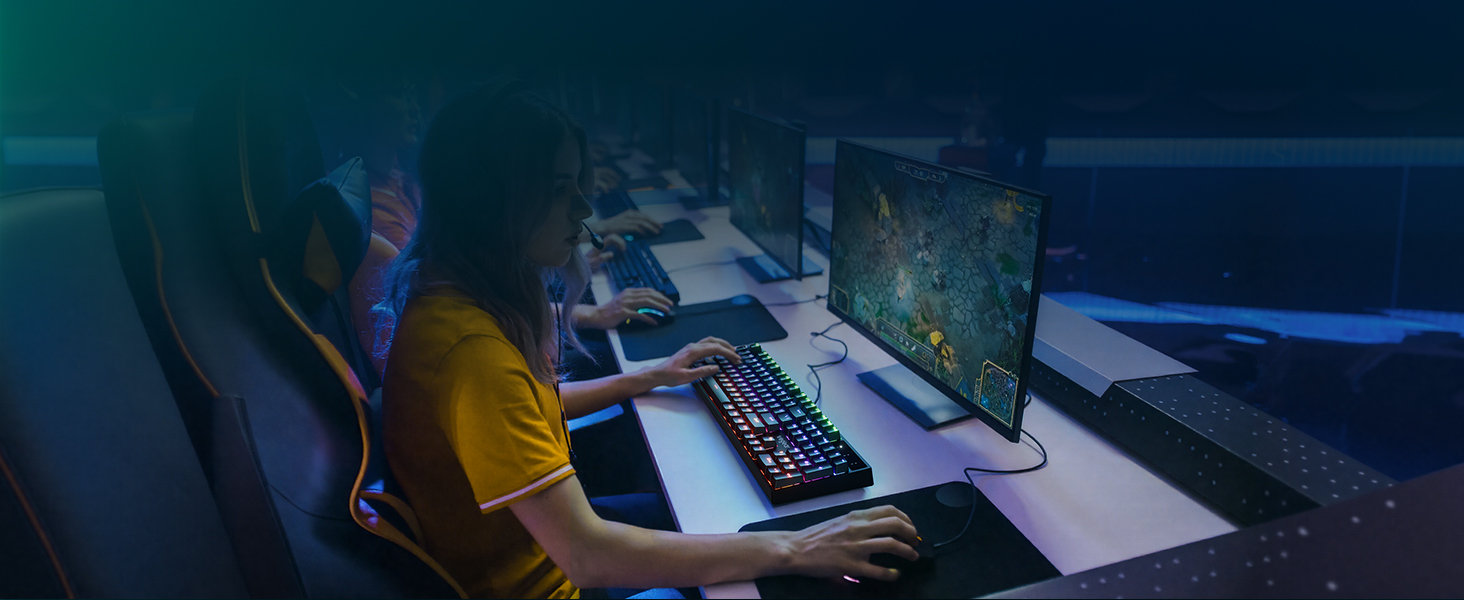
Image: The wegear GK1 keyboard highlighting its RGB lighting controls, including switching backlight modes, adjusting brightness, and setting light speed using FN key combinations.
Lighting Control Functions:
- Fn + INS: Switch between 11 dynamic backlight modes.
- Fn + стрэлка ўверх/уніз: Рэгулюйце яркасць падсветкі (5 узроўняў).
- Fn + стрэлка ўлева/ўправа: Адрэгулюйце хуткасць падсветкі.
Рэжымы гульні:
The keyboard supports 3 popular gaming modes with customizable key backlighting.
- Fn + 1: Гульнявы рэжым 1
- Fn + 2: Гульнявы рэжым 2
- Fn + 3: Гульнявы рэжым 3
- Fn + Home: Record Custom Area
- Fn + END: Save Custom Area
- Fn + PGUP: Clear Recorded Area
- Fn + INS: Switch to Default Lighting Mode

Image: The wegear GK1 keyboard illustrating its three dedicated gaming modes (Fn+1, Fn+2, Fn+3) and controls for recording, saving, and clearing custom backlight areas.
4.3 Мультымедыйныя цэтлікі
Access common multimedia functions quickly using the Fn key in combination with the F-keys.
- Fn+F1: Кампутар
- Fn+F2: пошук
- Fn+F3: Калькулятар
- Fn+F4: CD
- Fn+F5: Папярэдні трэк
- Fn+F6: Наступны трэк
- Fn+F7: Прайграванне/Паўза
- Fn+F8: CD Stop
- Fn+F9: Адключыць гук
- Fn+F10: Памяншэнне гучнасці
- Fn+F11: Павялічыць гучнасць
- Fn+F12: Блакаванне клавіятуры
4.4 Анты-гостынг і блакіроўка выйгрышу
The keyboard features 100% anti-ghosting on all 104 keys, ensuring every keystroke is registered accurately, even during rapid, simultaneous presses. The Win Lock function prevents accidental interruptions during gameplay or work.
- 100% анты-прывіды: All 104 keys respond instantly, preventing missed inputs.
- Fn + Win: Activates/Deactivates the Win Lock function, disabling the Windows key to avoid accidental presses.
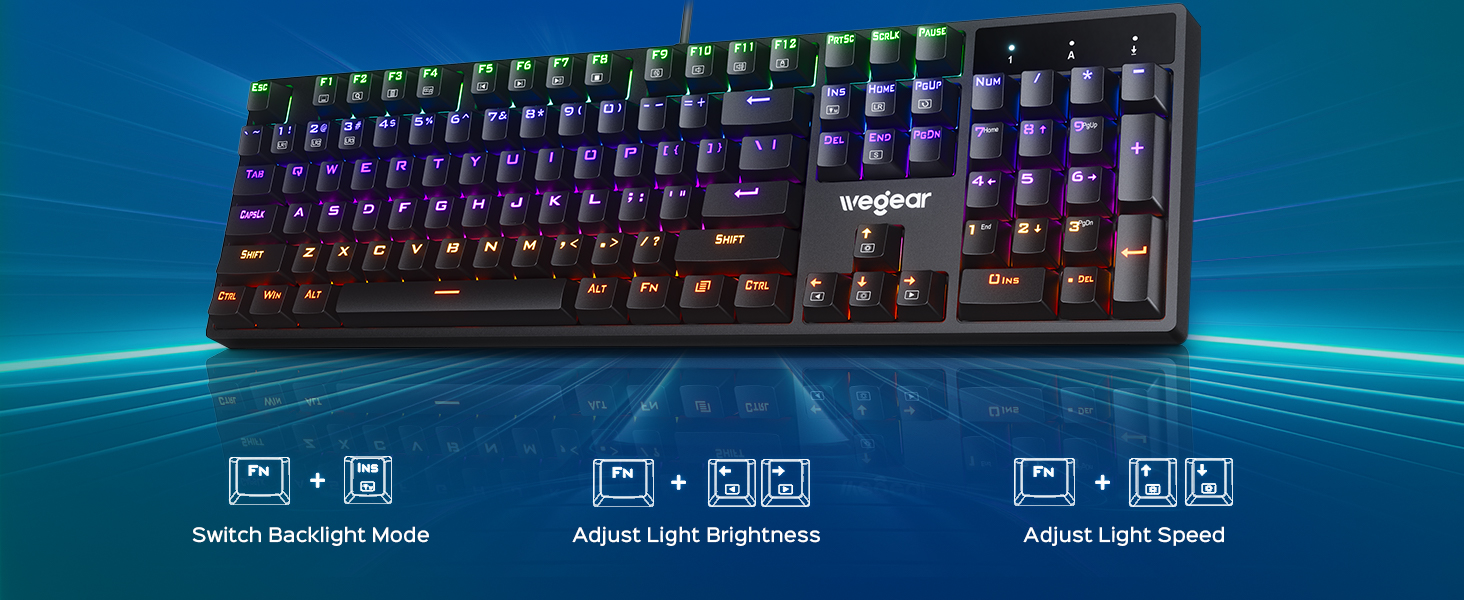
Image: A user actively gaming with the wegear GK1 keyboard, illustrating the benefit of 100% anti-ghosting for flawless multi-key input without missed commands.
5. Тэхнічнае абслугоўванне
5.1 Чыстка клавіятуры
Для падтрымання аптымальнай прадукцыйнасці і знешняга выгляду рэкамендуецца рэгулярная чыстка.
- Адключыце клавіятуру ад кампутара перад чысткай.
- Выкарыстоўвайце мяккую безворсовую тканіну, злёгку dampПрацярыце клавішы і паверхню клавіятуры вадой або мяккім ачышчальным растворам. Пазбягайце празмернай вільгаці.
- For deeper cleaning, you may use a keycap puller (not included) to remove individual keycaps and clean underneath with compressed air or a small brush.
- Ensure all components are completely dry before reconnecting the keyboard.
5.2 Keycap Durability
The wegear GK1 features double-shot ABS keycaps, designed for long-lasting performance. The legends are wear-resistant and have high light transmission, ensuring they remain vibrant and do not fade over time.
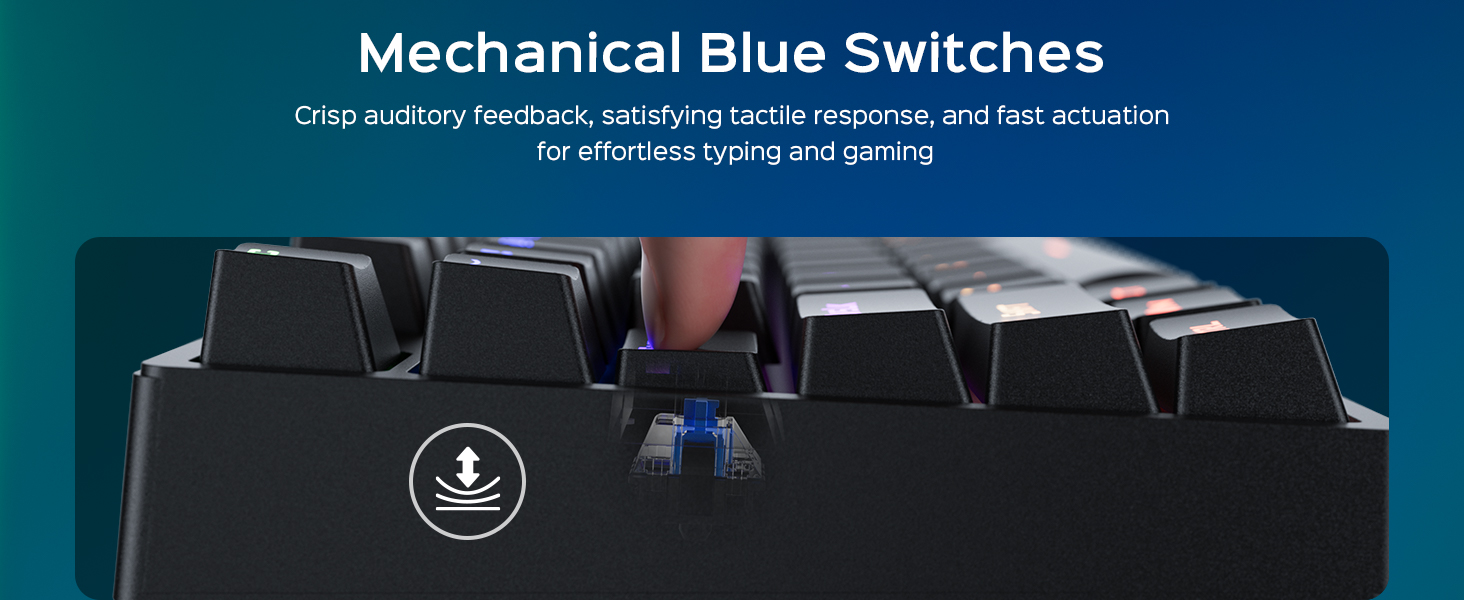
Image: A diagram illustrating the double-shot molding process of the keycaps, highlighting their fade-resistant and scratch-proof properties for long-lasting performance.
Выява: буйны план view of a double-shot keycap, showing the black keycap shell and transparent inner characters, which ensures the legends do not fade.
6. Выпраўленне непаладак
| праблема | Магчымая прычына | Рашэнне |
|---|---|---|
| Клавіятура не адказвае | Loose USB connection; Faulty USB port; Driver issue | Пераканайцеся, што кабель USB надзейна падключаны. Паспрабуйце іншы порт USB. Перазагрузіце камп'ютар. |
| Падсветка не працуе | Backlight turned off or brightness set to minimum; Software conflict | Прэса Fn + стрэлка ўверх to increase brightness. Press Fn + INS to cycle through modes. Ensure no conflicting software is running. |
| Keys double-typing or not registering | Dust/debris under keycap; Switch malfunction | Clean under the keycap using compressed air. If issue persists, contact customer support. |
| Мультымедыйныя клавішы не працуюць | Incorrect key combination; Software conflict | Ensure you are pressing the correct Fn + F-key combination. Check for any conflicting media player software. |
7. Тэхнічныя характарыстыкі
- Марка: wegear
- Назва мадэлі: GK1-MK
- Нумар мадэлі: GK1-black
- Тэхналогія падключэння: USB-A (правадны)
- Апісанне клавіятуры: Гульнявая
- Колькасць клавіш: 104
- Тып пераключальніка: Clicky Blue Mechanical Switches
- Раскладка клавіятуры: QWERTY (амерыканская раскладка)
- Асаблівасці: Backlit, Ergonomic, 100% Anti-Ghosting, Win Lock, Multimedia Shortcuts
- Падтрымка колераў падсвятлення клавіятуры: RGB (11 modes, 5 brightness levels, adjustable speed)
- Матэрыял вечка клавішы: Double-Shot ABS
- Памеры прадукту: 17.3 см Д х 5.03 см Ш х 1.42 см В
- Сумяшчальныя прылады: Laptop, PC, Tablet (Windows OS)
- матэрыял: Пластыкавыя
8. Гарантыя і падтрымка
8.1 Інфармацыя аб гарантыі
The wegear GK1 Mechanical Gaming Keyboard comes with a 1-гадовая абмежаваная гарантыя from the date of purchase. This warranty covers manufacturing defects and workmanship under normal use. It does not cover damage caused by misuse, accident, modification, or unauthorized repair.
8.2 Падтрымка кліентаў
For technical assistance, warranty claims, or any questions regarding your wegear GK1 keyboard, please contact our customer support team. Refer to the contact information provided on the product packaging or our official webсайт.
Video: An official product video from Lenovo Product Marketplace, Inc. (wegear's seller) highlighting the features and benefits of the wegear Mechanical Keyboard. This video provides a visual overview of the keyboard's design, lighting, and functionality.