
Introduction to Your Android Tablet Guide
This manual is designed for new Android tablet users, including beginners, seniors, and first-time users. It provides clear, step-by-step instructions to help you understand and confidently use your Android-powered device. Whether you own a Samsung Galaxy Tab, Lenovo tablet, or any other Android tablet, this guide covers essential functions from basic setup to advanced usage tips.
The goal of this guide is to demystify Android tablets, offering a jargon-free approach to help you navigate your device, utilize its features, and maintain its performance effectively.

Image: Front cover of the "Android Tablet User Guide" book. This image displays the title prominently with a graphic of a hand interacting with a tablet that features the Android robot logo.
1. Першапачатковая ўстаноўка і канфігурацыя
This section details the process of setting up your Android tablet for the first time, ensuring a smooth start to your user experience.
1.1 Уключэнне і першапачатковая загрузка
Press and hold the power button, typically located on the side or top edge of your tablet, until the screen illuminates and the Android logo appears. The initial boot process may take a few moments.
1.2 Падключэнне да Wi-Fi
- On the welcome screen, select your preferred language.
- Tap "Start" or "Next" to proceed.
- A list of available Wi-Fi networks will appear. Select your home network.
- Enter the Wi-Fi password (network key) and tap "Connect".
- Once connected, the tablet will indicate a successful connection.
1.3 Налада ўліковага запісу Google
A Google account is essential for downloading apps, syncing data, and accessing Google services.
- If you have an existing Google account, enter your email and password.
- If you do not have one, select "Create account" and follow the on-screen prompts to set up a new one.
- Review and accept the terms of service and privacy policy.
1.4 Setting a Screen Lock
Protect your tablet and personal data by setting a screen lock.
- During setup, you will be prompted to choose a screen lock method (PIN, Pattern, Password, Fingerprint, or Face Unlock, depending on your tablet model).
- Select your preferred method and follow the instructions to configure it.
- Remember your chosen lock method for future access.
2. Basic Operation and Navigation
Understand how to navigate your tablet's interface and perform common tasks.
2.1 The Home Screen
The Home screen is your tablet's central hub. It displays app icons, widgets, and provides quick access to frequently used features. You can customize it by adding or removing icons and widgets.
2.2 Navigating with Gestures
- Правядзіце пальцам: Move your finger across the screen to scroll through pages, lists, or content.
- Націсніце: A quick touch to open apps, select items, or confirm actions.
- Доўгі націск: Press and hold your finger on an item to reveal additional options or move icons.
- Звядзенне пальцамі для павелічэння: Place two fingers on the screen and spread them apart to zoom in, or bring them together to zoom out.
2.3 The Notification Panel and Quick Settings
Swipe down from the top of the screen to access the Notification Panel, where you can view alerts and messages. Swipe down again to reveal Quick Settings, allowing you to toggle Wi-Fi, Bluetooth, screen brightness, and other common settings.
2.4 Browsing the Web
Open the Chrome browser (or your preferred browser app) from the Home screen or App Drawer. Type a website address into the address bar or use the search bar to find information online.
3. Using and Managing Applications
Learn how to download, use, and manage applications on your Android tablet.
3.1 Downloading Apps from the Google Play Store
- Tap the "Play Store" icon on your Home screen or in the App Drawer.
- Use the search bar to find specific apps or browse categories.
- Націсніце на праграму, каб view its details, then tap "Install" to download and install it.
- Some apps may require permissions; review them before accepting.
3.2 Essential Apps for Communication and Entertainment
- Відэазванкі: Apps like Google Meet, Zoom, or Skype allow you to connect with others visually.
- Абмен паведамленнямі: Google Messages, WhatsApp, or other messaging apps for text communication.
- электронная пошта: The Gmail app is pre-installed and allows you to manage your emails.
- забавы: YouTube for videos, Netflix/Hulu for streaming, Spotify/Pandora for music, and various gaming apps.
3.3 Customizing Your Tablet
Personalize your tablet experience through settings:
- шпалеры: Change your Home screen and lock screen backgrounds.
- Фішкі: Add interactive widgets to your Home screen for quick information (e.g., weather, calendar).
- Sound & Display: Adjust volume, notification sounds, screen brightness, and font size.
4. Maintenance and Performance Tips
Keep your tablet running smoothly and extend its lifespan with these maintenance guidelines.
4.1 Кіраванне сховішчам
- Перайсці да Налады > Сховішча to see what is using space.
- Выдаліце невыкарыстоўваныя праграмы.
- Ачысціць кэш дадзеных для праграм.
- Move photos and videos to cloud storage or an external SD card (if supported).
4.2 Падаўжэнне тэрміну службы батарэі
- Паменшыць яркасць экрана.
- Адключайце Wi-Fi, Bluetooth і GPS, калі яны не выкарыстоўваюцца.
- Зачыніце фонавыя праграмы.
- Enable battery saver mode.
4.3 Абнаўленне праграмнага забеспячэння
Regularly check for and install software updates (Налады > Сістэма > Абнаўленне сістэмы) to ensure your tablet has the latest features and security patches.
5. Online Safety and Data Protection
Protect your personal information and ensure a secure online experience.
- Надзейныя паролі: Use unique and complex passwords for your accounts.
- Two-Factor Authentication (2FA): Enable 2FA wherever possible for added security.
- Дазволы праграмы: Review app permissions carefully before granting access to your data.
- Грамадскі Wi-Fi: Exercise caution when using public Wi-Fi networks; avoid sensitive transactions.
- Рэзервовае капіраванне дадзеных: Regularly back up your important photos, documents, and contacts to cloud services (like Google Drive) or an external device.
6. Ліквідацыю распаўсюджаных праблем
У гэтым раздзеле разглядаюцца распаўсюджаныя праблемы, з якімі вы можаце сутыкнуцца, і прапануюцца рашэнні.
6.1 Tablet Not Responding
If your tablet freezes, press and hold the power button for about 10-15 seconds until it restarts. This performs a force reboot.
6.2 Apps Crashing or Not Opening
- Restart the App: Цалкам зачыніце праграму і зноў адкрыйце яе.
- Ачысціць кэш: Перайсці да Settings > Apps > [App Name] > Storage > Clear Cache.
- Абнавіць праграму: Check the Google Play Store for app updates.
- Пераўсталяваць прыкладанне: Uninstall and then reinstall the problematic app.
6.3 Праблемы з падключэннем да Wi-Fi
- Уключыць/выключыць Wi-Fi: Turn Wi-Fi off and on again from Quick Settings.
- Перазапусціць маршрутызатар: Выключыце і зноў уключыце Wi-Fi-роўтар.
- Забыцца пра сетку: Перайсці да Налады > Сетка і інтэрнэт > Wi-Fi, tap on your network, and select "Forget". Then reconnect.
7. Product Specifications (Guide Information)
This section provides details about this user guide itself, as a reference document.
| Атрыбут | Дэталь |
|---|---|
| ASIN | B0FGX44SRP |
| Выдавец | Незалежна апублікавана |
| Дата публікацыі | 6 ліпеня 2025 г |
| мова | англійская |
| Даўжыня друку | 173 старонак |
| ISBN-13 | 979-8291241110 |
| Вага прадмета | 11.4 унцыі |
| Памеры | 6 х 0.39 х 9 цалі |
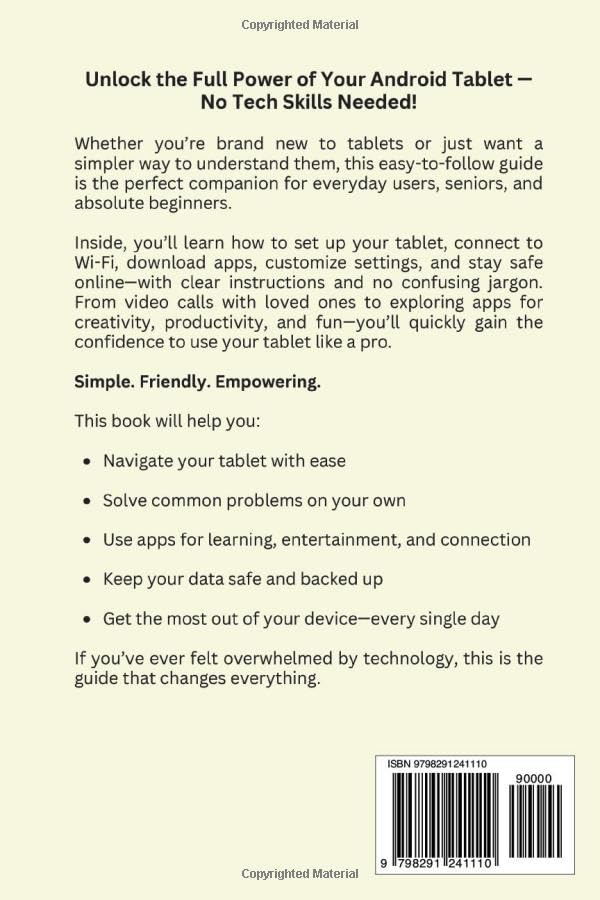
Image: Back cover of the "Android Tablet User Guide" book. This image provides a summary of the book's content and benefits, along with the ISBN barcode.
8. Дадатковыя рэсурсы
This guide includes a bonus chapter on recommended free applications to enhance your tablet experience. Explore these suggestions to discover useful tools and entertainment options.