
1. Уводзіны
Thank you for choosing the PRIXTON Prado XL 15.6-inch Digital Photo Frame. This manual provides essential information for setting up, operating, and maintaining your device. Please read it carefully before use to ensure optimal performance and longevity of your digital photo frame.
The PRIXTON Prado XL features a vibrant 15.6-inch Full HD IPS touchscreen display, offering clear and vivid image reproduction. With built-in Wi-Fi, 32GB of internal memory, and support for both photos and videos, it allows you to easily share and display your cherished memories. The frame also includes integrated speakers and multiple input options, including USB Type-C, USB-A, and an SD card slot, providing versatile ways to manage your content.
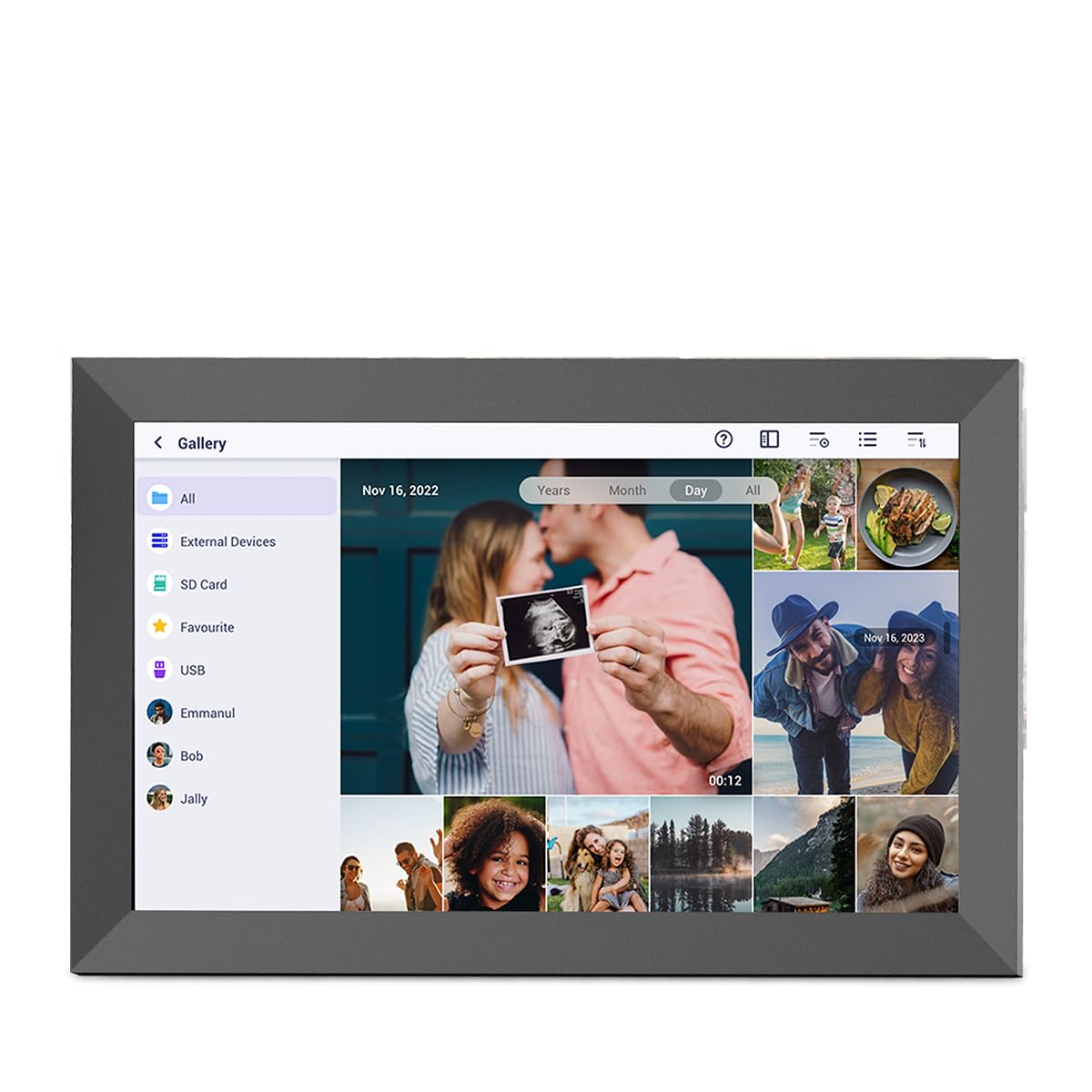
Image: The PRIXTON Prado XL digital photo frame showcasing a family picture.
2. Змесціва ўпакоўкі
Калі ласка, пастаўце галачку для наступных пунктаў:
- PRIXTON Prado XL 15.6-inch Digital Photo Frame
- Адаптар сілкавання
- Кіраўніцтва карыстальніка (гэты дакумент)
3. Прадукт скончыўсяview
Familiarize yourself with the various ports and controls on your digital photo frame.

Image: Back panel of the frame, highlighting the power button, USB-A, USB-C, SD card slot, and headphone jack.
Ключавыя кампаненты:
- Кнопка харчавання: Located on the back, used to turn the frame on/off or put it into sleep mode.
- Порт USB-A: For connecting USB flash drives to transfer photos and videos.
- Порт USB Type-C: For connecting compatible devices or for data transfer.
- Слот для SD-карты: For inserting SD cards to display or transfer media.
- Раз'ём для навушнікаў: Для падлучэння знешніх аўдыёпрылад.
- Уваход пастаяннага току: Для падлучэння адаптара сілкавання.
- Wall Mount Holes: Для мацавання рамы да сцяны.
4. Настройка
4.1 Уключэнне
- Connect the power adapter to the DC Power Input port on the back of the frame.
- Падключыце адаптар сілкавання да насценнай разеткі.
- Рамка аўтаматычна ўключыцца. Калі не, націсніце і ўтрымлівайце кнопку харчавання некалькі секунд.
4.2 Пачатковая канфігурацыя
Upon first startup, you will be guided through the initial setup process:
- Выберыце мову: Выберыце патрэбную мову са спісу.
- Падключыцеся да Wi-Fi: Select your Wi-Fi network and enter the password. A stable internet connection is required for app functionality and software updates.
- Усталяваць дату і час: Configure the correct date, time, and time zone.
4.3 Connecting with the Uhale App
The Uhale app allows you to easily send photos and videos directly to your frame from your smartphone.
- Спампаваць прыкладанне: Пошук "Uhale" in your smartphone's app store (iOS or Android) and install it.
- Стварыць уліковы запіс: Open the Uhale app and follow the instructions to create a new user account.
- Pair the Frame: On your digital photo frame, navigate to the "Settings" menu and find the "Bind Device" or "Add Device" option. This will display a unique code or QR code.
- Enter Code/Scan QR: In the Uhale app, select "Add Device" and either manually enter the code displayed on your frame or use your phone's camera to scan the QR code.
- Пасля спалучэння вы можаце пачаць адпраўляць фатаграфіі і відэа на сваю рамку.

Image: A smartphone screen showing the Uhale app interface next to the digital photo frame.
5. Кіраванне рамай
5.1 Навігацыя па сэнсарным экране
The Prado XL features a responsive touchscreen for easy navigation:
- Націсніце: Select an item or open a menu.
- Правядзіце пальцам: Navigate through photos, menus, or lists.
- Звядзенне пальцамі для павелічэння: Zoom in or out on photos (if supported by software).
5.2 Дадаванне фота і відэа
There are several ways to add media to your frame:
5.2.1 Via Uhale App
- Open the Uhale app on your paired smartphone.
- Выберыце фатаграфіі або відэа, якія вы хочаце адправіць.
- Tap the "Send" or "Share" button to transfer them to your frame.
- The media will appear on your frame shortly, provided it is connected to Wi-Fi.
5.2.2 Via USB Drive or SD Card
- Insert a USB flash drive into the USB-A port or an SD card into the SD card slot.
- The frame will detect the external storage. Navigate to the "Gallery" or "Files" section.
- Select the desired photos or videos and choose to copy them to the frame's internal memory.

Image: User interacting with the Uhale app to send content to the digital photo frame.
5.3 Managing Content and Slideshows
- Галерэя: Access all your stored photos and videos. You can view them individually or start a slideshow.
- Выдаліць: Select unwanted media and choose the delete option.
- Налады слайд-шоў: Customize slideshow duration, transition effects, and playback order in the settings menu.

Image: The digital photo frame displaying a lively birthday party scene.
6. Меню налад
Access the settings menu by tapping the gear icon on the home screen. Here you can configure various aspects of your frame:
- Дысплей: Adjust brightness, screen sleep time, and display mode.
- Wi-Fi: Кіруйце сеткавымі злучэннямі.
- Дата і час: Manually set or synchronize date and time.
- захоўванне: View internal storage usage and manage external storage devices.
- Аб: View device information, including software version and model number.
7. Тэхнічнае абслугоўванне
7.1 Ачыстка экрана
Каб ачысціць сэнсарны экран, акуратна працярыце яго мяккай тканінай без ворса. Для выдалення ўстойлівых плям злёгкуampПрацярыце тканіну вадой або бяспечным для экрана ачышчальным растворам. Пазбягайце выкарыстання агрэсіўных хімічных рэчываў або абразіўных матэрыялаў.
7.2 Абнаўленне праграмнага забеспячэння
Ensure your frame is connected to Wi-Fi to receive automatic software updates. Updates provide new features, performance improvements, and bug fixes. You can manually check for updates in the "Settings" > "About" menu.
8. Выпраўленне непаладак
| выпуск | Магчымае рашэнне |
|---|---|
| Рамка не ўключаецца. | Пераканайцеся, што адаптар сілкавання надзейна падключаны як да рамы, так і да спраўнай разеткі. Паспрабуйце іншую разетку. |
| Немагчыма падключыцца да Wi-Fi. | Check if your Wi-Fi router is on and working. Re-enter the Wi-Fi password carefully. Move the frame closer to the router. |
| Photos/videos not appearing. | Verify that the media has been successfully uploaded via the app or copied from USB/SD. Check file formats for compatibility. Ensure the frame is connected to Wi-Fi if using the app. |
| Сэнсарны экран не рэагуе. | Restart the frame by holding the power button. Ensure the screen is clean and free of debris. |
| Frame is slow or freezes. | Restart the frame. Clear some internal storage if it is nearly full. |
9. Тэхнічныя характарыстыкі
| Асаблівасць | Дэталь |
|---|---|
| Нумар мадэлі | 10006183 |
| Памер дысплея | 15.6 цаляў |
| Тып дысплея | IPS сэнсарны экран |
| дазвол | 1920 х 1080 Full HD |
| Унутраная памяць | 32 Гб флэш |
| АЗП | 1 ГБ |
| Сувязь | Wi-Fi |
| Парты | USB Type-C, USB-A, SD Card Slot, Headphone Jack |
| Аўдыё | Убудаваныя акустычныя сістэмы |
| Памеры (Д х Ш х У) | 14 х 21 х 2.51 см |
10. Гарантыя і падтрымка
PRIXTON products are designed and manufactured to the highest quality standards. For information regarding warranty coverage, please refer to the warranty card included with your product or visit the official PRIXTON webсайт.
If you encounter any issues or have questions not covered in this manual, please contact PRIXTON customer support for assistance. You can find contact details on the PRIXTON webсайт або праз вашу платформу для пакупак.
Інтэрнэт-падтрымка: Visit the PRIXTON Store on Amazon