
1. Уводзіны
Thank you for choosing the Caupureye HDV900pro 4K 48MP Camcorder. This device is designed to capture high-quality video and images, offering a range of features for both beginners and enthusiasts. With 4K video resolution, 48.0MP image resolution, and 21x digital zoom, it's ideal for vlogging, travel, and capturing everyday moments. The 270° rotatable screen provides flexible shooting angles, and included accessories like an external microphone and 64GB SD card enhance your recording experience.
Відэа: Скончанаview of the Caupureye 4K 48MP Camcorder, showcasinяго дызайн і асноўныя характарыстыкі.
2. Што ў скрынцы
Your Caupureye HDV900pro package includes the following items:
- 1 x Camcorder Video Camera
- 2 літый-іённых акумулятараў
- 1 х 64 ГБ SD-карта
- 1 х знешні мікрафон
- 1 х кабель HDMI
- 1 х USB-кабель
- 1 х пульт дыстанцыйнага кіравання
- 1 х Сумка для камеры
- 1 х Кіраўніцтва карыстальніка
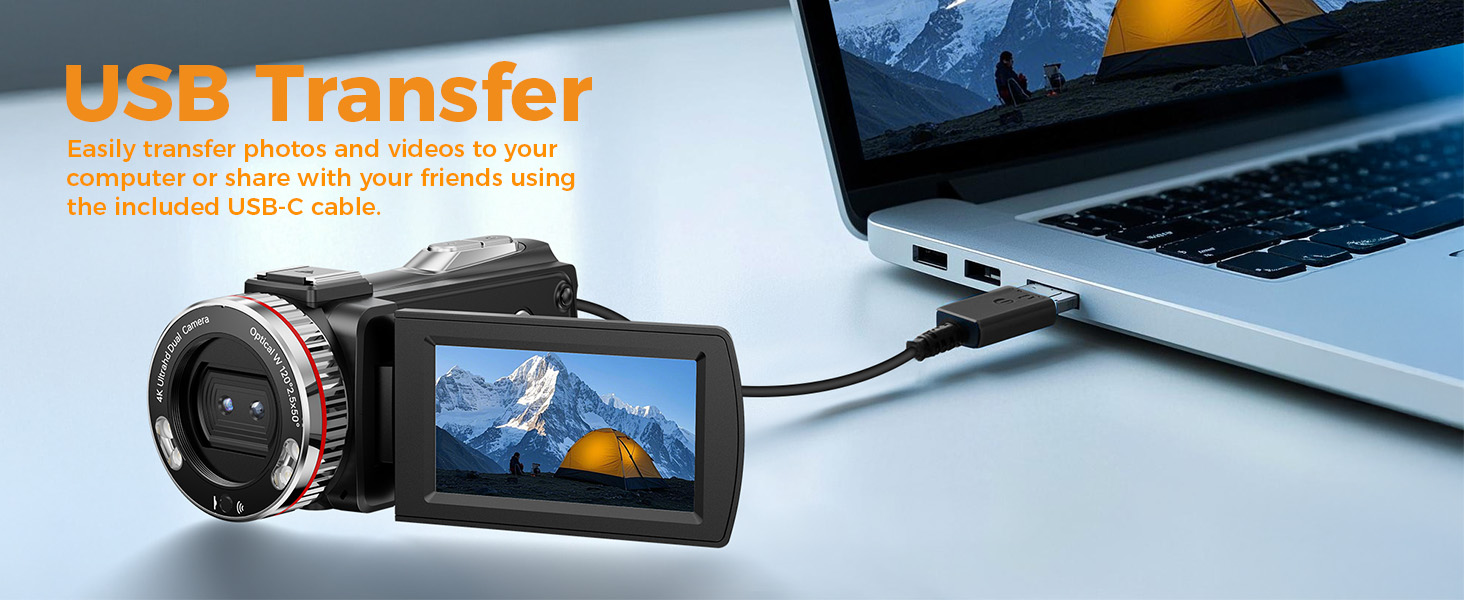
Image: A visual representation of all items included in the Caupureye HDV900pro Camcorder package.
3. Прадукт скончыўсяview
The Caupureye HDV900pro camcorder features a compact design with a 3.0-inch 270° rotatable screen for versatile shooting. It supports 4K video and 48MP photos, with 21x digital zoom. The camera includes a built-in fill light for low-light conditions and dual lenses (wide-angle and narrow) for various scenarios.

Image: The camcorder capturing a scene, highlighting its 4K 48MP capabilities and rotatable screen.
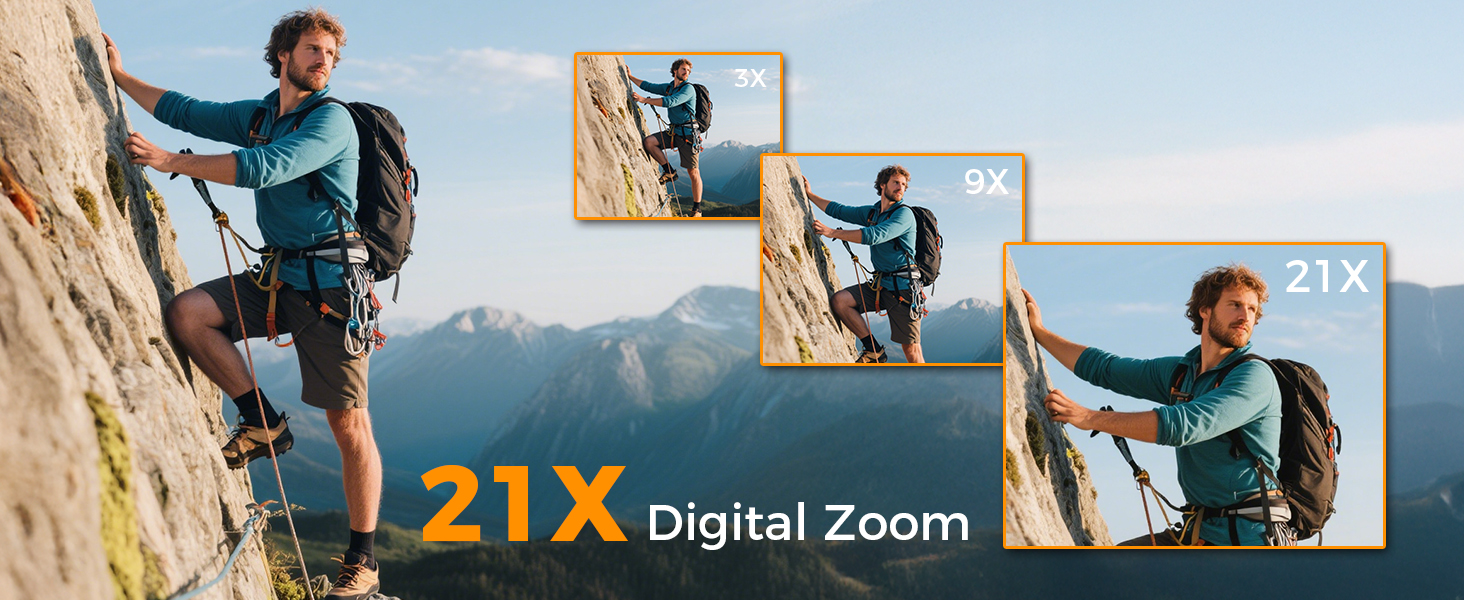
Image: Visual comparison of 3x, 9x, and 21x digital zoom, and the difference between normal and 120° wide-angle views.

Image: The LED Fill Light in action, demonstrating its ability to enhance image quality in low-light conditions.
4. Настройка
4.1 Усталёўка і зарадка акумулятара
Insert one of the provided Li-ion batteries into the battery compartment. The camcorder supports recording while charging, ensuring you don't miss any moments. Use the included USB cable to charge the batteries.
4.2 Устаўка SD-карты
Insert the 64GB SD card (or your own U3 class 10 memory card up to 512GB) into the designated slot. Ensure it clicks into place.
4.3 External Microphone Attachment
Attach the external microphone to the camcorder's hot shoe mount and plug it into the microphone input for enhanced audio recording.
5. Асноўная аперацыя
5.1 Уключэнне/выключэнне сілкавання
Open the 270° rotatable screen to power on the camcorder. Close the screen to power it off.
5.2 Запіс відэа і фатаграфаванне
To record video or take photos, follow these steps:
- Націсніце РЭЖЫМ button to select your desired mode (video or photo).
- Націсніце АКАНІЦА button to start/stop recording or take a photo.
- Выкарыстоўвайце В/Т button to zoom in/out.
- Націсніце НАПОЎНІЦЬ СВЯТЛО button to activate the LED light in dark areas.

Image: Step-by-step guide on using the camcorder's buttons for recording and photography.
6. Пашыраныя магчымасці
6.1 Webcam and HDMI Output
Connect the camcorder to your computer via USB and select "PC Camera" mode to use it as a webcam for live streaming. For an immersive viewing experience, connect the camcorder to a TV using the HDMI cable.

Image: The camcorder functioning as a webcam and connected to a TV via HDMI.
6.2 Special Recording Modes
The camcorder offers various modes to enhance your creativity:
- Функцыя паўзы: Pause and resume recording without creating multiple files.
- Slow-Motion Recording: Capture detailed slow-motion video.
- Прамежкавая запіс: Condense long events into short, engaging videos.
- Сэлфі: Use the rotatable screen to frame yourself perfectly.
- Бесперапынная здымка: Capture a rapid sequence of photos.
- Night Vision (LED Fill Light): Improve visibility in dark environments.

Малюнак: Examples of different recording modes, including pause, slow-motion, and time-lapse.
7. Падключэнне да кампутара
Use the provided USB cable to connect your camcorder to a computer. This allows for easy transfer of photos and videos for editing or sharing.

Image: The camcorder connected to a laptop, illustrating the USB transfer function.
8. Прайграванне
Каб паўторнаview your recorded videos and photos:
- Націсніце PLAY/RIGHT кнопку для ўваходу ў рэжым прайгравання.
- Выкарыстоўвайце УВЕРХ/УНІЗ button to select the clip you wish to view.
- Націсніце OK button to play or stop the video.
- Націсніце MENU/LEFT button to delete a clip or return to the gallery.

Image: Step-by-step guide on how to access and control media playback on the camcorder.
9. Выпраўленне непаладак
- Камера не ўключаецца: Пераканайцеся, што акумулятары ўстаўлены правільна і цалкам зараджаны.
- Дрэнная якасць відэа/малюнкаў: Check lighting conditions, adjust exposure settings, or ensure the lens is clean.
- Мікрафон не запісвае гук: Ensure the external microphone is securely plugged in and powered on (if applicable).
- Памылка SD-карты: Ensure the SD card is correctly inserted and not full. Try formatting the card (this will erase all data).
- Пульт дыстанцыйнага кіравання не працуе: Ensure the battery in the remote is functional and there are no obstructions between the remote and the camcorder.
For further assistance, please contact customer service.
10. Тэхнічныя характарыстыкі
| Асаблівасць | Дэталь |
|---|---|
| Марка | Каупурый |
| Нумар мадэлі | HDV900pro |
| Дазвол відэазахопу | 4K |
| Тэхналогія фотадатчыка | CMOS |
| Максімальная дыяфрагма | 2 ф |
| Памер экрана | 3 цалі |
| Тэхналогія падлучэння | USB |
| Вага прадмета | 1.41 фунта |
11. Гарантыя і падтрымка
For warranty information or technical support, please refer to the contact details provided in your product packaging or visit the official Caupureye website. Our customer service team is available to assist you with any questions or concerns.