
FUNYET DuetBook N5095
FUNYET 14-inch Laptop N5095
Кіраўніцтва карыстальніка
Model: DuetBook N5095
Уводзіны
This manual provides essential information for setting up, operating, maintaining, and troubleshooting your FUNYET 14-inch Laptop N5095. Please read this guide thoroughly to ensure optimal performance and longevity of your device.

Выява: спераду view of the FUNYET 14-inch Laptop N5095, highlighting its key specifications on the screen.
1. Пачатковая налада
1.1 Распакоўка і першае ўключэнне
- Carefully remove the laptop and all accessories from the packaging. The box should contain the laptop, AC adapter, warranty card, and this instruction manual.
- Connect the AC adapter to the laptop's DC-in port and then to a power outlet.
- Адкрыйце вечка ноўтбука. Ноўтбук можа ўключыцца аўтаматычна, альбо вам можа спатрэбіцца націснуць кнопку харчавання, размешчаную на клавіятуры.
1.2 Канфігурацыя Windows 11 Pro
Upon first boot, you will be guided through the Windows 11 Pro setup process. Follow the on-screen instructions to:
- Выберыце свой рэгіён і раскладку клавіятуры.
- Падключыцеся да сеткі Wi-Fi.
- Увайдзіце ў свой уліковы запіс Microsoft або стварыце новы.
- Усталюйце PIN-код для хуткага ўваходу ў сістэму.
- Наладзьце параметры прыватнасці.

Image: The Windows 11 Pro operating system interface shown on the laptop screen.
2. Кіраванне ноўтбукам
2.1 Клавіятура і сэнсарная панэль
The laptop features a full-sized keyboard and a large, responsive touchpad for navigation. Refer to the image below for key layout.

Выява: Падрабязная view клавіятуры і сэнсарнай панэлі ноўтбука.
2.2 Падключэнне перыферыйных прылад
Ваш ноўтбук абсталяваны рознымі партамі для падключэння знешніх прылад:
- Порты USB 3.0: Two ports for high-speed data transfer with USB devices.
- Порт HDMI: Падключэнне да знешніх дысплеяў або праектараў.
- Раз'ём для навушнікаў: Для вываду гуку на навушнікі або знешнія дынамікі.
- Слот TF карты: For expanding storage with a TF (MicroSD) card.
- Порт пастаяннага току: Для падключэння адаптара пераменнага току.
Wireless connectivity includes Bluetooth and Wi-Fi (2.4G/5G) for connecting to networks and wireless accessories.
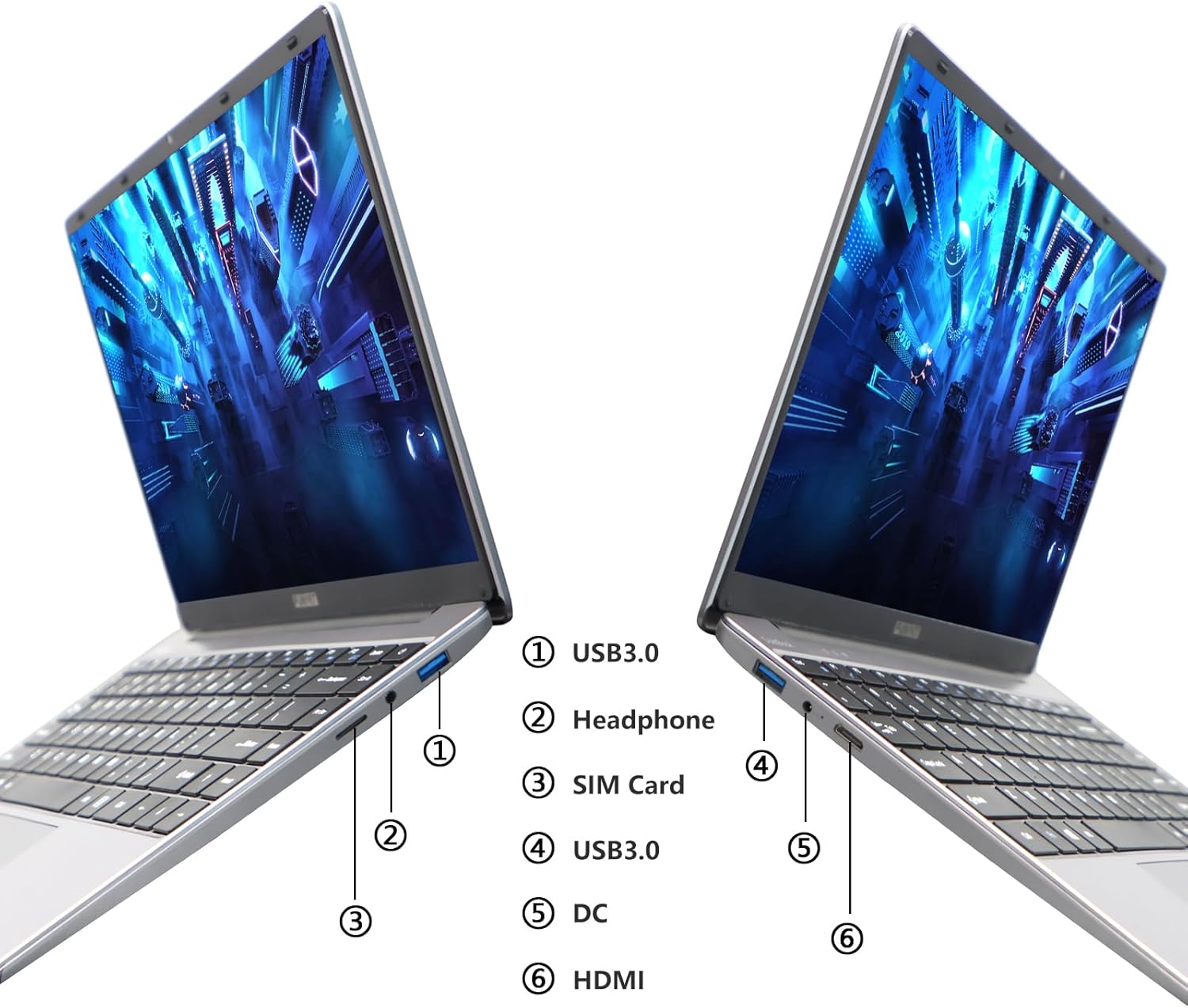
Image: Diagram illustrating the various ports on the sides of the laptop.
2.3 Функцыі дысплея
The 14.1-inch FHD IPS display offers a 1920x1080 resolution. The laptop supports a 180-degree opening angle, allowing for flexible viewныя пазіцыі.

Image: The laptop's screen fully opened to a 180-degree flat position.
2.4 Кіраванне батарэяй
The laptop is equipped with a 3800mAh (7.6V/5000mAh) battery. For optimal battery life, ensure the laptop is fully charged before first use. Unplug the AC adapter once the battery is fully charged to prevent overcharging. For extended storage, charge the battery to approximately 50% and store the device in a cool, dry place.

Image: Laptop screen showing a full battery charge indicator.
3. Тэхнічнае абслугоўванне
3.1 Агульны догляд
- Keep the laptop clean by wiping surfaces with a soft, dry cloth. Avoid liquid cleaners directly on the screen or keyboard.
- Ensure proper ventilation. Do not block the air vents to prevent overheating.
- Пазбягайце ўздзеяння на ноўтбук экстрэмальных тэмператур, прамых сонечных прамянёў або высокай вільготнасці.
- Будзьце асцярожныя з ноўтбукам, каб пазбегнуць фізічных пашкоджанняў.
3.2 Пашырэнне сховішча
The laptop's storage can be expanded using a TF (MicroSD) card. Insert the TF card into the designated slot until it clicks into place. To remove, gently push the card in until it springs out.
4. Выпраўленне непаладак
| выпуск | Магчымая прычына | Рашэнне |
|---|---|---|
| Ноўтбук не ўключаецца. | Праблема з нізкім узроўнем зарада батарэі або адаптарам харчавання. | Ensure the AC adapter is securely connected and the power outlet is functional. Charge the laptop for at least 30 minutes before attempting to power on again. |
| Праблемы з падключэннем да Wi-Fi. | Няправільны пароль Wi-Fi, праблемы з маршрутызатарам або адключаны адаптар Wi-Fi. | Verify the Wi-Fi password. Restart your router. Check Windows settings to ensure Wi-Fi is enabled. |
| Павольная прадукцыйнасць. | Запушчана занадта шмат праграм, мала месца для захоўвання або састарэлыя драйверы. | Close unnecessary applications. Check available storage on the SSD. Update Windows and device drivers. |
| Экран пусты або мігціць. | Display driver issue, external display conflict, or hardware problem. | Restart the laptop. If connected to an external monitor, disconnect it. Update graphics drivers. |
If you encounter issues not listed here or if the suggested solutions do not resolve the problem, please contact FUNYET support.
5. Тэхнічныя характарыстыкі
| Асаблівасць | Дэталь |
|---|---|
| Назва мадэлі | DuetBook N5095 |
| Працэсар | Intel 11th Gen Celeron N5095 (up to 2.9 GHz, 4 Cores, 4 Threads) |
| Графіка | Інтэграваная відэакарта Intel UHD |
| АЗП | 16 ГБ DDR4 |
| Захоўванне | 512GB SSD (Expandable via TF card) |
| Дысплей | 14.1-inch FHD IPS (1920 x 1080 pixels) |
| Аперацыйная сістэма | Windows 11 Pro |
| Бесправоднае падключэнне | Wi-Fi (2.4G/5G), Bluetooth 4.2 |
| Парты | 2x USB 3.0, 1x HDMI, 1x Headphone Jack, 1x DC-in, 1x TF Card Slot |
| акумулятар | 3800mAh (7.6V/5000mAh) Lithium Ion |
| Памеры (ДхШхВ) | 12.7 х 8.3 х 0.8 цалі |
| Вага | 3 фунта |

Image: Visual summary of key laptop features and specifications.
6. Гарантыя і падтрымка
FUNYET provides comprehensive support for your laptop:
- Гарантыя: Гарантыя 2 гады з моманту пакупкі.
- Вяртанне/абмен: 6 months of free replacement or return service.
- Інтэрнэт-падтрымка: 24/7 online support with instant responses.
- Падтрымка па тэлефоне: Available every business day from 4 PM to 10 PM Pacific Time.
For assistance, please contact FUNYET support:
- тэлефон: +1 800-986-9631
- электронная пошта: funyetstore@outlook.com
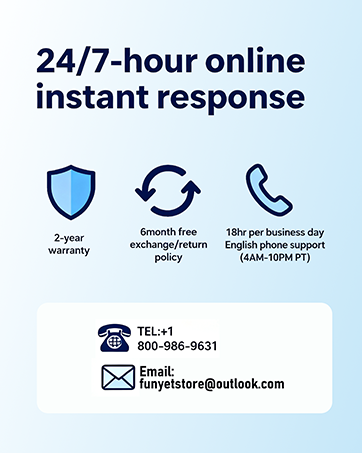
Image: FUNYET customer support and warranty details.
Ask a question about this manual
Ask about setup, troubleshooting, compatibility, parts, safety, or missing instructions. Manuals+ will review the question and use this page’s manual context to help answer it.