
1. Уводзіны
Welcome to the instruction manual for your Jectse WiFi 6 4G/5G CPE LTE Router. This document provides essential information on how to set up, operate, maintain, and troubleshoot your device. Please read this manual carefully before using the product to ensure optimal performance and longevity.
The Jectse WiFi 6 Router is designed to provide high-speed internet connectivity by converting a 4G LTE signal into a Wi-Fi hotspot, supporting multiple devices simultaneously. Its robust design with four antennas ensures stable and wide coverage.
2. Прадукт скончыўсяview
2.1 Асноўныя магчымасці
- 4G LTE Support: Compatible with multiple 4G LTE bands, including FDD B1, B3, B5, B7, B8, B20, TDD B38, B40, B41, and WCDMA B1, B5, B8. This ensures versatile connectivity across various networks.
- Высокія хуткасці: Experience 4G download speeds up to 150 Mbps and upload speeds up to 50 Mbps. Wireless transfer rates reach up to 300 Mbps for smooth streaming, gaming, and browsing.
- Лёгкая ўстаноўка: Simply insert a standard SIM card to transform the 4G LTE signal into a Wi-Fi hotspot. Enjoy immediate internet access with minimal configuration.
- Высокая ёмістасць прылады: Connect up to 32 devices simultaneously, including smartphones, tablets, and PCs, within a maximum coverage area of 300 square meters.
- Канструкцыя з 4 антэнамі: Equipped with four antennas for enhanced signal coverage, faster network speeds, and stable connectivity throughout your space.
2.2 Змест пакета
Калі ласка, пастаўце галачку для наступных пунктаў:
- 1 x Jectse WiFi 6 4G/5G CPE LTE Router
- 1 х адаптар сілкавання
- 1 х Ethernet кабель
- 1 х USB-кабель
- 1 х Кіраўніцтва карыстальніка (гэты дакумент)

Image: Jectse WiFi 6 Router with its power adapter, Ethernet cable, and USB cable.
3. Інструкцыі па ўсталёўцы
Follow these steps to set up your Jectse WiFi 6 Router:
- Распакуйце маршрутызатар: Асцярожна дастаньце маршрутызатар і ўсе аксэсуары з упакоўкі.
- Устаўце SIM-карту: Locate the SIM card slot on the side of the router. Insert a standard-sized 4G LTE SIM card into the slot until it clicks into place. Ensure the SIM card is correctly oriented as indicated by the diagram near the slot.

Выява: Збоку view of the router highlighting the SIM card slot and USB/WAN/LAN ports.
- Падключыце харчаванне: Connect the power adapter to the router's power input port and then plug the adapter into a wall outlet. The router will power on automatically.
- Уключэнне: Wait for the router's indicator lights to stabilize. The Wi-Fi and network status lights should indicate a successful connection.
- Optional: Wired Connection: If you prefer a wired connection, connect one end of the Ethernet cable to the WAN/LAN port on the router and the other end to your computer or another network device.
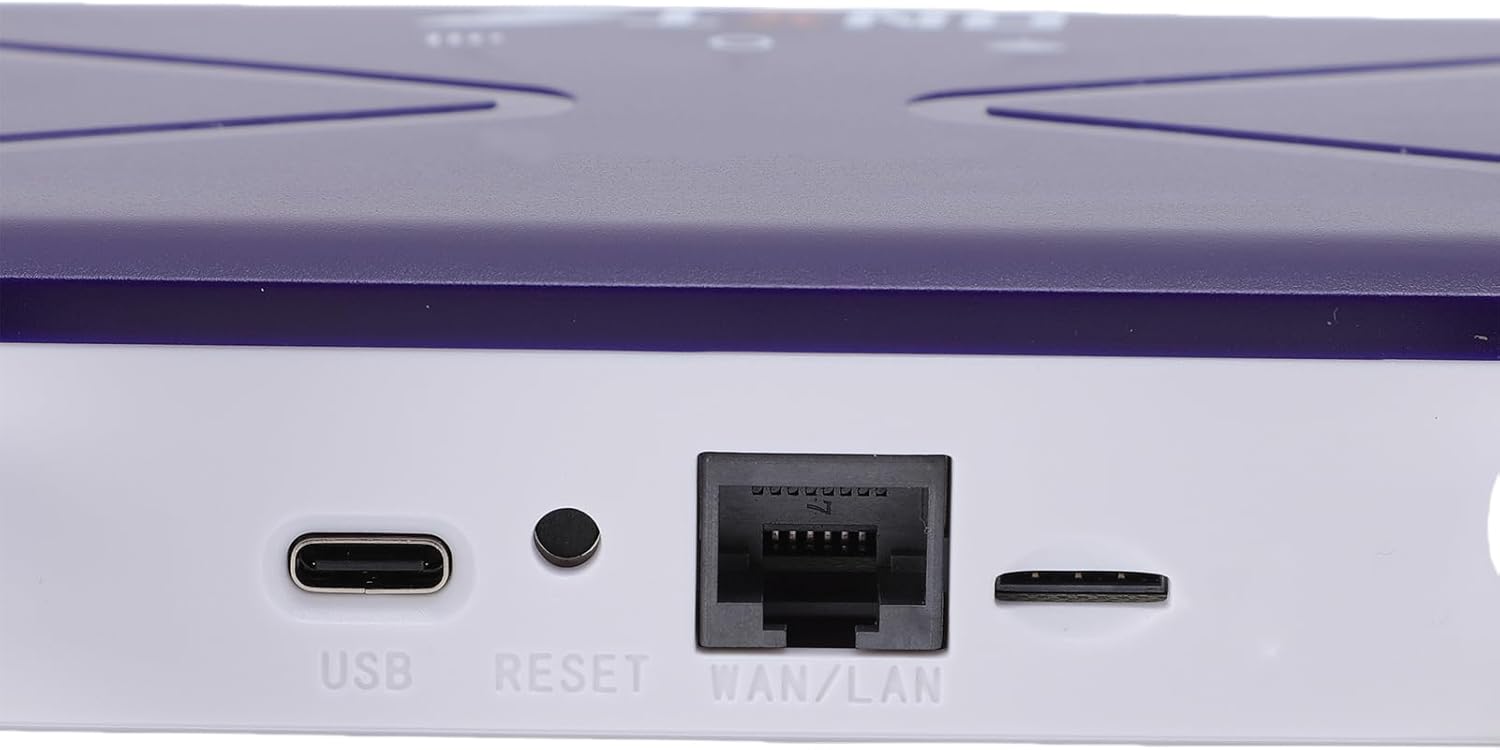
Image: Close-up of the router's rear panel showing the USB port, Reset button, and WAN/LAN port.
4. Інструкцыя па эксплуатацыі
4.1 Падключэнне да Wi-Fi
Каб падключыць прылады да сеткі Wi-Fi маршрутызатара:
- На вашай прыладзе (смартфоне, планшэце, ноўтбуку) адкрыйце налады Wi-Fi.
- Пошук available Wi-Fi networks. The router's default Wi-Fi network name (SSID) and password (Wi-Fi Key) are typically printed on a label on the bottom of the router.
- Select the router's SSID from the list.
- Enter the Wi-Fi Key when prompted. The default Wi-Fi Key is usually 1234567890.
- Пасля падключэння ваша прылада павінна мець доступ да Інтэрнэту.

Image: Bottom label of the router displaying default Wi-Fi Key and Web IP-адрас.
4.2 Доступ да налад маршрутызатара
To manage your router settings, such as changing the Wi-Fi name or password, or configuring advanced network options:
- Connect your device to the router's Wi-Fi network or via an Ethernet cable.
- Адкрыйце a web браўзер (напрыклад, Chrome, Firefox, Edge).
- In the address bar, type the default Web IP-адрас: 192.168.100.1 і націсніце Enter.
- You will be prompted for a username and password. Refer to the label on the bottom of your router for default login credentials.
- Once logged in, you can customize your network settings.
4.3 Пакрыццё сеткі
The router provides Wi-Fi wireless coverage and supports network port wired output for various environments.

Image: Diagram showing the router's Wi-Fi coverage and wired output capabilities.
5. Тэхнічнае абслугоўванне
To ensure the optimal performance and longevity of your router, consider the following maintenance tips:
- Размяшчэнне: Размясціце маршрутызатар у цэнтральным месцы, далей ад перашкод, буйных металічных прадметаў і іншых электронных прылад, якія могуць выклікаць перашкоды.
- Вентыляцыя: Ensure the router has adequate ventilation. Do not cover the ventilation holes or place it in an enclosed space.
- Уборка: Gently clean the router's exterior with a soft, dry cloth. Avoid using liquid cleaners or aerosols.
- Абнаўленні прашыўкі: Перыядычна правярайце інфармацыю вытворцы website for firmware updates. Keeping your router's firmware up-to-date can improve performance, security, and add new features.
- Цыкл харчавання: If you experience minor network issues, try power cycling the router by unplugging it from the power outlet for 10-15 seconds and then plugging it back in.
6. Выпраўленне непаладак
Калі ў вас узніклі праблемы з маршрутызатарам, звярніцеся да наступных распаўсюджаных праблем і іх рашэнняў:
- Няма падключэння да Інтэрнэту:
- Праверце, ці правільна ўстаўлена і актывавана SIM-карта.
- Verify that the router's network indicator lights are stable and show a connection.
- Ensure your SIM card has an active data plan.
- Try power cycling the router.
- Павольная хуткасць Wi-Fi:
- Падыдзіце бліжэй да маршрутызатара, каб палепшыць узровень сігналу.
- Зменшце колькасць падлучаных прылад, калі шмат з іх актыўна выкарыстоўваюць прапускную здольнасць.
- Праверце наяўнасць перашкод ад іншых электронных прылад.
- Перазапусціце роутер.
- Не магу падключыцца да Wi-Fi:
- Ensure you are entering the correct Wi-Fi password (Wi-Fi Key).
- Check if the Wi-Fi function on the router is enabled (refer to router settings via web інтэрфейс).
- Restart both the router and your connecting device.
- Маршрутызатар не адказвае:
- Perform a hard reset by pressing and holding the 'RESET' button (located near the WAN/LAN port) with a pin for about 10 seconds until the lights flash. This will restore the router to factory default settings, including the default Wi-Fi name and password.
7. Тэхнічныя характарыстыкі
| Асаблівасць | Спецыфікацыя |
|---|---|
| Нумар мадэлі | Jectseak28xtdzqf |
| Стандарт Wi-Fi | 802.11b/g/n |
| Бесправадная частата | 2.4 ГГц |
| 4G LTE Bands (FDD) | B1, B3, B5, B7, B8, B20 |
| 4G LTE Bands (TDD) | B38, B40, B41 |
| Дыяпазоны WCDMA | B1, B5, B8 |
| Максімальная хуткасць загрузкі | 150 Мбіт/с |
| Максімальная хуткасць загрузкі | 50 Мбіт/с |
| Wireless Transfer Rate | 300 Мбіт/с |
| Слот для SIM-карты | Стандартная SIM-карта |
| Антэны | 4 |
| Убудаваны брандмаўэр | так |
| Максімальная колькасць падлучаных прылад | 32 |
| Зона пакрыцця | Да 300 м² |
| Вытворца | Джэкцэ |
| Краіна паходжання | Кітай |
8. Гарантыя і падтрымка
8.1 Інфармацыя аб гарантыі
This Jectse WiFi 6 4G/5G CPE LTE Router comes with a 2-гадовая гарантыя вытворцы з даты пакупкі. Гэтая гарантыя распаўсюджваецца на дэфекты матэрыялаў і вырабу пры нармальным выкарыстанні. Калі ласка, захавайце пацвярджэнне пакупкі для прэтэнзій па гарантыі.
The warranty does not cover damage caused by misuse, accidents, unauthorized modifications, or external factors such as power surges.
8.2 Падтрымка кліентаў
For technical assistance, troubleshooting beyond this manual, or warranty inquiries, please contact your retailer or the Jectse customer support team. Refer to the contact information provided with your purchase or visit the official Jectse webсайт для рэсурсаў падтрымкі.