
1. Прадукт скончыўсяview
This Ossuret car stereo is designed to upgrade the infotainment system in your Renault Clio 3 (models 2005-2014). It features a 9-inch Android 13 touchscreen, offering modern connectivity and navigation capabilities. The system integrates seamlessly with your vehicle's existing controls and provides a range of multimedia options.

Image: The Ossuret 9-inch Android 13 Car Stereo seamlessly integrated into a Renault Clio 3 dashboard, showcasing its large display and modern interface.
2. Настройка і ўстаноўка
2.1 Змест пакета
Перад устаноўкай пераканайцеся, што ўсе кампаненты наяўныя:
- Main Head Unit (9-inch Android 13 Car Stereo)
- Сілавы кабель
- Знешні мікрафон
- GPS антэна
- RCA Harness (for WiFi version only)
- USB-кабелі (x2)
- Rear Camera Input RCA Cable
- Дэкодэр CANbus
- Factory USB Adapter
- Radio Antenna Adapter Cable
- Адаптар радыёантэны

Image: A comprehensive layout of all included accessories, such as power cables, USB cables, GPS antenna, external microphone, RCA harness, Canbus decoder, and various adapters.
2.2 Сумяшчальнасць
This car stereo is specifically designed for Renault Clio 3 models manufactured between 2005 and 2014. Ensure your vehicle falls within this range for proper fitment and functionality.
2.3 Этапы ўстаноўкі (Агульнае кіраўніцтва)
Installation typically involves removing the factory radio and installing the new head unit using the provided frame and wiring harnesses. Professional installation is recommended.
- Падрыхтоўка: Перад пачаткам любых электрамантажных работ адключыце акумулятар аўтамабіля.
- Выдаліць заводскі блок: Carefully remove the existing car stereo and trim panels from your Renault Clio 3 dashboard.
- Падключэнне правадоў: Connect the provided power cable, RCA harness, USB cables, and antenna adapters to the new head unit and the vehicle's wiring. The Canbus decoder ensures compatibility with factory features like steering wheel controls.
- Усталюйце GPS-антэну: Усталюйце антэну GPS у месцы з добра прагляднай паверхняй view неба, звычайна на прыборнай панэлі або пад лабавым шклом.
- Тэставыя злучэнні: Before fully reassembling, temporarily connect the battery and test the unit's basic functions (power, audio, display).
- Бяспечны блок: Mount the new head unit into the dashboard using the custom frame, ensuring a secure and flush fit.
- Зборка: Reinstall all trim panels and reconnect the vehicle battery.

Image: A visual comparison showing the original Renault Clio 3 dashboard setup (left) versus the modernized dashboard with the Ossuret 9-inch car stereo installed (right).
3. Інструкцыя па эксплуатацыі
3.1 Уключэнне/выключэнне і асноўная навігацыя
Press and hold the power button (usually located on the front panel or side) to turn the unit on or off. Navigate the Android 13 interface using the responsive 9-inch capacitive touchscreen.

Image: A hand demonstrating interaction with the responsive touchscreen interface of the car stereo.
3.2 Бесправадны CarPlay і Android Auto
The unit supports wireless Apple CarPlay and Android Auto via the pre-installed and activated Zlink application. Connect your smartphone via Wi-Fi or Bluetooth to access phone functions, navigation, music, and messages directly on the car stereo display.
- падключэнне: Enable Wi-Fi and Bluetooth on your smartphone. Open the Zlink app on the car stereo and follow the on-screen instructions to pair your device.
- Асаблівасці: Access apps like Google Maps, Spotify, Podcasts, and make calls hands-free.

Image: The car stereo displaying the Apple CarPlay and Android Auto interfaces, showing various compatible applications like Phone, Music, Maps, and Messages.
3.3 Функцыянальнасць Bluetooth
Падключыце мабільны тэлефон праз Bluetooth для званкоў у рэжыме hands-free і перадачы аўдыё.
- Спалучэнне: Go to the Bluetooth settings on the car stereo and your phone. Select the car stereo from your phone's available devices to pair.
- Званкі: Use the built-in microphone for clear hands-free conversations. You can download your phone's contacts to the radio.
- Паток музыкі: Прайгравайце аўдыё з тэлефона праз дынамікі аўтамабіля.

Image: The car stereo displaying a phone dialer interface, indicating an active Bluetooth connection for hands-free calling, with a built-in microphone for voice input.
3.4 GPS-навігацыя
The unit features integrated GPS navigation with support for online and offline map applications (e.g., Waze, Navitel, Google Maps). It offers voice guidance and a dual-zone function, allowing navigation to run in the background while other media plays.
- Абнаўленні карты: Ensure your map data is up-to-date for accurate navigation.
- Інтэрнэт-навігацыя: Connect to Wi-Fi to use online navigation apps.
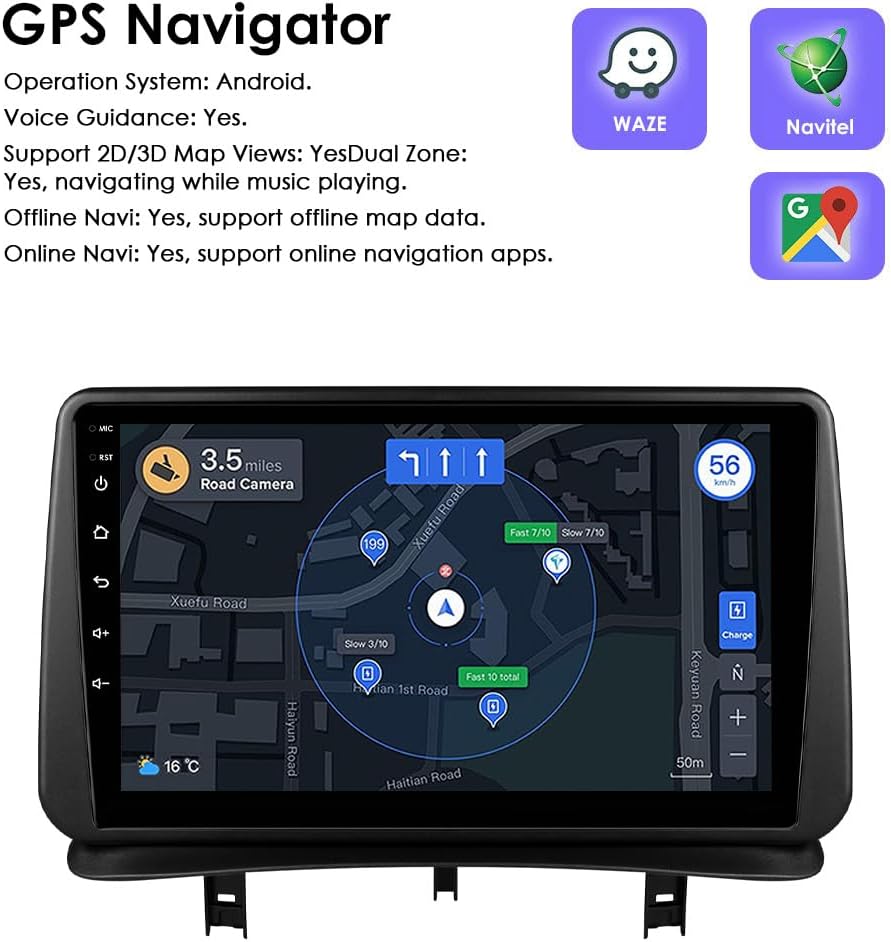
Image: The car stereo displaying a detailed GPS navigation map with route information, current speed, and road camera alerts.
3.5 Прайграванне носьбітаў інфармацыі з USB
Connect external USB devices (up to 2TB) to play audio and video files. The unit supports various multimedia formats.
- Падтрымліваюцца аўдыяфарматы: MP3, WMA, AAC, RM, FLAC, etc.
- Падтрымліваюцца фарматы відэа: MPEG-1/2/4, H264, H263, VC1, RV, RMVB, DivX, Sorenson Spark, VP8, AVS Stream, etc.

Image: The car stereo displaying a file browser interface for USB storage, showing various folders and files, with two USB ports connected at the bottom.
3.6 FM -радыё
Access the FM radio function to listen to local stations. The interface allows for easy tuning and station saving.

Image: The car stereo displaying the FM radio interface, showing frequency tuning and station presets.
3.7 Кіраванне рулявым колам
The unit is compatible with your vehicle's factory steering wheel controls. This allows you to adjust volume, change tracks, and answer calls without taking your hands off the wheel.

Image: The car stereo displaying media playback controls, indicating compatibility with steering wheel controls for safe operation.
3.8 Backup Camera Input
The system supports a rear-view camera input. When the vehicle is shifted into reverse, the display automatically switches to the camera feed, providing a clear view of the area behind your car and assisting with parking maneuvers.

Image: A technical diagram illustrating the backup camera display interface on the car stereo, complete with dynamic parking guidelines.
3.9 Падзелены экран
Utilize the split-screen feature to run two applications simultaneously, such as navigation and music playback, or a camera feed and music, enhancing multitasking capabilities.

Image: The car stereo displaying a split-screen view, with navigation on one side and music playback on the other, demonstrating simultaneous application usage.
3.10 Галасавое кіраванне
The system supports voice commands, allowing you to control various functions hands-free. Voice control sensitivity is enhanced for better responsiveness.

Image: The car stereo interface showing voice command prompts, such as "Hey Siri, find a restaurant" and "OK, Navigate home," indicating active voice control functionality.
3.11 Падключэнне да Wi-Fi
Connect the car stereo to a Wi-Fi hotspot (e.g., from your smartphone) to access online features, download apps, and browse the internet.

Image: The car stereo displaying a YouTube interface, with a smartphone showing a Wi-Fi signal, illustrating the unit's Wi-Fi connectivity for online content.
3.12 Sound Adjustment (Built-in DSP)
The integrated Digital Sound Processor (DSP) allows for advanced audio customization, including a 48-band EQ adjustment, to optimize sound quality to your preference.

Image: The car stereo displaying a graphic equalizer interface, indicating the presence of a built-in DSP for detailed sound adjustments.
4. Тэхнічнае абслугоўванне
To ensure the longevity and optimal performance of your Ossuret car stereo, follow these maintenance guidelines:
- Уборка: Для чысткі сэнсарнага экрана і вонкавага выгляду выкарыстоўвайце мяккую сухую тканіну. Для выдалення ўстойлівых плям злёгкуamp cloth with a mild, non-abrasive cleaner can be used, followed by drying. Avoid harsh chemicals or abrasive materials.
- Абнаўленні праграмнага забеспячэння: Periodically check for available software updates to ensure the system runs efficiently and has the latest features and security patches.
- тэмпература: Avoid exposing the unit to extreme temperatures for extended periods.
- Сувязі: Пераканайцеся, што ўсе кабелі надзейна падключаны. Няшчыльныя злучэнні могуць прывесці да перыядычных праблем.
5. Выпраўленне непаладак
Калі ў вас узніклі праблемы са стэрэасістэмай вашага аўтамабіля, звярніцеся да наступных распаўсюджаных праблем і іх рашэнняў:
| праблема | Магчымая прычына | Рашэнне |
|---|---|---|
| Прылада не ўключаецца. | Няспраўнае падключэнне да электрасеткі, перагарэлы засцерагальнік, праблема з акумулятарам аўтамабіля. | Праверце падлучэнне кабеляў харчавання. Праверце засцерагальнікі аўтамабіля. Пераканайцеся, што акумулятар аўтамабіля зараджаны. |
| Няма гуку або скажоны гук. | Speaker wiring issues, incorrect audio settings, volume too low. | Verify speaker connections. Adjust volume and audio settings (EQ, balance). |
| Не працуе кіраванне на рулі. | Canbus decoder not correctly installed or configured. | Ensure the Canbus decoder is properly connected and configured in the system settings. Refer to the installation guide for specific wiring. |
| Сігнал GPS слабы або недакладны. | GPS antenna improperly placed, environmental interference. | Relocate the GPS antenna to a position with a clearer view of the sky. Avoid obstructions. |
| CarPlay/Android Auto не падключаецца. | Bluetooth/Wi-Fi off on phone, Zlink app not running, phone compatibility. | Ensure Bluetooth and Wi-Fi are active on your phone. Restart the Zlink app. Check phone compatibility with CarPlay/Android Auto. |
| System is slow or freezes. | Too many apps running, low memory, software glitch. | Close unnecessary applications. Restart the unit. Check for and install any available software updates. |
6. Тэхнічныя характарыстыкі
- Марка: Ossuret
- Сумяшчальны аўтамабіль: Renault Clio 3 (2005-2014)
- Памер экрана: 9 цалі
- Аперацыйная сістэма: Android 13
- Памяць: 2 ГБ аператыўнай памяці + 32 ГБ памяці
- Асаблівасці: Wireless CarPlay, Android Auto, GPS Navigation, Bluetooth, Wi-Fi, Steering Wheel Control, Backup Camera Input, Split Screen Display, Voice Control, Built-in DSP
- Тэхналогія падключэння: Bluetooth, USB, Wi-Fi
- Метад кантролю: Дотык, голас
- Рэжым вываду гуку: Стэрэа
- Сумяшчальныя прылады: Смартфон

Image: A graphic highlighting key specifications such as 48 EQ adjustment, Quad-Core processor, 2GB RAM, and 32GB storage, alongside the car stereo interface.
7. Гарантыя і падтрымка
7.1 Інфармацыя аб гарантыі
This Ossuret car stereo comes with a Гарантыя 1 год з даты пакупкі. Гэтая гарантыя распаўсюджваецца на вытворчыя дэфекты і няспраўнасці пры нармальным выкарыстанні. Калі ласка, захавайце пацвярджэнне пакупкі для прэтэнзій па гарантыі.
7.2 Падтрымка кліентаў
For technical assistance, troubleshooting beyond this manual, or warranty inquiries, please contact Ossuret customer support through the retailer where the product was purchased. You may also visit the official Ossuret webсайт для дадатковых рэсурсаў і кантактнай інфармацыі.