
1. Уводзіны
This manual provides essential information for the setup, operation, and maintenance of your Lenovo ThinkStation P2 Gen 2 30JQ002TUS Workstation. The ThinkStation P2 Gen 2 is engineered to deliver high performance, versatility, and reliability for demanding professional workflows. Its modular design facilitates easy upgrades and customization.
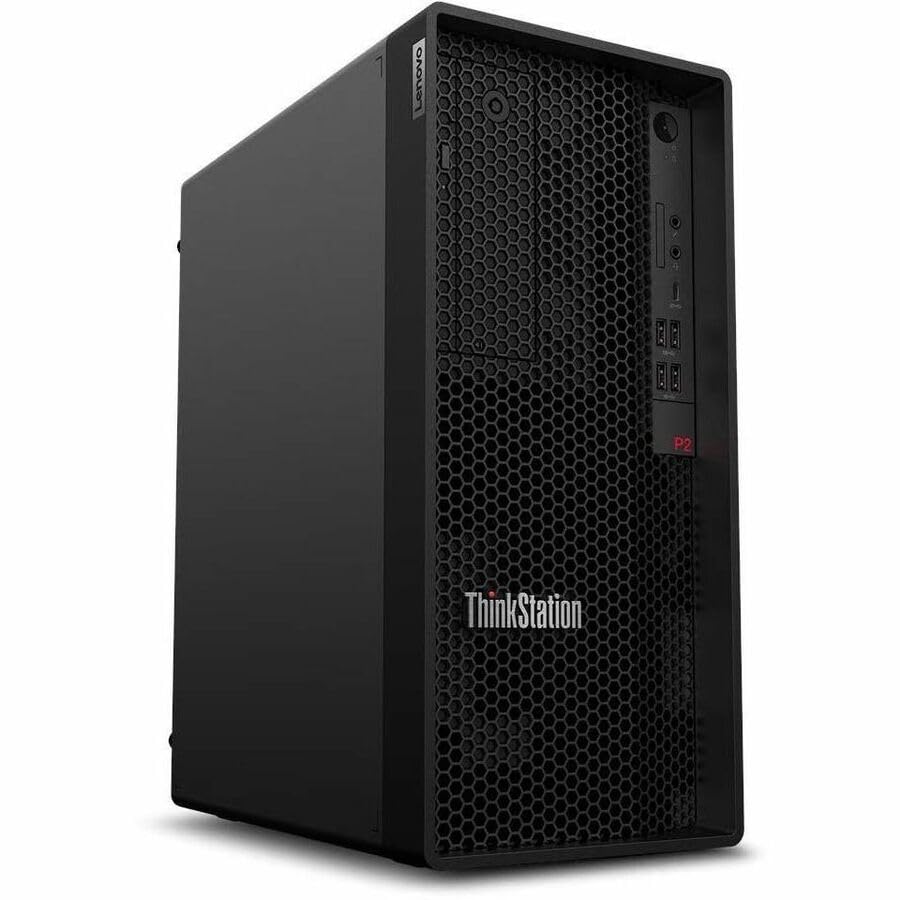
Figure 1: Lenovo ThinkStation P2 Gen 2 Workstation
2. Настройка
2.1 Распакаванне
Асцярожна выміце ўсе кампаненты з упакоўкі. Пераканайцеся, што ў наяўнасці наступныя прадметы:
- ThinkStation P2 Tower Gen 2 30JQ002TUS
- Клавіятура
- Мышка
- Сілавы кабель
2.2 Падключэнне перыферыйных прылад
Connect your keyboard, mouse, and monitor to the workstation. Refer to the images below for port locations.

Figure 2: Front Panel. Features USB ports, audio jacks, and optical drive bay (if equipped).
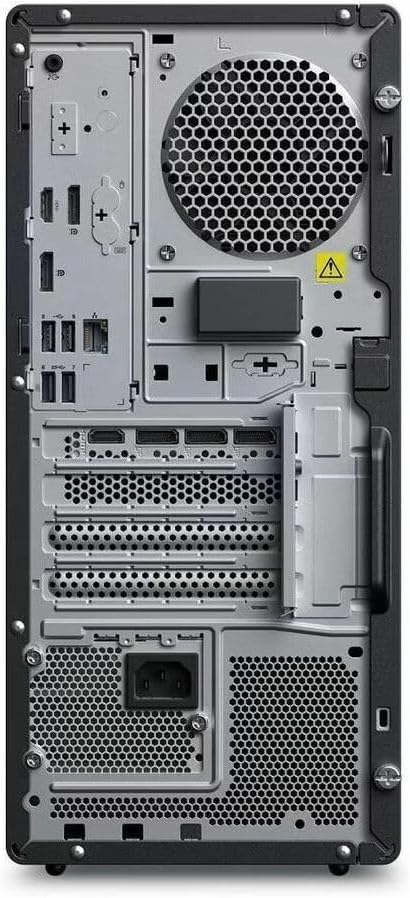
Figure 3: Rear Panel. Includes DisplayPort, HDMI, multiple USB ports (USB 2.0, USB Type C), Ethernet, and power input.
- Клавіятура і мыш: Падключыцеся да любых даступных USB-партоў.
- Манітор: Connect your display using either the HDMI or DisplayPort outputs.
- Сетка: For wired internet, connect an Ethernet cable to the RJ-45 port. For wireless, ensure Wi-Fi antennas are properly connected (if external) or that the internal Wi-Fi is enabled.
2.3 Уключэнне
- Connect the power cable to the workstation's power input and then to a power outlet.
- Press the power button located on the front panel of the workstation.
2.4 Initial Operating System Setup
Upon first boot, the Windows 11 Pro operating system will guide you through the initial setup process, including language selection, network configuration, and user account creation.
3. Кіраванне працоўнай станцыяй
3.1 Кіраванне харчаваннем
- Уключэнне: Націсніце кнопку харчавання.
- Выключыць: У Windows перайдзіце ў меню Пуск > Харчаванне > Выключыць сістэму.
- Перазапуск: У Windows перайдзіце ў меню Пуск > Харчаванне > Перазагрузка.
- сон: У Windows перайдзіце ў меню «Пуск» > «Сілкаванне» > «Сон».
3.2 Аперацыйная сістэма
Your ThinkStation P2 Gen 2 comes pre-installed with Windows 11 Pro, offering advanced features for productivity, security, and management. Familiarize yourself with the Windows interface and its functionalities.
3.3 Характарыстыкі прадукцыйнасці
The workstation is equipped with an Intel Core Ultra 5 (Tetradeca-core) processor, 16 GB of DDR5 RAM, and a 512 GB SSD. These components ensure efficient data handling, quick transfers, optimized system responsiveness, and the ability to manage multiple programs simultaneously without performance degradation.
3.4 Падключэнне
Рабочая станцыя падтрымлівае розныя варыянты падключэння:
- Бесправадная сувязь: Integrated Wi-Fi for high-speed internet and Bluetooth for connecting wireless peripherals.
- Wired: Ethernet port for stable wired network connections.
- Парты USB: Multiple USB 2.0, USB 3.2 Gen 1, and USB Type-C ports for connecting external devices.
- Відэа выхады: DisplayPort and HDMI for connecting multiple monitors.
4. Тэхнічнае абслугоўванне
4.1 Ачыстка
- Знешні выгляд: Выкарыстоўвайце мяккі, damp тканінай для чысткі вонкавых паверхняў. Пазбягайце выкарыстання агрэсіўных хімічных рэчываў.
- Вентыляцыя: Regularly check and clean the ventilation grilles to prevent dust buildup, which can impede airflow and cause overheating. Use compressed air to gently clear dust.
4.2 Абнаўленне праграмнага забеспячэння
Keep your operating system and drivers updated to ensure optimal performance and security. Windows Update will manage OS updates, and Lenovo's official support website provides the latest drivers for your hardware.
4.3 Hardware Upgrades
The ThinkStation P2 Gen 2 features a modular design, allowing for straightforward upgrades. You can expand RAM up to 128 GB (DDR5) and add additional storage drives (SSD/HDD) as needed. Refer to the official Lenovo service manual for detailed instructions on component installation.
5. Выпраўленне непаладак
5.1 Няма харчавання
- Ensure the power cable is securely connected to both the workstation and the power outlet.
- Праверце працаздольнасць разеткі, падключыўшы да яе іншую прыладу.
- Праверце працу вентылятара блока харчавання (БП).
5.2 Няма дысплея
- Confirm the monitor is powered on and connected correctly to the workstation's video output (HDMI or DisplayPort).
- Ensure the monitor's input source is set to the correct port.
- Калі магчыма, праверце з іншым маніторам або відэакабелем.
5.3 Запаволенне сістэмы
- Зачыніце непатрэбныя праграмы, якія працуюць у фонавым рэжыме.
- Праверце дыспетчар задач (Ctrl+Shift+Esc) на наяўнасць працэсаў, якія спажываюць шмат рэсурсаў працэсара або аператыўнай памяці.
- Пераканайцеся, што на SSD-назапашвальніку дастаткова вольнага месца.
- Запусціце сканаванне сістэмы на наяўнасць шкоднасных праграм.
5.4 Праблемы з падключэннем
- Правадная сетка: Праверце падключэнне кабеля Ethernet і стан маршрутызатара.
- Wi-Fi: Verify Wi-Fi is enabled in Windows settings and that you are connected to the correct network. Restart your router if necessary.
- Bluetooth: Ensure Bluetooth is enabled and devices are properly paired.
6. Тэхнічныя характарыстыкі
| Асаблівасць | Дэталь |
|---|---|
| Марка | Lenovo |
| Назва мадэлі | ThinkStation P2 Gen 2 |
| Нумар мадэлі | 30JQ002TUS |
| Аперацыйная сістэма | Windows 11 Pro |
| Мадэль працэсара | Intel Core Ultra 5 (Tetradeca-core) |
| Хуткасць працэсара | Да 5.5 Ггц |
| RAM Memory Installed | 16 ГБ DDR5 |
| Максімальны памер аператыўнай памяці | 128 ГБ |
| Захоўванне | 512 ГБ SSD |
| Графічны супрацэсар | Графіка Intel (інтэграваная) |
| Абсталяванне інтэрфейсу | Bluetooth, DisplayPort, HDMI, USB, USB 2.0, USB Type C |
| Усяго партоў USB | 9 |
| Інтэрфейс вываду відэа | DisplayPort, HDMI |
| Тэхналогія падлучэння | Bluetooth, Ethernet, USB, Wi-Fi |
| Энергаспажыванне | 500 Watts (PSU) |
| Памеры прадмета (Д х Ш х У) | 12.4 х 6.7 х 14.8 цалі |
7. Інфармацыя аб гарантыі
The Lenovo ThinkStation P2 Gen 2 30JQ002TUS Workstation comes with a 3 год гарантыі вытворцы. For detailed terms and conditions, including coverage and service procedures, please refer to the official warranty documentation provided with your product or visit the Lenovo support webсайт.
8. Падтрымка
For further assistance, technical support, driver downloads, or additional documentation, please visit the official Lenovo support website. You can typically find support resources by searching for your specific model number (30JQ002TUS) on their site.
Падтрымка Lenovo Webсайт: https://support.lenovo.com


