
1. Уводзіны
Thank you for choosing the Darmoshark M5PRO Mini Wireless Gaming Mouse. This manual provides detailed instructions for setting up, operating, and maintaining your new gaming mouse. The M5PRO features a tri-mode connection (2.4G wireless, Bluetooth, wired), a high-precision PAW3950 optical sensor, and a lightweight design for optimal performance.
2. Прадукт скончыўсяview
The Darmoshark M5PRO is designed for competitive gaming, offering versatile connectivity and advanced sensor technology. Its ergonomic shape is ideal for finger grip players, providing responsive control and comfort during extended use.

Image: Darmoshark M5PRO Mini Wireless Gaming Mouse in various colors, highlighting its design.
Асноўныя характарыстыкі:
- Трохрэжымнае падключэнне: Seamlessly switch between 2.4G wireless, Bluetooth 5.0, and wired USB connections.
- Аптычны датчык PAW3950: Provides up to 30000 DPI, 750 IPS tracking speed, and 50G acceleration for precise and responsive tracking.
- Частата апытання 8 кГц: Experience ultra-low latency with an 8KHz polling rate in 2.4G wireless mode, ensuring rapid response times.
- Звышлёгкі дызайн: Weighing approximately 38 grams, the mouse reduces hand fatigue during long gaming sessions.
- 5 праграмуемых кнопак: Customize button functions via the dedicated software.
- Убудаваная літыевая батарэя: High-capacity rechargeable battery for extended wireless usage.
- Шырокая сумяшчальнасць: Compatible with Windows and Apple Mac operating systems.
3. Змесціва ўпакоўкі
Калі ласка, праверце ўпакоўку на наяўнасць наступных прадметаў:
- Darmoshark M5PRO Mini Wireless Gaming Mouse
- Бесправадны прыёмнік 2.4G (USB-адаптар)
- Кабель USB-C - USB-A (для зарадкі і праваднога падключэння)
- Кіраўніцтва карыстальніка (гэты дакумент)
- Grip Tape (optional accessory, if included)
4. Налада і падключэнне
4.1. Правадны рэжым
- Connect the USB-C end of the provided cable to the mouse.
- Падключыце канец кабеля USB-A да даступнага порта USB на вашым кампутары.
- Мыш аўтаматычна пераключыцца ў правадны рэжым і пачне зараджацца.
4.2. 2.4G Wireless Mode (with 8KHz Receiver)
- Locate the 2.4G wireless receiver (USB dongle) in the package.
- Падключыце бесправадны прыёмнік 2.4G да даступнага USB-порта вашага кампутара.
- On the bottom of the mouse, locate the tri-mode switching key. Switch it to the 2.4G wireless icon (usually indicated by a small antenna or 'G' symbol).
- The mouse should automatically connect. If not, press and hold the pairing button (if available, refer to the diagram) on the mouse until the indicator light flashes, then release.

Image: M5PRO mouse with its 8KHz wireless receiver for 2.4G connectivity.
4.3. Рэжым Bluetooth
- On the bottom of the mouse, switch the tri-mode switching key to the Bluetooth icon.
- The mouse's indicator light will start flashing, indicating it is in pairing mode.
- На вашым камп'ютары або прыладзе адкрыйце налады Bluetooth.
- Пошук new devices and select "Darmoshark M5PRO" from the list.
- Выконвайце любыя падказкі на экране, каб завяршыць працэс спалучэння.
5. Кіраванне мышшу
5.1. Функцыі кнопак
The M5PRO mouse features 5 programmable buttons and a scroll wheel.
- Пстрычка левай кнопкай мышы: Стандартны асноўны клік.
- Пстрыкніце правай кнопкай мышы: Стандартны другасны клік.
- Track Roller Key (Scroll Wheel): Пракручвае ўверх/уніз і дзейнічае як сярэдняя кнопка мышы.
- DPI Adjustment Key: Цыклічнае пераключэнне паміж зададзенымі ўзроўнямі DPI.
- Кнопка "Наперад": Default function for navigating forward in web браўзэры або file даследчыкі.
- Кнопка Backspace: Default function for navigating backward in web браўзэры або file даследчыкі.

Выява: Разабраная view of the M5PRO mouse showing internal components and button layout.
5.2. Рэгуляванне DPI
Press the DPI Adjustment Key (located on the underside of the mouse, refer to the product diagram) to cycle through different DPI sensitivity levels. The default DPI settings can be customized using the Darmoshark software.
5.3. Зарадка мышы
When the battery is low, the mouse's indicator light will typically flash red. Connect the mouse to your computer using the provided USB-C cable to charge it. The indicator light will show charging status and turn off or change color when fully charged.
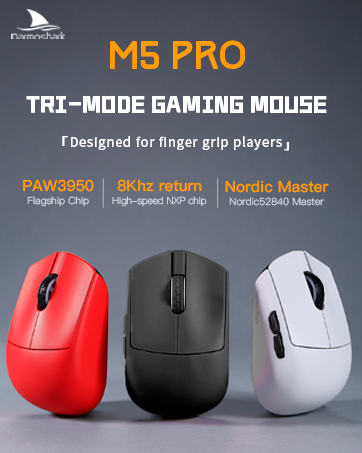
Image: Darmoshark M5PRO mouse charging via USB-C cable, highlighting its built-in lithium battery.
6. Налада праграмнага забеспячэння
To unlock the full potential of your Darmoshark M5PRO mouse, download and install the official Darmoshark driver software from the manufacturer's webсайт. Праграмнае забеспячэнне дазваляе вам:
- Customize DPI settings and create multiple profiles.
- Program button functions and macros.
- Adjust polling rate.
- Manage power settings and battery life.
- Абнавіць прашыўку.

Image: Darmoshark proprietary driver software interface for mouse customization.
7. Тэхнічныя характарыстыкі
| мадэль | M5PRO |
| Датчык | Аптычны датчык PAW3950 |
| DPI | Да 30000 DPI |
| Адсочванне хуткасці | IPS 750 |
| Паскарэнне | 50G |
| Стаўка апытання | 8KHz (2.4G Wireless), 1KHz (Wired/Bluetooth) |
| Сувязь | Бесправадная сувязь 2.4G, Bluetooth 5.0, правадны USB-C |
| Гузікі | 5 праграмуемых кнопак |
| Вага | Прыбл. 38 г |
| Памеры (Д х Ш х У) | 91.7 мм x 57.4 мм x 35.7 мм |
| акумулятар | Убудаваная літыевая батарэя (300mAh) |
| Сумяшчальнасць | Windows, Apple Mac |
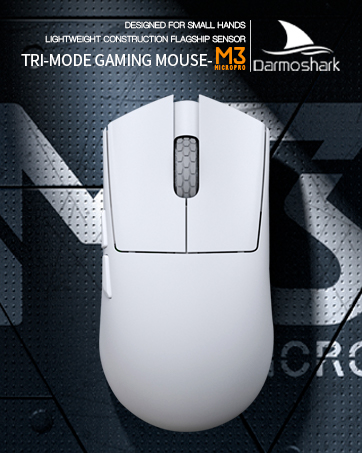
Image: Product parameter diagram with mouse dimensions.
8. Тэхнічнае абслугоўванне
- Уборка: Для чысткі мышы выкарыстоўвайце мяккую сухую тканіну. Пазбягайце выкарыстання агрэсіўных хімічных рэчываў або абразіўных матэрыялаў.
- захоўванне: Захоўвайце мыш у прахалодным, сухім месцы, удалечыні ад прамых сонечных прамянёў і экстрэмальных тэмператур.
- Сыход за батарэяй: Каб падоўжыць тэрмін службы батарэі, пазбягайце частай поўнай разрадкі мышы. Зараджайце яе, калі з'явіцца індыкатар нізкага зараду батарэі.
9. Выпраўленне непаладак
9.1. Мыш не рэагуе
- Правадной рэжым: Пераканайцеся, што USB-кабель надзейна падключаны да мышы і камп'ютара. Паспрабуйце іншы USB-порт.
- Бесправадны рэжым 2.4G: Ensure the 2.4G receiver is plugged in and the mouse is switched to 2.4G mode. Try re-pairing the mouse with the receiver. Ensure the mouse battery is charged.
- Рэжым Bluetooth: Ensure Bluetooth is enabled on your device and the mouse is in Bluetooth pairing mode. Try re-pairing the mouse in your device's Bluetooth settings. Ensure the mouse battery is charged.
9.2. Cursor Movement is Erratic or Inaccurate
- Працярыце аптычны датчык на ніжняй частцы мышы мяккай сухой тканінай.
- Пераканайцеся, што вы выкарыстоўваеце мыш на адпаведнай паверхні (напрыклад, кілімку для мышы). Пазбягайце моцна бліскучых або празрыстых паверхняў.
- Adjust the DPI settings using the DPI Adjustment Key or the software.
- Check for any software conflicts or outdated drivers. Update mouse drivers if necessary.
9.3. Праблемы з бесправадным падключэннем
- Паменшыце адлегласць паміж мышшу і прымачом/прыладай.
- Avoid placing the receiver near other wireless devices or sources of interference (e.g., Wi-Fi routers, cordless phones).
- Пераканайцеся, што мыш цалкам зараджана.
10. Афіцыйнае відэа прадукту
Watch the official product video for a visual guide on the Darmoshark M5PRO Mini Wireless Gaming Mouse.
Відэа: Оверview of the Darmoshark M5PRO Wireless Gaming Mouse, showcasing its design and features in various colors.
11. Гарантыя і падтрымка
For warranty information and technical support, please refer to the warranty card included with your product or visit the official Darmoshark webсайт.
вытворца: Дармашарк
Webсайт: Darmoshark Official Store