
1. Прадукт скончыўсяview
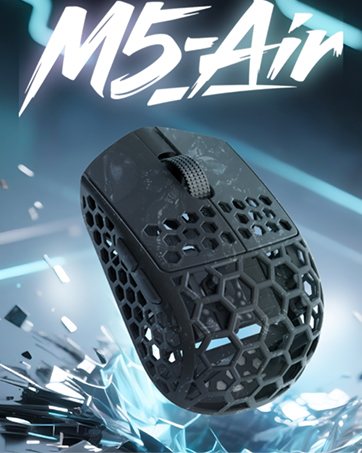
The Darmoshark M5Air is a high-performance gaming mouse designed for precision and comfort. It features a lightweight carbon fiber construction, a PAW3950 optical sensor, and versatile tri-mode connectivity (wired, 2.4GHz wireless, and Bluetooth). This manual provides instructions for setup, operation, and maintenance of your M5Air gaming mouse.
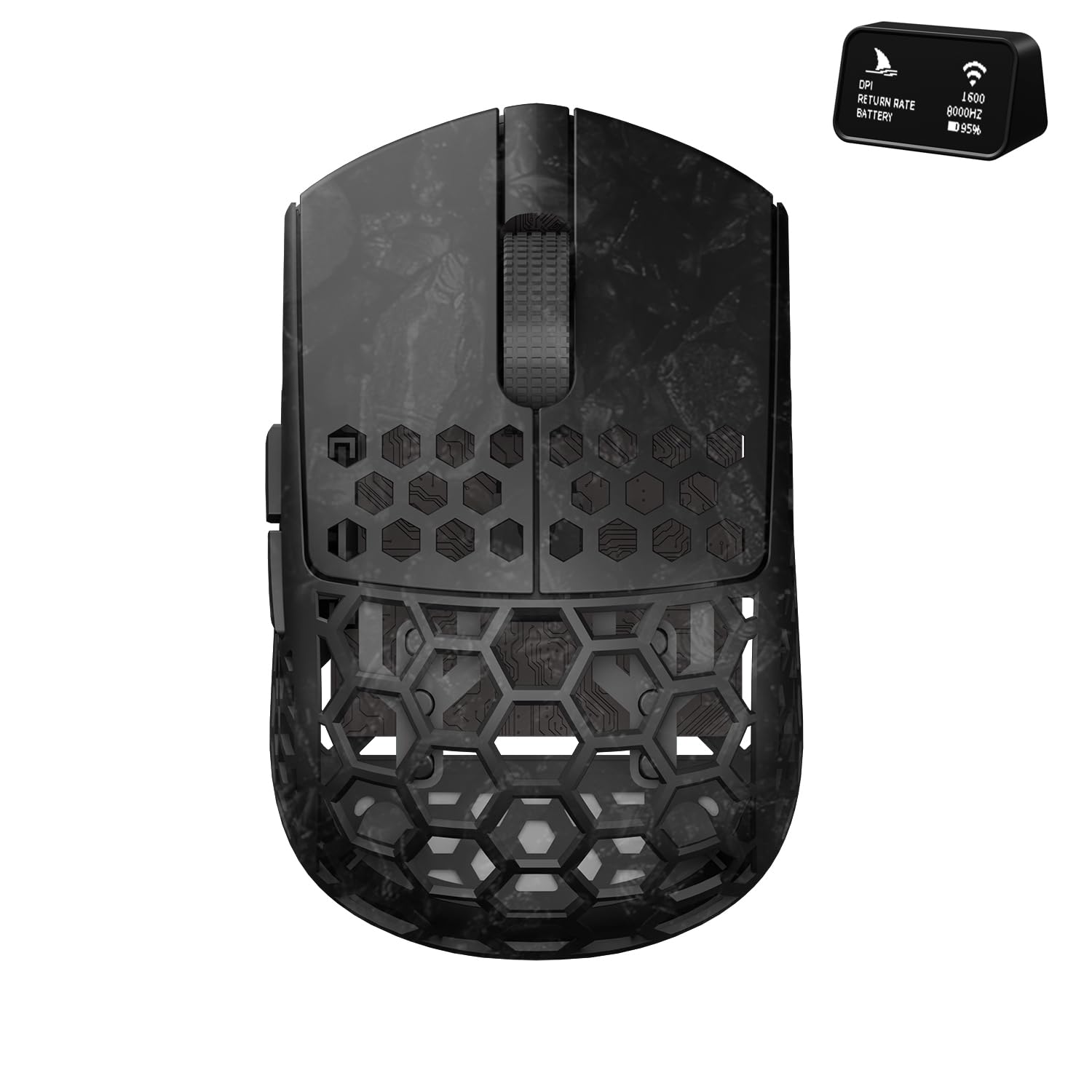
Figure 1: Darmoshark M5Air Gaming Mouse, Black. This image shows the top-down view of the M5Air mouse, highlighting its honeycomb carbon fiber shell and main buttons.
2. Змесціва ўпакоўкі
Праверце наяўнасць усіх прадметаў у камплекце:
- Darmoshark M5Air Gaming Mouse
- Кабель USB-C да USB-A
- 8K Wireless Receiver with Digital Display
- Grip Tape Set
- Extra Mouse Skates
- Кіраўніцтва карыстальніка (гэты дакумент)
Відэа 1: Распакоўка і ўсёview of the Darmoshark M5Air Mini 8K Wireless Gaming Mouse. This video demonstrates the mouse and its included accessories, such as the cable, 8K receiver, and grip tape.
3. Настройка
3.1 Першапачатковая зарадка
Before first use, connect the mouse to your computer using the provided USB-C cable. The mouse will charge automatically. The 8K wireless receiver's display will show the battery level. A full charge typically takes approximately 2-3 hours.

Figure 2: USB-C charging port on the front of the Darmoshark M5Air mouse. This image highlights the location of the USB-C port for charging and wired connection.
3.2 Connecting the 8K Wireless Receiver
Plug the 8K wireless receiver into an available USB-A port on your computer. The receiver features a digital display that shows the current DPI, polling rate, and mouse battery status.

Figure 3: Darmoshark M5Air mouse alongside its 8K wireless receiver. The receiver's display shows real-time mouse information.
4. Рэжымы працы
The M5Air mouse supports three connectivity modes: 2.4GHz wireless (via 8K receiver), Bluetooth, and wired (via USB-C cable).
4.1 Пераключэнне рэжымаў
A switch on the bottom of the mouse allows you to select between modes. The positions typically correspond to: OFF/Wired, 2.4 ГГц бесправадная, і Bluetooth.
4.2 2.4GHz Wireless Mode (via 8K Receiver)
- Ensure the 8K wireless receiver is plugged into your computer.
- Set the switch on the bottom of the mouse to the 2.4GHz wireless icon (often a small antenna or Wi-Fi symbol).
- The mouse should automatically connect. The receiver's display will confirm the connection and show current settings.
4.3 Рэжым Bluetooth
- Set the switch on the bottom of the mouse to the Bluetooth icon.
- На вашым камп'ютары або прыладзе перайдзіце ў налады Bluetooth і знайдзіце новыя прылады.
- Select "Darmoshark M5Air" from the list of available devices to pair.
4.4 Правадны рэжым
Connect the USB-C cable to the front of the mouse and the USB-A end to your computer. The mouse will function in wired mode and charge simultaneously. This mode also allows for firmware updates and software configuration.
5. Рэгуляванне DPI
The M5Air mouse features a dedicated DPI adjustment button, typically located on the bottom of the mouse or accessible via software. Press this button to cycle through preset DPI levels. The 8K receiver's display will show the current DPI setting.
Малюнак 4: унізе view of the Darmoshark M5Air mouse, showing the DPI adjustment button and mode switch.
6. Software Installation and Customization
To unlock advanced features and customize your M5Air mouse, download the official Darmoshark software from the official website. The software allows for:
- Customizing DPI settings and profiles.
- Programming the 5 buttons.
- Adjusting polling rate (up to 8K Hz).
- Setting Lift-Off Distance (LOD).
- Creating macros.
- Абнаўленне прашыўкі.
Наведайце www.darmoshark.cn for the latest software and drivers.

Малюнак 5: Выпample of the Darmoshark M5Air software interface, showing customization options for buttons, DPI, and other settings.
7. Тэхнічнае абслугоўванне
7.1 Ачыстка
Для чысткі мышы выкарыстоўвайце мяккую сухую тканіну. Для ўстойлівага бруду злёгкуamp cloth can be used, ensuring no liquid enters the mouse's internal components. Avoid harsh chemicals or abrasive materials.
7.2 Сыход за акумулятарам
The M5Air uses a built-in rechargeable battery. For optimal battery life, avoid fully discharging the mouse frequently. Charge the mouse when the battery indicator on the 8K receiver shows low power.
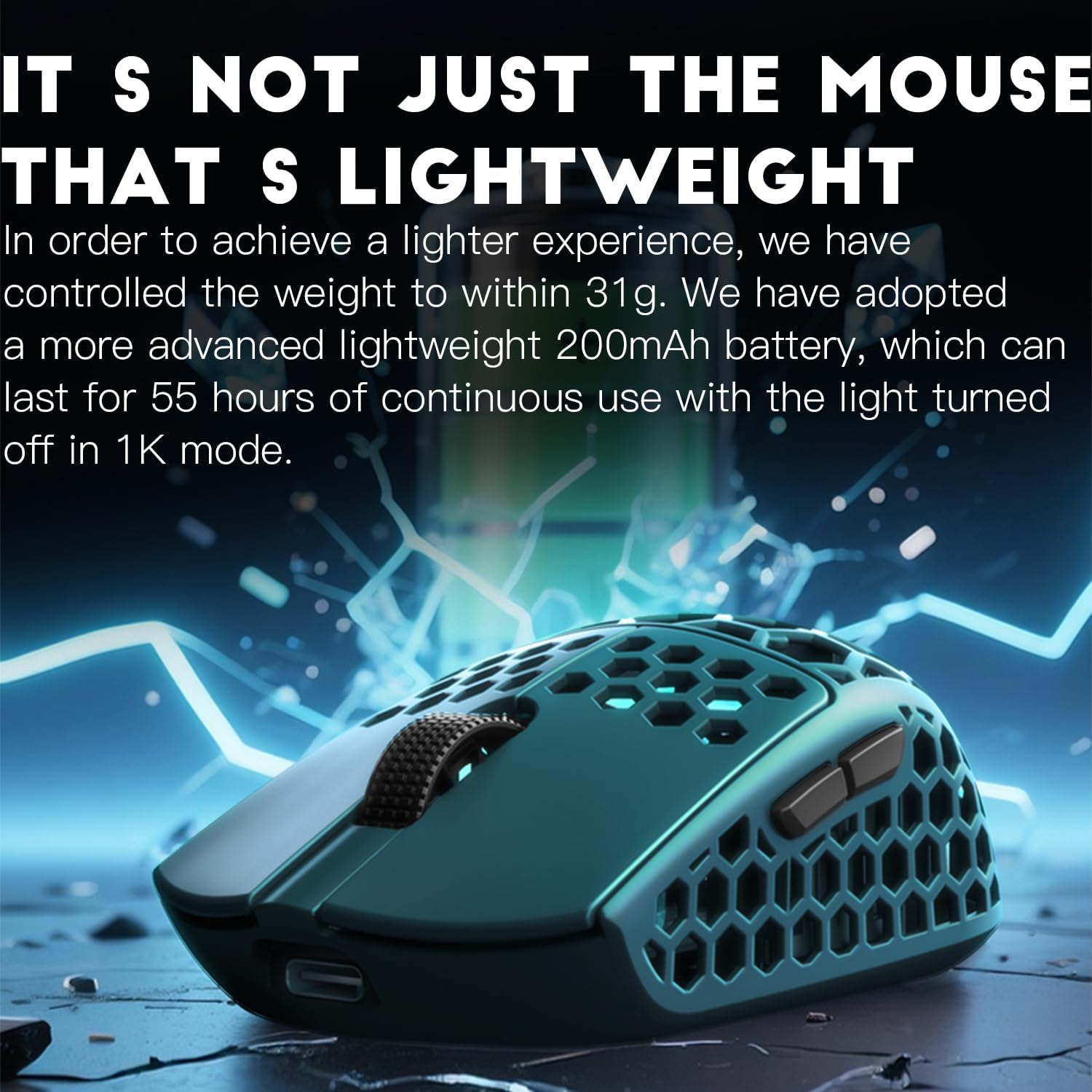
Figure 6: Illustration of the M5Air's lightweight battery, emphasizing its contribution to the mouse's overall low weight and extended usage time.
8. Выпраўленне непаладак
8.1 Мыш не рэагуе
- Праверце акумулятар: Ensure the mouse is charged. Connect it via USB-C cable to charge.
- Праверце перамыкач рэжымаў: Verify the mouse is in the correct operating mode (2.4GHz, Bluetooth, or Wired).
- Re-pair Wireless: For 2.4GHz, unplug and re-plug the 8K receiver. For Bluetooth, remove the device from your computer's Bluetooth settings and re-pair.
- Try Wired Mode: Connect the mouse directly with the USB-C cable to rule out wireless connectivity issues.
8.2 Перарывістае падключэнне
- Паменшыць перашкоды: Move the 8K receiver closer to the mouse. Avoid placing the receiver near other wireless devices or large metal objects.
- Абнаўленне драйвераў/прашыўкі: Ensure your mouse drivers and firmware are up to date via the Darmoshark software.
8.3 Software Not Detecting Mouse
- Правадное злучэнне: Ensure the mouse is connected via USB-C cable when attempting to use the software for configuration or firmware updates.
- Пераўсталюйце праграмнае забеспячэнне: Uninstall and reinstall the Darmoshark software.
9. Тэхнічныя характарыстыкі
| Асаблівасць | Дэталь |
|---|---|
| мадэль | M5Air |
| Датчык | Аптычны датчык PAW3950 |
| Сувязь | Tri-Mode (2.4GHz Wireless, Bluetooth, Wired USB-C) |
| DPI | Да 30000 DPI |
| Стаўка апытання | Up to 8000 Hz (8K) |
| Гузікі | 5 праграмуемых кнопак |
| Вага | Прыбл. 31 г |
| Матэрыял | Вугляроднае валакно |
| акумулятар | 200mAh (up to 55 hours in 1K mode with lights off) |
| Аперацыйная сістэма | Windows 7/8/10/11, MacOS |

Малюнак 7: Закончанаview of the Darmoshark M5Air's core technical features, including the PAW3950 sensor, Nordic52840 chip, 31-gram weight, and carbon fiber material.
10. Гарантыя і падтрымка
The Darmoshark M5Air Gaming Mouse comes with a 1-гадовая абмежаваная гарантыя з даты пакупкі. Гэтая гарантыя распаўсюджваецца на вытворчыя дэфекты і дэфекты вырабу пры нармальным выкарыстанні.
Гарантыя не распаўсюджваецца на:
- Damage caused by accidents, abuse, misuse, or improper installation.
- Пашкоджанні, выкліканыя несанкцыянаваным рамонтам або мадыфікацыямі.
- Нармальны знос.
For warranty claims or technical support, please contact Darmoshark customer service through their official webсайт: www.darmoshark.cn.