
CRUA CR340AU
CRUA 34-inch Ultrawide Gaming Monitor User Manual
Model: CR340AU
1. Інфармацыя па бяспецы
Please read all instructions carefully before using this monitor. Keep this manual for future reference.
- Не падвяргайце манітор уздзеянню дажджу або вільгаці, каб пазбегнуць пажару або паражэння электрычным токам.
- Не адчыняйце манітор casing. Унутры няма дэталяў, якія можна абслугоўваць самастойна. Па ўсіх пытаннях абслугоўвання звяртайцеся да кваліфікаванага персаналу.
- Пастаўце манітор на ўстойлівую, роўную паверхню, каб ён не ўпаў.
- Забяспечце належную вентыляцыю вакол манітора. Не блакуйце вентыляцыйныя адтуліны.
- Выкарыстоўвайце толькі адаптар сілкавання, які пастаўляецца з маніторам.
- Адключыце вілку сілкавання ад разеткі, калі манітор не будзе выкарыстоўвацца працяглы час.
2. Змесціва ўпакоўкі
Праверце, ці ёсць усе прадметы ў вашай упакоўцы:
- CRUA 34-inch Ultrawide Gaming Monitor
- Падстаўка для манітора (аснова і шыя)
- Адаптар сілкавання і кабель
- Кабель HDMI
- Кабель DisplayPort (DP)
- Кіраўніцтва карыстальніка
- Шрубы для зборкі падстаўкі
3. Настройка
3.1 Зборка падстаўкі
- Асцярожна выміце манітор з упакоўкі, паклаўшы яго на мяккую паверхню.
- Прымацуйце шыйку падстаўкі да задняй панэлі манітора з дапамогай прыкладаемых шруб.
- Падлучыце аснову падстаўкі да шыйкі падстаўкі і замацуйце яе прызначаным шрубай.
- Пастаўце сабраны манітор на ўстойлівы стол.
The monitor stand allows for tilt adjustment to find your optimal viewкут нахілу.
3.2 Насценны мантаж (дадаткова)
This monitor supports VESA wall mounting (75x75mm). To wall mount:
- Зніміце падстаўку з манітора, калі яна ўжо прымацаваная.
- Attach a compatible VESA 75x75mm wall mount bracket (not included) to the monitor's rear panel using appropriate screws.
- Для бяспечнай устаноўкі выконвайце інструкцыі, якія прыкладаюцца да насценнага мацавання.

Выява: Задняя частка view of the monitor highlighting the 75x75mm wall mount area and various input ports.
3.3 Падключэнне да прылады
Падключыце камп'ютар або гульнявую прыстаўку да манітора, выкарыстоўваючы адзін з даступных партоў:
- DisplayPort (DP 1.4): For optimal performance, especially for high refresh rates and FreeSync.
- HDMI (HDMI 1.4 x2): Compatible with most devices.
Connect the power adapter to the monitor's DC input and then plug it into a power outlet.
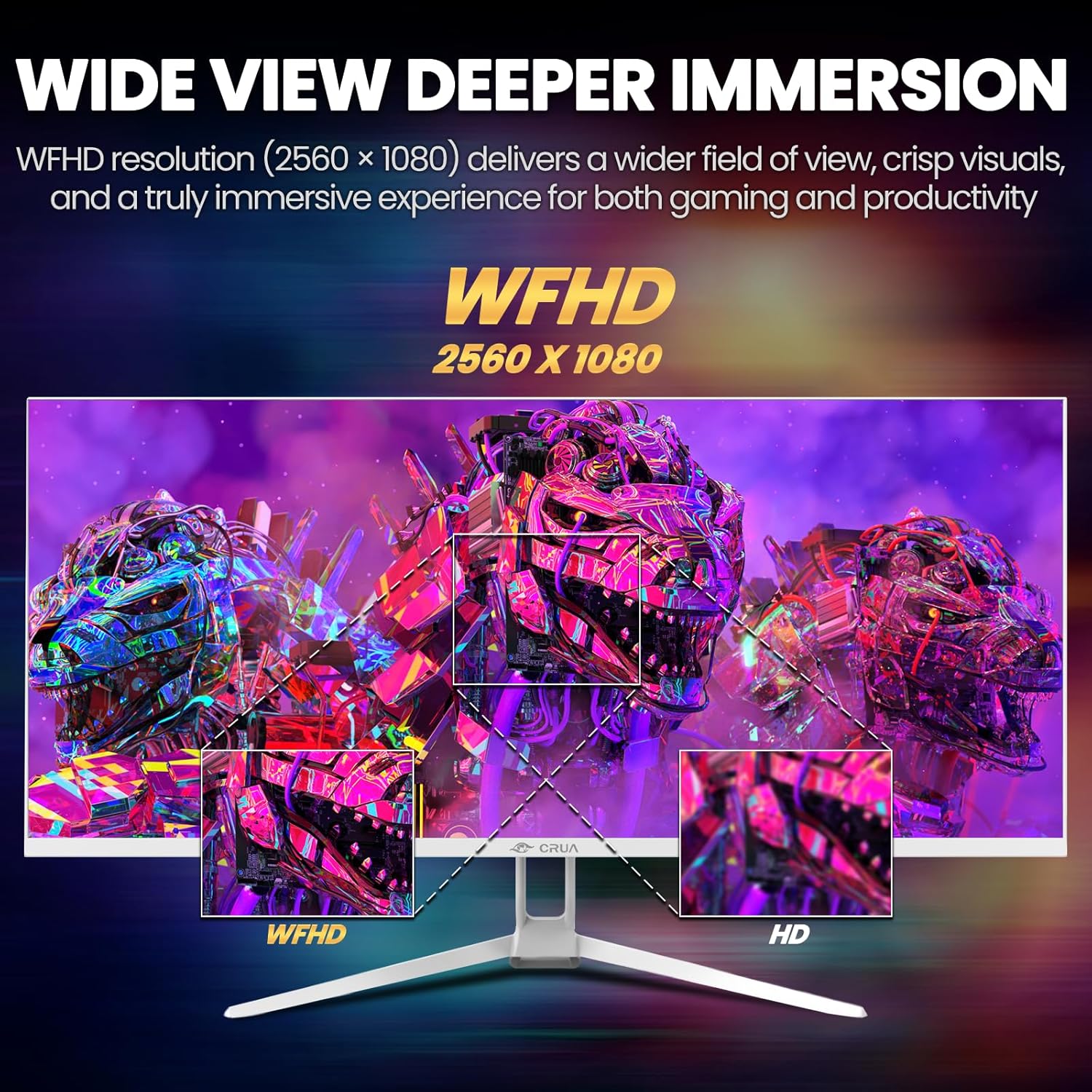
Image: A detailed diagram illustrating the monitor's connectivity options, including two HDMI 1.4 ports, one DisplayPort 1.4, an audio output, a USB charging port, and the DC power input.
4. Інструкцыя па эксплуатацыі
4.1 Уключэнне/выключэнне сілкавання
Press the power button, typically located on the bottom or rear of the monitor, to turn it on or off. The power indicator light will illuminate when the monitor is on.
4.2 Экраннае меню (OSD).
The OSD menu allows you to adjust various monitor settings. Access it by pressing the OSD menu button (often a joystick-like button or a set of dedicated buttons) on the monitor.
- Навігацыя: Use the OSD buttons or joystick to navigate through the menu options.
- выбар: Націсніце кнопку выбару, каб увайсці ў падменю або пацвердзіць наладу.
- Выхад: Выкарыстоўвайце кнопку выхаду, каб вярнуцца або закрыць экраннае меню.
4.3 Налады выявы
Адкарэктуйце візуальныя параметры для аптымальнага viewING:
- Яркасць: Кіруе агульнай яркасцю экрана.
- Кантраст: Рэгулюе розніцу паміж светлымі і цёмнымі ўчасткамі.
- Каляровая тэмпература: Выбірае загадзя зададзеныя каляровыя рэжымы (напрыклад, Цёплы, Халодны, Карыстальніцкі).
- Фільтр сіняга святла: Reduces blue light emission to minimize eye strain during prolonged use.
- Суадносіны бакоў: Set to 21:9 for ultrawide content or other options as needed.

Image: The CRUA ultrawide monitor showcasing its 21:9 aspect ratio, demonstrating how it provides more horizontal screen space compared to a standard 16:9 display.
4.4 Налады гуку
The monitor includes built-in speakers. Adjust volume through the OSD menu or your connected device. An external audio output port is also available for headphones or external speakers.
4.5 AMD FreeSync
To enable AMD FreeSync for tear-free gaming, ensure your graphics card supports FreeSync and that it is enabled in your graphics card's control panel. Then, activate FreeSync within the monitor's OSD menu.

Image: A visual comparison demonstrating the effect of AMD FreeSync, showing a torn image when FreeSync is off and a smooth image when FreeSync is on, highlighting the 120Hz refresh rate.
5. Тэхнічнае абслугоўванне
5.1 Ачыстка экрана
- Выключыце манітор і адключыце шнур сілкавання.
- Выкарыстоўвайце мяккую тканіну без ворса. dampвадой або спецыяльным сродкам для чысткі экранаў.
- Wipe the screen gently. Do not press hard or use abrasive cleaners.
5.2 Агульны догляд
- Трымайце манітор далей ад прамых сонечных прамянёў, крыніц цяпла і празмернай колькасці пылу.
- Не кладзіце цяжкія прадметы на манітор або яго кабелі.
- Do not spray cleaning liquids directly onto the monitor.
6. Выпраўленне непаладак
Калі ў вас узніклі праблемы з маніторам, звярніцеся да наступных распаўсюджаных праблем і іх рашэнняў:
| праблема | Магчымае рашэнне |
|---|---|
| Няма выявы на экране | Ensure power cable is securely connected and the monitor is turned on. Check video cable (HDMI/DP) connections to both monitor and computer. Select the correct input source via the OSD menu. |
| Выява мігціць або нестабільная | Check video cable connections. Ensure your graphics card drivers are up to date. If using FreeSync, try disabling it temporarily to see if the issue persists. Adjust refresh rate in your computer's display settings. |
| Няма гуку з убудаваных дынамікаў | Increase volume via the OSD menu and your computer's sound settings. Ensure the correct audio output device is selected on your computer. Check if the audio cable (if used) is properly connected. |
| Колеры адлюстроўваюцца няправільна | Reset picture settings to factory defaults via the OSD menu. Adjust color temperature and individual RGB values if available. |
If the problem persists after trying these solutions, please contact CRUA customer support.
7. Тэхнічныя характарыстыкі
Key technical specifications for the CRUA 34-inch Ultrawide Gaming Monitor (Model CR340AU):
| Асаблівасць | Спецыфікацыя |
|---|---|
| Памер экрана | 34 цалі |
| Тып панэлі | IPS |
| дазвол | 2560 x 1080 (WFHD) |
| Суадносіны бакоў | 21:9 |
| Частата абнаўлення | 120 Гц |
| Час водгуку | (Not specified in provided data, typical for IPS is 1-5ms GTG) |
| Яркасць | 350 кд/м² |
| Колеравая гама | 120% sRGB |
| Глыбіня колеру | 8-біт (16.7 мільёна колераў) |
| Viewвуглавыя куты | 178° (гарызантальны/вертыкальны) |
| Адаптыўная сінхранізацыя | AMD FreeSync |
| Сувязь | 2x HDMI 1.4, 1x DisplayPort 1.4, Audio Out, USB Charging, DC Power Input |
| Убудаваныя дынамікі | так |
| Насценнае мацаванне | VESA 75х75 мм |
| Памеры прадукту | 9.4 х 24.13 х 17.47 цалі |
| Вага прадмета | 14.92 фунта |
8. Гарантыя і падтрымка
CRUA provides high-quality computer monitors and customer service. For any questions or support needs regarding your CRUA 34-inch Ultrawide Gaming Monitor, please contact CRUA customer support.
Refer to your purchase documentation or the official CRUA webсайт для атрымання канкрэтных гарантыйных умоў і кантактнай інфармацыі.