
1. Уводзіны
This manual provides detailed instructions for the ETOE Google TV Streaming Device. This device transforms any compatible TV into a smart TV, offering access to a wide range of streaming services, apps, and smart features powered by Google TV. Please read this manual thoroughly before use to ensure proper setup and operation.

Image: The ETOE Google TV Streaming Device connected to a television, showcasing its streaming capabilities.
2. Змесціва ўпакоўкі
Праверце, ці ёсць усе прадметы ў вашай упакоўцы:
- ETOE Google TV Streaming Device (T2 Stick) x1
- Пульт дыстанцыйнага кіравання x1
- Power Cable (Micro USB) x1
- HDMI Extension Cable x1
- Кіраўніцтва карыстальніка x1
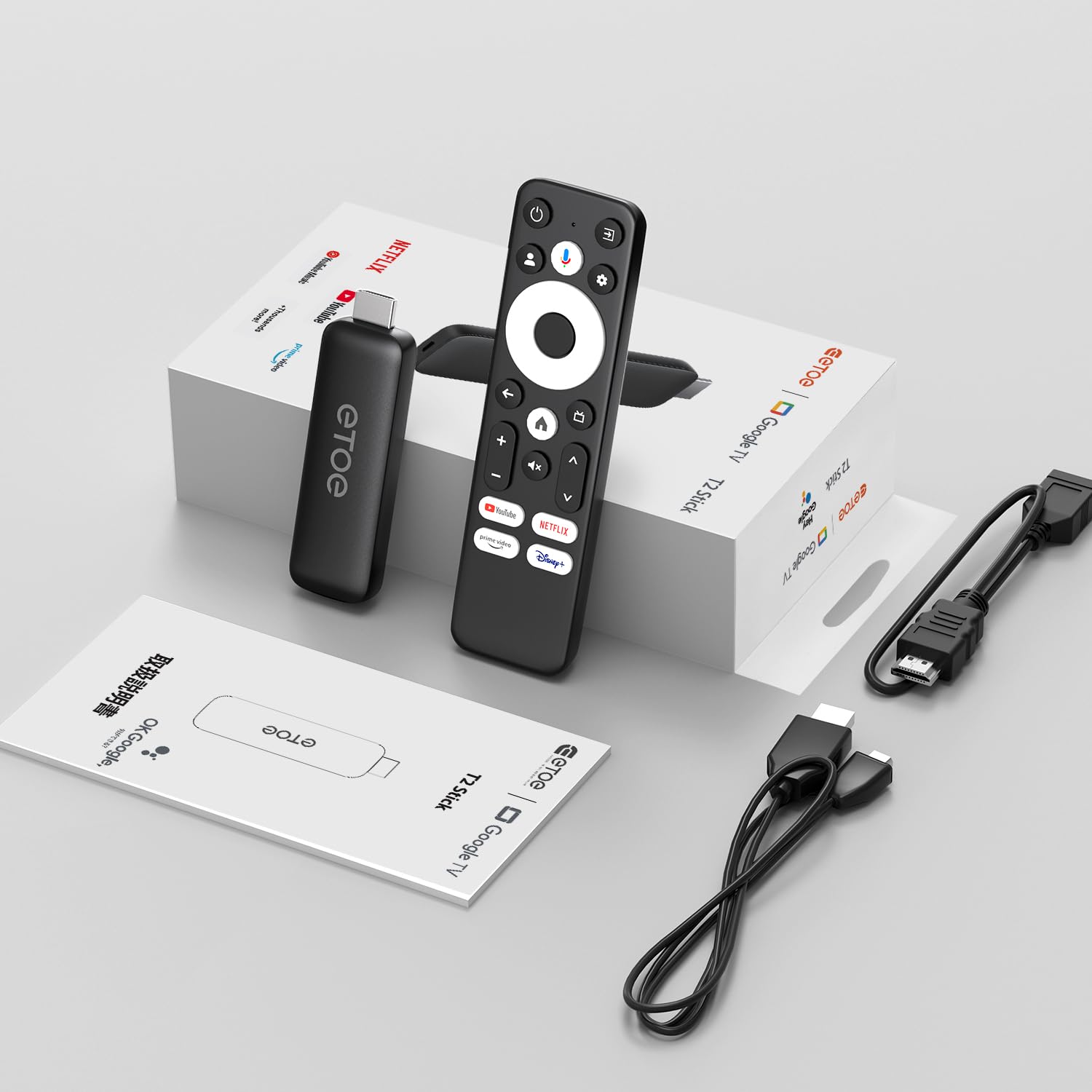
Image: All components included in the ETOE Google TV Streaming Device package.
3. Кіраўніцтва па наладцы
Follow these steps to set up your ETOE Google TV Streaming Device:
3.1. Падключыце прыладу
- Падключэнне сілкавання: Connect one end of the USB cable to the TV stick and the other end to a power adapter (not included). Plug the power adapter into a nearby power outlet. Alternatively, you can connect the USB cable directly to a USB port on your TV or monitor for power.
- Падключэнне HDMI: Insert the TV stick into an available HDMI port on your television. If the HDMI port is difficult to access, use the included HDMI extension cable.
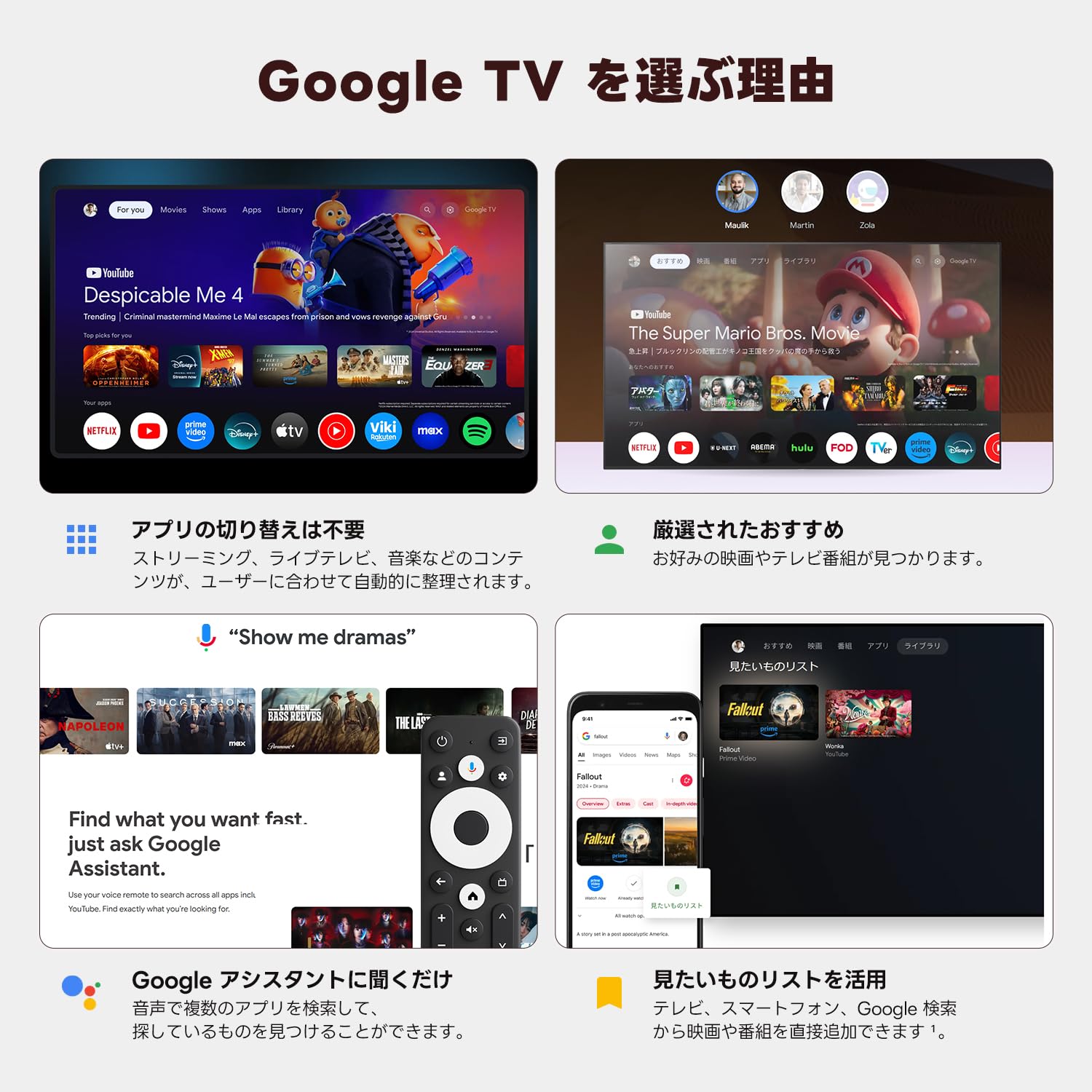
Image: Connection diagram for the ETOE Google TV Streaming Device.
3.2. Initial Setup and Remote Pairing
Turn on your TV and select the correct HDMI input. The device will boot up, and you will see a welcome screen. Follow the on-screen instructions to complete the initial setup, which includes pairing your remote control.
To pair the remote, press and hold the дадому і Назад buttons simultaneously for approximately 5 seconds, or until the LED on the remote blinks green. Keep the remote within 3 feet of the streaming device during pairing.
3.3. Video Guide: Unboxing and Setup
Video: A short demonstration of unboxing the ETOE Google TV Streaming Device and performing the initial setup steps, including remote pairing and language selection.
4. Інструкцыя па эксплуатацыі
Once set up, navigate the Google TV interface using your remote control.
4.1. Навігацыя па інтэрфейсе
- Use the directional pad (D-pad) on the remote to move between menu items.
- Націсніце Цэнтр кнопка для выбару элемента.
- Націсніце Назад кнопку, каб вярнуцца да папярэдняга экрана.
- Націсніце дадому button to go to the Google TV home screen.
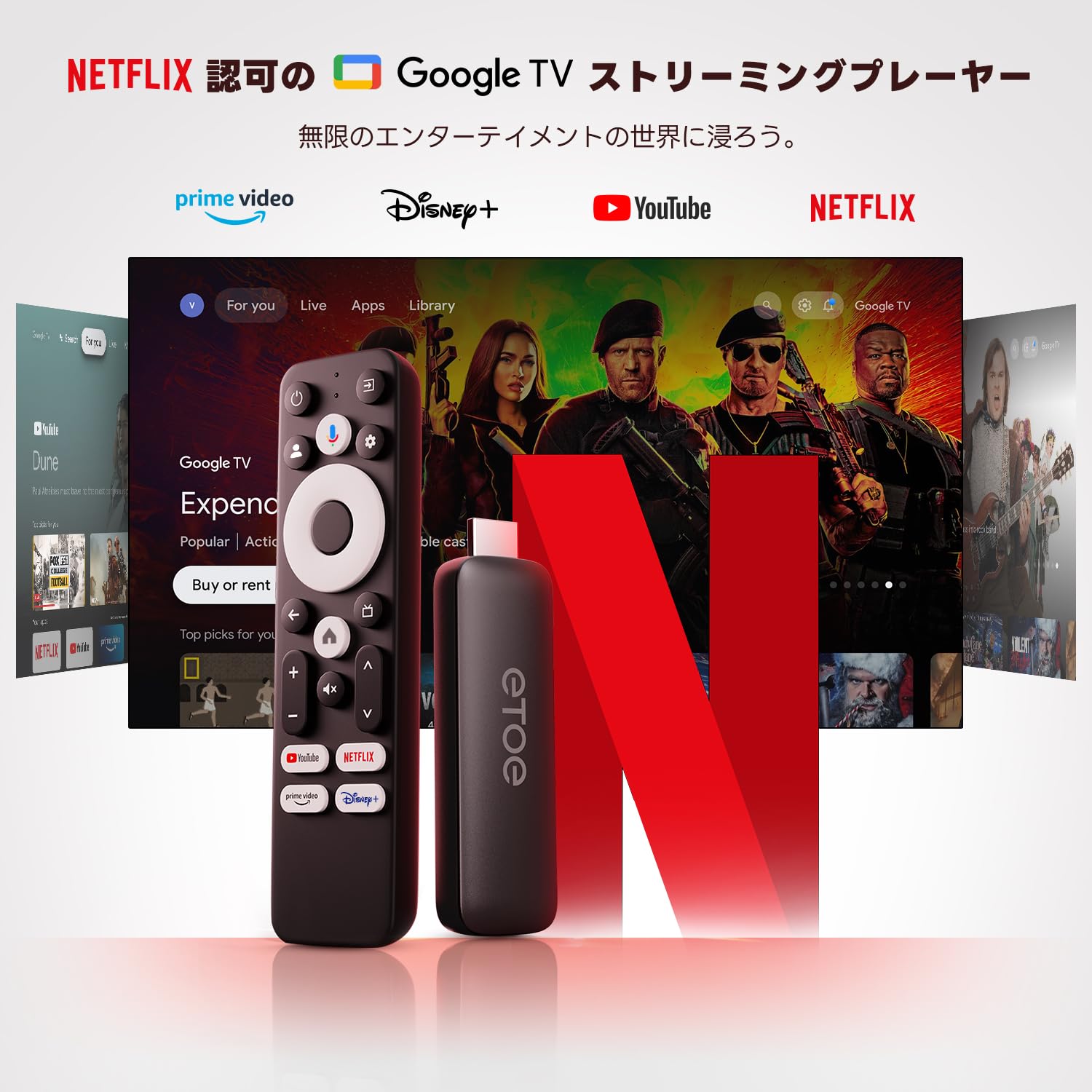
Image: The ETOE Google TV interface with the remote control.
4.2. Галасавое кіраванне з дапамогай Google Assistant
The ETOE Google TV Streaming Device supports Google Assistant for hands-free control. Press the Памочнік Google button on your remote or say "OK Google" (if enabled) to activate voice commands.
- Пошук фільмы і тэлеперадачы.
- Адкрытыя праграмы.
- Control playback (play, pause, skip).
- Адрэгулюйце гучнасць.
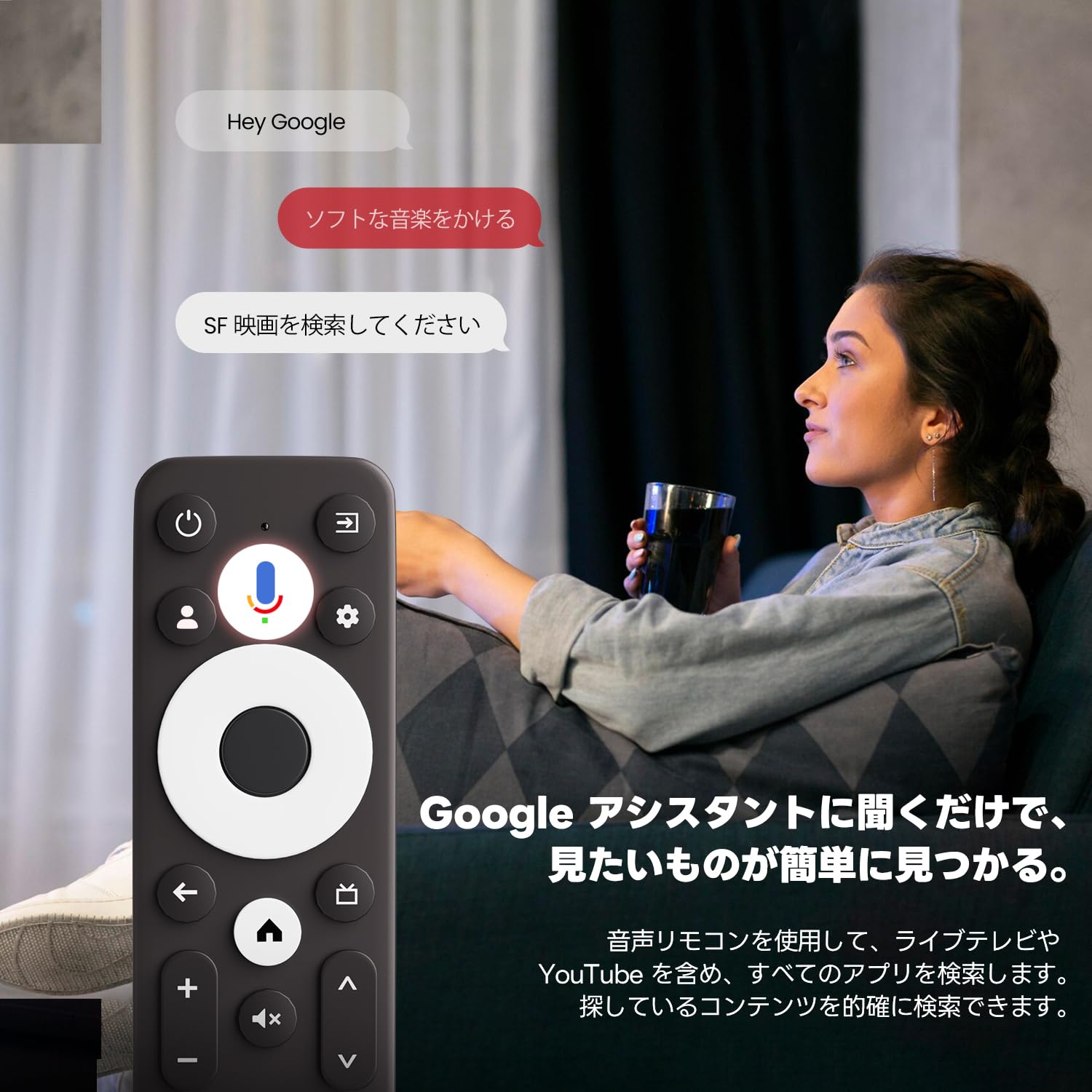
Image: Using voice commands with the ETOE Google TV remote.
4.3. Прыкладанні для струменевай перадачы
Access a vast library of content from popular streaming services like Netflix, YouTube, Prime Video, Disney+, and many more. The Google TV interface organizes content from all your subscriptions, making it easy to discover new shows and movies.
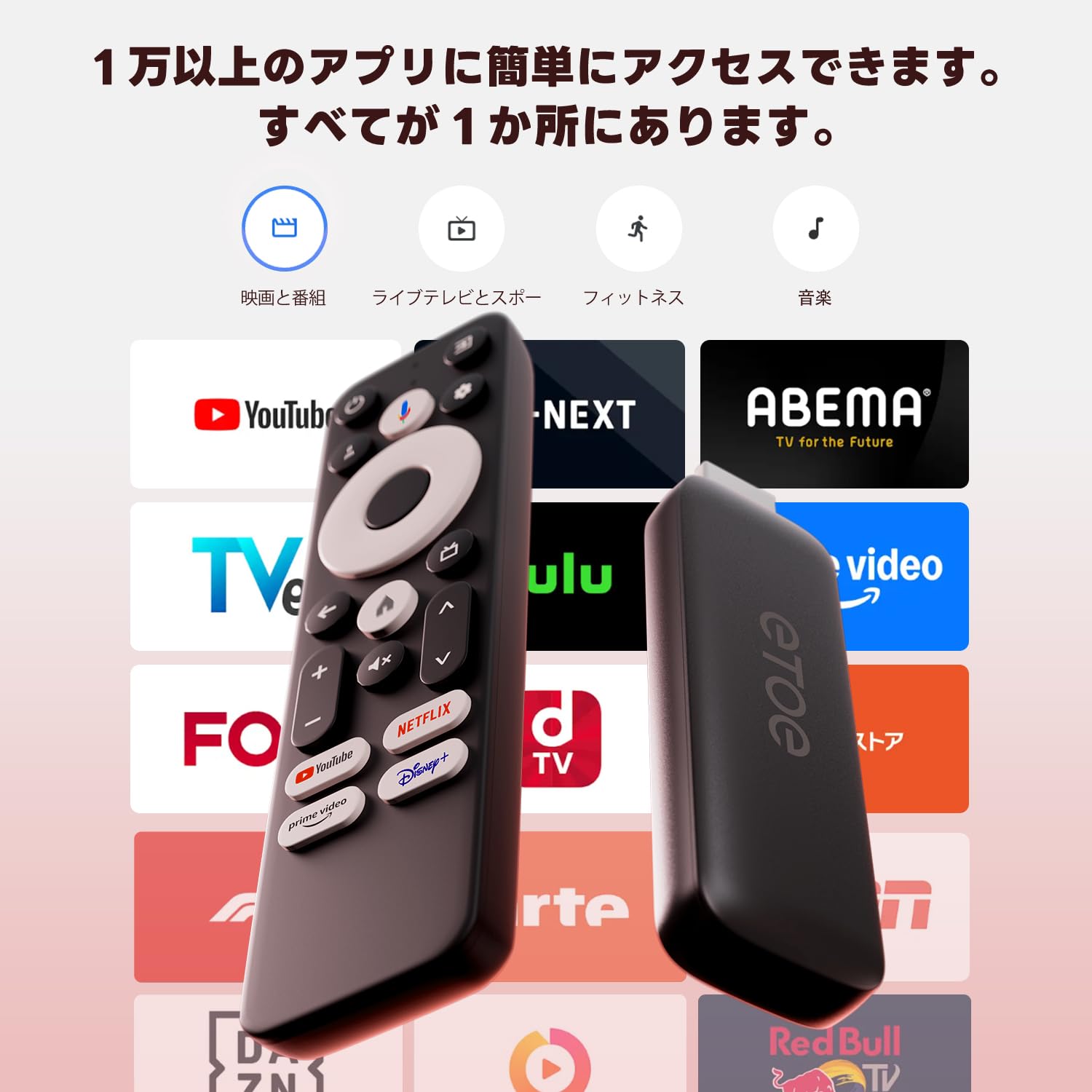
Выява: Зверхуview of popular streaming applications accessible on the device.
4.4. Google Cast / Screen Mirroring
The device supports Google Cast, allowing you to mirror content from your smartphone or tablet directly to your TV screen. This feature is ideal for sharing photos, videos, or presentations.
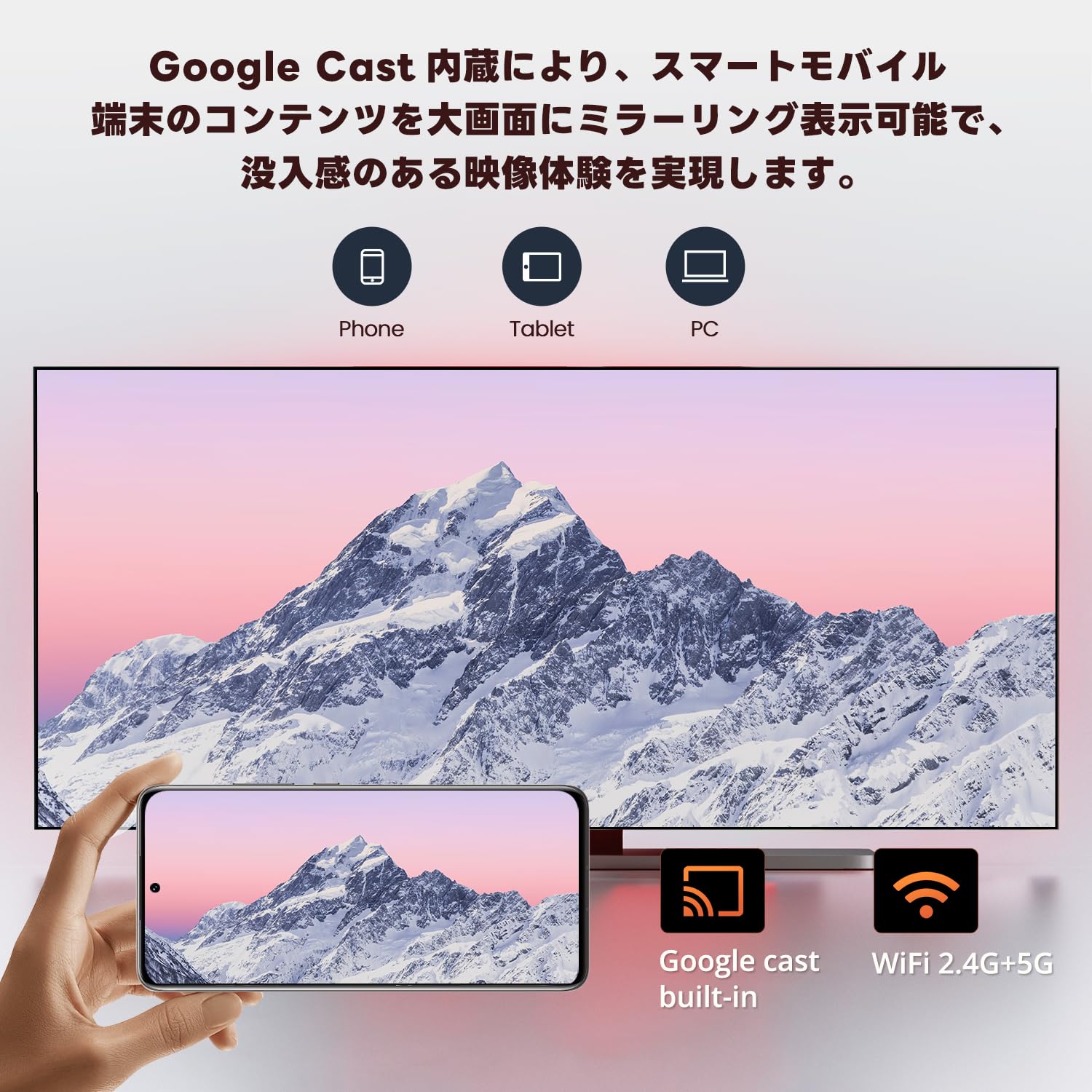
Image: Smartphone screen mirroring to a TV using Google Cast.
5. Асаблівасці
The ETOE Google TV Streaming Device offers a range of features designed to enhance your entertainment experience:
- Official Google TV: Access over 700,000 movies and TV episodes from various streaming services.
- Full HD 1080p Output: Enjoy vivid and clear images with 1080p resolution support.
- Двухдыяпазонны Wi-Fi (2.4G і 5G): Ensures stable and fast wireless connectivity for smooth streaming.
- Bluetooth 5.0: Connect wireless accessories such as headphones or game controllers.
- Памочнік Google: Use voice commands for search, playback control, and more.
- Google Cast Built-in: Easily cast content from your mobile devices to your TV.
- Персаналізаваныя рэкамендацыі: Google TV вывучае вашы перавагі і прапануе кантэнт, адаптаваны да вашых патрэб.
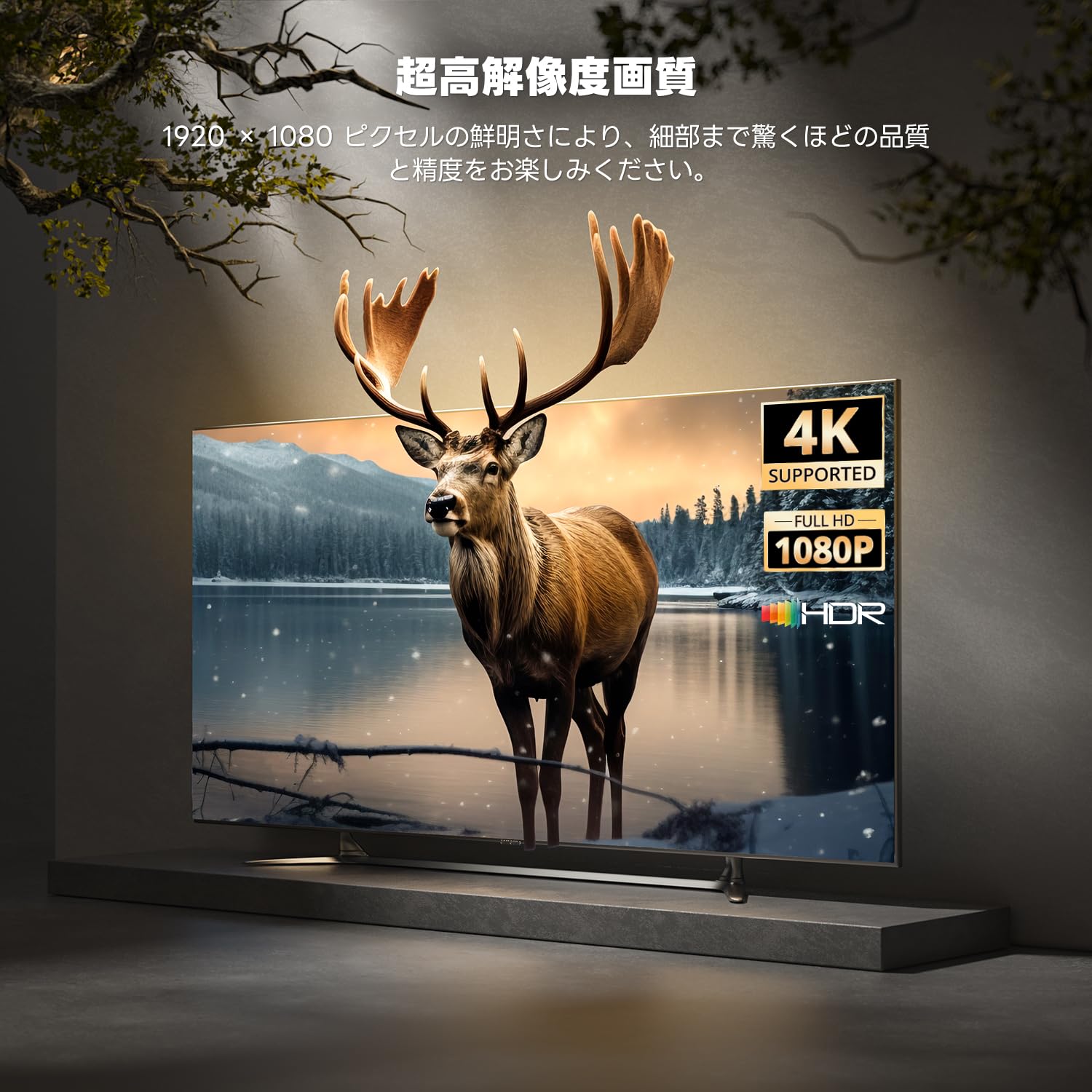
Image: High-resolution display capabilities of the device.
6. Тэхнічнае абслугоўванне
To ensure the longevity and optimal performance of your ETOE Google TV Streaming Device, follow these maintenance guidelines:
- Уборка: Для чысткі прылады выкарыстоўвайце мяккую сухую тканіну. Не выкарыстоўвайце вадкія ачышчальнікі або аэразольныя спрэі.
- Вентыляцыя: Пераканайцеся, што прылада знаходзіцца ў добра вентыляваным месцы, каб пазбегнуць перагрэву. Не накрывайце прыладу.
- захоўванне: Калі прылада не выкарыстоўваецца працяглы час, адключыце яе ад сеткі і захоўвайце ў прахалодным, сухім месцы.
- Абнаўленні праграмнага забеспячэння: Keep the device's software updated to the latest version for improved performance and security. Updates are typically managed automatically by Google TV.
7. Выпраўленне непаладак
If you encounter issues with your ETOE Google TV Streaming Device, refer to the following common problems and solutions:
| праблема | Магчымае рашэнне |
|---|---|
| Няма харчавання/Прылада не ўключаецца | Ensure the power cable is securely connected to the device and a working power outlet. Try a different power adapter or USB port. |
| Няма сігналу на тэлевізары | Verify the HDMI cable is securely connected to both the device and the TV. Ensure your TV is set to the correct HDMI input. Try a different HDMI port or cable. |
| Пульт дыстанцыйнага кіравання не адказвае | Check the remote's batteries and replace if necessary. Re-pair the remote by holding the Home and Back buttons for 5 seconds. |
| Праблемы з падключэннем да Wi-Fi | Restart your Wi-Fi router. Go to the device's Wi-Fi settings and reconnect to your network. Ensure the device is within range of your router. |
| Завісанне або збой праграмы | Restart the application. Clear the app's cache and data in the device settings. If the problem persists, uninstall and reinstall the app. |
| Дрэнная якасць відэа | Check your internet connection speed. Ensure your TV supports the resolution being streamed. Adjust video quality settings within the streaming app if available. |
8. Тэхнічныя характарыстыкі
Key technical specifications for the ETOE Google TV Streaming Device (Model D2861):
- Марка: ETOE
- Нумар мадэлі: D2861
- Формаў-фактар: TV Stick
- колер: Чорны
- Тэхналогія падключэння: Wi-Fi (2.4G & 5G), Bluetooth 5.0
- Тып раздыма: HDMI
- Дазвол відэавываду: 1080p (1920x1080)
- Відэа кодэкі: H.264, H.265/HEVC
- Вага прадукту: 190 г
- Памеры ўпакоўкі: 19.3 х 9.1 х 4.6 см
9. Гарантыя і падтрымка
ETOE provides a 12-month warranty and 30-day return policy for this product. For any initial defects or compatibility issues, please contact customer support. Japanese language support is available, and manufacturer warranty ensures comprehensive post-purchase assistance.
For further assistance, please visit the official ETOE store or contact customer support through the provided channels.
- Афіцыйная крама: ETOE Official Store on Amazon.co.jp