
1. Уводзіны
Thank you for choosing the SGIN C10 10.1-inch Kids Tablet. This device is designed to provide an engaging and safe digital experience for children, featuring parental controls and educational content. This manual will guide you through the setup, operation, and maintenance of your tablet to ensure optimal performance and user safety.
2. Прадукт скончыўсяview
2.1 Змест пакета
Пасля распакавання пераканайцеся, што ўсе пералічаныя ніжэй прадметы наяўныя:
- SGIN C10 10.1-inch Tablet
- Ахоўны футляр
- Зарадная прылада
- Кабель USB
- Кіраўніцтва па эксплуатацыі

Image: Diagram showing the tablet's ports and buttons, along with the included accessories: tablet, protective case, charger, USB cable, and instruction manual.
2.2 Кампаненты планшэта
Familiarize yourself with the physical components of your SGIN C10 tablet:
- Кнопка харчавання: Located on the side, used to turn the tablet on/off or put it to sleep.
- Кнопкі гучнасці: Адрэгулюйце ўзровень гукавога вываду.
- Раз'ём для навушнікаў: Для падключэння правадных навушнікаў.
- Порт USB: Для зарадкі і перадачы дадзеных.
- Слот TF карты: Для пашырэння памяці з дапамогай карты microSD.
- Пярэдняя камера: Для відэазванкоў і сэлфі.
- Задняя камера: Для здымкі фота і відэа.
- Дакладчыкі: Для выхаду гуку.
- 10.1-цалевы сэнсарны экран HD IPS: Асноўны дысплей для ўзаемадзеяння.
- Protective Case with Stand: Provides protection and allows for hands-free viewінж.
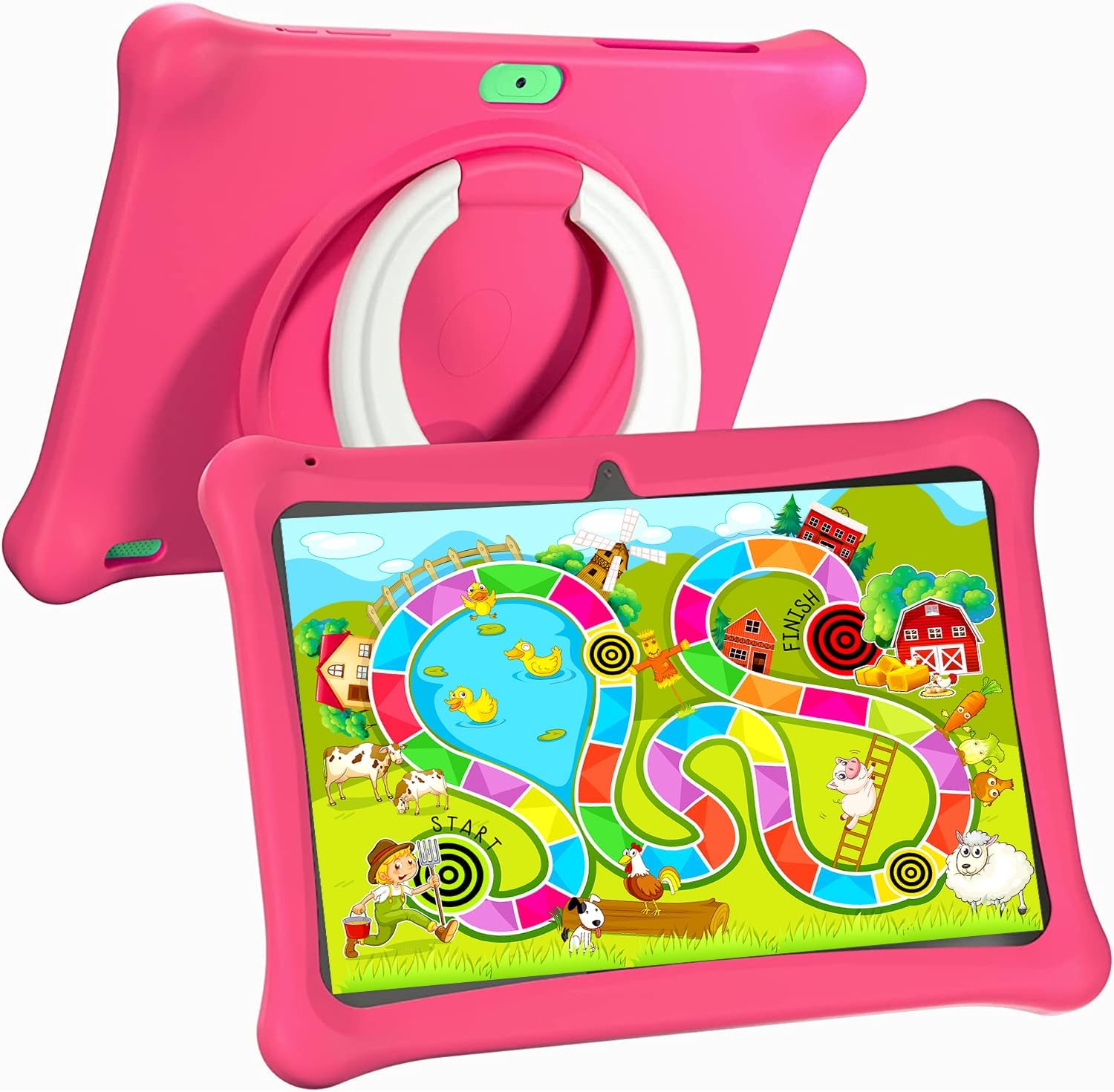
Image: The SGIN C10 tablet in its pink protective case, displaying a colorful educational game on its screen. The rear of the tablet shows the integrated stand.
2.3 Асноўныя магчымасці
- Высокая прадукцыйнасць: Equipped with a 1.6GHz quad-core processor, 2GB RAM, and 32GB ROM (expandable up to 32GB via TF card).
- Kid-Proof Case: Durable pink case designed to protect against dust, bumps, and drops, with heat dissipation features.
- Pre-installed iWawa Kid's Software: Offers a safe and entertaining environment with thousands of free educational games and apps.
- Parental Control System: Allows parents to manage screen time, content, and user accounts.
- Доўгі тэрмін службы батарэі: 5000mAh lithium battery provides 6-8 hours of usage.
- Eye Protection Screen: 1280*800 HD IPS touch screen for vibrant colors and comfortable viewінж.
- Падвойная камера: 2MP front camera and 5MP rear camera for photos and videos.

Image: Icons representing key features of the SGIN C10 tablet: Android 12, Quad-core processor, Dual Camera, 5000mAh battery, WiFi, HD Display, 2GB RAM + 32GB storage, 10 Inch screen, and Parental Control.

Image: Visual representation of the tablet's 2GB RAM and 32GB ROM (expandable via TF card), alongside a diagram of the 1.6 GHz Quad-core Processor.

Image: The 10-inch HD display showing vibrant content, and a close-up of the protective case's rotatable stand.

Image: A child using the tablet, highlighting the 5000mAh Lithium Battery, and a close-up of the tablet's dual camera system.
3. Настройка
3.1 Першапачатковая зарадка
- Connect the USB cable to the tablet's USB port.
- Connect the other end of the USB cable to the provided charger.
- Падключыце зарадная прылада да электрычнай разеткі.
- Allow the tablet to charge fully before first use. The battery indicator on the screen will show charging status.
3.2 Уключэнне/выключэнне
- Каб уключыць: Press and hold the Power Button until the SGIN logo appears on the screen.
- Каб выключыць: Press and hold the Power Button until a menu appears. Select "Power off" and confirm.
- Каб заснуць/прачнуцца: Briefly press the Power Button to put the tablet to sleep or wake it up.
3.3 Падключэнне да Wi-Fi
- На галоўным экране правядзіце пальцам зверху ўніз, каб адкрыць панэль хуткіх налад.
- Tap and hold the Wi-Fi icon to open Wi-Fi settings.
- Toggle Wi-Fi on if it's off.
- Выберыце патрэбную сетку Wi-Fi са спісу.
- Увядзіце пароль сеткі, калі будзе прапанавана, а затым націсніце «Падключыцца».
3.4 Initial iWawa Setup
The SGIN C10 tablet comes with iWawa Kid's software pre-installed. Follow the on-screen prompts to set up the child-friendly environment and parental controls during the first launch.
4. Інструкцыя па эксплуатацыі
4.1 Асноўная навігацыя
- Націсніце: Націсніце на значок або опцыю, каб выбраць яе.
- Правядзіце пальцам: Правядзіце пальцам па экране, каб пракручваць старонкі або спісы.
- Дробка: Выкарыстоўвайце два пальцы, каб павялічваць або памяншаць маштаб малюнкаў або web старонкі.
- Кнопка дадому: Вяртае вас на галоўны экран.
- Кнопка "Назад": Вяртае вас да папярэдняга экрана.
- Кнопка апошніх праграм: Паказвае нядаўна выкарыстаныя праграмы.
4.2 Выкарыстанне камеры
- Адкрыйце праграму «Камера» на галоўным экране або ў панэлі праграм.
- Націсніце на значок пераключальніка камеры, каб пераключацца паміж пярэдняй і задняй камерамі.
- Націсніце кнопку спуску засаўкі, каб зрабіць фотаздымак.
- Tap the video icon to switch to video recording mode, then tap the record button to start/stop recording.
4.3 Installing/Uninstalling Apps
- Усталяванне праграм: Within the iWawa environment, access the Kids Store to download free games and educational applications. Parents can also approve apps from the Google Play Store via parental controls.
- Выдаленне праграм: From the parental control interface, select the app management option to uninstall unwanted applications.
4.4 Рэгуляванне налад
- Аб'ём: Use the physical Volume Buttons on the side of the tablet.
- Яркасць: Swipe down from the top of the screen to access Quick Settings and adjust the brightness slider. More detailed display settings are available in the main Settings app.
- Іншыя налады: Access the main Settings app for Wi-Fi, Bluetooth, display, sound, storage, and other system configurations.
5. Бацькоўскі кантроль
The SGIN C10 tablet features a robust parental control system integrated with the iWawa Kid's software, allowing you to create a safe and customized environment for your child.
5.1 Доступ да бацькоўскага кантролю
To access parental control settings, you will typically need to exit the iWawa Kid's interface and enter a password-protected parent mode. Follow the on-screen instructions within the iWawa app to set up and manage this access.
5.2 Key Parental Control Features
- Усталюйце паролі: Establish a secure password to prevent children from exiting the iWawa environment or altering settings.
- Screen Time Limits: Define daily usage limits and specific time periods when the tablet can be used.
- Кіраванне кантэнтам: Control access to apps, games, videos, and websites. You can whitelist appropriate websites and block unwanted content.
- App Approval: Manage which applications your child can access, including those downloaded from the Kids Store or Google Play Store.
- Multiple User Accounts: Стварыць асобнага спецыялістаfiles for each child, allowing personalized settings and content for individual users.
- Ad Elimination: The system helps eliminate unwanted advertisements within the child's environment.
6. Тэхнічнае абслугоўванне
6.1 Ачыстка прылады
- Always power off the tablet before cleaning.
- Выкарыстоўвайце мяккую тканіну без ворса, каб праціраць экран і корпус.
- Для ўстойлівых плям злёгкуampпрацярыце тканіну вадой або сродкам для ачысткі экрана. Пазбягайце агрэсіўных хімічных рэчываў.
- Сачыце за тым, каб вільгаць не трапляла ў парты або адтуліны.
6.2 Сыход за акумулятарам
- Пазбягайце частай поўнай разрадкі акумулятара.
- Не падвяргайце планшэт уздзеянню экстрэмальных тэмператур.
- Выкарыстоўвайце толькі зарадную прыладу і кабель, якія ўваходзяць у камплект.
6.3 Абнаўленне праграмнага забеспячэння
Periodically check for system updates in the tablet's Settings menu under "System" or "About tablet." Keeping your software updated ensures optimal performance and security.
6.4 Кіраванне сховішчам
To manage storage, you can:
- Delete unused apps and files.
- Move photos and videos to a computer or cloud storage.
- Insert a TF (microSD) card into the designated slot to expand storage capacity up to 32GB.
7. Выпраўленне непаладак
| праблема | Магчымае рашэнне |
|---|---|
| Планшэт не ўключаецца. | Пераканайцеся, што акумулятар зараджаны. Падключыце зарадную прыладу і пачакайце некалькі хвілін, перш чым зноў уключыць прыладу. |
| Экран не рэагуе. | Restart the tablet by holding the Power Button for about 10 seconds until it powers off, then power it on again. |
| Немагчыма падключыцца да Wi-Fi. | Check if Wi-Fi is enabled. Ensure the password is correct. Restart your Wi-Fi router. |
| Праграмы працуюць павольна або выходзяць з ладу. | Close background apps. Clear app cache (Settings > Apps > [App Name] > Storage > Clear cache). Ensure sufficient storage space. |
| Parental controls are not working as expected. | Re-enter the parental control settings and verify all configurations (time limits, content filters, app approvals). Ensure the correct child profile з'яўляецца актыўным. |
8. Тэхнічныя характарыстыкі
| Асаблівасць | Спецыфікацыя |
|---|---|
| Марка | SGIN |
| Назва мадэлі | C10 |
| Аперацыйная сістэма | Android |
| Памер экрана | 10 цалі |
| Максімальны дазвол экрана | 1280 пікселя |
| Працэсар | 1.6GHz Quad-core (Intel Processor Brand) |
| АЗП | 2 ГБ |
| Унутраная памяць (ROM) | 32 ГБ |
| Сховішча з магчымасцю пашырэння | TF-карта да 32 ГБ |
| Пярэдняя камера | 2 МП |
| Задняя камера | 5 МП |
| Ёмістасць батарэі | 5000 мАг |
| Сувязь | WiFi, Bluetooth |
| Вага прадмета | 2.35 фунта |
| Памеры прадукту | 1 х 1 х 1 цалі |
9. Гарантыя і падтрымка
For warranty information and technical support, please refer to the documentation included with your purchase or visit the official SGIN website. If you encounter issues not covered in this manual, please contact SGIN customer service for assistance.