
1. Уводзіны
This manual provides instructions for the SABLUTE KMA1pro Bluetooth Keyboard and Mouse combo, designed for Apple devices. This combo offers a full-size Mac layout keyboard with 7-color backlighting, multi-device connectivity, and a quiet, rechargeable mouse. Please read this manual thoroughly before use to ensure proper operation and longevity of your devices.
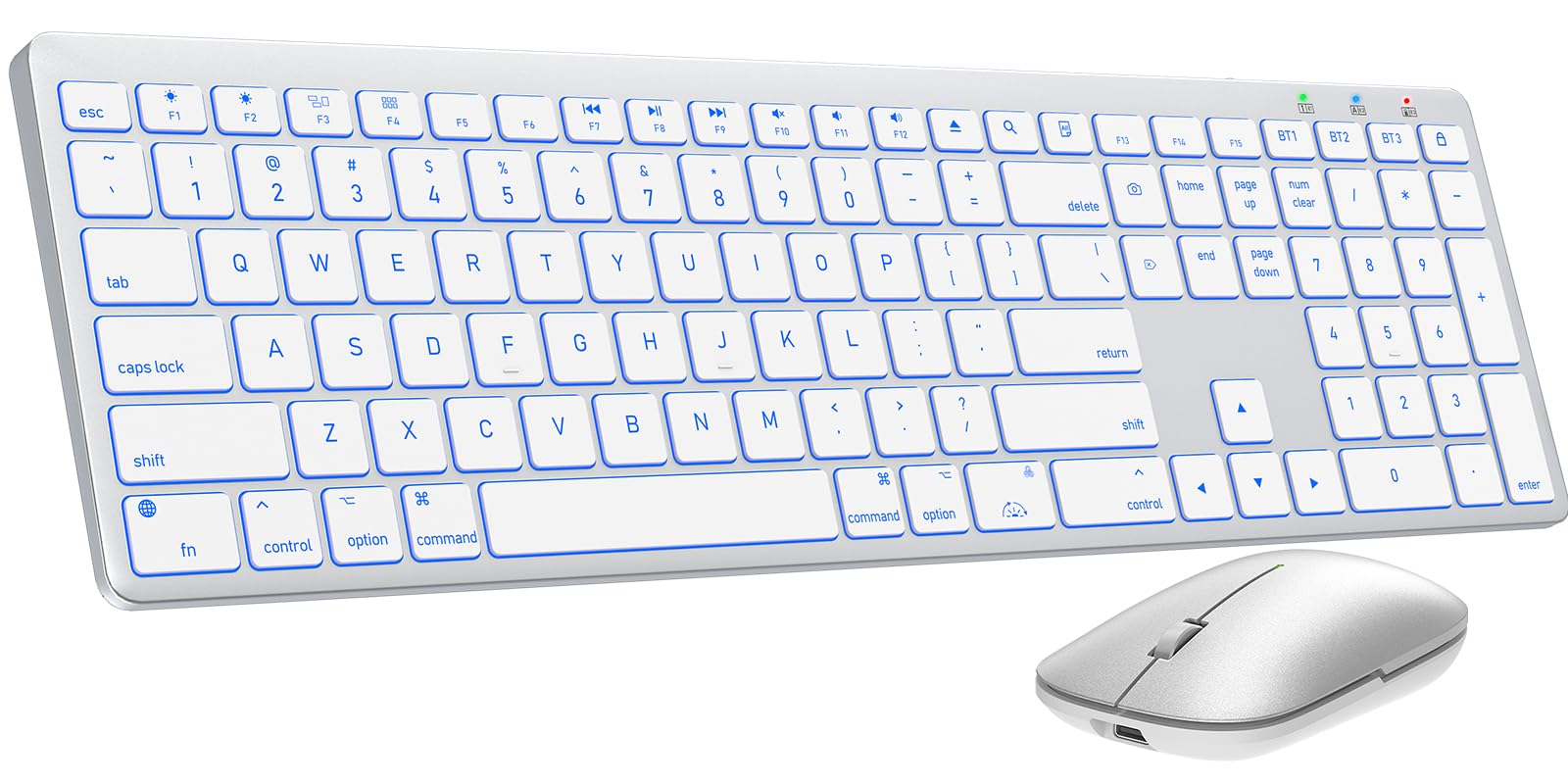
Image 1.1: The SABLUTE KMA1pro Bluetooth Keyboard and Mouse combo.
Змест пакета:
- SABLUTE KMA1pro Bluetooth Keyboard
- SABLUTE Bluetooth Mouse
- Зарадны кабель USB-C
- Silicone Dustproof Cover
- Кіраўніцтва карыстальніка
2. Настройка
2.1 Зарадка прылад
Before initial use, fully charge both the keyboard and the mouse. Use the provided USB-C charging cable.
- Connect the USB-C end of the cable to the charging port on the keyboard (located on the top edge) and the mouse (located on the front edge).
- Падключыце канец кабеля USB-A да адаптара харчавання USB (не ўваходзіць у камплект) або да USB-порта кампутара.
- The charging indicator light will illuminate. Once fully charged (approximately 2-3 hours), the indicator will change or turn off.

Image 2.1: Charging the keyboard and mouse via USB-C cable.
2.2 Уключэнне/выключэнне
- Клавіятура: Locate the power switch on the top edge of the keyboard. Slide it to the 'ON' position to power on, and 'OFF' to power off.
- Мыш: Locate the power switch on the bottom of the mouse. Slide it to the 'ON' position to power on, and 'OFF' to power off.
2.3 Спалучэнне па Bluetooth
The KMA1pro combo supports connecting up to three Bluetooth devices simultaneously.
- Enable Bluetooth on your Mac device: Go to System Settings (or System Preferences) > Bluetooth and ensure Bluetooth is turned on.
- Спалучэнне клавіятуры:
- Уключыце клавіятуру.
- Націсніце і ўтрымлівайце BT1, BT2, або BT3 key for 3-5 seconds until the corresponding indicator light flashes rapidly. This indicates the keyboard is in pairing mode.
- On your Mac device, look for "SABLUTE Keyboard" in the Bluetooth device list and click "Connect".
- Пасля падключэння індыкатар перастане міргаць.
- Спалучэнне мышы:
- Уключыце мышку.
- Press the channel switch button on the bottom of the mouse to select a channel (e.g., BT1). The indicator light will flash.
- On your Mac device, look for "SABLUTE Mouse" in the Bluetooth device list and click "Connect".
- Пасля падключэння індыкатар перастане міргаць.
- Repeat these steps for additional devices using BT2 and BT3 channels.

Image 2.2: The keyboard and mouse can switch between three paired Bluetooth devices.
3. Аперацыя
3.1 Кіраванне падсветкай клавіятуры
The keyboard features 7-color backlighting with adjustable brightness levels.
- Змяніць колер падсветкі: Прэса Fn +
 (the light bulb icon) to cycle through the 7 available colors.
 - Наладзіць яркасць: Прэса Fn + (the sun icon) to cycle through 3 brightness levels or turn the backlight off.

Image 3.1: Adjusting backlight colors and brightness on the keyboard.
3.2 Switching Between Multiple Devices
To switch between your paired devices (Mac, iPad, iPhone), simply press the corresponding Bluetooth channel key on the keyboard:
- Прэса BT1 to switch to device 1.
- Прэса BT2 to switch to device 2.
- Прэса BT3 to switch to device 3.
For the mouse, press the channel switch button on the bottom to select the desired paired channel.
3.3 Mac Shortcut Keys
The keyboard features a full standard Mac layout with dedicated macOS shortcut keys for enhanced productivity.

Image 3.2: Mac-specific function keys on the keyboard.
| ключ | Функцыя |
|---|---|
| F1 | Light Decreases |
| F2 | Light Increases |
| F3 | Multitasking Window |
| F4 | Стартавая пляцоўка |
| F7 | Папярэдні трэк |
| F8 | Прайграванне/Паўза |
| F9 | Наступны трэк |
| F10 | Адключыць гук |
| F11 | гучнасць - |
| F12 | Аб'ём + |
| Выняць носьбіт | Eject Media |
| пошук | Функцыя пошуку |
| Выбраць усе | Select All Content |
| Пераключыць падсветку | Уключыць/выключыць падсвятленне |
| Экран блакіроўкі | Экран блакіроўкі |
Заўвага: Mac shortcuts and keys are incompatible with Windows operating systems.
3.4 Mouse DPI Adjustment
The mouse features three adjustable DPI settings (800/1200/1600) for precise cursor control.
- To switch DPI settings, press and hold the middle scroll wheel button and the right-click button simultaneously for 3 seconds. The DPI will cycle through 800, 1200, and 1600.

Image 3.3: The mouse offers three adjustable DPI settings for cursor precision.
3.5 Ergonomic Tilt
The keyboard includes built-in adjustable folding feet to set an ergonomic typing angle, reducing wrist strain during extended use.
- Gently pull out the folding feet located on the underside of the keyboard to elevate the back edge.
- Push them back in to return the keyboard to a flat position.

Image 3.4: The keyboard features adjustable folding feet for ergonomic comfort.
3.6 Рэжым энергазберажэння
Both the keyboard and mouse feature an intelligent auto-sleep mode to conserve battery power when not in use. To reactivate, simply press any key on the keyboard or move/click the mouse.
4. Тэхнічнае абслугоўванне
4.1 Ачыстка
- Turn off both the keyboard and mouse before cleaning.
- Выкарыстоўвайце мяккую безворсовую тканіну, злёгку dampвадой або мяккім ачышчальным растворам. Пазбягайце агрэсіўных хімічных рэчываў.
- For the keyboard, you can use a can of compressed air to remove dust and debris from between the keys.
4.2 Using the Dustproof Cover
A custom-fit silicone protective film is included to shield your keyboard from dust, spills, and daily wear. Place it over the keyboard when not in active use or during travel.
4.3 Сыход за акумулятарам
- Avoid fully discharging the batteries frequently. Recharge when the low battery indicator appears.
- If storing the devices for an extended period, charge them to about 50% and power them off. Recharge every few months to prevent deep discharge.
5. Выпраўленне непаладак
| праблема | Магчымае рашэнне |
|---|---|
| Клавіятура/мыш не падключаецца праз Bluetooth |
|
| Падсветка не працуе або цьмяная |
|
| Курсор мышы нерэагуе або не рэагуе |
|
| Keyboard keys not responding |
|
6. Тэхнічныя характарыстыкі
| Асаблівасць | Дэталь |
|---|---|
| Марка | САБЛЮТ |
| Нумар мадэлі | KMA1pro |
| Колер | Срэбна-белы |
| Тэхналогія падлучэння | Bluetooth |
| Сумяшчальныя прылады | Mac, Mac Mini, iPad, MacBook, MacBook Air, MacBook Pro |
| Аперацыйная сістэма | Mac OS |
| Раскладка клавіятуры | QWERTY |
| Апісанне клавіятуры | Membrane, Scissor-Switch Keys |
| Падсвятленне клавіятуры | 7 колераў, 3 узроўні яркасці |
| Ёмістасць батарэі клавіятуры | 1600 мАг |
| Ёмістасць батарэі мышы | 300 мАг |
| Налады DPI мышы | 800г |
| Вага прадмета | 0.82 Kilograms (Keyboard and Mouse) |
| Асаблівасці | 7 Color Backlit, Designed for Mac, Dustproof Cover, Quiet Typing, Rechargeable, Multi-Device Switching, Ergonomic Tilt |
7. Інфармацыя аб гарантыі
SABLUTE offers a Гарантыя 24 месяцаў for each KMA1pro Bluetooth Keyboard and Mouse combo from the date of purchase. This warranty covers manufacturing defects and workmanship. Please retain your proof of purchase for warranty claims.
Гарантыя не распаўсюджваецца на пашкоджанні, выкліканыя няправільным выкарыстаннем, аварыямі, несанкцыянаванымі мадыфікацыямі або звычайным зносам.
8. Падтрымка кліентаў
For any questions, technical assistance, or warranty claims, please contact SABLUTE customer support:
- электронная пошта: sabluteservices@outlook.com
Our support team aims to respond within 24 hours.
Video 8.1: Official product video demonstrating the SABLUTE Bluetooth Wireless Keyboard and Mouse for Mac features.