
1. Уводзіны
This manual provides essential information for the proper setup, operation, and maintenance of your Pisichen 24-inch 2K QHD 2560x1440 IPS Touchscreen Monitor. Please read this manual thoroughly before using the product to ensure optimal performance and safety.
The Pisichen 24-inch monitor features a 2K QHD (2560x1440) resolution IPS panel, a 100Hz refresh rate, and 10-point multi-touch functionality, designed for both productivity and entertainment.
2. Змесціва ўпакоўкі
Verify that all items listed below are present in your product package. If any items are missing or damaged, please contact customer support.
- Pisichen 24-inch 2K QHD Touchscreen Monitor
- Падстаўка для манітора (аснова і шыя)
- Кабель DP
- Кабель HDMI
- USB B Touch Cable
- Кабель USB CC
- Адаптар пастаяннага току
- Кіраўніцтва карыстальніка (гэты дакумент)

Малюнак 2.1: Included accessories with the Pisichen 24-inch monitor.
3. Інструкцыі па ўсталёўцы
3.1. Зборка падстаўкі для манітора
- Асцярожна выміце кампаненты манітора і падстаўкі з упакоўкі.
- Attach the stand neck to the monitor panel. Ensure it clicks securely into place or is fastened with the provided screws.
- Attach the stand base to the stand neck. Tighten the thumb screw at the bottom of the base to secure it.
- Змесціце сабраны манітор на ўстойлівую, роўную паверхню.
3.2. Падключэнне да прылады
The monitor offers multiple connectivity options. Choose the appropriate cable for your device.
- Падключэнне HDMI: Connect one end of the HDMI cable to the HDMI port on your computer or device and the other end to the HDMI port on the monitor.
- Падключэнне USB-C: Connect one end of the USB-C cable to a compatible USB-C port on your computer or device (which supports video output) and the other end to the USB-C port on the monitor. This connection can also provide power and data.
- Падключэнне DisplayPort (DP): Connect one end of the DP cable to the DisplayPort on your computer or device and the other end to the DP port on the monitor.
- USB B for Touch Function: For touch functionality with a PC, connect the included USB B Touch Cable from the USB-B port on the monitor to a standard USB-A port on your computer. This is essential for enabling touch input.

Малюнак 3.1: Universal connectivity options for the monitor.
3.3. Уключэнне
- Connect the DC Power Adapter to the power input port on the monitor.
- Падключыце адаптар сілкавання да насценнай разеткі.
- Press the power button on the monitor (location may vary, typically on the back or bottom right) to turn it on.
4. Інструкцыя па эксплуатацыі
4.1. Асноўная аперацыя
- Уключэнне/выключэнне харчавання: Каб уключыць або выключыць манітор, націсніце кнопку харчавання.
- Выбар крыніцы ўводу: Use the monitor's OSD (On-Screen Display) menu buttons to select the desired input source (HDMI, USB-C, DP).
- Навігацыя па экранным меню: The monitor features physical buttons (usually on the back or bottom) to access and navigate the OSD menu. These buttons typically include Menu, Up, Down, and Exit/Select.
4.2. Сэнсарная функцыянальнасць
The Pisichen monitor supports 10-point multi-touch input, allowing for intuitive interaction with your content. To enable touch functionality:
- Ensure the USB B Touch Cable is connected from the monitor's USB-B port to your computer's USB-A port.
- Your operating system should automatically detect the touch input device. No additional drivers are typically required for Windows.

Малюнак 4.1: Direct touch control on the monitor.
Touch Compatibility
The touch function is widely compatible with various devices. Refer to the compatibility chart below for optimal performance.

Малюнак 4.2: Touch compatibility for various devices.
Заўвага: Some devices, including certain gaming consoles (PS3/4/5, Xbox, Steam Deck) and mobile devices (iPhone, iPad, Switch, Fire TV), do not support the touch functionality of this monitor due to platform-specific restrictions.
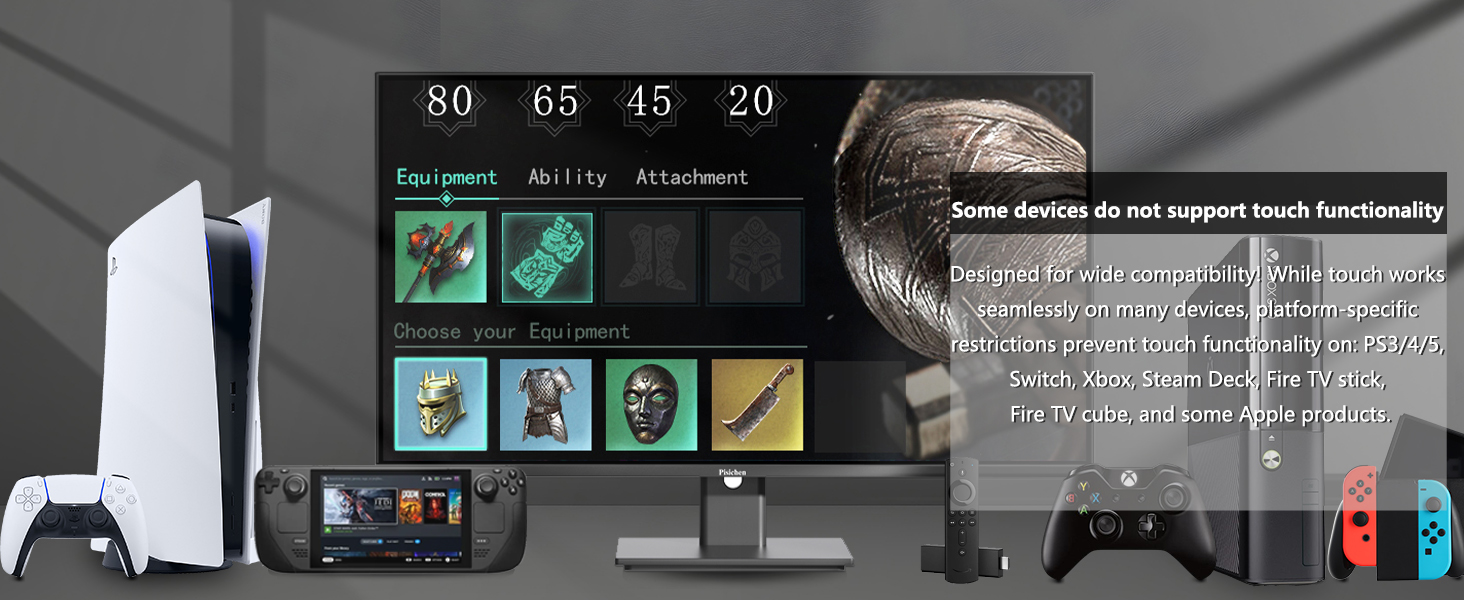
Малюнак 4.3: Devices where touch functionality is not supported.
5. Налады дысплея
Access the OSD menu to adjust various display settings for optimal viewінж.
- дазвол: The monitor supports a native resolution of 2560x1440 (2K QHD). Ensure your device's display settings are configured to this resolution for the sharpest image.
- Частата абнаўлення: The monitor operates at a 100Hz refresh rate, providing smoother visuals compared to standard 60Hz monitors.
- Яркасць і кантраснасць: Adjust these settings to suit your environment and personal preference. The monitor features 400 cd/m² brightness and a 1500:1 contrast ratio.
- Налады колеру: Fine-tune color temperature, gamma, and other color parameters. The IPS panel ensures wide viewракурсы і дакладную колераперадачу.
- Функцыі камфорту для вачэй: The monitor includes Flicker-Free technology and Low Bluelight modes to reduce eye strain during extended use.

Малюнак 5.1: Visual comparison of 2K QHD vs. Full HD resolution.

Малюнак 5.2: IPS panel benefits: True Color, True Vision from Any Angle.

Малюнак 5.3: Advanced Eye-Comfort features.
6. Тэхнічнае абслугоўванне
6.1. Ачыстка манітора
- Заўсёды выключайце манітор і адключайце шнур сілкавання ад сеткі перад чысткай.
- Выкарыстоўвайце мяккую безворсовую тканіну, злёгку dampвадой або мяккім неабразіўным ачышчальнікам для экранаў.
- Акуратна працярыце экран і вонкавыя паверхні. Пазбягайце празмернага ціску.
- Не выкарыстоўвайце спірт, ачышчальнікі на аснове аміяку або абразіўныя матэрыялы, бо яны могуць пашкодзіць паверхню экрана.
6.2. Захоўванне
If storing the monitor for an extended period, ensure it is powered off, unplugged, and stored in a cool, dry place away from direct sunlight and extreme temperatures. Use the original packaging if available for best protection.
7. Выпраўленне непаладак
Калі ў вас узніклі праблемы з маніторам, звярніцеся да наступных распаўсюджаных крокаў па ліквідацыі непаладак:
- Няма харчавання: Ensure the power adapter is securely connected to both the monitor and a working power outlet. Check if the power indicator light on the monitor is on.
- Няма сігналу: Verify that the video cable (HDMI, USB-C, or DP) is securely connected to both the monitor and your source device. Ensure the correct input source is selected via the OSD menu.
- No Touch Functionality: Confirm that the USB B Touch Cable is properly connected from the monitor to your computer. Check your computer's device manager to see if the touch device is recognized.
- Мігценне экрана: Check the video cable connection. Try a different cable or input port. Ensure your graphics card drivers are up to date.
- Скажэнне выявы/няправільныя колеры: Reset the monitor to factory settings via the OSD menu. Adjust brightness, contrast, and color settings.
Калі гэтыя дзеянні не дазволяць вырашыць праблемы, звярніцеся ў службу падтрымкі кліентаў.
8. Тэхнічныя характарыстыкі
| Асаблівасць | Спецыфікацыя |
|---|---|
| Нумар мадэлі | QHD-2k100hz-24INTS |
| Памер экрана | 24 цалі |
| дазвол | 2560 x 1440 пікселяў (QHD шырокаэкранны 1440p) |
| Суадносіны бакоў | 16:9 |
| Частата абнаўлення | 100 Гц |
| Час водгуку | 3 мс |
| Тып панэлі | IPS |
| Сэнсарная функцыя | 10-кропкавы Multi-Touch |
| Яркасць выявы | 400 кандел (кд/м²) |
| Каэфіцыент кантраснасці | 1500:1 |
| Апісанне паверхні экрана | Глянцавы |
| Сувязь | HDMI, USB-C, USB A, USB B (for Touch Function) |
| Усяго партоў USB | 2 (USB-C, USB-B) |
| Памеры прадукту | 1.97 х 21.26 х 12.6 цалі |
| Вага прадмета | 10.08 фунта |
| Вытворца | Shenzhen Konowa Electronics Co., LTD |
9. Гарантыя і падтрымка
For warranty information, please refer to the warranty card included in your product packaging or visit the official Pisichen website. If you require technical assistance, troubleshooting, or have questions about your product, please contact Pisichen customer support through their official channels.
Калі ласка, захавайце доказы пакупкі для прэтэнзій па гарантыі.