
1. Уводзіны
Thank you for choosing the ATTACK SHARK R11 Ultra 8K Carbon Fiber Wireless Gaming Mouse. This manual provides detailed instructions for setting up, operating, maintaining, and troubleshooting your new gaming mouse. Please read this manual thoroughly before use to ensure optimal performance and longevity of your device.
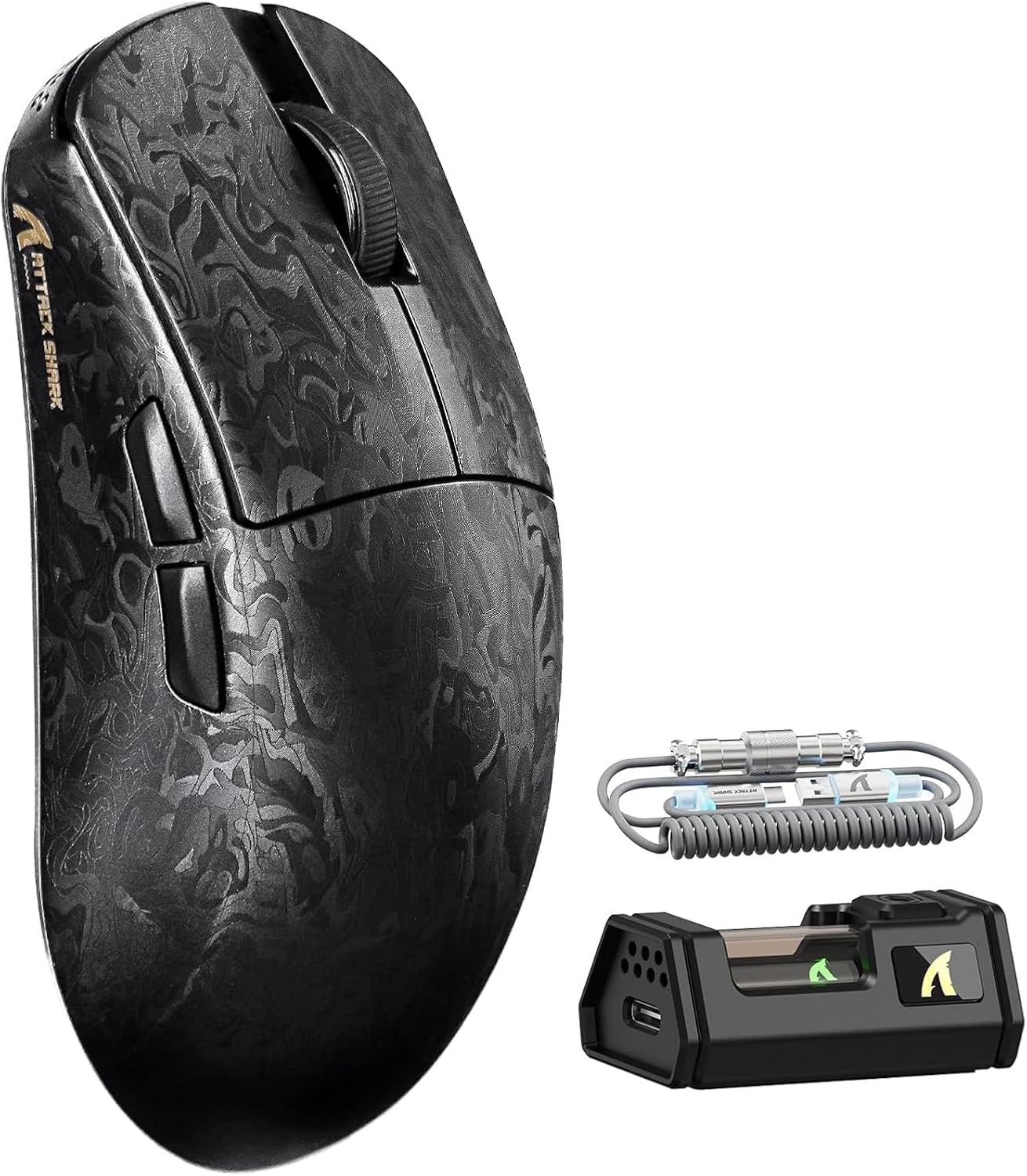
Image 1.1: The ATTACK SHARK R11 Ultra mouse with its 8K receiver and coiled cable.
2. Змесціва ўпакоўкі
Праверце, ці ёсць усе прадметы ў вашай упакоўцы:
- ATTACK SHARK R11 Ultra Wireless Gaming Mouse
- Бесправадны прыёмнік 8K
- USB-C to USB-A Coiled Cable
- Кіраўніцтва карыстальніка (гэты дакумент)
- Additional PTFE Mouse Feet (optional)
- Grip Tape (optional)
3. Прадукт скончыўсяview
The ATTACK SHARK R11 Ultra is a high-performance gaming mouse designed for precision and speed. It features a lightweight carbon fiber composite shell, a PixArt PAW3950MAX sensor, and a Nordic 52840 MCU for stable, low-latency connectivity across multiple modes.

Image 3.1: Front, top, and side views of the R11 Ultra mouse, highlighting its unique carbon fiber pattern.
Асноўныя характарыстыкі:
- Звышлёгкі дызайн: Weighs approximately 49g ± 3g, constructed from injection-molded carbon fiber composite material.
- Высокадакладны датчык: Equipped with PixArt PAW3950MAX sensor, offering up to 42,000 DPI, 50G acceleration, and 750 IPS tracking speed.
- Пашыраныя магчымасці падлучэння: Triple-mode connectivity (2.4GHz wireless with 8K polling rate, Bluetooth, and wired mode with 1K polling rate).
- Трывалыя перамыкачы: Features premium F-switch encoder for scroll wheel (rated 2 million rotations) and Omron optical microswitches for buttons (rated 70 million clicks).
- Працяглая батарэя: Integrated 300mAh battery with low power consumption management.
- Настройка: Supports AI-enhanced cloud driver and downloadable software for DPI, polling rate, button mapping, and macro customization.

Малюнак 3.2: Аверview of the R11 Ultra's core technologies and design elements.
4. Інструкцыі па ўсталёўцы
4.1 Зарадка мышы
Before first use, it is recommended to fully charge the mouse. Connect the USB-C end of the coiled cable to the mouse and the USB-A end to a powered USB port on your computer or a USB charger. The transparent 8K receiver has an LED indicator that shows the battery status.

Малюнак 4.1: Унутраная частка view of the R11 Ultra's 300mAh battery, illustrating its power management system.
4.2 Рэжымы падключэння
The R11 Ultra supports three connection modes: 2.4GHz Wireless, Bluetooth, and Wired. A switch on the bottom of the mouse allows you to select the desired mode.

Image 4.2: The bottom of the mouse, indicating the mode selection switch and DPI button.
Бесправадны рэжым 2.4 ГГц:
- Insert the 8K wireless receiver into an available USB-A port on your computer.
- Slide the mode switch on the bottom of the mouse to the '2.4G' position.
- The mouse should automatically connect. The receiver's LED will indicate connection status.
Рэжым Bluetooth:
- Перасуньце перамыкач рэжымаў на ніжняй частцы мышы ў становішча «BT».
- На вашым камп'ютары або прыладзе перайдзіце ў налады Bluetooth і знайдзіце новыя прылады.
- Select 'ATTACK SHARK R11 Ultra' from the list of available devices to pair.
Правадной рэжым:
- Connect the USB-C end of the coiled cable to the mouse and the USB-A end to your computer.
- Мыш аўтаматычна пераключыцца ў правадны рэжым і пачне зараджацца.
5. Інструкцыя па эксплуатацыі
5.1 Рэгуляванне DPI
The mouse features a dedicated DPI button on its underside (refer to Image 4.2). Press this button to cycle through preset DPI levels. For fine-tuning and a wider range of DPI settings (up to 42,000 DPI), use the official software.
5.2 Частата апытання
The 2.4GHz wireless mode supports an 8KHz polling rate for ultra-low latency. Wired mode operates at 1KHz. Polling rate can be adjusted via the software.

Image 5.1: Visual representation of the 8000Hz polling rate capability.
5.3 Button Customization and Macros
The R11 Ultra's buttons are programmable. Utilize the dedicated software to remap buttons, assign macros, and configure other advanced settings to suit your preferences.
6. Праграмнае забеспячэнне і драйверы
The ATTACK SHARK R11 Ultra mouse utilizes an AI-enhanced cloud driver or downloadable software for comprehensive customization. This intuitive interface allows you to:
- Adjust DPI settings in increments of 50.
- Modify polling rates.
- Customize button assignments.
- Create and manage macros.
- Configure other sensor and performance settings.
The software automatically detects your device and provides access to these settings. Refer to the official ATTACK SHARK website for the latest software downloads and cloud driver access.
Video 6.1: An official product video demonstrating the features and performance of the ATTACK SHARK R11 Ultra 8K Wireless Gaming Mouse, including its high DPI capabilities and responsiveness.
7. Тэхнічнае абслугоўванне
7.1 Ачыстка
Каб падтрымліваць прадукцыйнасць і знешні выгляд мышы:
- Выкарыстоўвайце мяккую, сухую тканіну, каб працерці паверхню мышы.
- Для ўстойлівага бруду злёгку ачысціцеampпрацярыце тканіну вадой або мяккім ачышчальным растворам. Пазбягайце агрэсіўных хімічных рэчываў.
- Clean the optical sensor regularly with a cotton swab to ensure accurate tracking.
7.2 Захоўванне
When not in use, store the mouse in a cool, dry place away from direct sunlight and extreme temperatures. Avoid placing heavy objects on the mouse.
8. Выпраўленне непаладак
If you encounter issues with your ATTACK SHARK R11 Ultra mouse, refer to the following common problems and solutions:
| праблема | Магчымая прычына | Рашэнне |
|---|---|---|
| Мышка не рэагуе | Нізкі зарад батарэі, няправільны рэжым, праблемы з падключэннем | Charge the mouse. Ensure the mode switch is set correctly (2.4G, BT, or Wired). Re-pair Bluetooth or re-insert 8K receiver. |
| Lag or stuttering | Interference, low battery, outdated firmware | Ensure receiver is close to mouse. Charge mouse. Update mouse firmware via software. Avoid other 2.4GHz devices nearby. |
| DPI не змяняецца | DPI button malfunction, software conflict | Try adjusting DPI via software. Reinstall software if necessary. |
| Кнопкі не працуюць | Software configuration, physical damage | Check button assignments in software. If issue persists, contact customer support. |
If the problem persists after attempting these solutions, please contact ATTACK SHARK customer support for further assistance.
9. Тэхнічныя характарыстыкі
| Асаблівасць | Спецыфікацыя |
|---|---|
| мадэль | R11 Ultra |
| Датчык | PixArt PAW3950MAX Optical Sensor |
| Дыяпазон DPI | Да 42,000 DPI (рэгулюецца з крокам 50 DPI) |
| Стаўка апытання | 8000Hz (2.4GHz Wireless), 1000Hz (Wired) |
| Паскарэнне | 50G |
| Адсочванне хуткасці | IPS 750 |
| Частата кадраў | 20,000 кадраў у секунду |
| Сувязь | Правадны (USB-C), бесправадны 2.4 ГГц, Bluetooth |
| MCU | Nordic 52840 Chipset |
| Выключальнікі | Omron Optical Microswitches (70 million clicks) |
| Кадавальнік | F-switch encoder (2 million rotations) |
| Ёмістасць батарэі | 300 мАг |
| Вага | Approx. 49g ± 3g |
| Памеры | 6.81 х 4.17 х 2.91 цаляў (памеры ўпакоўкі) |
| Пакрыццё | Nano-metallic ice-cool coating |
10. Гарантыя і падтрымка
ATTACK SHARK products are designed for quality and performance. For warranty information, technical support, or service inquiries, please refer to the warranty card included with your product or visit the official ATTACK SHARK webсайт. Захоўвайце пацвярджэнне пакупкі для прэтэнзій па гарантыі.
Відэа 10.1: Афіцыйная відэапрэзентацыя прадуктуasing the ATTACK SHARK R11 Ultra 8K Carbon Fiber Wireless Gaming Mouse in action, highlighting its design and responsiveness.