
1. Уводзіны
This manual provides essential information for the NIMO 15.6" Gaming Laptop (Model N159). It covers product features, setup procedures, operating instructions, maintenance guidelines, troubleshooting tips, and detailed specifications. Please read this manual thoroughly before using your new laptop to ensure optimal performance and longevity.

Image: The NIMO 15.6" Gaming Laptop, showcasing its display and key features like fingerprint unlock, Type-C PD charger, and backlit keyboard.
2. Што ў скрынцы
Праверце наяўнасць усіх прадметаў ва ўпакоўцы:
- 1 x NIMO N159 Laptop
- 1 x Type-C 100W PD Fast Charger
- 1 х Кіраўніцтва карыстальніка (гэты дакумент)
- Windows 11 Home Operating System (pre-installed)
- Warranty Information (2 Years Warranty, 90 Days Return)
3. Прадукт скончыўсяview
3.1 Асноўныя магчымасці
- Працэсар: AMD Ryzen 7 7735HS (8 Cores, 16 Threads, up to 4.75GHz)
- Графіка: Integrated AMD Radeon 680M GPU
- Дысплей: 15.6" Full HD (1920x1080) IPS Anti-Glare Display
- Памяць: 16GB DDR5 RAM (upgradeable)
- захоўванне: 1TB PCIe 4.0 SSD (upgradeable)
- Зарадка: 100W Type-C PD Fast Charger
- Бяспека: Fingerprint Reader for secure unlock
- Клавіятура: Клавіятура з падсветкай і лічбавай клавіятурай
- Аўдыё: Dual 2W stereo speakers, dual beamforming microphones
- Webкамера: 2MP with physical camera shutter
- Аперацыйная сістэма: Windows 11 хатняя

Image: An illustration detailing the AMD Ryzen 7 7735HS processor, highlighting its 8 cores, 16 threads, and integrated Radeon 680M graphics for balanced performance.
3.2 Парты і раздымы
Familiarize yourself with the available ports on your NIMO laptop:

Image: A detailed diagram illustrating the location and type of ports on the NIMO laptop, including USB 2.0, USB 3.2 Gen1, Type-C Gen2 (multifunction), HDMI 2.0, Audio Jack, Micro SD Reader, and Kensington Lock.
- Порт USB 2.0: Для падлучэння старых USB-прылад.
- USB 3.2 Gen1 Ports (x4): Для хуткаснай перадачы дадзеных з сумяшчальнымі прыладамі USB.
- Type-C Gen2 Ports (x2, Multifunction): Supports data transfer, video output, and power delivery (100W PD fast charging).
- Порт HDMI 2.0: Для падлучэння да знешніх дысплеяў або тэлевізараў.
- Аўдыёраз'ём: Для падлучэння навушнікаў або знешніх дынамікаў.
- Счытвальнік мікра SD-карт: For reading Micro SD memory cards.
- Слот замка Kensington: For securing your laptop with a compatible lock.
4. Настройка
4.1 Першапачатковае ўключэнне
- Дастаньце ноўтбук і ўсе аксэсуары з скрынкі.
- Connect the 100W Type-C PD Fast Charger to one of the Type-C ports on the laptop and then to a power outlet.
- Адкрыйце вечка ноўтбука. Ноўтбук можа ўключыцца аўтаматычна, альбо вам можа спатрэбіцца націснуць кнопку харчавання.
- Выконвайце інструкцыі на экране, каб завяршыць наладу Windows 11 Home, у тым ліку выбар мовы, падключэнне да сеткі і стварэнне ўліковага запісу карыстальніка.
4.2 Зарадка акумулятара
Before first use, it is recommended to fully charge the laptop battery. The 100W Type-C PD Fast Charger can provide approximately 5 hours of usage time with just 1 hour of charging.

Image: A visual representation of the 100W Type-C lightning-fast charger connected to the NIMO laptop, demonstrating its ability to charge quickly and efficiently.
5. Інструкцыя па эксплуатацыі
5.1 Уключэнне/выключэнне харчавання і рэжым сну
- Уключэнне: Націсніце кнопку харчавання, размешчаную на клавіятуры.
- Выключэнне: Націсніце кнопку «Пуск» у Windows, а затым выберыце «Харчаванне» > «Завяршыць працу».
- Рэжым сну: Націсніце кнопку «Пуск», затым выберыце «Харчаванне» > «Спячы рэжым» або зачыніце вечка ноўтбука.
5.2 Using the Fingerprint Unlock
The fingerprint reader is integrated into the touchpad for quick and secure access.
- During Windows setup or later in Windows Settings, configure your fingerprint for login.
- To unlock, simply place your registered finger on the fingerprint reader on the touchpad.
5.3 Adjusting the Backlit Keyboard
The keyboard backlight can be adjusted for comfortable typing in various lighting conditions.

Image: A visual guide demonstrating the fingerprint unlock feature on the touchpad and the functionality of the backlit keyboard, including how to cycle through brightness settings using the F9 key.
- Націсніце F9 key to cycle through backlight settings:
- 1 Tap: Light (Temporary)
- 2 Taps: Light (Temporary)
- 3 Taps: Light (Constant)
- 4 Taps: Off
5.4 Выкарыстанне Webкулачковы затвор
For privacy, the laptop includes a physical camera shutter.
- Slide the shutter to the left to open the camera.
- Slide the shutter to the right to close and cover the camera lens.

Image: A visual guide demonstrating the physical camera shutter, showing both the 'Camera Open' and 'Camera Close' statuses for enhanced privacy.
6. Тэхнічнае абслугоўванне
6.1 Чыстка ноўтбука
- Always power off the laptop and disconnect the charger before cleaning.
- Выкарыстоўвайце мяккую безворсовую тканіну, злёгку dampвадой або сродкам для чысткі экранаў дысплея.
- Для клавіятуры і корпуса выкарыстоўвайце мяккую сухую тканіну. Пазбягайце выкарыстання агрэсіўных хімічных рэчываў або абразіўных матэрыялаў.
- Выкарыстоўвайце сціснутае паветра для перыядычнай ачысткі вентыляцыйных адтулін ад пылу.
6.2 Сыход за акумулятарам
- Пазбягайце частай поўнай разрадкі акумулятара.
- Захоўвайце ноўтбук у прахалодным, сухім месцы, калі ён не выкарыстоўваецца працяглы час.
- Не падвяргайце ноўтбук уздзеянню экстрэмальных тэмператур.
6.3 Абнаўленне праграмнага забеспячэння
Рэгулярна правярайце наяўнасць абнаўленняў аперацыйнай сістэмы і драйвераў і ўсталёўвайце іх, каб забяспечыць аптымальную прадукцыйнасць і бяспеку.
7. Выпраўленне непаладак
| праблема | Магчымая прычына | Рашэнне |
|---|---|---|
| Ноўтбук не ўключаецца. | Праблема з нізкім узроўнем зарада батарэі або адаптарам харчавання. | Connect the charger and wait a few minutes before attempting to power on. Ensure the charger is properly connected to both the laptop and the power outlet. |
| Экран пусты або чорны. | Laptop in sleep mode, display settings issue, or hardware problem. | Press any key or the power button to wake from sleep. Try connecting an external monitor to check if the display output works. Restart the laptop. |
| Не працуе падсветка клавіятуры. | Backlight turned off or at lowest setting. | Націсніце F9 key repeatedly to cycle through brightness levels and turn on the backlight. |
| Fingerprint unlock not working. | Finger not properly placed, or sensor issue. | Ensure your finger is clean and dry and covers the sensor completely. Re-register your fingerprint in Windows Settings if the issue persists. |
| Павольная прадукцыйнасць. | Too many applications running, insufficient storage, or outdated drivers. | Close unnecessary applications. Check available storage space. Update Windows and device drivers. |
If you encounter issues not listed here or require further assistance, please contact NIMO customer support.
8. Тэхнічныя характарыстыкі
| Марка | NIMO |
| Назва мадэлі | NIMO N159B |
| Памер экрана | 15.6 цалі |
| Дазвол экрана | 1920 x 1080 Pixels (FHD IPS) |
| Працэсар | AMD Ryzen 7 7735HS (8 Cores, 4.75 GHz Max Turbo) |
| АЗП | 16 ГБ DDR5 (4800 МГц) |
| Жорсткі дыск | Цвёрдацельны назапашвальнік 1024 ГБ (PCIe 4.0) |
| Графічны супрацэсар | AMD Radeon 680M (інтэграваная) |
| Аперацыйная сістэма | Windows 11 хатняя |
| Бесправадны тып | 802.11a/b/g/n/ac |
| Парты USB 2.0 | 1 |
| Парты USB 3.0 | 4 |
| Сярэдні тэрмін службы батарэі | 5 Hours (54Wh, 11.4V/4700mAh) |
| Вага прадмета | 3.8 фунта |
| Памеры прадукту | 14.07 х 8.98 х 0.76 цалі |
| Колер | Сіні |
| Тыл WebДазвол камеры | 2 МП |
| Асаблівасці | Падсветленая клавіятура, счытвальнік адбіткаў пальцаў, HD-аўдыё, лічбавая клавіятура |
9. Гарантыя і падтрымка
9.1 Гарантыя вытворцы
Your NIMO N159 laptop is covered by a comprehensive 2-гадовая гарантыя вытворцы from Nimo Direct Inc. This warranty covers defects in materials and workmanship under normal use. For warranty claims, please contact customer support.
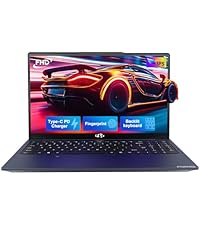
Image: A technician working on a laptop's internal components, representing the 2-year support provided for Nimo products.
9.2 Палітыка вяртання
Nimo Direct Inc. offers a 90-Day Hassle-Free Return Policy. You may return any Nimo product for any reason within 90 days of purchase. Please refer to your purchase documentation for specific return procedures.
Image: A delivery person handing a package to a customer, illustrating the 90-day return policy for Nimo products.
9.3 Падтрымка кліентаў
For any product-related questions, technical assistance, or warranty claims, please contact our professional after-sales service team. Our dedicated support team is available to resolve issues or facilitate replacements.
- электронная пошта: service@nimopc.com
- Інтэрнэт: Visit the official NIMO website or product page for contact options.
Image: Customer service representatives wearing headsets, indicating professional customer assistance available via phone and live chat.