
1. Уводзіны
This manual provides essential information for the setup, operation, maintenance, and troubleshooting of your NIMO N159 15.6-inch IPS FHD Gaming Laptop. This device is equipped with an AMD Ryzen 7 7735HS processor, 32GB DDR5 RAM, and a 1TB PCIe SSD, designed for balanced performance in productivity and light gaming tasks. Please read this manual thoroughly to ensure proper usage and to maximize the lifespan of your laptop.
2. Што ў скрынцы
Праверце наяўнасць усіх прадметаў ва ўпакоўцы:
- 1 x NIMO N159 Laptop
- 1 x Type-C 100W PD Fast Charger
- 1 х Кіраўніцтва карыстальніка (гэты дакумент)
- Windows 11 Home (pre-installed)
3. Прадукт скончыўсяview
Familiarize yourself with the components and features of your NIMO N159 laptop.

Малюнак 3.1: Спераду view of the NIMO N159 laptop, showcasing its 15.6-inch display and overall design.
3.1 Асноўныя магчымасці
- Працэсар: AMD Ryzen 7 7735HS with 8 Cores and 16 Threads, up to 4.75GHz.
- Графіка: Integrated AMD Radeon 680M GPU.
- Памяць: 32 ГБ аператыўнай памяці DDR5 для эфектыўнай шматзадачнасці.
- захоўванне: 1TB PCIe 4.0 SSD for fast boot times and data access.
- Дысплей: 15.6-inch Full HD (1920x1080) IPS Anti-Glare Display.
- Зарадка: 100W Type-C PD Fast Charger.
- Бяспека: Fingerprint Unlock integrated into the touchpad.
- Увод: Backlit Keyboard with Numeric Keypad.

Малюнак 3.2: Закончанаview of the AMD Ryzen 7 7735HS processor and its integrated Radeon 680M graphics.
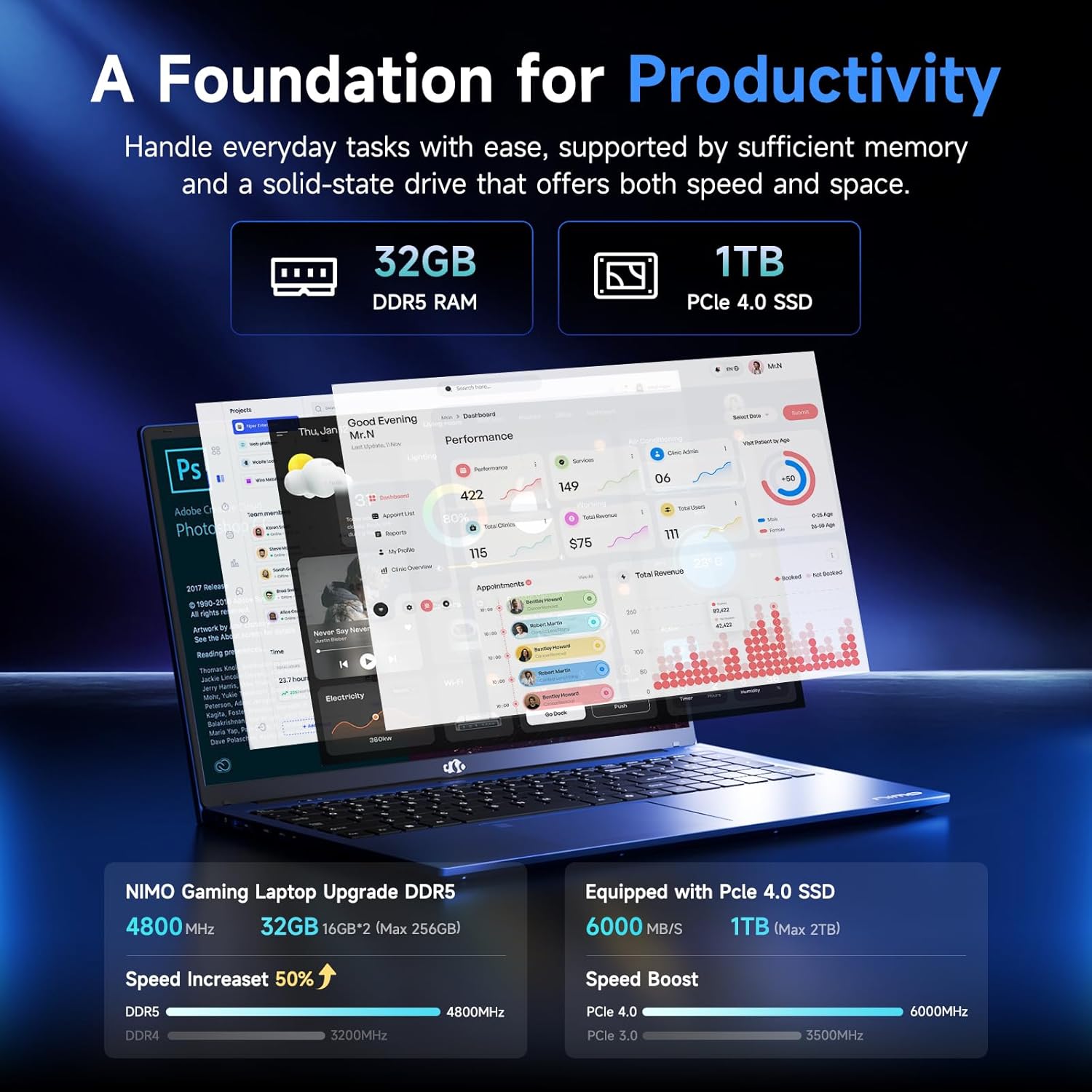
Figure 3.3: Illustration of the 32GB DDR5 RAM and 1TB PCIe 4.0 SSD, highlighting their speed and capacity.
3.2 Парты і раздымы
The NIMO N159 laptop provides a variety of ports for connectivity:

Малюнак 3.4: падрабязна view of the laptop's ports and their functions.
- Левы бок: Kensington Lock, Audio Jack, USB 3.2 Gen 1, USB 2.0, Micro SD Reader.
- Правы бок: Type-C Gen2 (Multifunction), USB 3.2 Gen 1, HDMI 2.0, Type-C Gen2 (Multifunction).
3.3 Харчаванне і акумулятар

Figure 3.5: Battery and charging capabilities of the NIMO N159 laptop.
The laptop is equipped with a 54Wh smart battery. It supports fast charging via the included 100W Type-C PD charger, providing approximately 5 hours of usage from a 1-hour charge.
3.4 Keyboard and Fingerprint Unlock
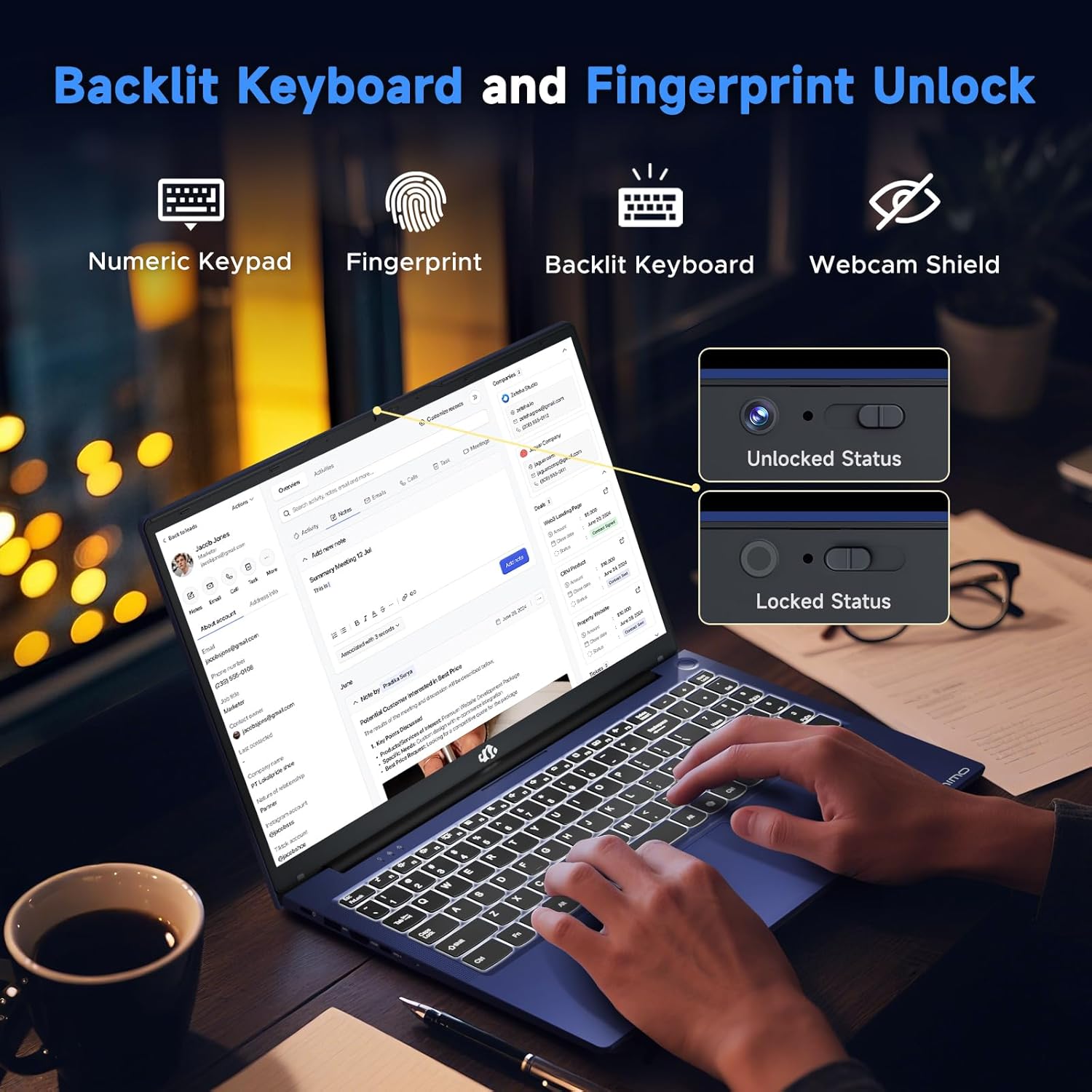
Figure 3.6: Features of the backlit keyboard, numeric keypad, fingerprint unlock, and webcam shield.
The keyboard features backlighting for use in low-light conditions and includes a numeric keypad. The fingerprint reader is integrated into the touchpad for secure and quick access.
3.5 Дысплей
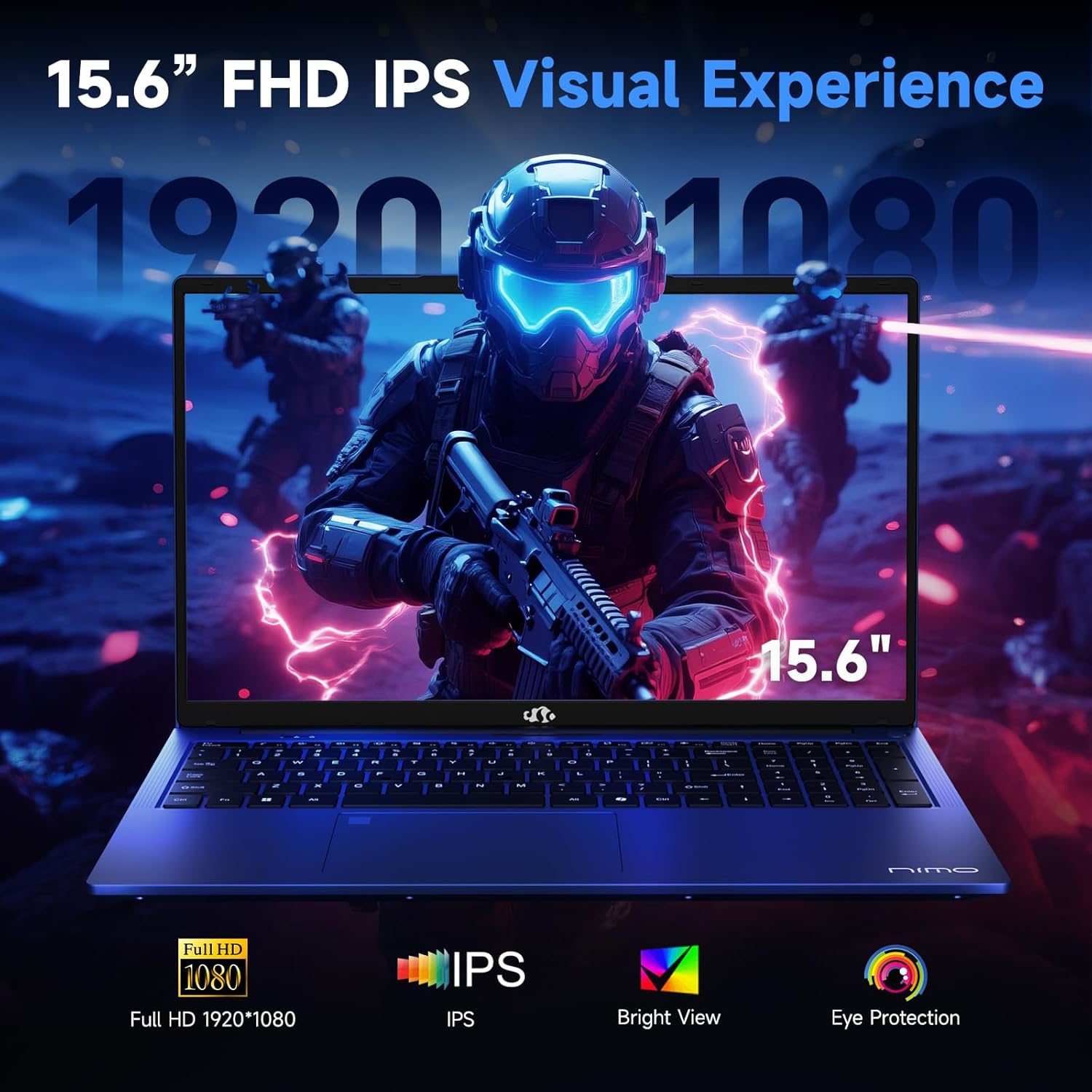
Figure 3.7: Visual representation of the 15.6-inch FHD IPS display quality.
The 15.6-inch Full HD (1920x1080) IPS Anti-Glare Display offers vibrant visuals and a wide viewing angle, suitable for various tasks from work to entertainment.
4. Настройка
4.1 Першапачатковае ўключэнне
- Распакуйце: Акуратна дастаньце ноўтбук і ўсе аксэсуары з упакоўкі.
- Падключыце харчаванне: Plug the Type-C 100W PD Fast Charger into a power outlet and connect the Type-C connector to one of the multifunction Type-C ports on the laptop.
- Першая загрузка: Open the laptop lid and press the power button, typically located on the top-right of the keyboard or side.
- Настройка Windows: Выконвайце інструкцыі на экране, каб завяршыць наладу Windows 11 Home, у тым ліку мову, рэгіён, сеткавае падключэнне і стварэнне ўліковага запісу карыстальніка.
4.2 Падключэнне да сеткі
- Wi-Fi: During Windows setup or later, select your Wi-Fi network from the available list and enter the password.
- Wired (Optional): If an Ethernet adapter (not included) is used with a USB port, connect an Ethernet cable to the adapter and then to your router/modem.
5. Інструкцыя па эксплуатацыі
5.1 Уключэнне/выключэнне сілкавання
- Уключэнне: Націсніце кнопку харчавання.
- Выключыць: Націсніце кнопку «Пуск» у Windows, затым «Харчаванне» > «Завяршыць працу».
- сон: Зачыніце вечка або націсніце кнопку «Пуск», затым «Харчаванне» > «Сон».
5.2 Выкарыстанне клавіятуры
- Кіраванне падсветкай: Press the designated function key (e.g., F9) to cycle through backlight brightness levels (off, low, medium, high).
- Функцыянальныя клавішы: Use the Fn key in combination with F1-F12 for various shortcuts (e.g., volume, brightness, Wi-Fi toggle).
5.3 Using the Touchpad and Fingerprint Sensor
- Сэнсарная панэль: Падтрымлівае мультытач-жэсты для навігацыі. Глядзіце налады Windows для налад.
- Разблакіроўка адбіткам пальца: Enroll your fingerprint through Windows Hello settings for secure login. Place your registered finger on the sensor located on the touchpad to unlock the device.
5.4 Падключэнне знешніх прылад
Use the available USB-A, USB-C, and HDMI ports to connect peripherals such as external monitors, USB drives, mice, and keyboards. The Type-C Gen2 ports support multifunctionality, including data transfer and video output.
6. Тэхнічнае абслугоўванне
6.1 Ачыстка
- экран: Выкарыстоўвайце мяккую тканіну без ворса. dampвадой або сродкам для чысткі экранаў. Не распыляйце вадкасць непасрэдна на экран.
- Клавіятура і корпус: Выкарыстоўвайце мяккую, сухую тканіну. Для ўстойлівага бруду злёгкуamp можна выкарыстоўваць тканіну, сачыце за тым, каб вадкасць не трапляла ў адтуліны.
- парты: Выкарыстоўвайце сціснутае паветра, каб акуратна ачысціць пыл ад партоў.
6.2 Сыход за акумулятарам
- Пазбягайце частай поўнай разрадкі акумулятара.
- Калі ноўтбук не выкарыстоўваецца працяглы час, захоўвайце яго ў прахалодным, сухім месцы, зарадзіўшы акумулятар прыкладна на 50-60%.
- Use only the provided NIMO charger or a compatible 100W Type-C PD charger.
6.3 Абнаўленне праграмнага забеспячэння
Regularly check for and install Windows updates and driver updates to ensure optimal performance and security. These can typically be found in Windows Settings > Windows Update.
7. Выпраўленне непаладак
This section addresses common issues you might encounter with your NIMO N159 laptop.
| праблема | Магчымая прычына | Рашэнне |
|---|---|---|
| Ноўтбук не ўключаецца. | Low battery, power adapter issue, or hardware fault. | Ensure the charger is properly connected and the outlet is working. Try charging for at least 30 minutes. If the issue persists, contact support. |
| Экран пусты або чорны. | Display settings, external monitor conflict, or driver issue. | Press Fn + F7 (or relevant display toggle key) to cycle display modes. Disconnect any external monitors. Restart the laptop. |
| Праблемы з падключэннем да Wi-Fi. | Incorrect password, router issue, or Wi-Fi adapter disabled. | Verify Wi-Fi password. Restart your router. Check Windows settings to ensure Wi-Fi is enabled. |
| Ноўтбук працуе павольна. | Too many applications open, low storage, or outdated drivers. | Close unnecessary applications. Check available storage. Update Windows and drivers. Run a malware scan. |
| Не працуе датчык адбіткаў пальцаў. | Finger not clean, sensor dirty, or software issue. | Ensure your finger and the sensor are clean and dry. Re-enroll your fingerprint in Windows Hello settings. |
8. Тэхнічныя характарыстыкі
Detailed technical specifications for the NIMO N159 laptop:
| Асаблівасць | Дэталь |
|---|---|
| Марка | NIMO |
| Назва мадэлі | NIMO N159B |
| Памер экрана | 15.6 цалі |
| Дазвол экрана | 1920 x 1080 пікселяў (FHD IPS) |
| Працэсар | AMD Ryzen 7 7735HS (8 Cores, up to 4.75 GHz) |
| АЗП | 32 ГБ DDR5 (4800 МГц) |
| Жорсткі дыск | Цвёрдацельны назапашвальнік 1024 ГБ (PCIe 4.0) |
| Графічны супрацэсар | AMD Radeon 680M (інтэграваная) |
| Аперацыйная сістэма | Windows 11 хатняя |
| Бесправадны тып | 802.11a/b/g/n/ac |
| Парты USB 2.0 | 1 |
| Парты USB 3.0 | 4 |
| Парты Type-C | 2 (Gen2, Multifunction) |
| Порт HDMI | 1 (HDMI 2.0) |
| Сярэдні тэрмін службы батарэі | 5 гадзін (54 Вт·г) |
| Вага прадмета | 3.8 фунта |
| Памеры прадукту | 14.07 х 8.98 х 0.76 цалі |
| Колер | Сіні |
| Асаблівасці | Падсветленая клавіятура, счытвальнік адбіткаў пальцаў, HD-аўдыё, лічбавая клавіятура |
9. Гарантыя і падтрымка
NIMO is committed to providing quality products and customer satisfaction.
- Гарантыя вытворцы: Your NIMO N159 laptop is covered by a 2-Year Manufacturer's Warranty from Nimo Direct Inc. This warranty covers defects in materials and workmanship under normal use.
- Палітыка вяртання: A 90-Day Hassle-Free Return Policy is offered by Nimo Direct Inc. from the date of purchase.
9.1 Звярнуцца ў службу падтрымкі
For technical assistance, warranty claims, or product-related inquiries, please contact NIMO customer support:
- электронная пошта: service@nimopc.com
- Інтэрнэт: Visit the official NIMO website for further support options and FAQs.
Our dedicated support team is available to assist you with any issues or replacements.