
1. Уводзіны
This manual provides essential information for the proper setup, operation, and maintenance of your Goiaey C26 Smart Projector. Please read this manual thoroughly before using the product to ensure optimal performance and user safety. Keep this manual for future reference.

Figure 1: Goiaey C26 Smart Projector with Google Store and streaming app logos.
2. Што ў скрынцы
Пасля распакавання пераканайцеся, што ўсе наступныя прадметы ў камплекце:
- 1x Goiaey C26 Smart Projector
- 1x Bluetooth and Infrared Remote Control
- 1x шнур харчавання
- 1x кабель HDMI
- 1x Кіраўніцтва карыстальніка
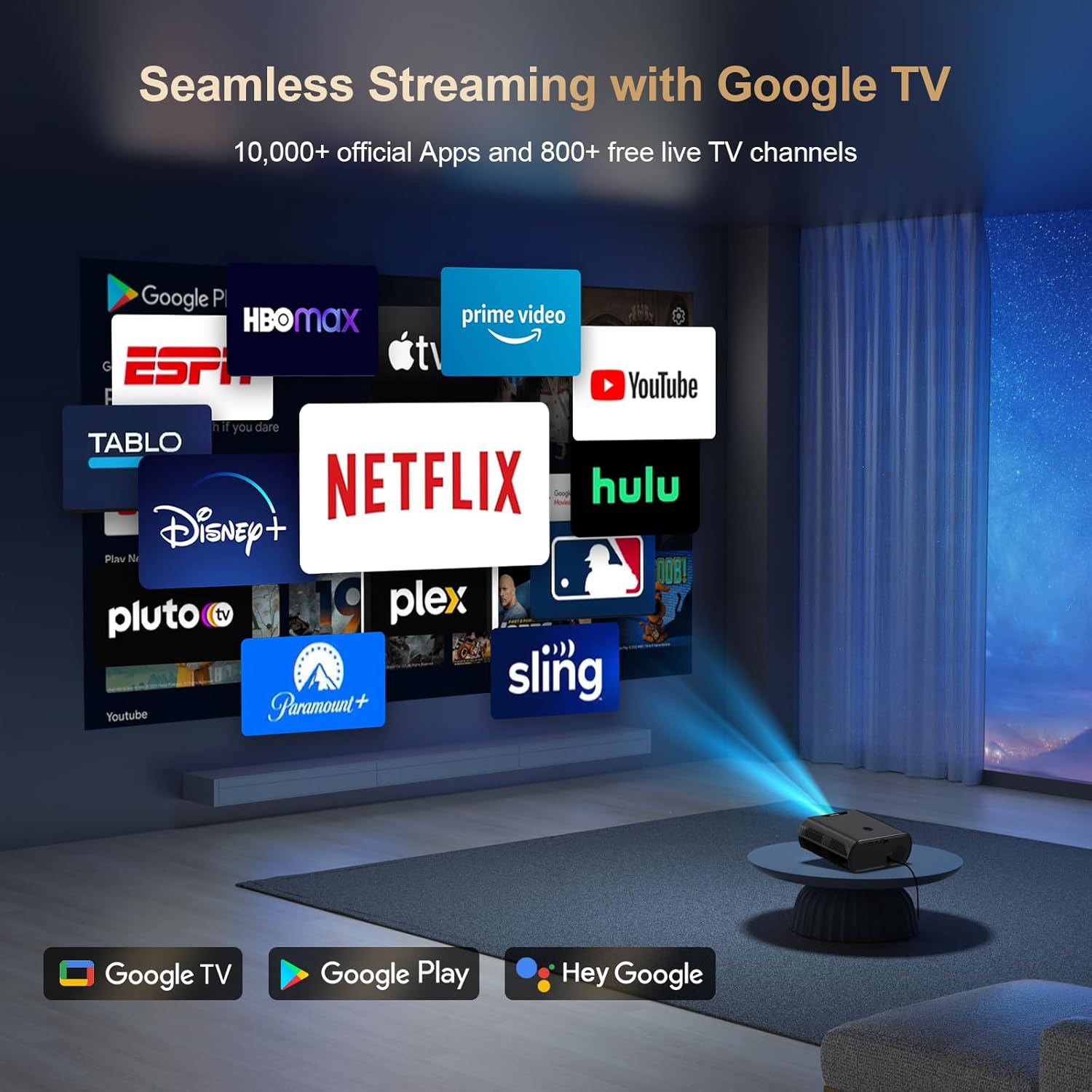
Figure 2: Contents of the Goiaey C26 Smart Projector packaging.
3. Асаблівасці прадукту
- Official Google TV System: Directly access over 10,000 apps including Netflix, YouTube, and Prime Video.
- Памочнік Google Voice: Control the projector with voice commands via the Bluetooth remote.
- Bluetooth 5.2: Падключыце знешнія дынамікі для паляпшэння выхаду гуку.
- 180° Stand: Adjust projection angle for versatile viewing on walls or ceilings.
- 1500 ANSI люменаў: Provides bright and vivid images, best used in dark environments.
- Native 1080P Resolution (4K Supported): Delivers full HD visuals with deep contrast and smooth motion.
- Electric Focus & Auto Vertical Keystone: Ensures a clear image with one click and automatic vertical correction up to 15°.
- Карэкцыя трапецападобнага скажэння 4P: Manual correction for larger range vertical and horizontal adjustments.
- Тэхналогія Wi-Fi 6: Faster and stronger screen mirroring from smartphones and tablets.
- HDMI ARC & CEC Function: Connect external speakers via HDMI and control multiple devices with one remote.
- Google Cast: Seamlessly cast content from your phone/tablet to the projector.
- Пераноснасць: Compact (7.4 x 6.3 x 2.9 inches) and lightweight (2.2lb) for easy transport.

Figure 3: Electric Focus and Auto Vertical Keystone features.
4. Інструкцыі па ўсталёўцы
4.1 Пачатковае ўключэнне і падключэнне да сеткі
- Падключыце шнур сілкавання да праектара і разеткі.
- Націсніце кнопку харчавання на праектары або пульце дыстанцыйнага кіравання, каб уключыць яго.
- Follow the on-screen prompts to select your language and connect to your Wi-Fi network.
- Sign in to your Google account to access Google TV features and download apps from the Google Play Store.
4.2 Налада відарыса
The projector features Electric Focus and Auto Vertical Keystone for quick image optimization.
- Электрычны фокус: Use the 'F+' or 'F-' buttons on the remote to manually adjust focus until the image is clear.
- Аўтаматычнае вертыкальнае трапецападобнае скажэнне: The image automatically corrects itself when the projector is moved vertically within 15°.
- Карэкцыя трапецападобнага скажэння 4P: For larger adjustments, navigate to the settings menu to manually correct the image in both vertical and horizontal directions.
Video 1: Quick Look Google TV Smart Projector - Demonstrates initial setup and features.
Video 2: Easy Setup Guide - Provides a visual walkthrough of the setup process.
5. Інструкцыя па эксплуатацыі
5.1 Navigation and App Usage
- Use the remote control's directional buttons and 'OK' button to navigate the Google TV interface.
- Download additional apps from the Google Play Store as needed.
- Use the dedicated Netflix, YouTube, and Prime Video buttons on the remote for quick access.
5.2 Падключэнне
- HDMI: Connect external devices like laptops, gaming consoles, or Blu-ray players using the provided HDMI cable.
- USB: Устаўце USB-назапашвальнік для прайгравання медыяфайлаў files непасрэдна з праектара.
- Bluetooth: Pair Bluetooth speakers or headphones for a personalized audio experience. Bluetooth is available after signing into your Google account.
- Google Cast: Use the Google Cast function to mirror content from your smartphone or tablet.

Figure 4: Multiple projection angles supported by the 180° stand.
6. Тэхнічнае абслугоўванне
- Забяспечце належную вентыляцыю вакол праектара, каб прадухіліць перагрэў.
- Regularly clean the lens with a soft, lint-free cloth.
- Захоўвайце праектар у прахалодным сухім месцы, калі ён не выкарыстоўваецца.
- Always shut down the projector correctly to extend its lifespan.
7. Выпраўленне непаладак
If you encounter any issues, please refer to the following general troubleshooting tips:
- Няма харчавання: Праверце, ці надзейна падключаны шнур харчавання і ці працуе разетка.
- Няма выявы: Ensure the lens cap is removed and the correct input source is selected.
- Размытая выява: Adjust the electric focus using the remote control.
- Скажоная выява: Use auto vertical keystone or 4P keystone correction to adjust the image shape.
- Няма гуку: Check the volume settings on the projector and any connected external audio devices. Ensure Bluetooth is connected if using external speakers.
- Праблемы з падключэннем Wi-Fi: Verify your Wi-Fi network is active and re-enter the password if necessary.
For further assistance, please contact customer support as detailed in the Warranty and Support section.
8. Тэхнічныя характарыстыкі
- Марка: Гояй
- мадэль: C26
- Вага прадмета: 1.76 фунта
- Памеры прадукту: 6.3 х 2.91 х 7.4 цалі
- Раздзяленне дысплея: 1920 x 1080 (Native 1080P, 4K Supported)
- Яркасць: 1500 прасветаў ANSI
- Тэхналогія падключэння: WiFi 6, Bluetooth 5.2, HDMI ARC, USB, Audio
- Асаблівасці: Built-in Google TV System, Google Voice Assistant, Google Cast, Electric Focus, 4P Keystone, 180° Stand, Portability.
9. Гарантыя і падтрымка
Goiaey offers a comprehensive warranty for your C26 Smart Projector:
- 1 Year Free Replacement: In case of product defects or malfunctions.
- 2 Years Free Repair: For any repair needs beyond the replacement period.
For any questions or support inquiries, please refer to the official contact information provided in your user manual. Our customer support team will reply within 24 business hours.
Video 5: EGJSG Projector with WiFi and Bluetooth - Demonstrates product features and usage.