
Уводзіны
This manual provides essential information for the NIMO 15.6-inch Light Gaming Laptop N15A. It covers setup, operation, maintenance, troubleshooting, and product specifications. Please read this manual thoroughly before using your new laptop to ensure proper function and longevity.

Image: NIMO 15.6-inch Light Gaming Laptop N15A, showcasing its full display and keyboard.
Змест пакета
Verify that all items listed below are present in your product packaging. If any items are missing or damaged, please contact NIMO customer support.
- 1 x NIMO N15A Laptop
- 1 x Type-C 100W PD Fast Charger
- 1 х Кіраўніцтва карыстальніка
- Windows 11 Home Operating System (pre-installed)
Прадукт скончаныview
The NIMO N15A laptop is designed for balanced performance, featuring an AMD Ryzen 7 Pro 6850U processor, 32GB LPDDR5 RAM, and a 1TB PCIe 4.0 SSD. It includes a 15.6-inch Full HD IPS display, a backlit keyboard, and an integrated fingerprint reader for secure access.
Асноўныя характарыстыкі:
- Працэсар: AMD Ryzen 7 Pro 6850U with 8 Cores and 16 Threads, up to 4.7GHz.
- Графіка: Integrated AMD Radeon 680M GPU.
- Памяць: 32GB LPDDR5 RAM for efficient multitasking.
- захоўванне: 1TB PCIe 4.0 SSD for fast boot times and data access.
- Дысплей: 15.6-inch Full HD (1920x1080) IPS Anti-Glare Display.
- Зарадка: 100W USB-C Power Delivery fast charging.
- Бяспека: Integrated fingerprint reader for secure login.
- Клавіятура: Backlit keyboard for use in various lighting conditions.
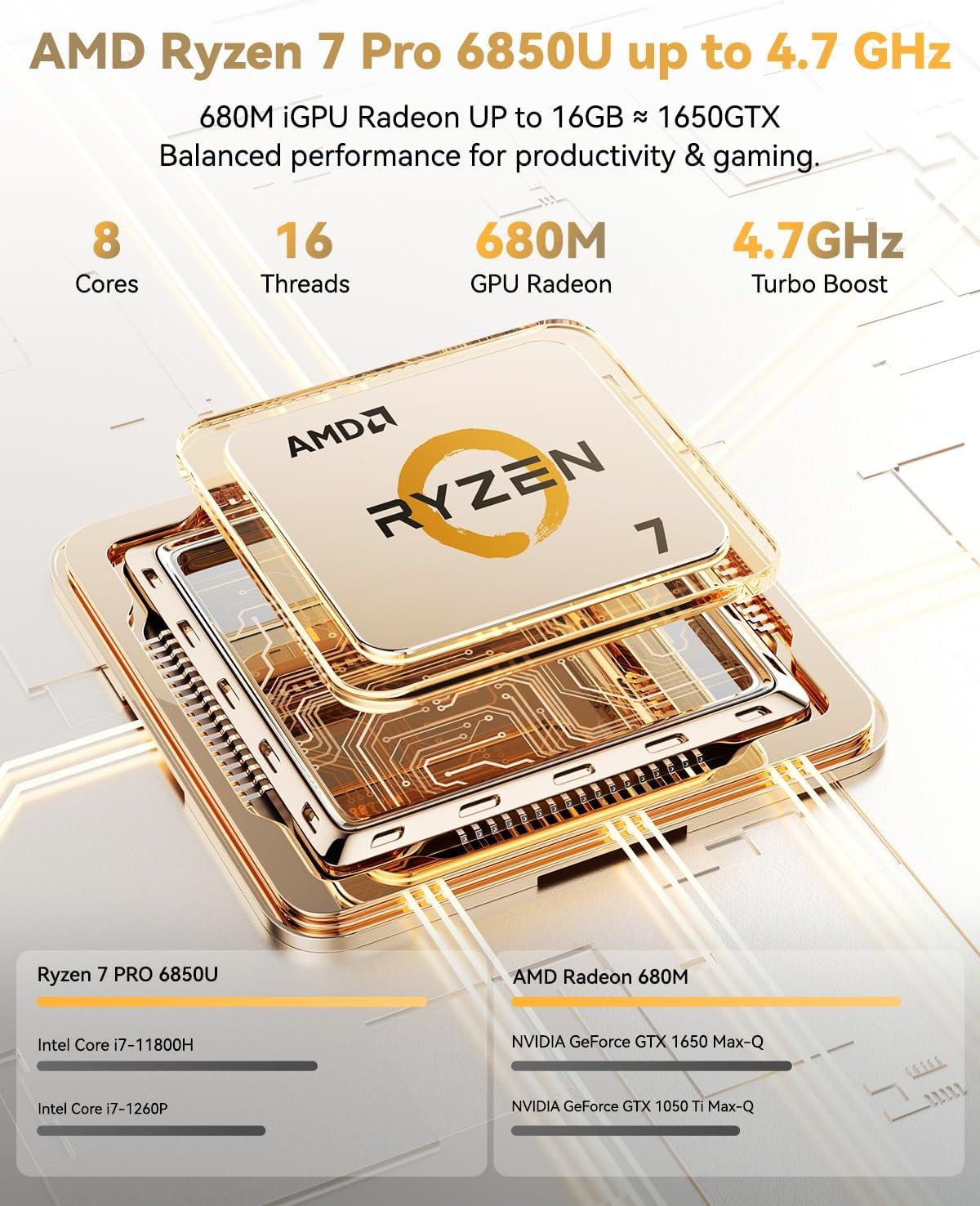
Image: Visual representation of the AMD Ryzen 7 Pro 6850U processor's core and thread count, and turbo boost speed.
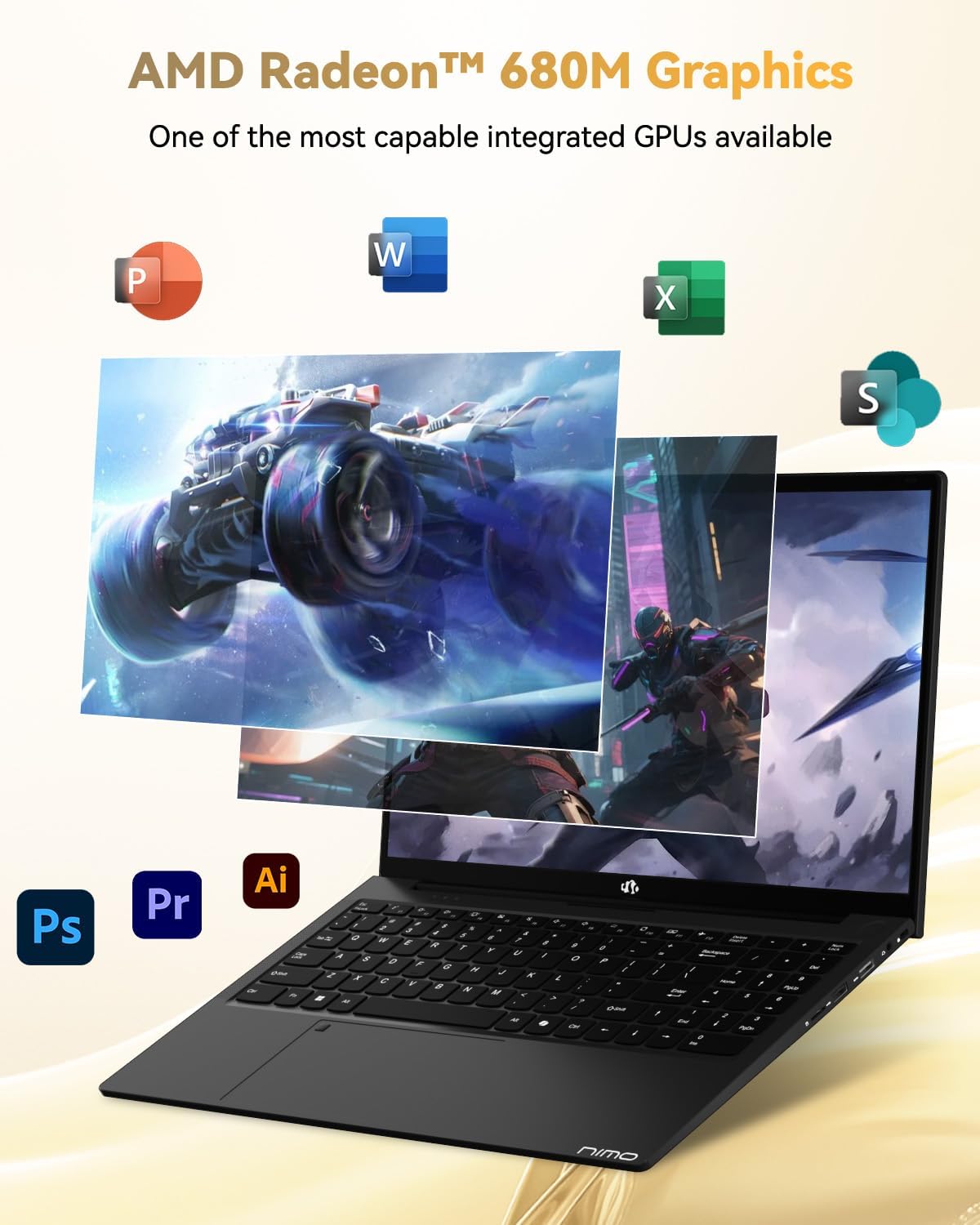
Image: Illustration highlighting the capabilities of the AMD Radeon 680M integrated graphics for various applications.

Image: Diagram showing the 32GB LPDDR5 RAM and 1TB PCIe 4.0 SSD for seamless multitasking and ampле захоўвання.
Image: The NIMO N15A laptop displaying a vibrant image on its 15.6-inch Full HD IPS screen.
Парты і падключэнне:

Image: Diagram illustrating the various ports on the NIMO N15A laptop, including USB, HDMI, and Type-C.
- Чытальнік Micro SD
- Порт USB 2.0
- Парты USB 3.2 (некалькі)
- Раз'ём для навушнікаў
- Слот для замка Kensington
- Type-C (Multifunction) Ports (supporting charging and data transfer)
- Порт HDMI
Настройка
1. Initial Charging and Power On:
- Connect the provided 100W Type-C PD Fast Charger to the laptop's Type-C charging port and a power outlet.
- Allow the laptop to charge for at least 30 minutes before initial use, or until the charging indicator shows sufficient battery.
- Націсніце кнопку харчавання, размешчаную на клавіятуры, каб уключыць ноўтбук.

Image: Illustration of the NIMO N15A laptop being charged with the 100W Type-C PD Fast Charger.
2. Windows 11 Initial Setup:
Follow the on-screen prompts to complete the Windows 11 setup process. This typically includes:
- Выбар рэгіёну і раскладкі клавіятуры.
- Падключэнне да сеткі Wi-Fi.
- Уваход з дапамогай уліковага запісу Microsoft або стварэнне лакальнага ўліковага запісу.
- Усталёўка PIN-кода або пароля.
- Configuring privacy settings.
Інструкцыя па эксплуатацыі
Упраўленне харчаваннем:
- Уключэнне: Націсніце кнопку харчавання.
- Рэжым сну: Зачыніце вечка або коратка націсніце кнопку харчавання.
- Выключыць: Націсніце кнопку «Пуск», затым «Харчаванне», а затым «Выключыць сістэму».
- Перазапуск: Click the Start button, then Power, then Restart.
Клавіятура і сэнсарная панэль:

Выява: Крупны план view of the NIMO N15A laptop's backlit keyboard and the integrated fingerprint reader on the touchpad.
- Клавіятура з падсветкай: Use the dedicated function key (usually Fn + Fx) to toggle the keyboard backlight on/off and adjust brightness levels.
- Счытвальнік адбіткаў пальцаў: The fingerprint reader is integrated into the touchpad. During Windows setup, you can configure your fingerprint for secure, quick login.
- Дакладная сэнсарная панэль: Падтрымлівае мультытач-жэсты для навігацыі. Глядзіце налады Windows для налад.
Падключэнне перыферыйных прылад:
Utilize the various ports to connect external devices such as monitors, printers, external storage, and audio devices.
- USB прылады: Plug USB devices into the available USB 2.0 or USB 3.2 ports.
- Знешні дысплей: Connect an external monitor or TV using the HDMI port or a compatible Type-C adapter.
- Аўдыё: Use the 3.5mm headphone jack for headphones or external speakers.
Канфідэнцыяльнасць камеры:
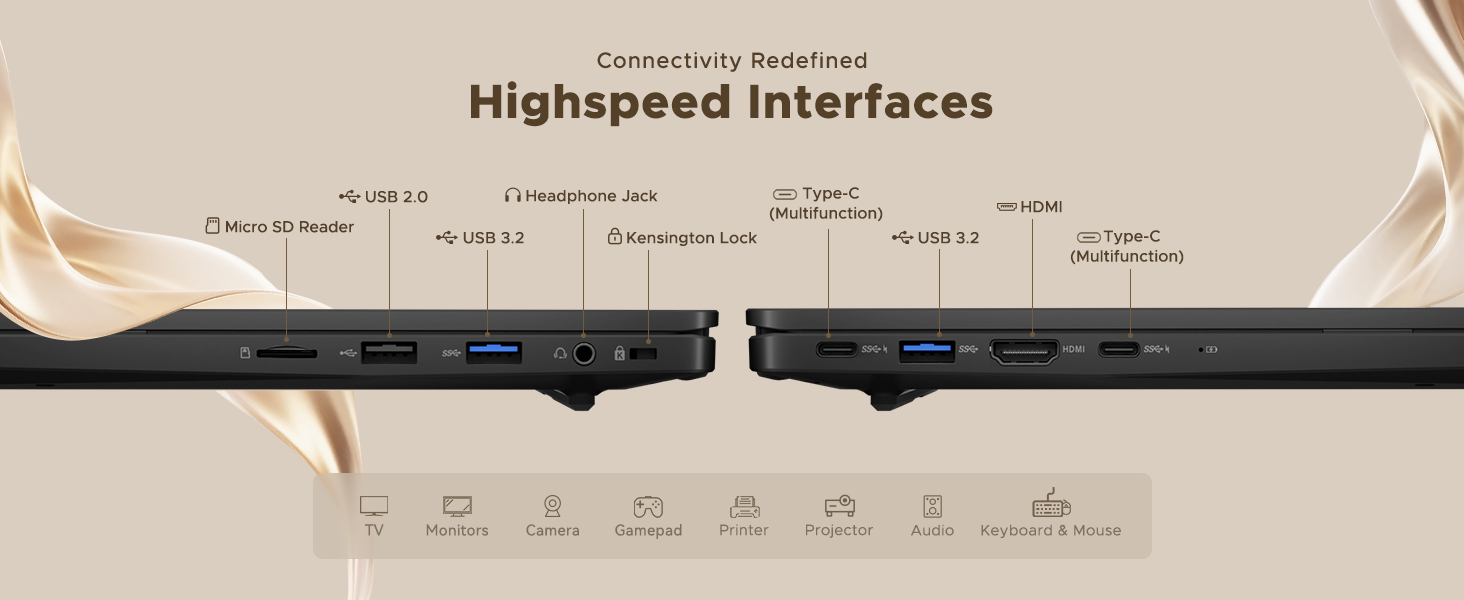
Image: Illustration of the NIMO N15A laptop's built-in privacy camera switch, allowing users to easily disable the webкулачок.
The NIMO N15A laptop features a built-in privacy camera switch. This allows you to physically disable the 2.0MP webcam when not in use, ensuring your privacy.
Тэхнічнае абслугоўванне
Чыстка ноўтбука:
- Power off the laptop and disconnect the charger before cleaning.
- Выкарыстоўвайце мяккую безворсовую тканіну, злёгку dampвадой або сродкам для чысткі экранаў дысплея.
- Для клавіятуры і корпуса выкарыстоўвайце мяккую тканіну. Пазбягайце выкарыстання агрэсіўных хімічных рэчываў або абразіўных матэрыялаў.
- Выкарыстоўвайце сціснутае паветра, каб ачысціць клавішы клавіятуры і вентыляцыйныя адтуліны ад пылу.
Сыход за батарэяй:
- Пазбягайце частай поўнай разрадкі акумулятара.
- Калі ноўтбук не выкарыстоўваецца працяглы час, захоўвайце яго ў прахалодным, сухім месцы, зарадзіўшы акумулятар прыкладна на 50-70%.
- Use only the original NIMO 100W Type-C PD Fast Charger.
Абнаўленні праграмнага забеспячэння:
- Рэгулярна правярайце наяўнасць абнаўленняў Windows і ўсталёўвайце іх, каб забяспечыць стабільнасць і бяспеку сістэмы.
- Keep device drivers updated, especially for graphics and chipset, by checking the NIMO support webсайт або Цэнтр абнаўлення Windows.
Ліквідацыю непаладак
| праблема | Магчымае рашэнне |
|---|---|
| Ноўтбук не ўключаецца. | Ensure the charger is properly connected and the power outlet is functional. Allow the battery to charge for at least 30 minutes. If the issue persists, contact support. |
| Дысплей пусты або мігціць. | Try connecting an external monitor to check if the issue is with the laptop's display. Adjust display brightness. Restart the laptop. |
| Павольная прадукцыйнасць. | Close unnecessary applications. Check for background processes consuming high resources. Ensure sufficient free storage space. Run a system scan for malware. |
| Не працуе падсветка клавіятуры. | Press the dedicated function key combination (e.g., Fn + Fx) to toggle or adjust the backlight. Check keyboard settings in Windows. |
| Fingerprint reader not responding. | Ensure your finger is clean and dry. Re-register your fingerprint in Windows settings. Restart the laptop. |
For issues not listed here or if solutions do not resolve the problem, please refer to the Warranty and Support section for assistance.
Тэхнічныя характарыстыкі
| Асаблівасць | Дэталь |
|---|---|
| Марка | NIMO |
| Назва мадэлі | NIMO N15AL (N15A) |
| Памер экрана | 15.6 цалі |
| Дазвол экрана | 1920 x 1080 пікселяў (Full HD) |
| Працэсар | AMD Ryzen 7 Pro 6850U (8 Cores, up to 4.7 GHz) |
| АЗП | 32 ГБ LPDDR5 (6400 МГц) |
| Жорсткі дыск | 1024 GB SSD (PCIe 4.0, Solid State) |
| Графічны супрацэсар | AMD Radeon 680M (інтэграваная) |
| Аперацыйная сістэма | Windows 11 |
| Бесправадны тып | 802.11a/b/g/n/ac |
| Парты USB 2.0 | 1 |
| Парты USB 3.0/3.2 | 4 |
| Сярэдні тэрмін службы батарэі | 9 гадзін |
| Вага прадмета | 3.75 фунта |
| Памеры прадукту | 14.07 х 8.98 х 0.76 цалі |
| Колер | Чорны |
| Тыл WebДазвол камеры | 2 МП |
| Асаблівасці | Падсветленая клавіятура, счытвальнік адбіткаў пальцаў, HD-аўдыё, лічбавая клавіятура |
Гарантыя і падтрымка
NIMO provides comprehensive support for your laptop.
- Гарантыя: Your NIMO N15A laptop comes with a 2-year manufacturer's warranty.
- Палітыка вяртання: A 90-day hassle-free return policy is offered from the date of purchase.
- Падтрымка кліентаў: For technical assistance, warranty claims, or product-related inquiries, please contact NIMO customer support.
Contact information for support is typically available on the official NIMO website or through the product's packaging.
Інфармацыя па бяспецы
Важна: Read and follow these safety guidelines to prevent damage to your device or personal injury.
- Use only original chargers and regularly inspect cables for damage.
- Handle the laptop by its base and consider using a protective case. Avoid placing heavy objects on it.
- Place the laptop on a hard, flat surface to ensure proper ventilation and prevent overheating. Keep it away from extreme temperatures and moisture.
- Do not overcharge the battery. Discontinue use if the battery shows signs of swelling or damage.
- Set strong passwords, keep software updated, use antivirus software, and regularly back up your data.
- In case of liquid spills, immediately unplug the laptop and allow it to dry completely before attempting to power it on.
- For any issues, consult qualified professionals. Do not attempt to disassemble or repair the device yourself.
Адмова ад адказнасці
This NIMO laptop is provided "as is," without express or implied warranties, except for any applicable manufacturer's limited warranty. Implied warranties of merchantability or fitness for a specific purpose are disclaimed. NIMO is not liable for damages resulting from misuse (e.g., non-approved chargers, unauthorized repairs), physical damage, or failure to adhere to safety guidelines, including data loss or business interruption. Users are responsible for regularly backing up their data. This disclaimer does not exclude liability for manufacturing defects or violations of mandatory local laws. By using this laptop, you accept these terms, which are governed by the laws of the applicable jurisdiction.