
1. Уводзіны
This manual provides detailed instructions for the installation, operation, and maintenance of your CP PLUS CP-E21Q 2MP Smart Wi-Fi CCTV Camera. This indoor camera offers Full HD 1080p resolution, 360° pan and tilt functionality, advanced smart detection features, and secure cloud recording, designed to enhance your home security.
Асноўныя характарыстыкі:
- 2MP Full HD Resolution: Provides clear 1080p video with H.265 compression for efficient storage.
- Паварот на 360° і нахіл на 71°: Ensures comprehensive area coverage without blind spots.
- 15M IR Night Vision: Delivers clear video monitoring in low-light or dark conditions.
- Smart Detection Suite: Includes motion detection, human body detection, sound detection, motion tracking, and a built-in siren for instant alerts.
- Двухбаковы аўдыё: Enables communication through the camera via the View & Talk feature.
- Воблачны запіс: Offers secure and accessible video storage.
- CTC Cyber Secure Tech: Ensures advanced data privacy and security.
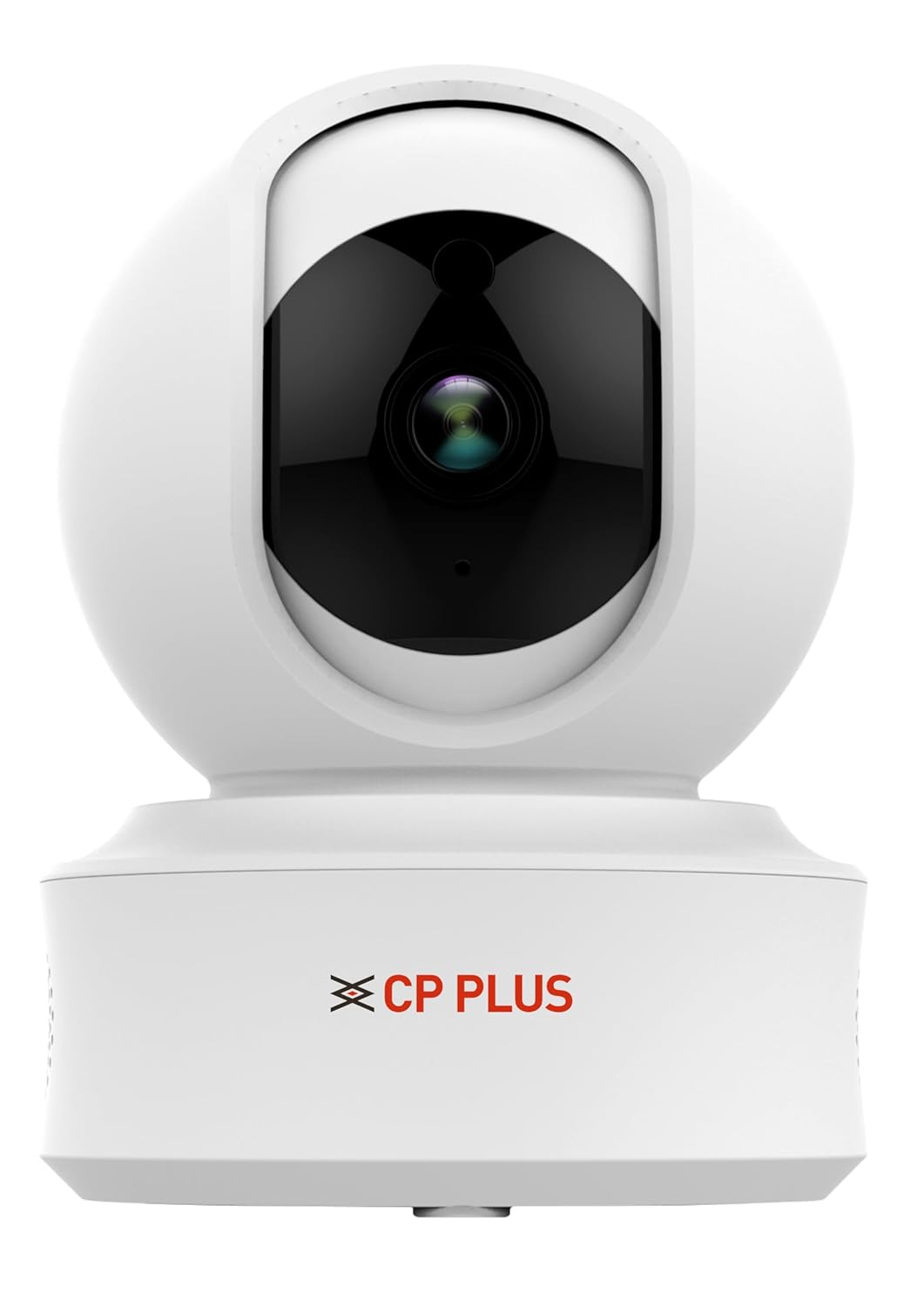
Figure 1: CP PLUS CP-E21Q Smart Wi-Fi CCTV Camera
2. Змесціва ўпакоўкі
Праверце, ці ўсе пералічаныя ніжэй прадметы ўваходзяць у вашу ўпакоўку:
- CP PLUS CP-E21Q Camera
- Адаптар сілкавання
- Зарадны кабель
- Стаяць
- Набор мантажных шруб
3. Настройка і ўстаноўка
3.1 Фізічная ўстаноўка
The CP-E21Q camera is designed for indoor use and can be placed on a tabletop or mounted on a ceiling using the provided stand and mounting screws.
- Выберыце месца: Выберыце памяшканне, якое забяспечвае патрэбныя viewпад вуглом нахілу і знаходзіцца ў зоне дзеяння вашай сеткі Wi-Fi.
- Размяшчэнне на стальніцы: Проста пастаўце камеру на роўную, устойлівую паверхню.
- Мацаванне на столі:
- Прымацуеце падстаўку да камеры.
- Mark the screw positions on the ceiling using the stand as a template.
- Drill pilot holes and insert the mounting screws to secure the stand to the ceiling.
- Ensure the camera is securely fastened and oriented correctly.

Малюнак 2: Спераду view камеры
3.2 Падключэнне харчавання
Connect the camera to a power source using the provided power adapter and charging cable.
- Insert the small end of the charging cable into the power port on the camera.
- Падключыце адаптар сілкавання да стандартнай электрычнай разеткі.
- Камера ўключыцца, і індыкатар пакажа яе стан.

Малюнак 3: Назад view of the camera showing power port
3.3 Падключэнне да сеткі (Wi-Fi)
To connect your camera to your home Wi-Fi network, you will need the CP PLUS mobile application.
- Спампаваць прыкладанне: Пошук the official CP PLUS app on your smartphone's app store (iOS or Android) and install it.
- Стварыць уліковы запіс: Адкрыйце праграму і выконвайце інструкцыі на экране, каб стварыць новы ўліковы запіс карыстальніка, або ўвайдзіце ў сістэму, калі ў вас ужо ёсць уліковы запіс.
- Дадаць прыладу: Tap the '+' icon or 'Add Device' option in the app.
- Выберыце тып камеры: Choose the appropriate camera model (CP-E21Q) or scan the QR code on the camera if available.
- Выконвайце інструкцыі ў дадатку: The app will guide you through connecting the camera to your Wi-Fi network. This typically involves entering your Wi-Fi password and allowing the camera to scan a QR code displayed on your phone screen.
- Пацверджанне: Once connected, the camera's indicator light will change, and the app will confirm successful pairing.
3.4 Усталёўка карты MicroSD (неабавязкова)
For local video storage, you can install a MicroSD card (up to 256GB).
- Locate the MicroSD card slot on the camera (refer to the camera's physical design for exact placement, often under the lens or on the side).
- Акуратна ўстаўце карту MicroSD у слот, пакуль яна не зафіксуецца са шчоўкам.
- Format the MicroSD card through the camera settings in the mobile app for optimal performance.
4. Кіраванне камерай
Access and control your CP-E21Q camera using the CP PLUS mobile application.
4.1 У прамым эфіры View і кіраванне панарамаваннем/нахілам
Адкрыйце праграму і абярыце камеру, каб view the live feed. Use the on-screen controls to remotely pan (rotate horizontally 360°) and tilt (rotate vertically 71°) the camera lens to monitor different areas.

Figure 4: Camera demonstrating pan and tilt capabilities

Малюнак 5: Выпample of 360° view пакрыццё
4.2 Двухбаковая аўдыёсувязь (View & Размова)
The camera features a built-in microphone and speaker. Tap the microphone icon in the app to speak through the camera, and listen to audio from the camera's location.

Figure 6: Two-Way Communication via the app
4.3 Smart Detection Suite
Configure various detection settings in the app to receive alerts for specific events:
- Выяўленне руху: Detects general movement within the camera's field of view.
- Выяўленне чалавечага цела: Specifically identifies human shapes, reducing false alarms.
- Вызначэнне гуку: Triggers alerts based on detected sounds.
- Адсочванне руху: The camera automatically follows detected movement.
- Убудаваная сірэна: Can be activated manually or automatically upon detection to deter intruders.
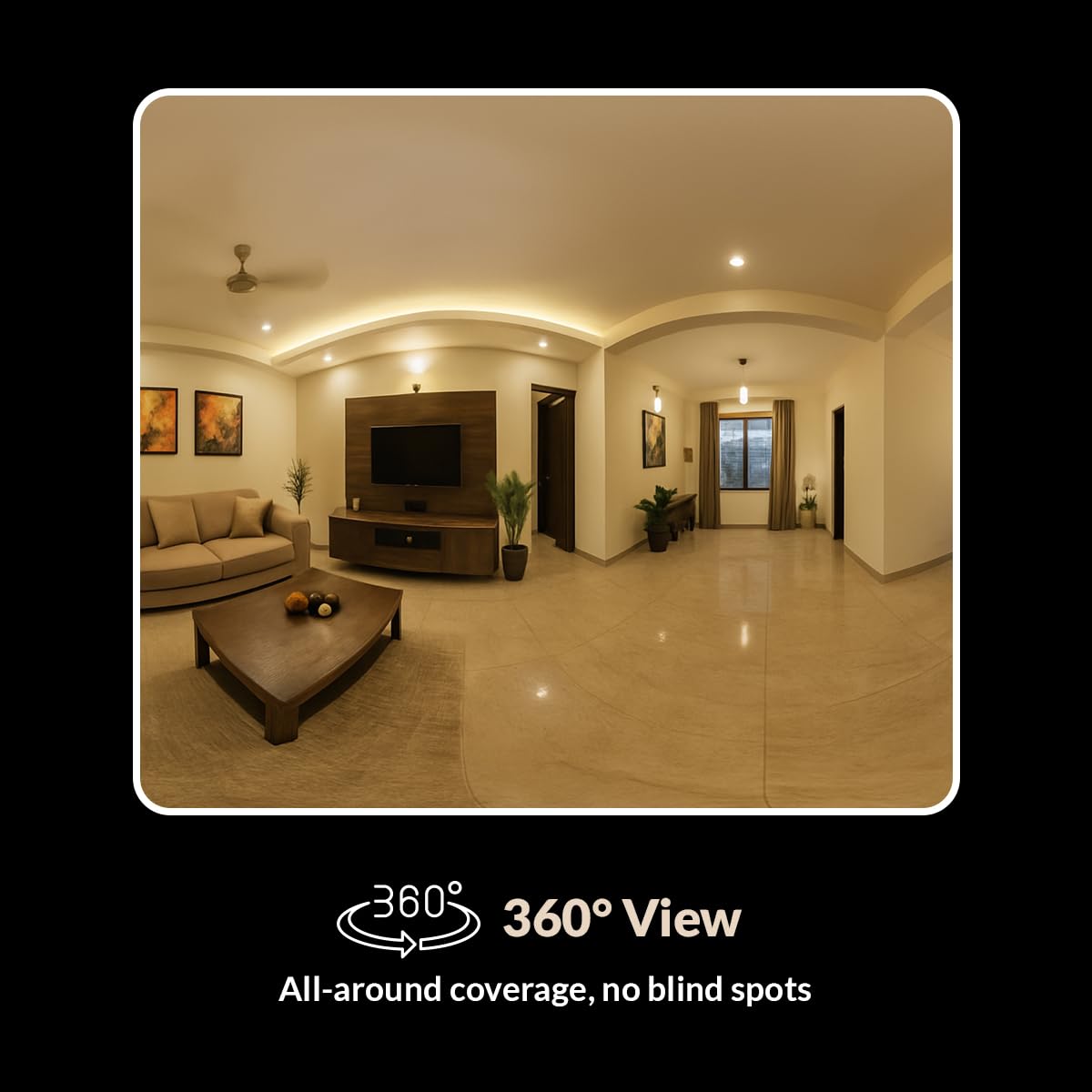
Figure 7: Smart Detection Suite capabilities
4.4 Начное бачанне
The camera automatically switches to infrared (IR) night vision in low-light conditions, providing clear black-and-white video up to 15 meters.
4.5 Cloud Recording and Local Storage
Запісы можна захоўваць двума спосабамі:
- Воблачны запіс: Subscribe to CP PLUS cloud services for secure, remote access to your video history.
- Лакальнае сховішча: Videos are saved to an installed MicroSD card (up to 256GB). Manage recordings and playback through the app.

Figure 8: Cloud Recording for secure access
4.6 Рэжым прыватнасці
Activate Privacy Mode via the app to temporarily disable video recording and live viewing when privacy is desired.
5. Тэхнічнае абслугоўванне
5.1 Ачыстка
To maintain optimal performance, periodically clean the camera lens and exterior.
- Перад чысткай пераканайцеся, што камера выключана.
- Выкарыстоўвайце мяккую, сухую тканіну для працірання корпуса камеры.
- For the lens, use a lens cleaning cloth and a specialized lens cleaning solution to avoid scratches.
- Не выкарыстоўвайце агрэсіўныя хімічныя рэчывы або абразіўныя мыйныя сродкі.
5.2 Абнаўленне прашыўкі
Regularly check the CP PLUS app for available firmware updates. Updates often include performance improvements, new features, and security enhancements. Follow the in-app instructions to perform firmware updates.
6. Выпраўленне непаладак
If you encounter issues with your CP-E21Q camera, refer to the following common problems and solutions:
| праблема | Магчымае рашэнне |
|---|---|
| Камера не падключаецца да Wi-Fi |
|
| Poor video quality or blurry images |
|
| Motion detection alerts are inconsistent |
|
| Two-way audio issues (echo, low volume) |
|
| Camera frequently goes offline or glitches during live view |
|
7. Тэхнічныя характарыстыкі
| Асаблівасць | Дэталь |
|---|---|
| Назва мадэлі | CP-E21Q (Ezykam) |
| Дазвол відэазахопу | 1080p (поўны HD) |
| Тэхналогія падлучэння | Бесправадная сувязь (Wi-Fi) |
| Пратакол злучэння | Wi-Fi (2.4 ГГц) |
| Асаблівасці | 2 Way Audio, HD Resolution, Motion Sensor, Night Vision, Pan & Tilt |
| Выкарыстанне ў памяшканні/на вуліцы | У памяшканні |
| Крыніца харчавання | Правадная электрычная |
| Тып мацавання | Настольнае мацаванне |
| Памеры прадукту (ДxШxВ) | 7.7 х 7.7 х 10.7 см |
| Вага прадмета | 176 г |
| Падтрымка карт MicroSD | Да 256 ГБ |
8. Гарантыя і падтрымка
Your CP PLUS CP-E21Q camera is manufactured by AIL DIXON Technologies and imported by Aditya Infotech Ltd. For specific warranty terms and conditions, please refer to the warranty card included with your product or visit the official CP PLUS webсайт.
For technical assistance, troubleshooting beyond this manual, or warranty claims, please contact CP PLUS customer support. Contact details can typically be found on the product packaging, the official CP PLUS webсайце або ў мабільным дадатку.