1. Прадукт скончыўсяview
This manual provides detailed instructions for the Gamrombo Wireless Controller, designed for use with Xbox One, Xbox Series X|S, PC, and Windows 10/11 operating systems. Please read this manual carefully before use.
1.1 Змест пакета
- Gamrombo Wireless Controller (x2)
- 2.4GHz USB Adapter (x2)
- Зарадны кабель USB Type-C (x2)
- Кіраўніцтва карыстальніка (гэты дакумент)
1.2 Схема кантролера
The Gamrombo Wireless Controller features a standard layout with responsive buttons, joysticks, and triggers for an enhanced gaming experience.

Выява 1.1: Спераду view of the Gamrombo Wireless Controllers and 2.4GHz USB Adapters.

Малюнак 1.2: Падрабязны view of controller buttons, joysticks, and triggers.
2. Налада і падключэнне
2.1 Connecting to Xbox Consoles (Xbox One, Xbox Series X|S)
- Пераканайцеся, што ваша кансоль Xbox уключана.
- Insert the 2.4GHz USB adapter into an available USB port on your Xbox console.
- Press and hold the Home button on the controller for 3 seconds to power it on. The indicator light on the controller will flash rapidly.
- Once the controller connects to the adapter, the indicator light will become solid, indicating a successful connection.
2.2 Connecting to PC (Windows 10/11)
- Пераканайцеся, што ваш ПК уключаны.
- Insert the 2.4GHz USB adapter into an available USB port on your PC. The system will automatically install the necessary drivers.
- Press and hold the Home button on the controller for 3 seconds to power it on. The indicator light on the controller will flash rapidly.
- Once the controller connects to the adapter, the indicator light will become solid. You can now use the controller for PC games.

Image 2.1: Controller compatibility with various platforms.
2.3 Зарадка кантролера
To charge the controller, connect the included USB Type-C cable to the charging port on the controller and the other end to a USB power source (e.g., console, PC, or USB wall adapter). The indicator light will show charging status and turn off when fully charged.
3. Інструкцыя па эксплуатацыі
3.1 Уключэнне/выключэнне сілкавання
- Уключэнне: Націсніце і ўтрымлівайце кнопку Home на працягу 3 секунд.
- Выключэнне: Press and hold the Home button for 5-8 seconds. The controller will automatically power off after 5 minutes of inactivity.
3.2 Функцыя Турба
The Turbo function allows for rapid, repeated input of a button press, which can be beneficial in certain games.
- Націсніце і ўтрымлівайце кнопку Turbo.
- While holding the Turbo button, press the desired action button (e.g., A, B, X, Y, LB, RB, LT, RT). The Turbo function is now activated for that button.
- To deactivate Turbo for a specific button, repeat the process: press and hold the Turbo button, then press the action button again.

Image 3.1: Instructions for activating the Turbo function.
3.3 Падвойная вібрацыя
The controller features dual motors for vibration feedback, providing an immersive gaming experience. Vibration intensity can vary based on game support and in-game settings.

Image 3.2: Dual-motor vibration feedback levels.
3.4 Audio Jack and Volume Control
The controller includes a standard 3.5mm stereo audio jack for connecting headsets. Volume can be adjusted directly on the controller.
- Павялічыць гучнасць: Push the volume slider to the right (+).
- Паменшыць гучнасць: Push the volume slider to the left (-).
- Адключэнне гуку: Press and hold the middle of the volume slider to mute audio.

Image 3.3: Audio jack and volume control details.
4. Тэхнічнае абслугоўванне
- Уборка: Для чысткі кантролера выкарыстоўвайце мяккую сухую тканіну. Пазбягайце выкарыстання агрэсіўных хімічных рэчываў або абразіўных матэрыялаў.
- захоўванне: Захоўвайце кантролер у прахалодным, сухім месцы, удалечыні ад прамых сонечных прамянёў і экстрэмальных тэмператур.
- Сыход за батарэяй: To prolong battery life, avoid fully discharging the controller frequently. Charge the controller regularly, even if not in active use.
5. Выпраўленне непаладак
5.1 Праблемы з падключэннем
- Кантролер не падключаецца: Ensure the 2.4GHz USB adapter is securely plugged into the console/PC. Make sure the controller is charged. Try re-pairing by powering off and on the controller.
- Перарывістае падключэнне: Ensure there are no strong wireless interference sources nearby. Try moving closer to the console/PC.
5.2 Controller Firmware Upgrade
If you experience persistent connection issues, particularly with Xbox consoles, a firmware upgrade may be required. The upgrade process is performed on a Windows PC.

Image 5.1: Information regarding controller firmware upgrade for connection issues.
- Upgrade Program Download: we.tl/t-I78iIsdPhP
- Video Upgrade Steps: youtu.be/2Q_x2bhtcUU
- The upgrade typically takes 2-3 minutes and ensures continued compatibility with Xbox devices.
5.3 Іншыя праблемы
- Кнопкі не рэагуюць: Ensure the controller is powered on and connected. Restart the controller and try again.
- Вібрацыя не працуе: Праверце налады ў гульні, каб пераканацца, што вібрацыя ўключана.
6. Тэхнічныя характарыстыкі
| Асаблівасць | Дэталь |
|---|---|
| Сувязь | 2.4 ГГц бесправадная |
| Сумяшчальнасць | Xbox One, Xbox Series X|S, PC (Windows 10/11) |
| Ёмістасць батарэі | 650 мАг |
| Час зарадкі | 2-3 гадзін |
| Час працы | 8-10 гадзін |
| Аўдыёраз'ём | 3.5mm стэрэа |
| Вібрацыя | Падвойныя рухавікі |
| Датчык руху | 6-Axis (for supported games/platforms) |
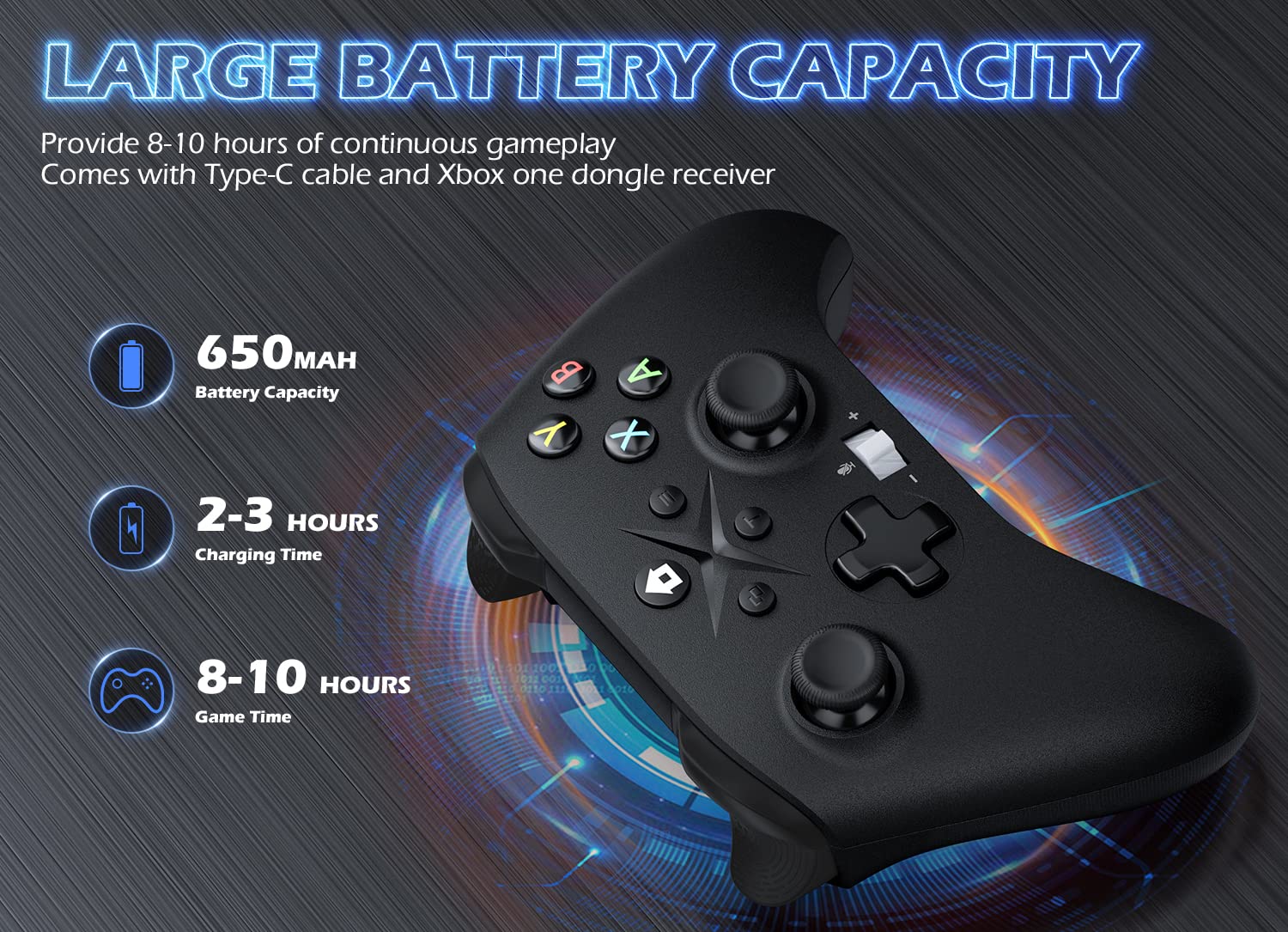
Image 6.1: Battery specifications.
7. Важная інфармацыя па бяспецы
- Не падвяргайце кантролер уздзеянню экстрэмальных тэмператур, вільготнасці або прамых сонечных прамянёў.
- Пазбягайце падзення або моцных удараў кантролера.
- Не спрабуйце разбіраць або мадыфікаваць кантролер. Гэта можа ануляваць гарантыю і прывесці да пашкоджанняў.
- Keep the controller and its accessories out of reach of small children.
- Выкарыстоўвайце толькі зарадны кабель, які ўваходзіць у камплект, або яго сертыфікаваны эквівалент.
8. Падтрымка кліентаў
For further assistance or inquiries, please contact Gamrombo customer support through the retailer's platform or the official Gamrombo webсайт.