
1. Уводзіны
This manual provides detailed instructions for the installation, operation, and maintenance of your VSTARCAM CS995 Pan/Tilt Smart Security Camera. This indoor camera is designed to provide comprehensive surveillance with features such as 2K QHD resolution, full-color night vision, motion detection, and two-way audio. Please read this manual thoroughly before using the product to ensure proper setup and functionality.
2. Змесціва ўпакоўкі
Праверце, ці ўсе пералічаныя ніжэй прадметы ўваходзяць у камплект. Калі якія-небудзь прадметы адсутнічаюць або пашкоджаныя, звярніцеся ў службу падтрымкі кліентаў.
- VSTARCAM CS995 Pan/Tilt Smart Security Camera
- Адаптар сілкавання
- Зарадны кабель
- Камплект мантажных шруб
- Стаяць
- Інструкцыя па эксплуатацыі (гэты дакумент)
3. Прадукт скончыўсяview
The VSTARCAM CS995 camera offers advanced features for indoor monitoring.
3.1 Асноўныя магчымасці
- 360° PTZ Coverage: Pan 310° horizontally and tilt 115° vertically for complete room coverage.
- Разрозненне 2K QHD: Captures clear, detailed video footage.
- Поўнакаляровы начны бачанне: Provides clear, colored images up to 15ft in low-light conditions using dual light sources.
- Motion & Human Detection: AI-powered detection sends real-time alerts to your mobile phone upon detecting motion or human figures.
- Двухбаковы аўдыё: Built-in microphone and speaker allow for clear communication with family or pets.
- Гнуткае захоўванне: Supports local storage via Micro SD card (up to 256GB, not included) and cloud storage (7-day trial available).
- Падключэнне Wi-Fi 2.4 ГГц: Connects to your home network for remote access and control.
3.2 Кампаненты камеры
Familiarize yourself with the physical components of your camera.

Image: VSTARCAM CS995 camera illustrating its 310° pan and 115° tilt capabilities. The image shows the camera in a living room setting, monitoring a child playing.
- Аб'ектыў: Main camera lens for video capture.
- Infrared LEDs/Spotlights: For night vision and illumination.
- Мікрафон: Для аўдыёўваходу падчас двухбаковай сувязі.
- Дакладчык: For audio output during two-way communication and alerts.
- Слот для карты Micro SD: Для лакальнага захоўвання відэа.
- Порт харчавання: Для падлучэння адаптара сілкавання.
- Кнопка скіду: Used for factory reset (usually a small pinhole).
4. Кіраўніцтва па наладцы
4.1 Уключэнне камеры
- Connect the charging cable to the camera's power port.
- Падключыце адаптар сілкавання да стандартнай электрычнай разеткі.
- The camera will power on and initiate its self-test, indicated by a rotating motion and status light.
4.2 Installing the O-KAM Pro App
- Download the "O-KAM Pro" app from your smartphone's app store (App Store for iOS, Google Play Store for Android).
- Зарэгіструйце новы ўліковы запіс або ўвайдзіце ў сістэму, калі ён у вас ужо ёсць.
4.3 Падключэнне камеры да Wi-Fi
Ensure your smartphone is connected to a 2.4GHz Wi-Fi network. The camera does not support 5GHz Wi-Fi.
- Open the O-KAM Pro app and tap the "+" icon to add a new device.
- Follow the on-screen instructions to select your camera model and begin the pairing process.
- You may be prompted to scan a QR code displayed on your phone with the camera, or to enter your Wi-Fi credentials.
- Wait for the camera to connect to your Wi-Fi network. A voice prompt or status light change will indicate a successful connection.
4.4 Installing a Micro SD Card (Optional)
For local storage, insert a Micro SD card (up to 256GB, not included) into the designated slot on the camera. Ensure the camera is powered off before inserting or removing the card.
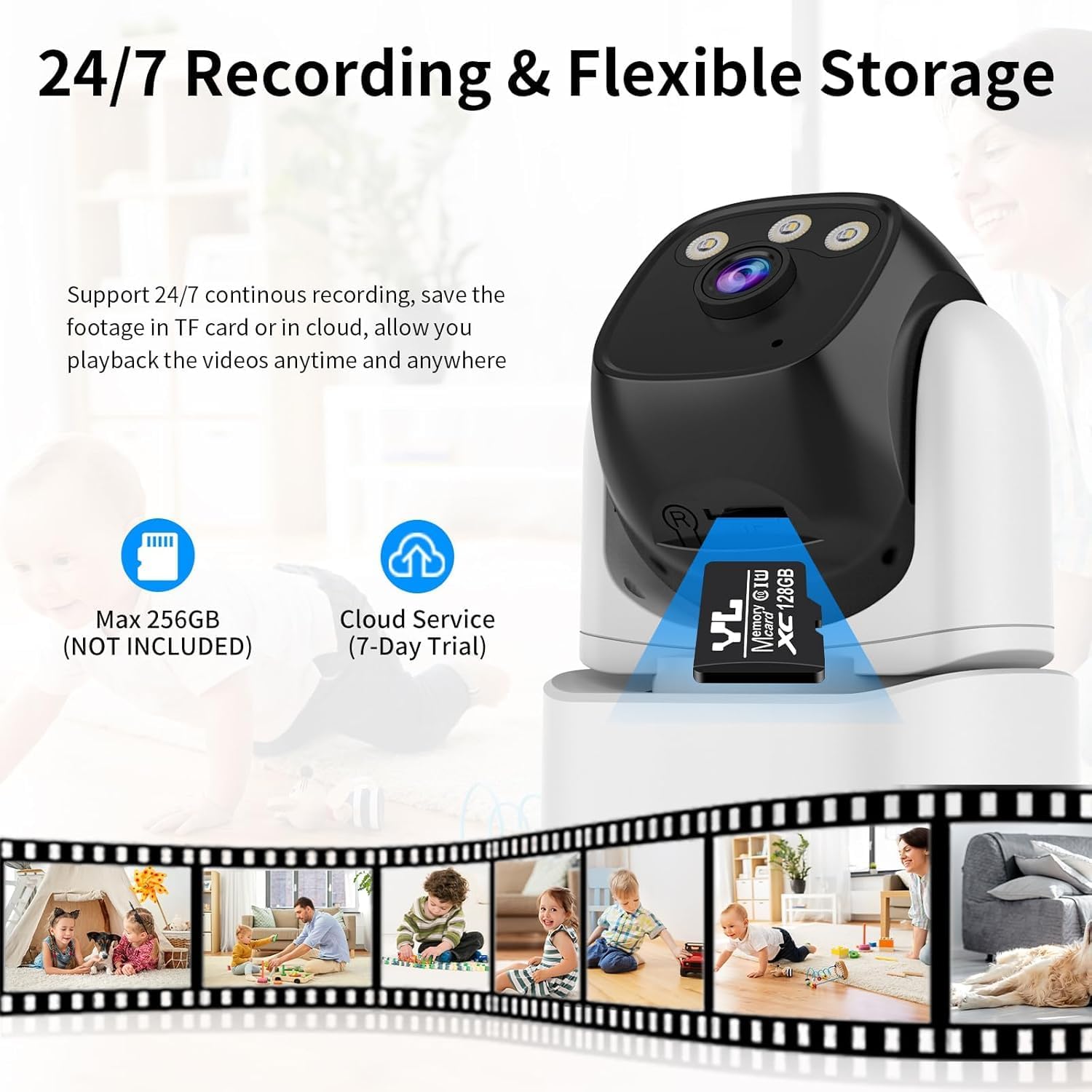
Image: VSTARCAM CS995 camera highlighting the Micro SD card slot and indicating support for both local (SD card) and cloud storage options.
5. Інструкцыя па эксплуатацыі
5.1 У прамым эфіры View і кіраванне PTZ
Once connected, open the O-KAM Pro app to view the live feed from your camera.
- Панарамаванне/нахіл: Drag your finger across the live view screen to remotely adjust the camera's horizontal (pan) and vertical (tilt) angles.
- Маштаб: Use pinch-to-zoom gestures on the live view to digitally zoom in or out.
Image: VSTARCAM CS995 camera illustrating its 310° pan and 115° tilt capabilities. The image shows the camera in a living room setting, monitoring a child playing.
5.2 Двухбаковае аўдыё
The camera supports two-way communication.

Image: VSTARCAM CS995 camera demonstrating its two-way audio function, showing a child communicating with an adult via the camera.
- Націсніце на значок мікрафона ў прамым эфіры праграмы view гаварыць праз дынамік камеры.
- Націсніце на значок дынаміка, каб праслухаць гук з навакольнага асяроддзя камеры.
5.3 Motion and Human Detection
The camera can detect motion and human figures, sending alerts to your phone.

Image: VSTARCAM CS995 camera demonstrating AI-powered motion and human detection, showing the camera tracking a person in a living room.
- Уключыць абвесткі: In the app settings, navigate to "Detection Settings" to enable motion and human detection.
- Наладзіць зоны: Вызначце канкрэтныя зоны ў межах камеры view для выяўлення руху.
- Адчувальнасць: Adjust the detection sensitivity to minimize false alarms.

Image: VSTARCAM CS995 camera illustrating real-time alert notifications, including spotlight activation, alarm alerts, and push notifications to a smartphone when motion is detected.
5.4 Рэжымы начнога бачання
The camera offers multiple night vision options:

Image: VSTARCAM CS995 camera demonstrating its three night vision modes: Infrared (black and white), Full Color (using ambient light or spotlights), and Smart Light (activates spotlights upon detection for color vision).
- Інфрачырвоны рэжым: Стандартнае чорна-белае начное бачанне.
- Поўнакаляровы рэжым: Utilizes built-in spotlights to provide color images in the dark.
- Smart Light Mode: The camera remains in infrared mode and switches to full color with spotlights upon detecting motion.
You can switch between these modes in the O-KAM Pro app settings.
5.5 Запіс і прайграванне
The camera supports 24/7 continuous recording to a Micro SD card or cloud storage.
- Запіс на SD-карту: Ensure a Micro SD card is inserted and formatted via the app. Recordings will be saved locally.
- Воблачнае сховішча: Activate the cloud storage service (7-day trial available) through the app for remote backup.
- Прайграванне: Доступ да запісанага footage through the "Playback" section in the O-KAM Pro app.
5.6 Шматкарыстальніцкі агульны доступ
You can share live views of your camera with other users through the O-KAM Pro app.
- In the app, go to the camera settings and find the "Share Device" option.
- Invite other users by entering their O-KAM Pro account details.
- Shared users will receive an invitation and can view the live feed and access certain features based on permissions granted.
6. Тэхнічнае абслугоўванне
- Уборка: Выкарыстоўвайце мяккую сухую тканіну для чысткі аб'ектыва і корпуса камеры. Пазбягайце выкарыстання абразіўных ачышчальнікаў або растваральнікаў.
- Абнаўленні прашыўкі: Regularly check the O-KAM Pro app for available firmware updates to ensure optimal performance and security.
- Размяшчэнне: Ensure the camera is placed in a stable, dry indoor environment, away from direct sunlight or extreme temperatures.
7. Выпраўленне непаладак
7.1 Камера не падключаецца да Wi-Fi
- Пераканайцеся, што ваша сетка Wi-Fi працуе на частаце 2.4 ГГц. Камера не падтрымлівае сеткі 5 ГГц.
- Праверце, ці правільны пароль Wi-Fi, уведзены ў дадатку.
- Падчас налады размясціце камеру бліжэй да маршрутызатара Wi-Fi.
- Restart your router and the camera, then attempt the connection process again.
- Perform a factory reset on the camera by pressing and holding the reset button for several seconds until a voice prompt confirms.
7.2 No Motion Detection Alerts
- Check if motion detection is enabled in the O-KAM Pro app settings.
- Adjust the detection sensitivity. Higher sensitivity may be needed for subtle movements.
- Ensure notification permissions are enabled for the O-KAM Pro app on your smartphone.
- Verify that the camera has a stable internet connection.
7.3 Issues with Two-Way Audio
- Ensure your phone's microphone and speaker are not muted or blocked.
- Check the volume settings within the O-KAM Pro app.
- Verify the camera's internet connection stability.
7.4 Unable to Share Camera with Family Members
- Ensure the family member has downloaded the O-KAM Pro app and created their own account.
- Double-check the account details (email/username) entered when sending the share invitation.
- The invited user must accept the sharing invitation within the app.
- Verify that both your device and the invited user's device have a stable internet connection.
8. Тэхнічныя характарыстыкі
| Асаблівасць | Дэталь |
|---|---|
| Назва мадэлі | CS995 |
| Выкарыстанне ў памяшканні/на вуліцы | У памяшканні |
| Дазвол відэазахопу | 1440p (2K QHD) |
| Тэхналогія падлучэння | Правадное (харчаванне), Wi-Fi (перадача дадзеных) |
| Тэхналогія бесправадной сувязі | Wi-Fi (толькі 2.4 ГГц) |
| Крыніца харчавання | Правадная электрычная |
| Дыяпазон начнога бачання | 15 метраў (прыблізна 49 футаў) |
| Частата кадраў | 20 кадраў у секунду |
| Параметры захоўвання | Micro SD Card (max 256GB), Cloud Storage |
| Метад кантролю | App (O-KAM Pro) |
| Дыяпазон павароту/нахілу | Панарамаванне 310°, нахіл 115° |
| Памеры прадмета (Д х Ш х У) | 5 х 3 х 3 цалі |
| Вага прадмета | 11.2 унцыі |
| Матэрыял | Пластыкавыя |
9. Гарантыя і падтрымка
VSTARCAM provides professional customer service. If you encounter any issues or have questions regarding your CS995 camera, please contact our support team.
- Кантактная інфармацыя: Refer to the contact details provided on the product packaging or the official VSTARCAM webсайт.
- Гарантыя: Information regarding product warranty can be found on the official VSTARCAM webсайт або звярнуўшыся ў службу падтрымкі.