
1. Уводзіны
This manual provides essential information for the safe and efficient use of your Skyworth 55" X6600H 4K QD-MiniLED Google Smart TV. Please read it thoroughly before operating the device and retain it for future reference. The Skyworth 55X6600H features a 4K Mini LED display, Google TV operating system, Dolby Vision, Dolby Atmos, HDR10+, local dimming, MEMC, and gaming enhancements.

Выява: спераду view of the Skyworth 55X6600H 4K QD-MiniLED Google Smart TV, showcasinяго тонкія рамкі і падстаўка.
2. Інфармацыя па бяспецы
- Не падвяргайце тэлевізар уздзеянню дажджу або вільгаці, каб пазбегнуць пажару або паражэння электрычным токам.
- Не адчыняйце тэлевізарasing. Па ўсіх пытаннях тэхнічнага абслугоўвання звяртайцеся да кваліфікаванага персаналу.
- Забяспечце належную вентыляцыю. Не блакуйце вентыляцыйныя адтуліны.
- Абараніце сеткавы шнур ад наступання або заціскання.
- Адключайце тэлевізар ад сеткі падчас навальніцы або калі ён не выкарыстоўваецца працяглы час.
- Трымайце дробныя дэталі і батарэйкі ў месцах, недаступных для дзяцей.
3. Змесціва ўпакоўкі
Праверце наяўнасць усіх прадметаў ва ўпакоўцы:
- Skyworth 55" X6600H TV
- Пульт дыстанцыйнага кіравання
- Тумба пад тэлевізар (2 штукі)
- Шрубы для зборкі падстаўкі
- Шнур харчавання
- Кіраўніцтва карыстальніка (гэты дакумент)
- Гарантыйны талон
4. Настройка
4.1 Зборка падстаўкі
- Асцярожна пакладзеце тэлевізар экранам уніз на мяккую, роўную паверхню, каб пазбегнуць пашкоджання экрана.
- Вызначце левую і правую часткі стойкі.
- Сумясціце кожную частку падстаўкі з адпаведнымі пазы ў ніжняй частцы тэлевізара.
- Замацуйце кожную частку падстаўкі з дапамогай прадугледжаных шруб.
- Асцярожна падніміце тэлевізар у вертыкальнае становішча на ўстойлівай паверхні.
4.2 Насценны мантаж (дадаткова)
The Skyworth 55X6600H is wall-mountable. A VESA-compatible wall mount (not included) is required. Consult a professional for wall mounting to ensure safety and proper installation. Refer to the wall mount manufacturer's instructions for specific details.
4.3 Падключэнне прылад
Connect external devices such as set-top boxes, gaming consoles, or Blu-ray players to the TV's input ports.
- HDMI: Use HDMI cables for high-definition audio and video. The TV supports HDMI 2.1 for enhanced gaming features.
- USB: Падключыце USB-назапашвальнікі для прайгравання медыяфайлаў.
- Антэна/кабель: Connect an antenna or cable TV feed to the DVB-T2 input for live broadcast channels.
Выява: Задняя частка view of the Skyworth 55X6600H TV, illustrating the location of HDMI, USB, and other connectivity ports.
4.4 Падключэнне харчавання
Падключыце шнур сілкавання да ўваходу сілкавання тэлевізара, а затым да разеткі. Пераканайцеся, што разетка лёгкадаступная.
5. Пачатковая налада
5.1 Першае ўключэнне
Press the power button on the remote control or on the TV. The TV will display the Skyworth logo and then guide you through the initial setup process.
5.2 Налада Google TV
Follow the on-screen instructions to configure your TV:
- Выбар мовы: Выберыце пераважную мову.
- Падключэнне да сеткі: Connect to your Wi-Fi network. Enter the password if required.
- Уваход у ўліковы запіс Google: Увайдзіце ў свой уліковы запіс Google, каб атрымаць доступ да функцый Google TV, праграм і персаналізаваных рэкамендацый.
- Умовы абслугоўвання: Accept the Google Terms of Service and Privacy Policy.
- Памочнік Google: Set up Google Assistant for voice control.
- Сканаванне каналаў: If using an antenna, perform a channel scan to find available broadcast channels.
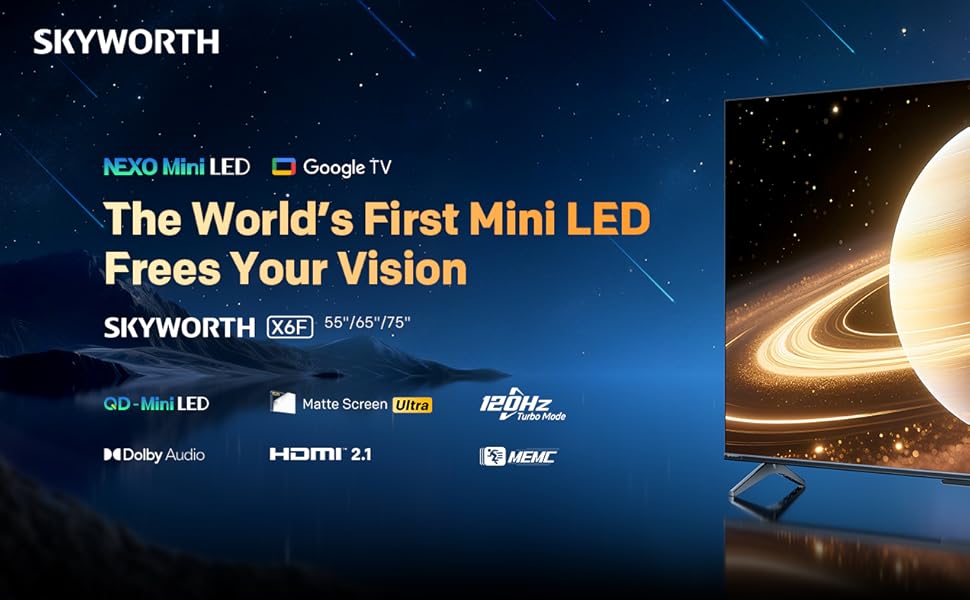
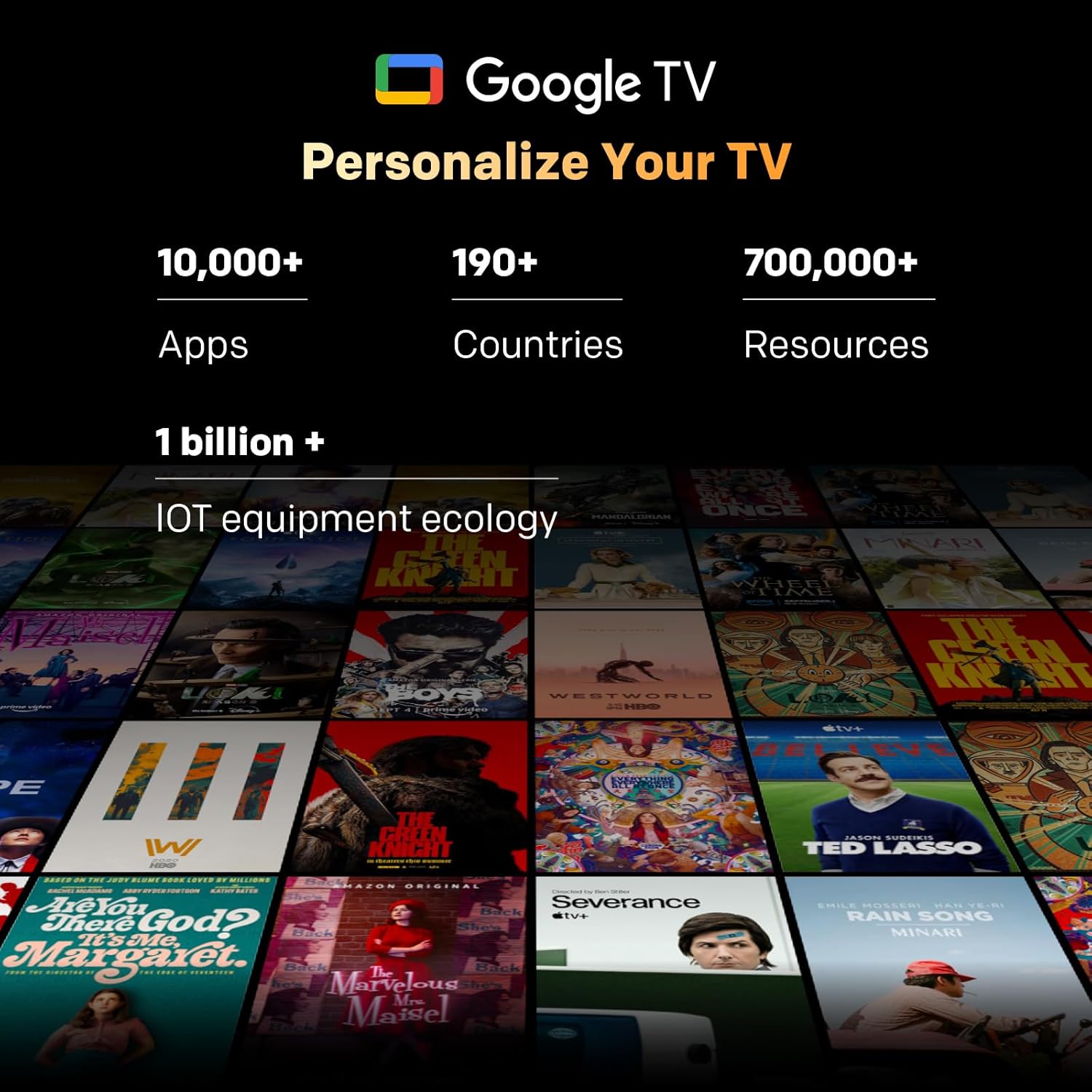
Image: A visual representation of the Google TV interface, showing various streaming content and app icons.
6. Кіраванне тэлевізарам
6.1 Функцыі дыстанцыйнага кіравання
The included remote control allows navigation and control of your TV. It features dedicated buttons for popular streaming services and a microphone for Google Assistant voice commands. The 'Find-My-Remote' feature can help locate a misplaced remote.
6.2 Навігацыя па Google TV
Google TV organizes content from your streaming services and apps into a unified interface. Use the directional pad on your remote to browse recommendations, access your app library, and adjust settings.
- Праграмы: Access pre-installed apps like Netflix, YouTube, and Prime Video, or download more from the Google Play Store.
- Памочнік Google: Press the Google Assistant button on your remote to use voice commands for searching content, controlling smart home devices, or getting information.
- Убудаваны Chromecast: Stream content directly from compatible devices (smartphones, tablets, computers) to your TV.
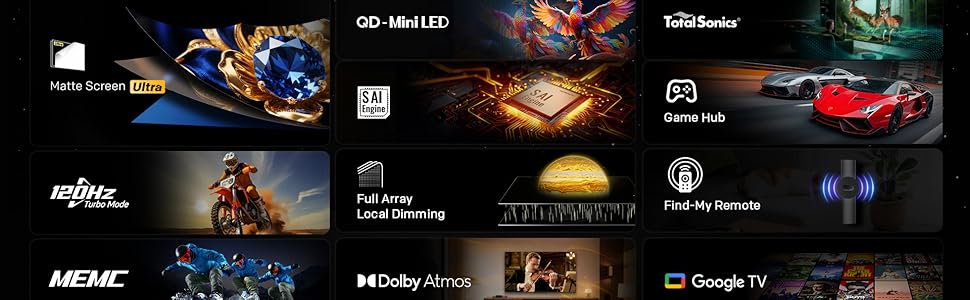
Image: The Google TV home screen, displaying a wide selection of movies, TV shows, and applications available for streaming.
6.3 Налады выявы
Access the picture settings menu to optimize your viewвопыту.
- Рэжымы выявы: Select from various preset modes (e.g., Standard, Vivid, Movie, Game) or customize settings like brightness, contrast, and color.
- HDR (шырокі дынамічны дыяпазон): The TV supports HDR10+ and Dolby Vision for enhanced contrast and color with compatible content.
- Лакальнае зацямненне: The Mini LED panel with 54-zone local dimming automatically adjusts backlight for deeper blacks and brighter whites.
- Eye Care 5.0 Display: This technology reduces blue light emission to minimize eye strain during prolonged viewінж.
- Рэжым кінематаграфіста: Activates settings that preserve the original aspect ratio, colors, and frame rates of films, as intended by the director.
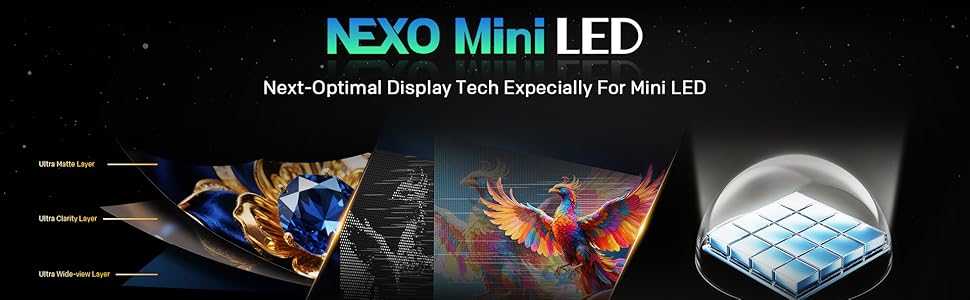
Image: A close-up of the Skyworth TV screen, highlighting the benefits of Mini LED technology for superior picture quality.
6.4 Налады гуку
Adjust audio settings for an immersive sound experience.
- Рэжымы гуку: Choose from presets like Standard, Music, Movie, or customize equalizer settings.
- Dolby Atmos: Experience multi-dimensional sound with Dolby Atmos-enabled content.
- DBX-ТБ: Enhances audio clarity and volume consistency.

Image: A graphic illustrating Skyworth's collaboration with Total Sonics for enhanced audio quality, featuring a sound engineer.
6.5 Гульнявыя функцыі
The TV is equipped with features to enhance your gaming experience:
- MEMC (ацэнка руху, кампенсацыя руху): Reduces motion blur and judder for smoother fast-paced action.
- Падтрымка HDMI 2.1: Provides higher bandwidth for features like 4K at higher refresh rates and Variable Refresh Rate (VRR) with compatible gaming consoles.
- Рэжым гульні: Optimizes input lag and picture settings for a more responsive gaming experience.
- Час водгуку 8 мс: Ensures quick pixel transitions for reduced ghosting.
Image: A visual demonstrating MEMC technology, showing horses in motion with reduced blur and enhanced clarity.
7. Тэхнічнае абслугоўванне
7.1 Ачыстка
- экран: Акуратна працярыце экран мяккай тканінай без ворса. Для выдалення ўстойлівых плям выкарыстоўвайце сродак для чысткі экранаў, спецыяльна прызначаны для тэлевізараў, наносячы яго на тканіну, а не непасрэдна на экран.
- Корпус тэлевізара: Wipe the TV frame and stand with a soft, dry cloth. Do not use abrasive cleaners or solvents.
- Заўсёды адключайце тэлевізар ад сеткі перад чысткай.
7.2 Абнаўленне праграмнага забеспячэння
Your TV may receive software updates to improve performance and add new features. Ensure your TV is connected to the internet. Updates can usually be found in the TV's settings menu under 'System' or 'About'.
8. Выпраўленне непаладак
Калі ў вас узніклі праблемы з тэлевізарам, звярніцеся да наступных распаўсюджаных рашэнняў:
| праблема | Рашэнне |
|---|---|
| Няма ўлады | Праверце, ці надзейна падключаны шнур сілкавання да тэлевізара і разеткі. Праверце разетку з дапамогай іншай прылады. |
| Няма выявы, але гук ёсць | Пераканайцеся, што выбрана правільная крыніца ўваходнага сігналу. Праверце падключэнне кабеляў да знешніх прылад. |
| Няма гуку, але выява ёсць | Check volume level and mute status. Verify audio output settings. |
| Пульт дыстанцыйнага кіравання не працуе | Replace batteries. Ensure no obstructions between the remote and the TV. Re-pair the remote if it's a Bluetooth remote. |
| Немагчыма падключыцца да Wi-Fi | Check Wi-Fi password. Restart your router. Ensure the TV is within range of the Wi-Fi signal. |
9. Тэхнічныя характарыстыкі
| Асаблівасць | Дэталь |
|---|---|
| Назва мадэлі | 55X6600H |
| Памер экрана | 55 цалі |
| Тэхналогія адлюстравання | Міні святлодыёд |
| дазвол | 3840x2160 (4K UHD) |
| Частата абнаўлення | 60Hz (with MEMC for smoother motion) |
| Падтрымка HDR | HDR10+, Dolby Vision |
| Лакальнае зацямненне | 54-зонны |
| Колеравая гама | 93% DCI-P3 |
| Аперацыйная сістэма | Google TV |
| Аўдыёвыхад | 2 x 12W Speakers (2.0 channel) |
| Аўдыётэхналогія | Dolby Atmos, DBX-TV |
| Сувязь | HDMI (3 ports, including HDMI 2.1), USB (1 port), Wi-Fi (Dual-band), Bluetooth 5.1, DVB-T2 Tuner |
| Час водгуку | 8 мс |
| Памеры (з падстаўкай) | 26.4 Г х 122.6 Ш х 78.2 В см |
| Вага | 9.8 кілаграма |
10. Інфармацыя аб гарантыі
The Skyworth 55X6600H TV comes with a 3-гадовая абмежаваная гарантыя. This warranty covers manufacturing defects under normal use. Please refer to the included Warranty Card for full terms and conditions, including details on coverage, exclusions, and how to make a claim.
11. Падтрымка кліентаў
For further assistance, technical support, or warranty inquiries, please contact Skyworth customer service. Contact details can typically be found on the Skyworth official webна сайце або ў гарантыйным талоне, які пастаўляецца з вашым прадуктам.