
Уводзіны
The EDUP Mini USB 3.0 WiFi 6E Adapter AX3000M provides high-speed wireless connectivity for your PC or laptop. Utilizing the latest WiFi 6E (802.11ax) technology, this adapter supports tri-band frequencies (6GHz, 5GHz, and 2.4GHz) to deliver fast and stable network performance. Its compact design and USB 3.0 interface ensure efficient data transfer and broad compatibility.
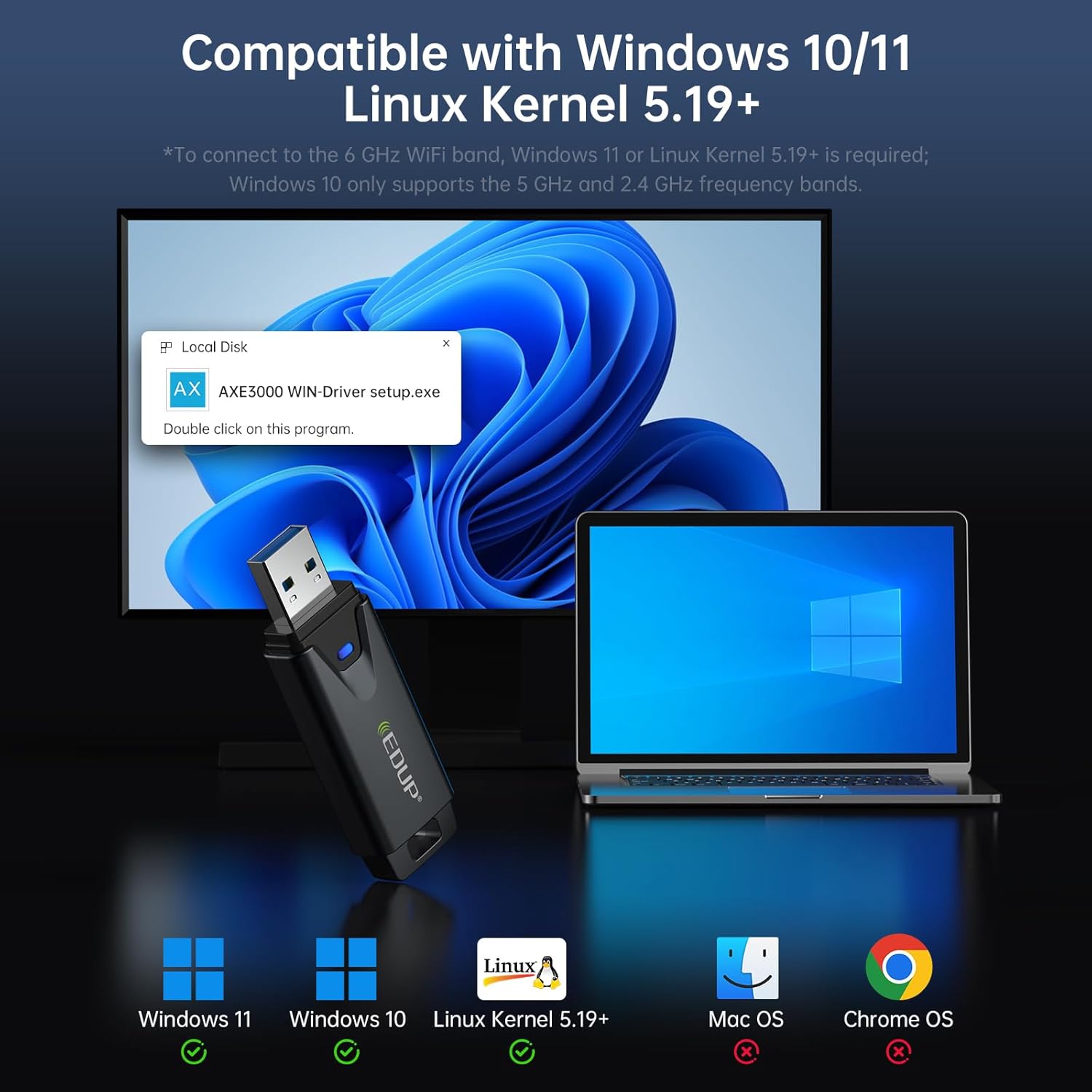
Image: The EDUP Mini USB 3.0 WiFi 6E Adapter AX3000M, a compact device designed for enhanced wireless connectivity.
Інструкцыя па наладзе
Follow these steps to install and configure your EDUP WiFi 6E Adapter.
Step 1: Insert the WiFi Adapter
Insert the EDUP WiFi 6E Adapter into an available USB 3.0 port on your desktop PC or laptop. For optimal performance, use a USB 3.0 port (typically identified by a blue interior).

Image: Visual guide illustrating the three easy steps for setting up the WiFi adapter: inserting into USB, installing the driver, and connecting to a network.
Step 2: Driver Installation (Windows 10/11)
For Windows 10 and Windows 11 operating systems, driver installation is required. The necessary driver is provided on a U disk included with the adapter. Alternatively, you can download the latest driver from the official EDUP webсайт: szedup.com/usb-adapters/EPAX1678.html.
- Insert the U disk into your computer.
- Locate the driver program (e.g., AXE3000 WIN-Driver setup.exe) on the U disk.
- Двойчы пстрыкніце ўстаноўку file to begin the installation. Follow the on-screen prompts to complete the process.
- If downloading, ensure you decompress the software before installation.
Step 3: Plug and Play (Linux)
For Linux operating systems (Kernel 5.19 or higher), the adapter supports plug-and-play functionality. No manual driver installation is typically required.
Step 4: Connect to a Wi-Fi Network
After successful driver installation (or plug-and-play for Linux), your computer should detect the WiFi adapter. You can then connect to an available Wi-Fi network:
- Click on the Wi-Fi icon in your system tray (Windows) or network manager (Linux).
- Выберыце патрэбную сетку Wi-Fi са спісу.
- Калі будзе прапанавана, увядзіце пароль сеткі.
- Click 'Connect' to establish the wireless connection.
Video: An official EDUP video demonstrating the setup and functionality of the Mini USB 3.0 Wi-Fi 6E Adapter AX3000M.
Operating the Adapter
The EDUP AX3000M adapter leverages WiFi 6E technology to provide a robust and high-performance wireless experience.
Трохдыяпазоннае падключэнне
The adapter supports three frequency bands:
- 2.4 ГГц: Да 600 Мбіт/с, ідэальна падыходзіць для базавага карыстання інтэрнэтам і больш шырокага пакрыцця.
- 5 ГГц: Up to 1200Mbps, suitable for high-speed activities like streaming and online gaming.
- 6 ГГц: Up to 1200Mbps, the new WiFi 6E band offering dedicated, interference-free channels for the fastest speeds and lowest latency. This band requires a compatible WiFi 6E router and Windows 11 or Linux Kernel 5.19+ for full functionality.
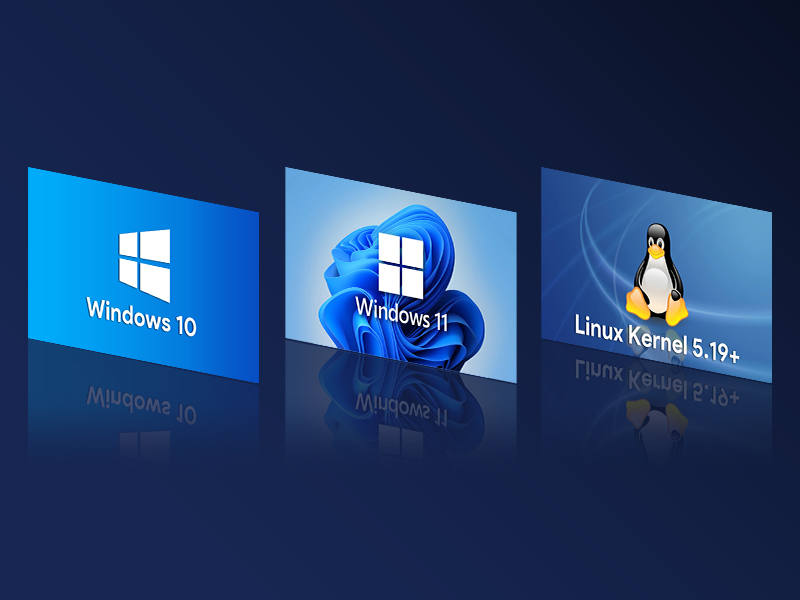
Image: A graphic illustrating the tri-band speeds of 6GHz (1200Mbps), 5GHz (1200Mbps), and 2.4GHz (600Mbps), highlighting their benefits for 8K streaming and responsive gaming.
Інтэрфейс USB 3.0
Equipped with a USB 3.0 interface, the adapter provides data transfer speeds up to 10 times faster than traditional USB 2.0. This ensures quicker response times for data transfers, smooth video streaming, and lag-free online gaming.
Бяспека WPA3
The adapter supports WPA3, the latest generation of Wi-Fi security, offering enhanced encryption and protection for your wireless network.
AP Function (Wi-Fi Hotspot)
The adapter can function as a Wi-Fi hotspot, allowing you to share your wired internet connection wirelessly with other devices.

Image: The EDUP WiFi 6E Adapter shown in different usage scenarios, including gaming, real-time meetings, and streaming shows, demonstrating its versatility.
Тэхнічнае абслугоўванне
To ensure the longevity and optimal performance of your EDUP WiFi 6E Adapter, consider the following maintenance tips:
- Трымайце яго ў чысціні: Regularly clean the adapter's exterior with a soft, dry cloth to prevent dust buildup, especially around the USB connector.
- Пазбягайце фізічных пашкоджанняў: Handle the adapter with care. Avoid dropping it or exposing it to excessive force, which can damage internal components or the USB connector.
- Правільнае захоўванне: When not in use, store the adapter in a safe place away from extreme temperatures and moisture.
- Цвёрдае злучэнне: Ensure the adapter is firmly seated in the USB port to maintain a stable connection. Avoid wiggling or bending the adapter while it's plugged in.
Ліквідацыю непаладак
If you encounter issues with your EDUP WiFi 6E Adapter, refer to the following common troubleshooting steps:
No Wi-Fi Connection or Adapter Not Detected
- Праверце USB-порт: Пераканайцеся, што адаптар надзейна падключаны да спраўнага порта USB. Паспрабуйце іншы порт USB, пажадана порт USB 3.0.
- Ўстаноўка драйвера: For Windows, verify that the driver is correctly installed. Re-install the driver if necessary, following the instructions in the Setup section.
- Дыспетчар прылад (Windows): Open Device Manager and check if the adapter is listed under 'Network adapters' without any error symbols. If there's an error, try updating or re-installing the driver.
- Перазагрузіце кампутар: Просты перазапуск часта можа вырашыць праблемы з выяўленнем.
Slow Speeds or Frequent Disconnections
- Блізкасць маршрутызатара: Ensure your computer is within a reasonable range of your Wi-Fi router. Obstacles like walls can degrade signal quality.
- Сумяшчальнасць з маршрутызатарам: To utilize 6GHz band speeds, ensure your router supports WiFi 6E. For Windows 10, only 2.4GHz and 5GHz bands are supported.
- Перашкоды: Other electronic devices (microwaves, cordless phones) can cause interference. Try moving the adapter or your computer away from such devices.
- USB 3.0 Interference: In some cases, USB 3.0 ports can cause interference with 2.4GHz Wi-Fi. If experiencing issues on 2.4GHz, try using a USB extension cable to move the adapter away from the computer's USB port.
- Абнаўленне драйвера: Check the EDUP website for any updated drivers that might improve performance or stability.

Image: A visual comparison showing a stable, uninterrupted Wi-Fi connection provided by the EDUP WiFi 6E USB Adapter versus frequent Wi-Fi dropouts experienced with another adapter.
Тэхнічныя характарыстыкі
| Асаблівасць | Апісанне |
|---|---|
| Нумар мадэлі | EP-AX1672 |
| Абсталяванне інтэрфейсу | USB 3.0 |
| бесправадной стандарт | 802.11ax (Wi-Fi 6E) |
| Дыяпазоны частот | 2.4 ГГц, 5 ГГц, 6 ГГц (трохдыяпазонны) |
| Хуткасць перадачы даных | Да 3000 Мбіт/с (600 Мбіт/с на 2.4 ГГц, 1200 Мбіт/с на 5 ГГц, 1200 Мбіт/с на 6 ГГц) |
| Сумяшчальныя аперацыйныя сістэмы | Windows 10 (32/64-bits), Windows 11 (64-bits), Linux (Kernel ≥ 5.19) |
| Пратаколы бяспекі | WPA3 |
| Вага прадмета | 1.13 унцыі |
| Памеры ўпакоўкі | 4.09 х 4.02 х 0.83 цалі |
Гарантыя і падтрымка
EDUP provides comprehensive support for its products:
- Гарантыя: This product comes with a 3-year manufacturer replacement warranty.
- Палітыка вяртання: A 90-day no-questions-asked return policy is available.
- Абслугоўванне кліентаў: For any assistance or inquiries, please contact us via Amazon message.