
1. Прадукт скончыўсяview
The TP-Link Archer GE400 is a high-performance Dual-Band BE6500 WiFi 7 Gaming Router designed to provide a stable and fast network experience, especially for gaming. It features advanced WiFi 7 technology, multi-gigabit ports, and dedicated gaming optimizations to reduce latency and enhance connectivity.
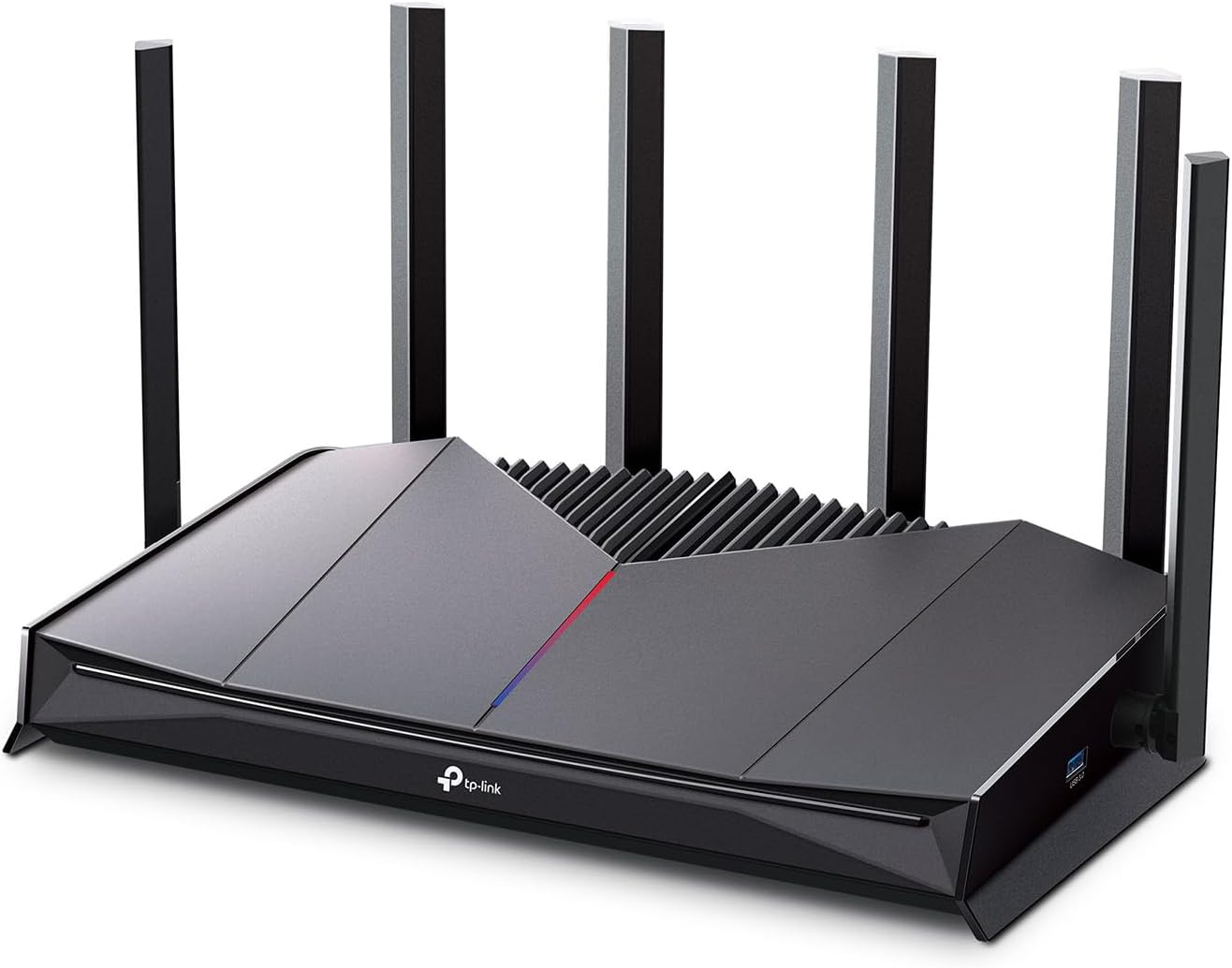
Выява: спераду view of the TP-Link Archer GE400 Dual-Band BE6500 WiFi 7 Gaming Router, showcasing its sleek design and six external antennas.
Асноўныя характарыстыкі:
- Двухдыяпазонны Wi-Fi 7: Offers combined speeds of up to 6.5 Gbps (5765 Mbps on 5 GHz and 688 Mbps on 2.4 GHz) for high-speed data transfer.
- Паскарэнне гульні: Includes a dedicated multi-gig gaming port, Quality of Service (QoS) for prioritizing game traffic, and game server acceleration via WTFast.
- Мультыгігабітныя парты: Equipped with 1x 2.5 Gbps WAN/LAN port, 1x 2.5 Gbps LAN port (dedicated gaming port), and 3x 1 Gbps LAN ports for versatile wired connections.
- Шырокае пакрыццё: Provides up to 2,600 sq. ft. of coverage for up to 90 devices, enhanced by 6 antennas and Beamforming technology.
- Сумяшчальнасць з EasyMesh: Allows for seamless expansion of WiFi coverage by adding compatible EasyMesh devices.
- TP-Link HomeShield: Integrated security service offering network protection, parental controls, and IoT device security.
- Інтуітыўна зразумелае кіраванне: Easy setup and management via the TP-Link Tether app or web інтэрфейс.
2. Што ў скрынцы
Перад пачаткам пераканайцеся, што ў вашай упакоўцы ёсць усе неабходныя рэчы:
- 1 x Wi-Fi 7 Router Archer GE400
- 1 х Кіраўніцтва па хуткай ўстаноўцы
- 1 х адаптар сілкавання
- 1 кабель Ethernet RJ45
3. Кіраўніцтва па наладцы
3.1 Падлучэнне абсталявання
- Выключэнне мадэма: Unplug your modem's power to turn it off.
- Падключэнне маршрутызатара: Connect the provided Ethernet cable from your modem's Ethernet port to the 2.5 Gbps WAN/LAN port (blue) on your Archer GE400 router.
- Уключэнне мадэма: Plug in and power on your modem. Wait for about 2 minutes for it to restart.
- Уключэнне маршрутызатара: Connect the power adapter to the router and plug it into a power outlet. Wait for the router to fully start up.
- Падключыце прылады: For wired connections, connect your gaming PC or console to the dedicated 2.5 Gbps Gaming Port (red) for prioritized traffic, or use any of the 1 Gbps LAN ports for other devices.

Выява: Крупны план view of the rear ports of the Archer GE400 router, highlighting the 2.5 Gbps WAN/LAN port, 2.5 Gbps Gaming Port, and 1 Gbps LAN ports.
3.2 Канфігурацыя сеткі
- Падключэнне да Wi-Fi маршрутызатара: On your computer or mobile device, connect to the default WiFi network name (SSID) printed on the label at the bottom of the router.
- Запуск Web Браўзэр: Адкрыйце a web браўзэр і ўвядзіце
http://tplinkwifi.netor the router's default IP address (usually192.168.0.1or192.168.1.1) у адрасным радку. - Стварыць пароль для ўваходу: Follow the on-screen instructions to create a new login password for the router.
- Выканайце хуткую наладу: The Quick Setup wizard will guide you through basic internet settings and WiFi network configuration.
- Спампаваць праграму Tether: For easier management, download the TP-Link Tether app from the App Store or Google Play.
Video: An introductory video for the Archer GE400, demonstrating its features and setup process.
4. Інструкцыя па эксплуатацыі
4.1 Паскарэнне гульні
The Archer GE400 is optimized for gaming performance:
- Выдзелены гульнявы порт: Connect your primary gaming device (PC, console) to the 2.5 Gbps Gaming Port for automatic traffic prioritization.
- Game QoS: Configure Quality of Service settings via the Tether app or web interface to prioritize gaming applications over other network traffic.
- Game Server Acceleration (WTFast): Utilize the integrated WTFast service to optimize connections to game servers, reducing ping and latency.

Image: Diagram illustrating the Archer GE400's gaming features, including Game Applications Boost with QoS, Prioritize Game Devices with the Gaming Port, and Game Server Acceleration by GPN.
4.2 WiFi 7 Connectivity
Leverage the advanced capabilities of WiFi 7 for a superior wireless experience:
- Праца ў двух дыяпазонах: The router operates on both 2.4 GHz and 5 GHz bands. The 5 GHz band offers higher speeds for demanding tasks like gaming and 4K/8K streaming, while the 2.4 GHz band provides wider coverage for general use.
- Шматканальная аперацыя (MLO): WiFi 7's MLO feature allows devices to use multiple frequency bands simultaneously, improving throughput and reducing latency.
- 4K-QAM: This modulation scheme packs more data into each signal, leading to higher speeds and efficiency.
4.3 EasyMesh Integration
Expand your network coverage with TP-Link EasyMesh:
- Бясшвоўны роўмінг: Add EasyMesh-compatible routers or range extenders to create a unified whole-home mesh network. Your devices will automatically switch to the strongest signal as you move around your home.
- Single WiFi Name: Enjoy a single network name (SSID) across your entire home, eliminating the need to manually switch between different networks.

Image: Illustration of an EasyMesh network setup with the Archer GE400, showing how it extends WiFi coverage throughout a home.
4.4 Бяспека HomeShield
Protect your network and devices with TP-Link HomeShield:
- Бяспека сеткі: Scans for network threats and vulnerabilities.
- Бацькоўскі кантроль: Manage internet access for children, including content filtering and time limits.
- IoT Device Protection: Provides security for smart home devices, preventing unauthorized access.

Image: Visual representation of TP-Link HomeShield features, including network threat scanning, WPA3 encryption, device blocking, and IoT device protection.
4.5 Dedicated Game Panel
Monitor and manage your gaming network with the intuitive Game Panel:
- Real-Time Stats: View network status, router performance, and accelerated game data.
- Кантроль RGB: Customize the router's RGB lighting settings.
- Прыярытызацыі прылады: Easily see and manage which devices are prioritized for gaming performance.

Image: Screenshot of the Archer GE400's dedicated game panel, showing network overview, device distribution, and gaming record features accessible via the Tether app.
5. Тэхнічнае абслугоўванне
To ensure optimal performance and longevity of your Archer GE400 router, follow these maintenance guidelines:
- Абнаўленні прашыўкі: Рэгулярна правярайце наяўнасць абнаўленняў прашыўкі і ўсталёўвайце іх праз праграму Tether або web інтэрфейс. Абнаўленні часта ўключаюць паляпшэнні прадукцыйнасці і патчы бяспекі.
- Звычайная перазагрузка: Reboot your router periodically (e.g., once a month) to clear its memory and refresh network connections.
- Фізічная ўборка: Keep the router in a well-ventilated area. Gently clean dust from the vents and surfaces using a soft, dry cloth. Avoid blocking ventilation openings.
- Network Security Scans: Utilize the HomeShield feature to perform regular network security scans to identify and address potential vulnerabilities.
6. Выпраўленне непаладак
If you encounter issues with your Archer GE400 router, try the following troubleshooting steps:
6.1 Няма доступу да Інтэрнэту
- Праверце кабелі: Пераканайцеся, што ўсе кабелі Ethernet надзейна падключаны да маршрутызатара і мадэма.
- Перазагрузка прылад: Выключыце мадэм і маршрутызатар. Пачакайце 30 секунд, а затым спачатку ўключыце мадэм. Пасля таго, як мадэм цалкам падключыцца да інтэрнэту, уключыце маршрутызатар.
- Verify Modem Status: Праверце індыкатары на вашым мадэме, каб пераканацца, што ён мае актыўнае падключэнне да Інтэрнэту.
- ISP Contact: If the modem lights indicate no internet, contact your Internet Service Provider (ISP).
6.2 Slow WiFi Speeds
- Размяшчэнне прылады: Ensure the router is centrally located and free from obstructions. Avoid placing it near large metal objects or other electronics that may cause interference.
- Выбар групы: For high-bandwidth activities, connect your devices to the 5 GHz WiFi band.
- Перашкоды: Check for potential sources of wireless interference (e.g., microwaves, cordless phones).
- QoS Settings: Review your QoS settings in the Tether app or web interface to ensure critical applications are prioritized correctly.
6.3 Dropped Connections
- Абнаўленне прашыўкі: Пераканайцеся, што прашыўка вашага маршрутызатара абноўлена.
- Моц сігналу: If connections drop frequently, your device might be too far from the router or experiencing signal interference. Consider using EasyMesh to extend coverage.
- Скінуць налады маршрутызатара: As a last resort, perform a factory reset. Use a pin to press and hold the Reset button on the back of the router for about 10 seconds until the LEDs flash. Note: This will erase all your custom settings.
7. Тэхнічныя характарыстыкі
Detailed technical specifications for the TP-Link Archer GE400 router:
| Марка | TP-Link |
| Назва мадэлі | Dual-Band GE6500 WiFi 7 Gaming Router |
| Нумар мадэлі | Archer GE400 |
| Клас дыяпазону частот | Двухдыяпазонны |
| Стандарт бесправадной сувязі | 802.11.be, 802.11ac, 802.11ax, 802.11g, 802.11n |
| Хуткасць перадачы даных | 6500 мегабіт у секунду |
| Прапускная здольнасць порта лакальнай сеткі | 1 x 2.5 Gbps WAN/LAN, 1 x 2.5 Gbps LAN (Gaming Port), 3 x 1 Gbps LAN |
| Колькасць антэн | 6 |
| Пакрыццё | Да 2,600 кв. футаў. |
| Сумяшчальныя прылады | Гульнявая прыстаўка, персанальны камп'ютар, разумны тэлевізар, смартфон, планшэт |
| Пратакол бяспекі | WPA-PSK, WPA2-PSK, WPA3 |
| Метад кантролю | App (TP-Link Tether) |
| Аперацыйная сістэма | Linux |
| Памеры прадмета (Д х Ш х У) | 10.57 см Д х 6.02 см Ш х 2.31 см В |
| Вага прадмета | 1.43 фунта |
8. Гарантыя і падтрымка
8.1 Інфармацыя аб гарантыі
The TP-Link Archer GE400 Dual-Band BE6500 WiFi 7 Gaming Router comes with a 2 гады гарантыі ад вытворцыКалі ласка, захавайце пацвярджэнне пакупкі для прэтэнзій па гарантыі.
8.2 Тэхнічная падтрымка
For further assistance, technical support, or to access the latest drivers and firmware, please visit the official TP-Link webсайт:
Вы таксама можаце знайсці часта задаваныя пытанні і форумы супольнасці на старонках падтрымкі TP-Link.