
Уводзіны
Thank you for choosing the ProtoArc KM310 Wireless Mechanical Keyboard and Mouse. This combo offers a responsive typing experience with low-profile linear red switches and versatile multi-device connectivity. The ergonomic mouse is designed for comfort and precision. This manual provides detailed instructions for setup, operation, maintenance, and troubleshooting to ensure optimal performance.
Што ў скрынцы

Image: Contents of the ProtoArc KM310 package, including the keyboard, mouse, charging cable, and user manual.
- ProtoArc KM310 Wireless Mechanical Keyboard
- Бесправадная мыш ProtoArc
- Зарадны кабель USB-C
- Кіраўніцтва карыстальніка
Прадукт скончаныview
Асаблівасці клавіятуры

Выява: буйны план view of the ProtoArc KM310 keyboard, highlighting its low-profile keys and linear red switches.
- Нізкі-Profile Механічныя ключы: Equipped with linear red switches for a smooth, quiet, and responsive typing experience.
- Aluminum Top Case: Provides durability and a sleek, modern aesthetic.
- Рэгуляваныя па нахіле ножкі: Ergonomically designed with 2-stage foot mats offering 6° and 9° tilt options for comfortable typing.
- Поўнапамерны макет: A 108-key layout suitable for office and business use.
Асаблівасці мышы

Image: The ProtoArc KM310 mouse being held, showcasing its ergonomic design for a natural grip.
- 63G Ultra-Lightweight: Reduces hand fatigue during extended use and enhances portability.
- Эрганамічны дызайн: Contoured shape for a comfortable and natural grip.
- Рэгуляваны DPI: Three DPI levels (1000/1600/2400) for tailored control and precision.
- Бясшумны клік: Распрацаваны для ціхай працы.
- Кнопкі наперад/назад: Integrated for seamless browsing.
Падключэнне і харчаванне
- Падключэнне некалькіх прылад: Connects up to 3 devices via 2.4G USB receiver or Dual Bluetooth (BT1, BT2).
- Акумулятарная: Both keyboard and mouse feature Type-C charging. The mouse's USB receiver is stored on its bottom.
- Доўгі тэрмін службы батарэі: Up to 150-200 days standby time; 2-3 hours for a full charge.
Інструкцыя па наладзе
1. Зарадка прылад

Image: The keyboard and mouse are shown connected to power sources via USB-C cables for charging.
- Падключыце зарадны кабель USB-C з камплекта пастаўкі да зараднага порта на клавіятуры (размешчаны на верхнім краі) і мышы (размешчаны на пярэднім краі).
- Падключыце другі канец кабеля да крыніцы харчавання USB (напрыклад, USB-порт кампутара, насценны адаптар USB).
- The indicator lights will show charging status. Allow 2-3 hours for a full charge.
2. Падключэнне да прылад

Image: A desk setup showing the ProtoArc KM310 keyboard and mouse connected to a laptop, monitor, and tablet, illustrating multi-device capability.
The KM310 combo supports three connection modes: 2.4G wireless via USB receiver, Bluetooth 1 (BT1), and Bluetooth 2 (BT2).
2.1. Бесправадное злучэнне 2.4G
- Знайдзіце USB-прыёмнік, які знаходзіцца ў адсеку ў ніжняй частцы мышы.
- Падключыце USB-прыёмнік да вольнага порта USB на вашым кампутары.
- Уключыце клавіятуру і мыш, выкарыстоўваючы адпаведныя выключальнікі харчавання.
- The devices should connect automatically.
2.2. Падключэнне Bluetooth (BT1 / BT2)
- Уключыце клавіятуру і мыш.
- На клавіятуры націсніце BT1 or BT2 key (usually located on the number pad, indicated by orange keycaps) to select the desired Bluetooth channel. The indicator light will flash.
- On your device (computer, tablet, etc.), go to Bluetooth settings and search for "ProtoArc KM310 Keyboard" and "ProtoArc KM310 Mouse".
- Select the devices to pair. The indicator light will stop flashing once connected.
- Repeat for a second Bluetooth device using the other BT channel.
2.3. Пераключэнне паміж прыладамі
To switch between connected devices, simply press the corresponding connection key on the keyboard (2.4G, BT1, or BT2) and the channel switch button on the bottom of the mouse.
Інструкцыя па эксплуатацыі
Выкарыстанне клавіятуры
- Увод: Нізкапрафесійныfile linear red switches provide a responsive and quiet typing experience.
- Сумяшчальнасць з аперацыйнай сістэмай: The keyboard is compatible with Windows and Mac OS. Keys like 'Win' and 'Alt' also show 'Option' and 'Cmd' for Mac users.
- Рэгуляванне нахілу: Use the adjustable tilt legs on the underside of the keyboard to set your preferred typing angle (6° or 9°).
Выкарыстанне мышы
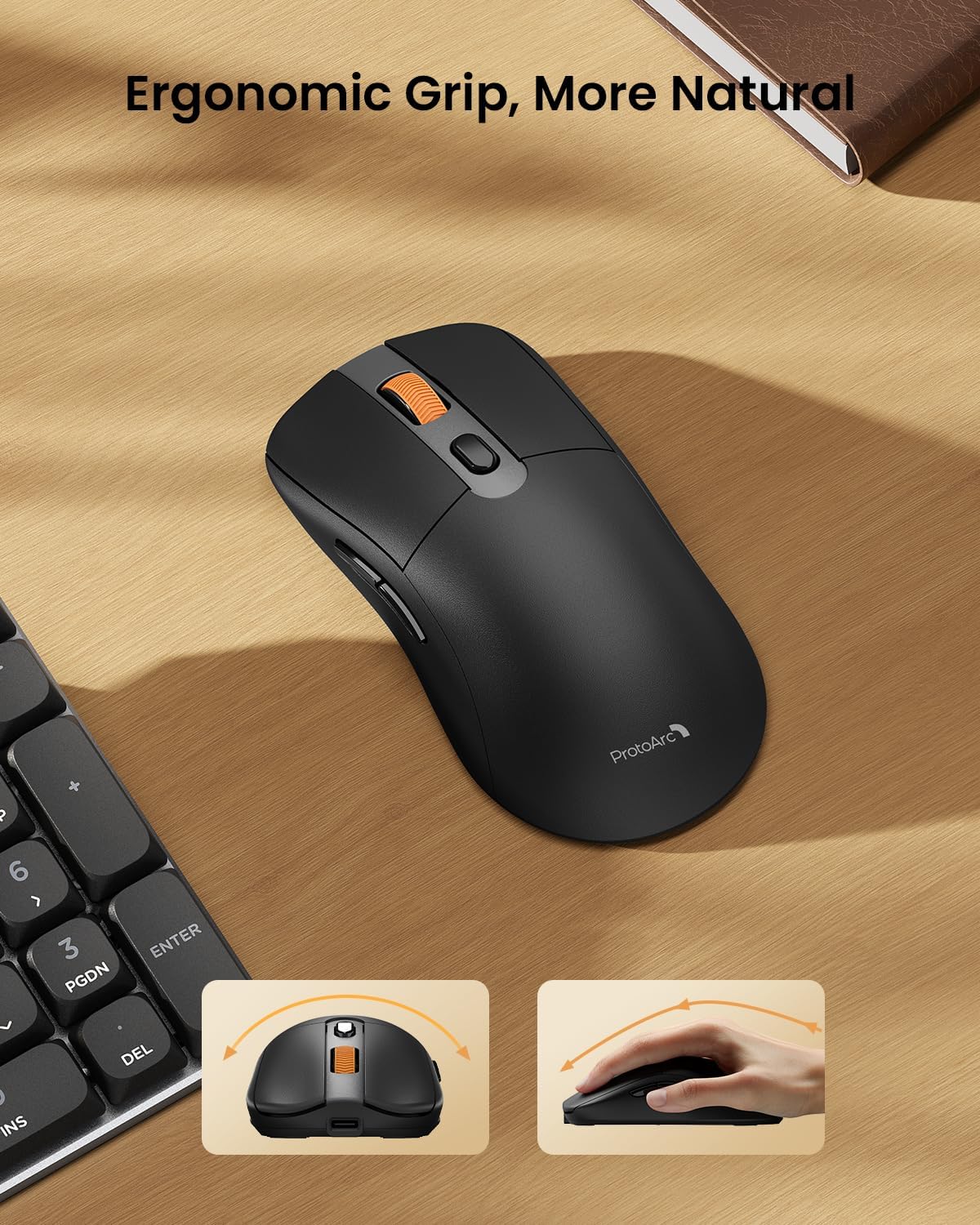
Image: A close-up of the ProtoArc KM310 mouse, illustrating the three adjustable DPI settings (1000, 1600, 2400).
- Рэгуляванне DPI: Press the DPI switch button (usually located near the scroll wheel) to cycle through the 3 DPI levels (1000/1600/2400) to match your preference for cursor speed and precision.
- Кнопкі навігацыі: Use the forward and backward buttons on the side of the mouse for quick navigation in web браўзэры або file даследчыкі.
- Бясшумныя клікі: The mouse features silent click buttons for a quiet working environment.
Тэхнічнае абслугоўванне
- Уборка: Выкарыстоўвайце мяккую сухую тканіну для працірання клавіятуры і мышы. Для ўстойлівага бруду злёгкуamp можна выкарыстоўваць тканіну з мяккім мылам, сачыце за тым, каб вадкасць не патрапіла ўнутр прылады.
- Сыход за батарэяй: Recharge the devices when the battery indicator is low. Avoid prolonged exposure to extreme temperatures.
- захоўванне: When not in use for extended periods, turn off the devices to conserve battery life. Store the USB receiver inside the mouse to prevent loss.
Ліквідацыю непаладак
Keyboard/Mouse Not Turning On or Stopping Working
- Праверце акумулятар: Ensure both the keyboard and mouse are sufficiently charged. Connect them to a power source using the USB-C cable.
- Рамонт прылад:
- For 2.4G connection, ensure the USB receiver is securely plugged in and the devices are set to 2.4G mode.
- For Bluetooth connection, ensure the devices are set to the correct BT channel (BT1 or BT2) and re-pair them through your device's Bluetooth settings.
- Паспрабуйце іншы кабель: If charging issues persist, try using a different USB-C cable to rule out a faulty cable.
- Перашкоды: Перамясціце прылады бліжэй да камп'ютара або далей ад іншых бесправадных прылад, якія могуць выклікаць перашкоды.
- Звязацца са службай падтрымкі: If the issue persists, please contact ProtoArc customer support for further assistance.
Тэхнічныя характарыстыкі
| Нумар мадэлі | КМ310 |
| Марка | Пратаарк |
| Колер | Касмічны шэры |
| Тэхналогія падлучэння | Bluetooth, USB (2.4G Wireless) |
| Асаблівасці | Нізкі Profile Keys, Linear Red Switches, Ergonomic Design, Ultra-Light Mouse, Ergonomic Mouse |
| Сумяшчальныя прылады | Laptop, Personal Computer, Tablet (Windows 7/8/10, Mac OS X 10.12, Android 4.3 or higher) |
| Вага прадмета | 2.31 фунта |
| Памеры ўпакоўкі | 17.68 х 8.07 х 2.05 цалі |
Гарантыя і падтрымка
The ProtoArc KM310 Mechanical Keyboard and Mouse combo comes with a Гарантыя 2 год.
For any questions, technical support, or warranty claims, please contact ProtoArc customer service:
- электронная пошта: support@protoarc.com
- тэлефон: +1 866-287-8188
Афіцыйнае відэа пра прадукт
Відэа: Афіцыйная відэапрэзентацыя прадуктуasing the features and design of the ProtoArc KM310 Aluminum Mechanical Keyboard and Mouse.