
1. Уводзіны
This manual provides essential information for setting up, operating, maintaining, and troubleshooting your Auusda 16-inch FHD Laptop T161N. Please read this manual thoroughly before using your device to ensure proper function and longevity.
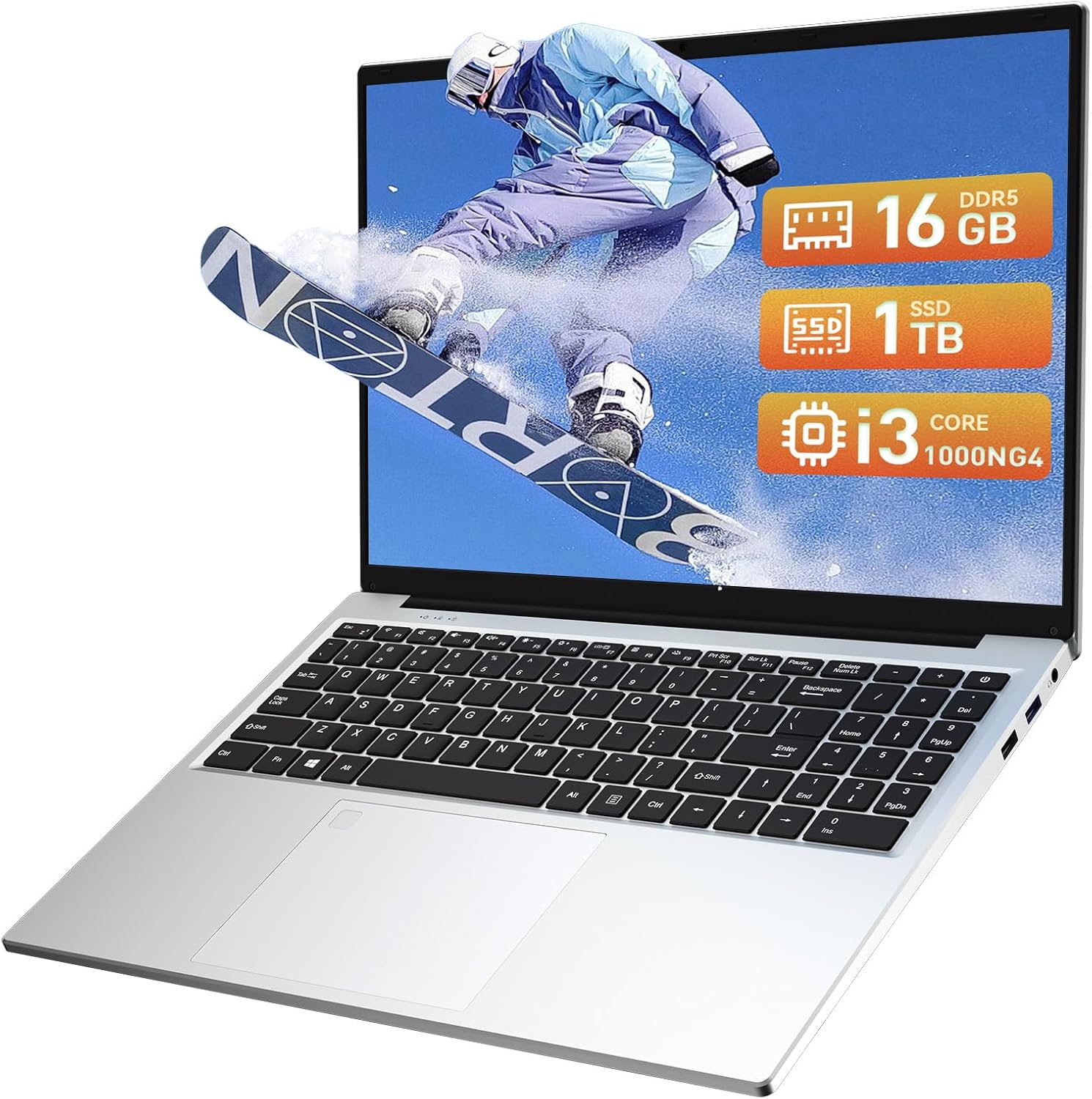
Image: The Auusda 16-inch FHD Laptop T161N, showcasinяго элегантны дызайн і экран.
2. Што ў скрынцы
Upon opening your Auusda T161N laptop package, verify that all the following items are included:
- Auusda 16-inch FHD Laptop T161N
- Адаптар сілкавання/зарадная прылада
- Інструкцыя па эксплуатацыі (гэты дакумент)
- Чахол для клавіятуры

Image: A visual representation of the items included in the Auusda T161N laptop packaging.
3. Прадукт скончыўсяview
3.1 Асноўныя магчымасці
- Дысплей: 16-inch Full HD (1920x1080) IPS screen with 180° viewкут нахілу.
- Працэсар: Intel Core i3-1000NG4 (up to 3.2GHz).
- Памяць: 16 ГБ аператыўнай памяці DDR4.
- захоўванне: 1TB PCIe SSD.
- Падключэнне: Wi-Fi 6, Bluetooth 5.3.
- Бяспека: Счытвальнік адбіткаў пальцаў.
- Увод: Backlit Keyboard.
- Аперацыйная сістэма: Windows 11 Pro.
3.2 Парты і раздымы
The Auusda T161N laptop is equipped with various ports for versatile connectivity:
- Парты USB 3.0 (x2)
- Full-Function Type-C Port (x1) - Supports data transfer, screen mirroring, and charging.
- Порт USB 2.0 (x1)
- Mini HDMI Port (x1)
- 3.5mm Standard Headphone Jack (x1)
- Microphone Input (shared with headphone jack)
- Порт для зарадкі

Image: A detailed diagram illustrating the location and type of ports on the Auusda T161N laptop.
3.3 Візуальны оверview
Відэа: Оверview of the Auusda 16-inch FHD Laptop T161N, demonstrating its design and key features.
4. Настройка
4.1 Першапачатковая зарадка
- Connect the power adapter to the charging port on the laptop.
- Падключыце адаптар сілкавання да насценнай разеткі.
- Перад першым выкарыстаннем дайце ноўтбуку зарадзіцца не менш за 30 хвілін або пакуль індыкатар батарэі не пакажа дастатковы зарад.
4.2 Уключэнне і пачатковая налада Windows
- Націсніце кнопку харчавання, размешчаную на клавіятуры, каб уключыць ноўтбук.
- Выконвайце інструкцыі на экране, каб завяршыць працэс усталёўкі Windows 11 Pro. Гэта ўключае выбар рэгіёна, мовы, падключэнне да сеткі Wi-Fi і стварэнне ўліковага запісу карыстальніка.
- Ensure you have an active internet connection for Windows updates and driver installations during the setup.
5. Інструкцыя па эксплуатацыі
5.1 Keyboard Functions (Fn + Function Keys)
The laptop features a full-size keyboard with dedicated function keys that can be accessed by pressing the Fn клавішу ў спалучэнні з адпаведнай функцыянальнай клавішай (F1-F12).
- Клавіятура з падсветкай: Прэса Fn + F9 to cycle through 2 brightness levels. Pressing it a third time turns the backlight off.
- Num Lock: Прэса Fn + Num Lk to toggle the numeric keypad on or off.
- Рэгулятар гучнасці: Выкарыстоўвайце Fn + Speaker keys (F1-F3) to mute, decrease, or increase volume.
- Кантроль яркасці: Выкарыстоўвайце Fn + Sun keys (F4-F5) to decrease or increase screen brightness.

Image: A visual guide to using the Fn (Function) keys on the Auusda T161N keyboard for various controls.
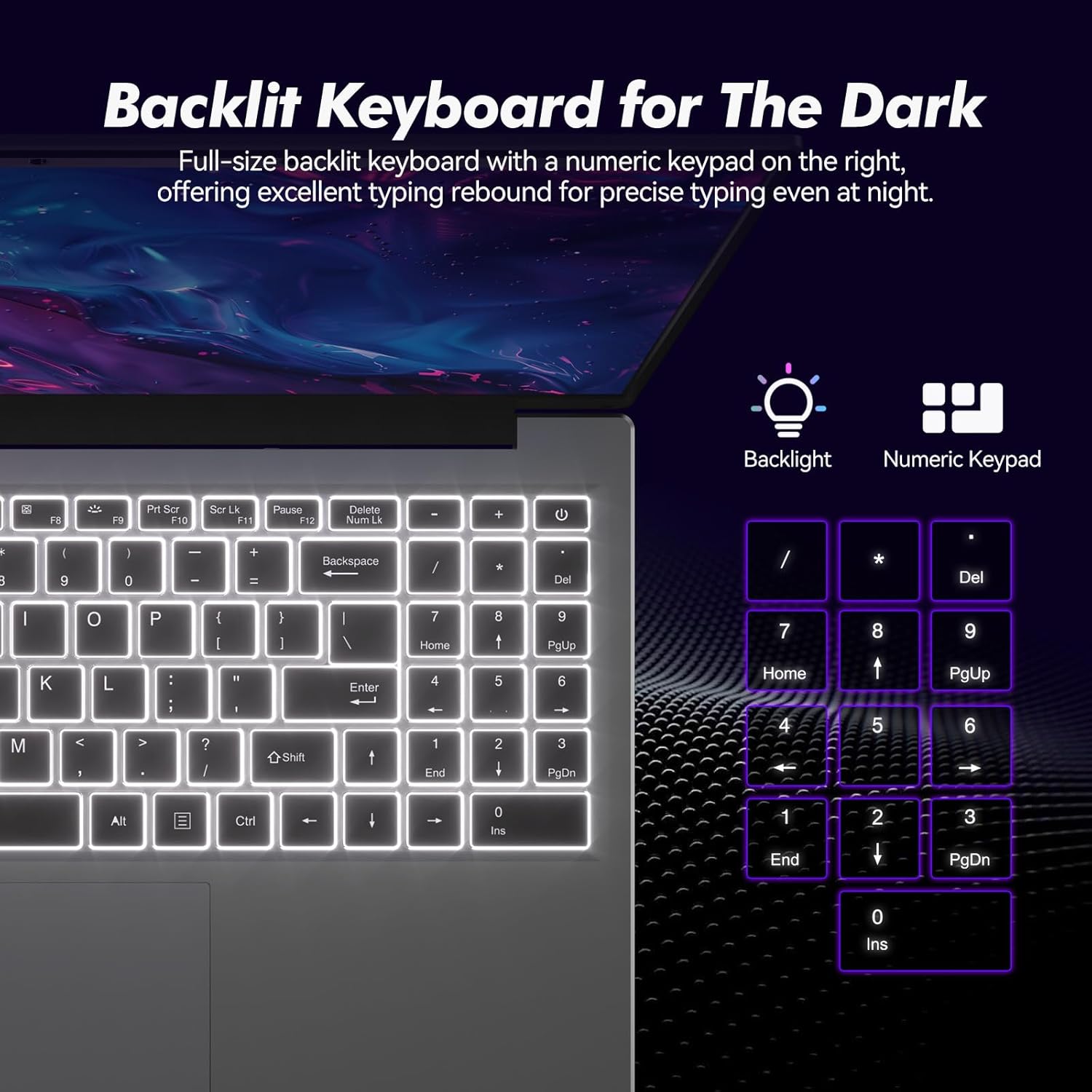
Выява: Крупны план view of the backlit keyboard and numeric keypad, highlighting their functionality.
5.2 Счытвальнік адбіткаў пальцаў
The integrated fingerprint reader provides a secure and fast way to unlock your laptop. To set up fingerprint recognition:
- Перайдзіце ў раздзел «Налады Windows» > «Уліковыя запісы» > «Параметры ўваходу».
- Under 'Windows Hello Fingerprint', click 'Set up'.
- Follow the on-screen prompts to register your fingerprint.
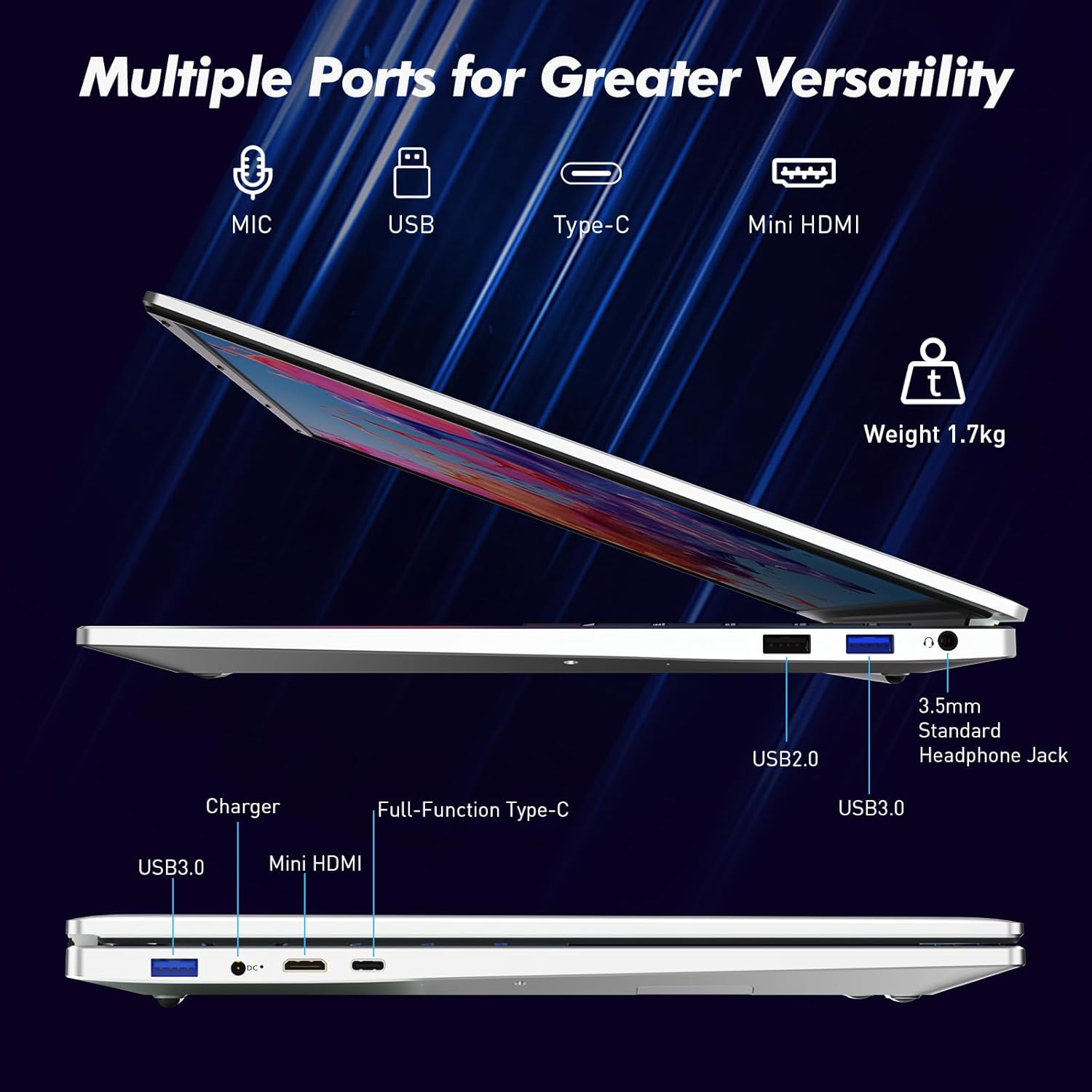
Image: A visual representation of the fingerprint reader location and its quick unlock capability.
5.3 Type-C Connectivity
The full-function Type-C port offers versatile connectivity options:
- Перадача дадзеных: Connect compatible devices for high-speed data exchange.
- Адлюстраванне экрана: Output video to an external display using a compatible Type-C to HDMI/DisplayPort adapter (sold separately).
- Зарадка: Charge the laptop using a compatible Type-C power delivery charger.
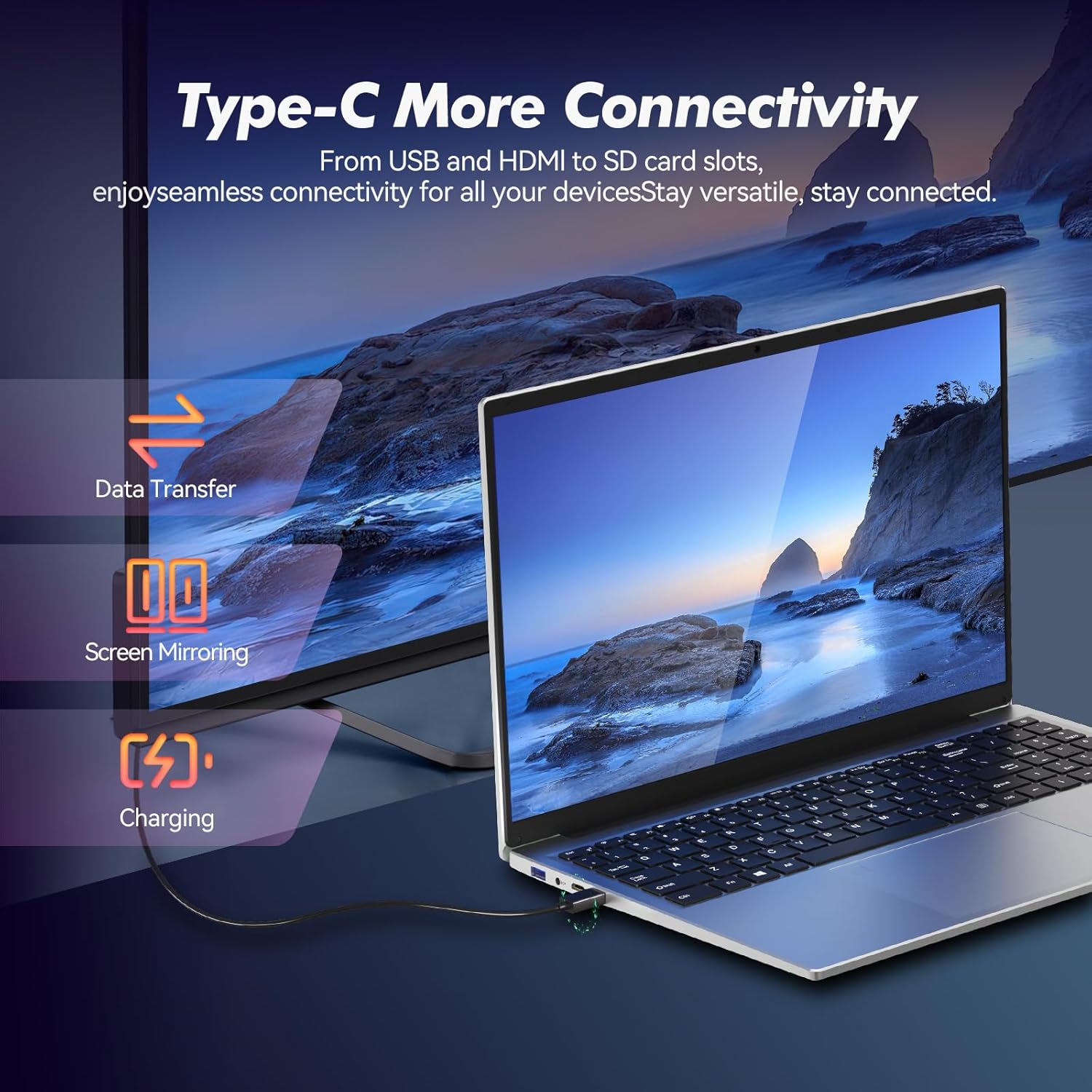
Image: Illustrates the multi-functional capabilities of the Type-C port, including data transfer, screen mirroring, and charging.
5.4 Wi-Fi 6 and Bluetooth 5.3
The laptop supports Wi-Fi 6 for faster and more stable wireless internet connections and Bluetooth 5.3 for connecting wireless peripherals.
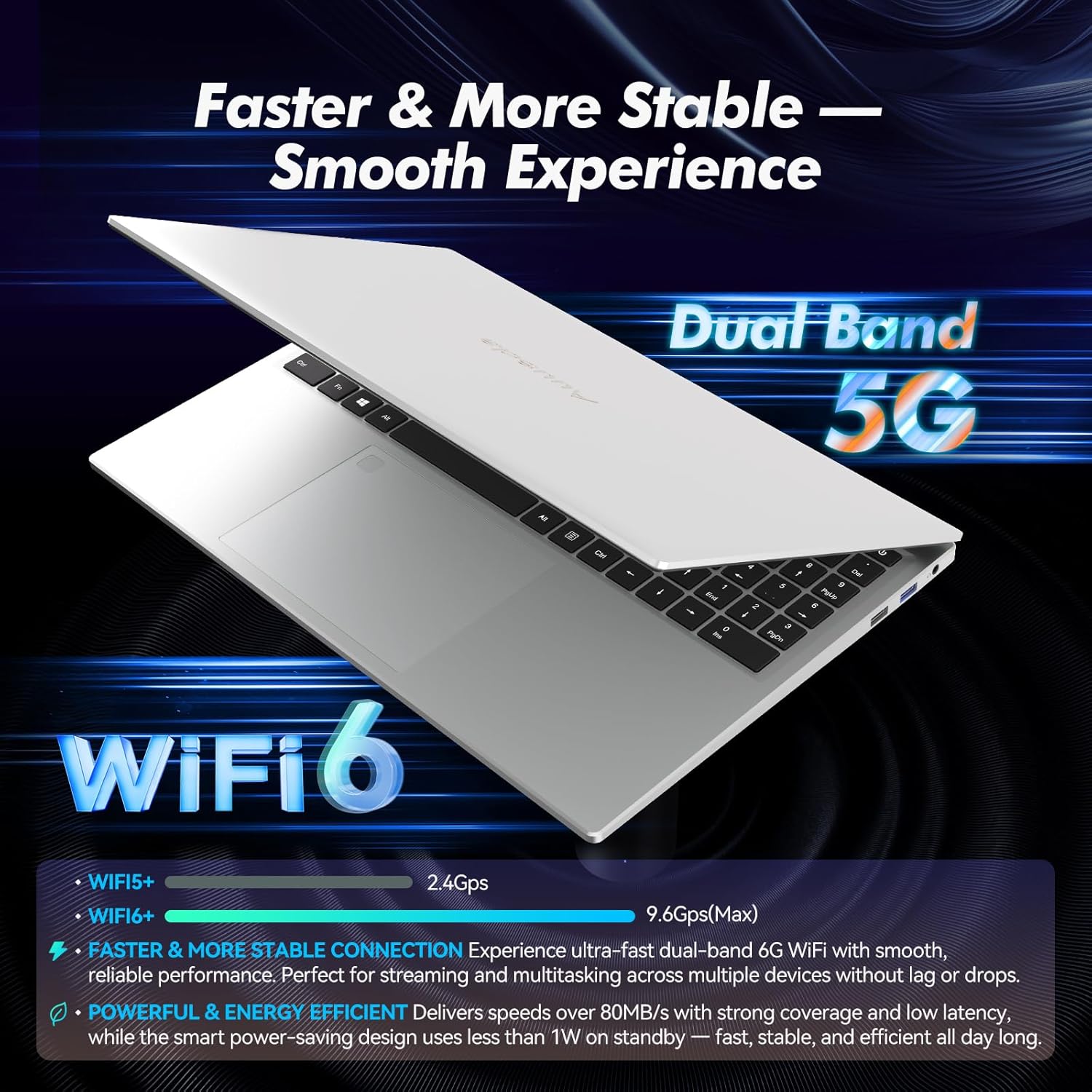
Image: Highlights the advanced wireless connectivity of the laptop, including Wi-Fi 6 and Dual Band 5G support.
6. Тэхнічныя характарыстыкі
Below are the detailed technical specifications for the Auusda 16-inch FHD Laptop T161N:
| Асаблівасць | Спецыфікацыя |
|---|---|
| Нумар мадэлі | Т161Н |
| Памер экрана | 16 цалі |
| Дазвол экрана | 1920 x 1080 пікселяў (FHD) |
| Працэсар | Intel Core i3-1000NG4 (1.09 GHz, up to 3.2 GHz) |
| АЗП | 16 ГБ DDR4 SDRAM |
| Жорсткі дыск | 1 ТБ цвёрдацельны дыск (PCIe) |
| Графічны супрацэсар | Iris Plus Graphics G4 48EUs (Integrated) |
| Аперацыйная сістэма | Windows 11 Pro |
| Бесправадны тып | 802.11ax (Wi-Fi 6), Bluetooth 5.3 |
| Парты USB 3.0 | 2 |
| Парты USB 2.0 | 1 |
| Вага прадмета | 5.21 фунта |
| Памеры прадукту | 14.17 х 10.83 х 0.71 цалі |
| Колер | Серабро |
| Батарэі | 1 батарэйка 12 В (у камплекце) |
7. Тэхнічнае абслугоўванне
Regular maintenance helps ensure the optimal performance and longevity of your laptop.
7.1 Ачыстка
- Для чысткі экрана і вонкавых паверхняў выкарыстоўвайце мяккую тканіну без ворса. Для выдалення ўстойлівых плям злёгкуampпрацярыце тканіну вадой або сродкам для ачысткі экрана.
- Пазбягайце распылення вадкасцей непасрэдна на ноўтбук.
- Выкарыстоўвайце сціснутае паветра, каб ачысціць пыл з клавіш клавіятуры і вентыляцыйных рашотак.
7.2 Абнаўленне праграмнага забеспячэння
- Рэгулярна правярайце наяўнасць абнаўленняў Windows і ўсталёўвайце іх, каб забяспечыць стабільнасць і бяспеку сістэмы. Перайдзіце ў раздзел «Налады» > «Цэнтр абнаўлення Windows».
- Keep your drivers updated. Windows Update typically handles this, but you may occasionally need to check the Auusda support website for specific driver updates.
7.3 Сыход за акумулятарам
- Пазбягайце частай поўнай разрадкі акумулятара.
- Захоўвайце ноўтбук у прахалодным, сухім месцы, калі ён не выкарыстоўваецца працяглы час.
8. Выпраўленне непаладак
У гэтым раздзеле разглядаюцца распаўсюджаныя праблемы, з якімі вы можаце сутыкнуцца пры выкарыстанні ноўтбука.
8.1 Ноўтбук не ўключаецца
- Пераканайцеся, што адаптар сілкавання надзейна падключаны як да ноўтбука, так і да спраўнай разеткі.
- Праверце працаздольнасць разеткі, падключыўшы да яе іншую прыладу.
- Калі акумулятар цалкам разрадзіўся, дайце яму зарадзіцца не менш за 15-30 хвілін, перш чым спрабаваць зноў уключыць прыладу.
8.2 Праблемы з падключэннем да Wi-Fi
- Check if Wi-Fi is enabled in Windows settings (Settings > Network & internet > Wi-Fi).
- Перазагрузіце маршрутызатар і мадэм.
- Пераканайцеся, што вы знаходзіцеся ў зоне дзеяння вашай сеткі Wi-Fi.
- Update your Wi-Fi drivers if necessary.
8.3 Клавіятура або сэнсарная панэль не рэагуюць
- Перазагрузіце ноўтбук.
- Check for any physical obstructions or debris under the keys or on the touchpad.
- Ensure the touchpad has not been accidentally disabled (some laptops have a function key or a setting to toggle the touchpad).
Каб атрымаць дадатковую дапамогу, звярніцеся да раздзела падтрымкі ніжэй.
9. Гарантыя і падтрымка
Auusda provides customer support and warranty services for its products.
9.1 Інфармацыя аб гарантыі
Auusda laptops typically come with a two-year after-sales service period. Please retain your proof of purchase for warranty claims.
9.2 Падтрымка кліентаў
If you encounter issues or require technical assistance, please contact Auusda customer support:
- Падтрымка па электроннай пошце: Send your order number and a video demonstrating the problem to Auusda.ltd@gmail.com.
- Amazon Buyer Account: Log in to your Amazon buyer account, find your order, and click "Get Help" or "Ask questions" for direct support.