
1. Уводзіны
This manual provides instructions for the setup, operation, and maintenance of your EVICIV 15.6-inch Portable Monitor, Model EC156FHD. This monitor is designed to extend your display capabilities for various devices, including laptops, smartphones, and game consoles, offering a Full HD 1080p resolution display with a 125% sRGB color gamut.
2. Змесціва ўпакоўкі
Перад тым, як працягнуць наладу, пераканайцеся, што ў камплекце ёсць усе пералічаныя ніжэй элементы:
- 15.6" Portable Monitor
- Міні-кабель HDMI
- Кабель Type-C - Type-C
- Кабель USB-A да USB-C
- Кіраўніцтва карыстальніка

Калі якія-небудзь элементы адсутнічаюць або пашкоджаныя, звярніцеся ў службу падтрымкі кліентаў.
3. Манітор надview
3.1 Фізічныя асаблівасці
The EVICIV portable monitor features an ultra-slim design with narrow bezels, maximizing screen area and minimizing visual distractions. It is lightweight for portability.

3.2 Парты і элементы кіравання
The monitor is equipped with various ports and controls for versatile connectivity and easy navigation:
- Порт Mini HDMI: For video input from devices with HDMI output.
- Парты USB-C 3.1 (x2): For power, video, and data transmission with compatible devices.
- 3.5 мм аўдыяраз'ём: Для падлучэння знешніх навушнікаў або дынамікаў.
- Pulley Button/Menu: Used to navigate the On-Screen Display (OSD) menu and adjust settings.
- Кнопка вяртання/харчавання: Used to power the monitor on/off and return from OSD menus.
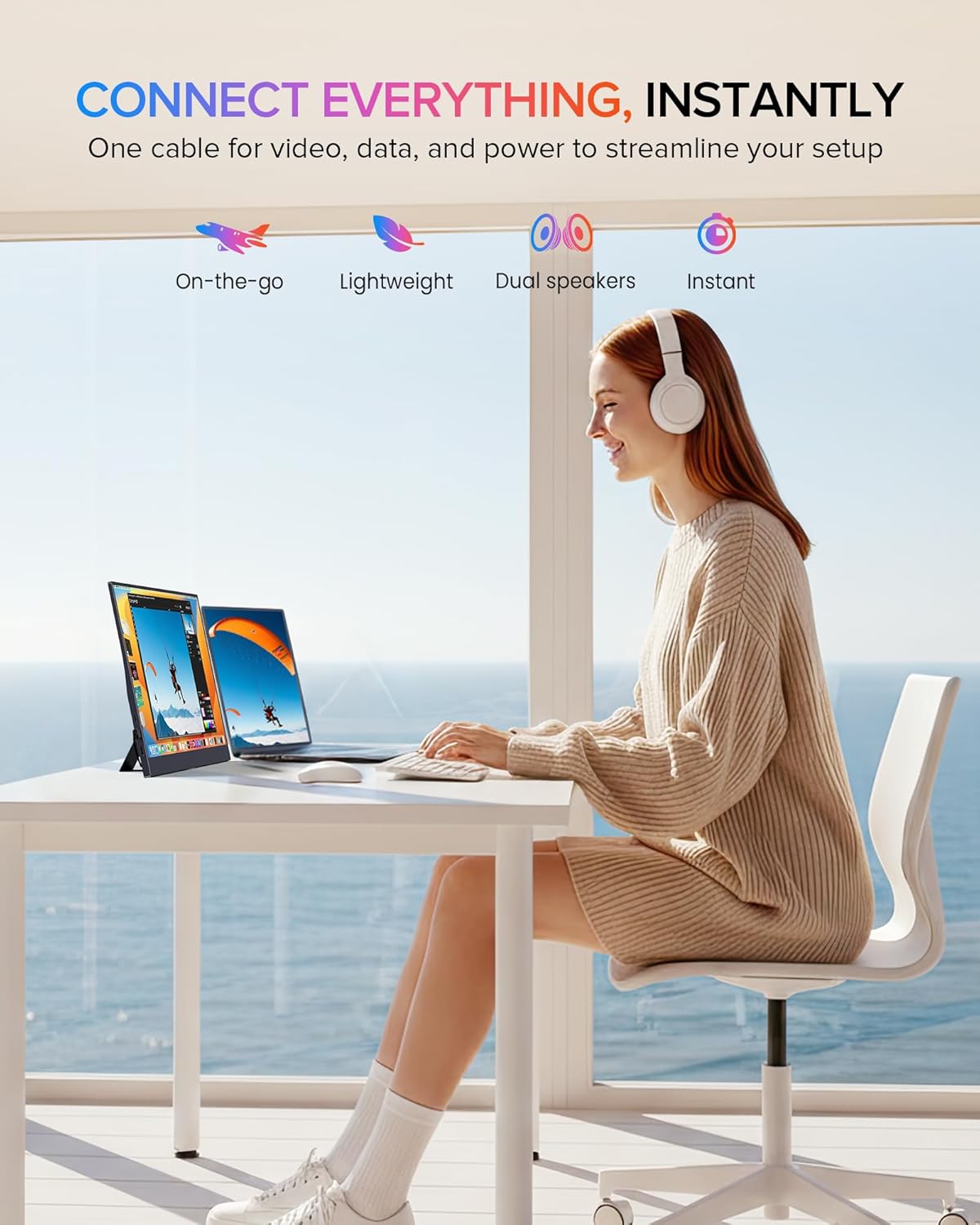
4. Налада і падключэнне
The monitor supports plug-and-play functionality with most devices. Ensure your device supports video output over USB-C (DisplayPort Alternate Mode) or HDMI.
4.1 Connecting via USB-C (Full-featured)
For devices with a full-featured USB-C port (supporting power, video, and data), a single USB-C to USB-C cable can provide both power and display signal.
- Connect one end of the Type-C to Type-C cable to your device's USB-C port.
- Connect the other end of the Type-C to Type-C cable to one of the monitor's USB-C 3.1 ports.
- Манітор павінен аўтаматычна распазнаць сігнал і ўключыцца.

4.2 Connecting via Mini HDMI
For devices with an HDMI output, use the Mini HDMI to HDMI cable for video signal and a USB-A to USB-C cable for power.
- Connect one end of the Mini HDMI cable to your device's HDMI port and the other end to the monitor's Mini HDMI port.
- Connect the USB-A end of the USB-A to USB-C cable to a power source (e.g., laptop USB port, wall adapter) and the USB-C end to one of the monitor's USB-C 3.1 ports for power.
- The monitor should display the signal from your device.

4.3 Сумяшчальнасць прылад
The monitor is compatible with a wide range of devices:
- Type-C (Android/Windows): Phones, Tablets, Laptops, PCs.
- HDMI (Game Consoles): Nintendo Switch, Steam Deck, PlayStation (PS3/4/5), Xbox.

5. Інструкцыя па эксплуатацыі
5.1 Уключэнне/выключэнне сілкавання
Press and hold the Power button (often combined with the Return function) for a few seconds to turn the monitor on or off.
5.2 Экраннае меню (OSD).
The OSD menu allows you to adjust various display settings. Use the Pulley Button to navigate and select options.
- Press the Pulley Button to open the OSD menu.
- Roll the Pulley Button up or down to navigate through menu options.
- Press the Pulley Button to select an option or confirm a setting.
- Press the Return/Power button to exit the current menu or the OSD entirely.
Common OSD settings include Brightness, Contrast, Color Temperature, Input Source, and HDR mode.
6. Асаблівасці дысплея
The EVICIV portable monitor is designed with several features to enhance your viewвопыт:
- 125% каляровай гамы sRGB: Provides a wider range of colors compared to standard sRGB, resulting in more accurate and vibrant color reproduction.
- Full HD 1080p Resolution (1920x1080): Забяспечвае выразныя і дэталізаваныя выявы.
- Яркасць 350 ніт: Offers sufficient brightness for various indoor lighting conditions.
- Каэфіцыент кантраснасці 2000:1: Produces deeper blacks and brighter whites for improved image depth.
- IPS Display Technology: Ensures consistent color and image quality across wide 178-degree viewныя вуглы.
- Падтрымка HDR: Enhances dynamic range for compatible content, showing more detail in both bright and dark areas.
- Асаблівасці догляду за вачыма: Includes a blue light filter and flicker-free technology to reduce eye strain during extended use.


7. Варыянты мантажу
7.1 Built-in Adjustable Stand
The monitor includes a built-in stand that can be adjusted up to 70 degrees, allowing you to find an ergonomic viewпазіцыя.

7.2 Мацаванне VESA
For more permanent setups, the monitor is VESA compatible (75x75mm, M4*4mm). This allows it to be mounted on a wall or a desk arm.
- Знайдзіце адтуліны для мацавання VESA на задняй частцы манітора.
- Secure the VESA mount bracket to the monitor using the provided M4*4mm screws.
- Attach the monitor to your VESA-compatible arm or wall mount.

8. Тэхнічнае абслугоўванне
Каб забяспечыць даўгавечнасць і аптымальную прадукцыйнасць вашага манітора, выконвайце наступныя рэкамендацыі па тэхнічным абслугоўванні:
- Ачыстка экрана: Акуратна працярыце экран мяккай тканінай без ворса. Для выдалення ўстойлівых плям,ampЗлёгку прамакніце тканіну вадой або бяспечным для экрана ачышчальным растворам. Пазбягайце агрэсіўных хімічных рэчываў або абразіўных матэрыялаў.
- Ачыстка Casing: Выкарыстоўвайце мяккую сухую тканіну для чысткі манітораasing.
- захоўванне: When not in use, store the monitor in a cool, dry place, preferably in its protective sleeve or original packaging, to prevent dust accumulation and physical damage.
- Пазбягайце вадкасці: Keep liquids away from the monitor to prevent electrical damage.
- Пазбягайце экстрэмальных тэмператур: Do not expose the monitor to extreme hot or cold temperatures.
9. Выпраўленне непаладак
Калі ў вас узніклі праблемы з маніторам, звярніцеся да наступных распаўсюджаных праблем і іх рашэнняў:
9.1 Няма сігналу / Чорны экран
- Праверце кабелі: Ensure all video (USB-C or Mini HDMI) and power cables are securely connected to both the monitor and your device.
- Крыніца харчавання: Verify the monitor is receiving adequate power. If using USB-C, ensure your device's USB-C port supports power delivery. If using HDMI, ensure the USB-C power cable is connected to a sufficient power source.
- Крыніца ўводу: Use the OSD menu to manually select the correct input source (USB-C or HDMI).
- Выхад прылады: Confirm your connected device is configured to output video to an external display.
9.2 Няма харчавання
- Сілавы кабель: Ensure the USB-C power cable is connected to a functional power source (e.g., wall adapter, powered USB port).
- Кнопка харчавання: Press and hold the Power button for a few seconds to ensure it's not just in standby mode.
- Try Different Cable/Port: Test with a different USB-C cable or a different power source if available.
9.3 Image Flickering or Distortion
- Якасць кабеля: Use the provided cables or high-quality certified cables. Poor quality cables can cause signal issues.
- Разрозненне/частата абнаўлення: Ensure your device's output resolution and refresh rate are supported by the monitor (Max 1920x1080 at 60Hz).
- Перашкоды: Move the monitor away from other electronic devices that might cause electromagnetic interference.
If these steps do not resolve the issue, please contact EVICIV customer support.
10. Тэхнічныя характарыстыкі
| Асаблівасць | Спецыфікацыя |
|---|---|
| Марка | ЭВІЦІВ |
| Нумар мадэлі | EC156FHD |
| Памер экрана | 15.6 цалі |
| дазвол | FHD 1080p (1920 x 1080) |
| Тэхналогія адлюстравання | IPS LCD |
| Частата абнаўлення | 60 Гц |
| Яркасць | 350 кандэла (ніт) |
| Каэфіцыент кантраснасці | 2000:1 |
| Колеравая гама | 125% sRGB |
| Viewing кут | 178 градусаў |
| Час водгуку | 3 мілісекунд |
| Сувязь | 2x USB 3.0 Type-C, 1x Mini HDMI, 1x 3.5mm Audio |
| Тып мацавання | VESA (75x75mm), Built-in Stand |
| Энергаспажыванне | 10 ват |
| Памеры (Д x Ш x В) | 0.27" Г x 14" Ш x 9" У |
11. Гарантыя і падтрымка
Your EVICIV Portable Monitor comes with a 2-гадовая гарантыя ад вытворцы. Гэтая гарантыя распаўсюджваецца на дэфекты матэрыялаў і вырабу пры звычайным выкарыстанні.
For warranty claims, technical assistance, or further inquiries, please contact EVICIV customer support through the official EVICIV webсайт або ваш прадавец.
Для атрымання дадатковай інфармацыі і падтрымкі наведайце EVICIV Store on Amazon.