
1. Уводзіны
The COUGAR CFV235 is an innovative PC case featuring a Central Floating Ventilation (CFV) structure. This design separates the power supply unit compartment from the main chamber, utilizing the space between them as a highly effective ventilation channel to enhance cooling performance. The CFV235 combines a full panoramic view, a compact footprint, and structurally reinforced cooling capabilities to achieve superior airflow beyond traditional case designs.
This manual provides essential information for the proper installation, operation, and maintenance of your COUGAR CFV235 PC case. Please read it thoroughly before beginning assembly.
2. Асноўныя магчымасці
- Central Floating Ventilation (CFV) Structure: Innovative design for enhanced cooling efficiency.
- Full Panoramic View: Clear tempered glass panels for showcasinг унутраных кампанентаў.
- Канструкцыя з высокім патокам паветра: Optimized for superior air circulation.
- Шырокая сумяшчальнасць: Supports Mini ITX, Micro ATX, ATX, and CEB motherboards.
- AmpВарыянты захоўвання: Multiple drive bays for 3.5" HDDs and 2.5" SSDs.
- Шчодры зазор кампанентаў: Accommodates long GPUs, tall CPU coolers, and standard PSUs.
- Трывалая канструкцыя: Built with robust materials for longevity.

Малюнак 2.1: Пярэдняя частка view of the COUGAR CFV235 PC case, highlighting its panoramic glass panels and illuminated interior.

Figure 2.2: The COUGAR CFV235 PC case showcasing its design in both black and white variants, with internal components and customizable RGB lighting.
3. Кіраўніцтва па наладцы
3.1 Unpacking the Case
- Асцярожна дастаньце корпус ПК з упакоўкі.
- Inspect the case for any signs of damage during transit. Contact your retailer immediately if any damage is found.
- Remove all protective films and internal packaging materials.
3.2 Усталёўка кампанентаў
Before installing components, ensure you have all necessary tools, including a Phillips head screwdriver.
- Ўстаноўка мацярынскай платы:

Figure 3.1: Interior of the CFV235 case, showing pre-installed motherboard standoffs.
- Усталюйце экран уводу/вываду ў заднюю адтуліну корпуса.
- Align your Mini ITX, Micro ATX, ATX, or CEB motherboard with the pre-installed standoffs.
- Замацуйце матчыну плату з дапамогай прадугледжаных шруб.
- Ўстаноўка блока сілкавання (БП):
- The CFV235 features a dedicated PSU compartment. Install your ATX PSU (up to 200mm length) into this compartment.
- Замацуеце блок харчавання шрубамі з задняй часткі корпуса.
- Усталяванне назапашвальніка:

Figure 3.2: Rear interior of the CFV235, illustrating cable management options and locations for 2.5" and 3.5" drive bays.
- Install 3.5" HDDs into the designated drive bays (up to 2 drives).
- Install 2.5" SSDs into the dedicated SSD mounts (up to 4 drives, 2 of which are shared with 3.5" bays).
- Ensure all drives are securely fastened.
- Усталёўка відэакарты (GPU):

Figure 3.3: Diagram indicating the maximum GPU length of 430mm supported by the CFV235 case.
- Корпус падтрымлівае відэакарты даўжынёй да 430 мм.
- Insert your GPU into the appropriate PCIe slot on the motherboard and secure it with the retention clip and screw.
- Усталёўка кулера працэсара:
- The case supports CPU coolers up to 175mm in height.
- Усталюйце кулер працэсара ў адпаведнасці з інструкцыямі вытворцы.
- Кабельнае кіраванне:
- Utilize the cable routing cutouts and tie-down points behind the motherboard tray to manage cables neatly.
- Proper cable management improves airflow and aesthetics.
4. Інструкцыя па эксплуатацыі
4.1 Пярэдняя панэль уводу/вываду

Figure 4.1: The front I/O panel of the CFV235, featuring USB ports, audio jacks, and the power button.
Пярэдняя панэль уводу/вываду забяспечвае зручны доступ да асноўных партоў і элементаў кіравання:
- Кнопка харчавання: Press to power on/off your system.
- Кнопка скіду: Press to restart your system.
- Парты USB: Падключыце прылады USB.
- Аўдыёраздымы: Падключыце навушнікі і мікрафоны.
4.2 Паветраны паток і астуджэнне
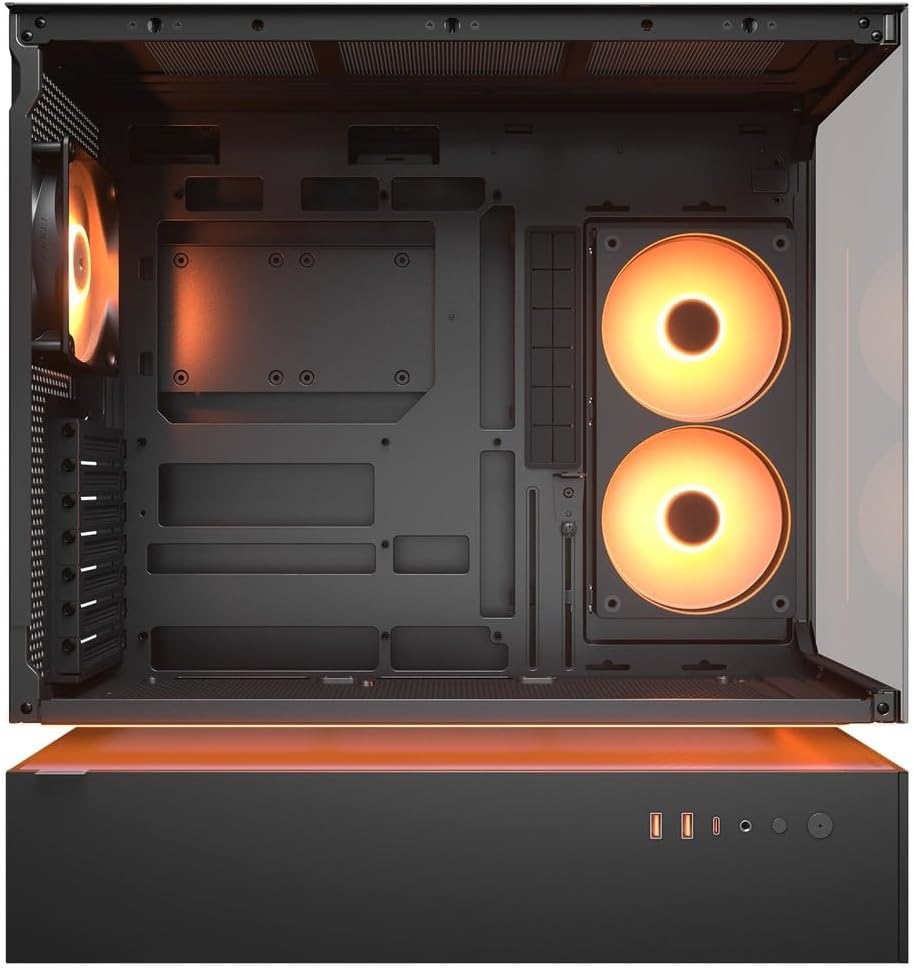
Малюнак 4.2: Унутраны view of the CFV235 with fans installed, demonstrating the potential for high airflow.
The CFV235 is designed for optimal airflow. Ensure all fans are correctly installed and oriented to facilitate efficient cooling. The Central Floating Ventilation structure promotes direct airflow to critical components.
5. Тэхнічнае абслугоўванне
5.1 Ачыстка пылавога фільтра

Figure 5.1: Removable magnetic dust filter for easy cleaning.
Regular cleaning of dust filters is crucial for maintaining optimal airflow and preventing dust buildup inside your PC. The CFV235 features easily removable dust filters:
- Gently remove the magnetic dust filters located on the top and bottom of the case.
- Ачысціце фільтры сціснутым паветрам або прамыйце іх вадой. Перад тым, як усталяваць іх назад, пераканайцеся, што яны цалкам сухія.
- Reattach the filters to their respective positions.
5.2 Генеральная ўборка
- Выкарыстоўвайце мяккі, damp cloth to wipe down the exterior surfaces of the case.
- Avoid using harsh chemicals or abrasive materials that could damage the finish or tempered glass.
- For internal cleaning, use compressed air to remove dust from components and fan blades.
6. Выпраўленне непаладак
This section addresses common issues you might encounter. For more complex problems, please refer to the support section.
6.1 Сістэма не ўключаецца
- Праверце, ці надзейна падключаны кабель харчавання да блока харчавання і разеткі.
- Ensure the PSU switch is in the "ON" position.
- Verify that the front panel power button cable is correctly connected to the motherboard.
- Confirm that all internal power connections (24-pin ATX, CPU, GPU) are firmly seated.
6.2 Праблемы з перагрэвам
- Ensure all case fans and CPU/GPU coolers are functioning correctly.
- Clean any dust buildup from fans and dust filters (refer to Section 5.1).
- Verify that fans are oriented for optimal airflow (intake and exhaust).
- Check for proper cable management to avoid obstructing airflow.
6.3 USB/Audio Ports Not Working
- Ensure the front panel USB and audio cables are correctly connected to the motherboard headers.
- Check your operating system's device manager for any driver issues.
7. Тэхнічныя характарыстыкі
| Асаблівасць | Спецыфікацыя |
|---|---|
| Марка | КУГАР |
| Назва мадэлі | CFV235 |
| Памеры прадукту (Ш х В х Г) | 235 х 493 х 460 мм |
| Вага прадукту | 9.5 кг |
| Падтрымліваюцца матчыны платы | Mini ITX / Micro ATX / ATX / CEB |
| Прывадныя адсекі | 5.25" x0 / 3.5" x2 / 2.5" SSD x2+2 (2 shared with 3.5" bays) |
| Максімальная даўжыня GPU | 430 мм |
| Максімальная вышыня працэсарнага кулера | 175 мм |
| Максімальная даўжыня БП | 200 мм |
| Колер | Чорны |
| Асаблівасці | Central Floating Ventilation, Panoramic Glass, High Airflow, Built-in Fans |
8. Гарантыя і падтрымка
Your COUGAR CFV235 PC case comes with a Гарантыя 1 год з даты пакупкі. Гэтая гарантыя распаўсюджваецца на вытворчыя дэфекты і дэфекты матэрыялаў пры нармальным выкарыстанні.
For technical support, warranty claims, or further assistance, please visit the official COUGAR website or contact your local retailer. Please have your product model number (CFV235) and proof of purchase ready when contacting support.
Афіцыйны COUGAR Webсайт: cougargaming.com