
1. Уводзіны
Thank you for choosing the Pisichen 27-inch 4K UHD Touchscreen Monitor with Webcam. This manual provides essential information for the safe and efficient operation of your new monitor. Please read it thoroughly before use and retain it for future reference.
2. Інфармацыя па бяспецы
- Крыніца харчавання: Use only the power adapter supplied with the monitor. Ensure the power outlet meets the voltagэлектронныя патрабаванні.
- Вентыляцыя: Не блакуйце вентыляцыйныя адтуліны. Пакіньце дастатковую прастору вакол манітора для належнай цыркуляцыі паветра.
- Ўздзеянне вадкасці: Трымайце манітор далей ад вадкасцей. Не падвяргайце яго ўздзеянню дажджу або вільгаці.
- Уборка: Disconnect the power cable before cleaning. Use a soft, dry cloth. Avoid abrasive cleaners.
- Размяшчэнне: Пастаўце манітор на ўстойлівую, роўную паверхню, каб ён не ўпаў.
- Абслугоўванне: Не спрабуйце абслугоўваць манітор самастойна. Звяртайцеся па любыя паслугі да кваліфікаванага персаналу.
3. Змесціва ўпакоўкі
Калі ласка, праверце змесціва ўпакоўкі пасля распакавання. Калі якія-небудзь прадметы адсутнічаюць або пашкоджаныя, звярніцеся да прадаўца.
- Pisichen 27-inch 4K UHD Touchscreen Monitor
- Падстаўка для манітора (аснова і кранштэйны)
- Адаптар сілкавання
- Кабель HDMI
- USB-B to USB-A Cable (for Touch Function)
- Кіраўніцтва карыстальніка
4. Прадукт скончыўсяview
4.1 Асноўныя магчымасці
- Ultra HD 4K Touchscreen Display: 27-inch 4K Ultra HD screen with vibrant colors, sharp details, and wide viewing angles. Features a responsive 10-point touchscreen for intuitive control.
- Built-in High-Definition Webкамера: Інтэграваны webcam for video calls, online meetings, and streaming, reducing desk clutter.
- Універсальнае падключэнне: Multiple ports including HDMI, DisplayPort, and USB-C for easy connections to various devices. Supports both touch and traditional input.
- Optimized for Productivity and Creativity: Large 4K touch display for precise control and streamlined workflows, ideal for graphic designers, content creators, and multitasking.
- Sleek and Functional Design: Modern design with an adjustable stand for optimal viewing angles and comfort during extended use.
4.2 Парты манітора
The monitor features various ports for connecting to your devices. Refer to the image below for port identification.
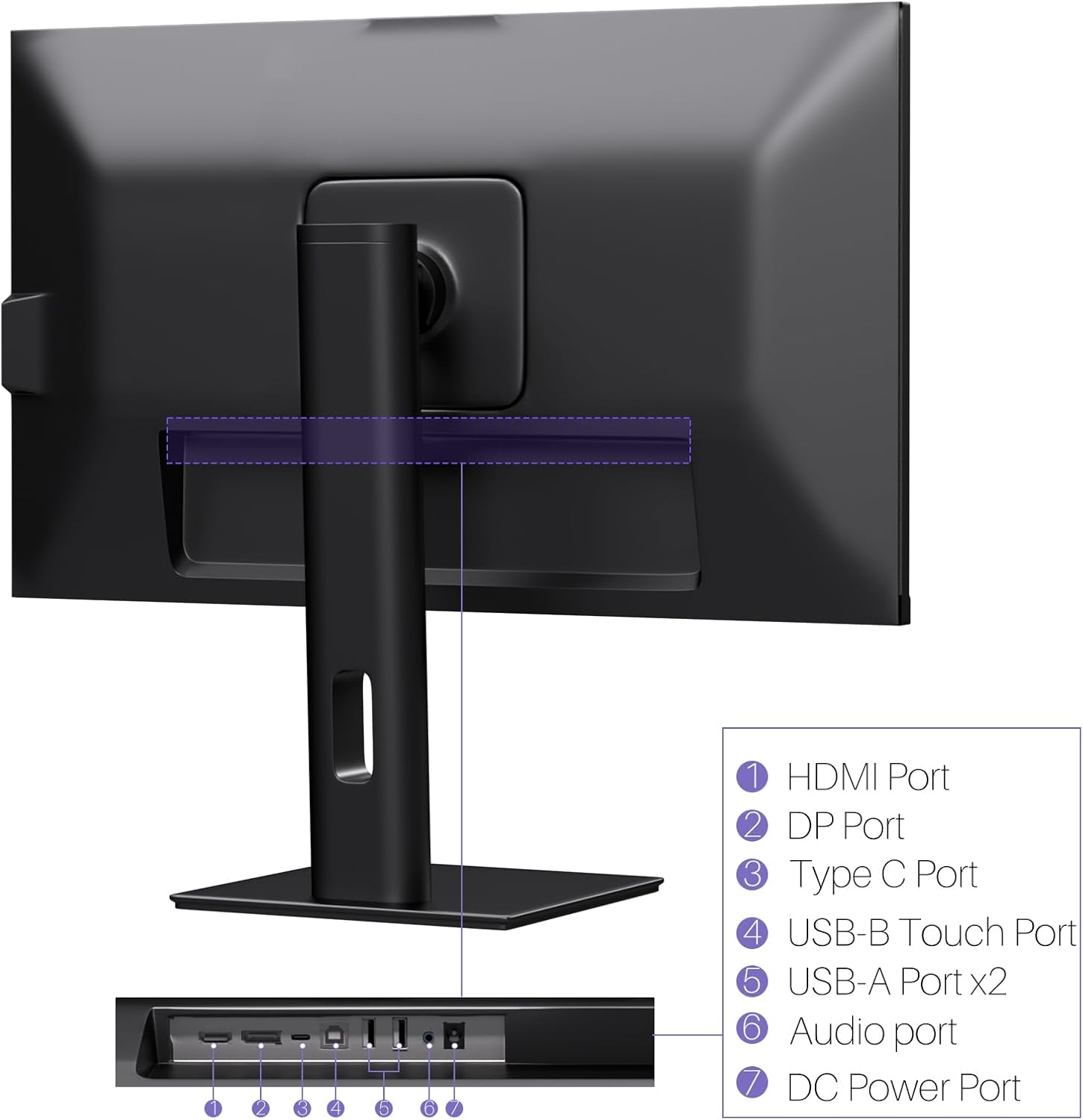
Выява: Задняя частка view of the monitor displaying the HDMI, DP, Type-C, USB-B Touch, USB-A, Audio, and DC Power ports.
- Порт HDMI: Connects to devices via HDMI cable for video and audio input.
- Порт DP: Connects to devices via DisplayPort cable for video and audio input.
- Порт тыпу C: Connects to devices via USB-C cable for video, audio, and power delivery. (Requires USB-C port on signal device to support DisplayPort Alternate Mode for touch functionality).
- USB-B Touch Port: Connects to your computer via USB-B to USB-A cable to enable touchscreen functionality.
- Порт USB-A (x2): Для падлучэння перыферыйных прылад USB.
- Аўдыяпорт: Для падлучэння знешніх аўдыёпрылад.
- Порт харчавання пастаяннага току: Падключаецца да адаптара сілкавання.
5. Інструкцыі па ўсталёўцы
5.1 Зборка падстаўкі
- Асцярожна выміце кампаненты манітора і падстаўкі з упакоўкі.
- Attach the stand arm to the monitor's VESA mounting points.
- Secure the stand base to the arm using the provided screws.
- Ensure all connections are tight and the monitor is stable.
5.2 Падключэнне да прылады
The monitor supports various connection types. Choose the appropriate cable for your device.

Image: Connection diagrams illustrating how to connect the monitor as a secondary display (HDMI/DP + DC), a touchscreen monitor (HDMI/DP + USB-B + DC), or via USB-C (USB-C + DC).
- For Video and Audio (Non-Touch): Connect an HDMI or DisplayPort cable from your computer to the corresponding port on the monitor.
- For Video, Audio, and Touch (Windows PC): Connect an HDMI or DisplayPort cable for video/audio. Additionally, connect the USB-B to USB-A cable from the monitor's USB-B Touch Port to a USB-A port on your computer.
- For Video, Audio, and Touch (USB-C Compatible Device): Connect a USB-C cable from your device to the monitor's Type-C port. Ensure your device's USB-C port supports DisplayPort Alternate Mode for touch functionality.
5.3 Падключэнне харчавання
- Connect the power adapter to the monitor's DC Power Port.
- Падключыце адаптар сілкавання да насценнай разеткі.
6. Інструкцыя па эксплуатацыі
6.1 Уключэнне/выключэнне сілкавання
Націсніце кнопку харчавання, размешчаную на маніторы, каб уключыць або выключыць яго.
6.2 Экраннае меню (OSD).
Use the control buttons (typically located on the back or bottom of the monitor) to navigate the OSD menu. This menu allows you to adjust settings such as brightness, contrast, color temperature, input source, and other display parameters.
6.3 Функцыянальнасць сэнсарнага экрана
The monitor features a 10-point multi-touch screen. Ensure the USB-B to USB-A cable (or USB-C cable for compatible devices) is connected to enable touch functionality.
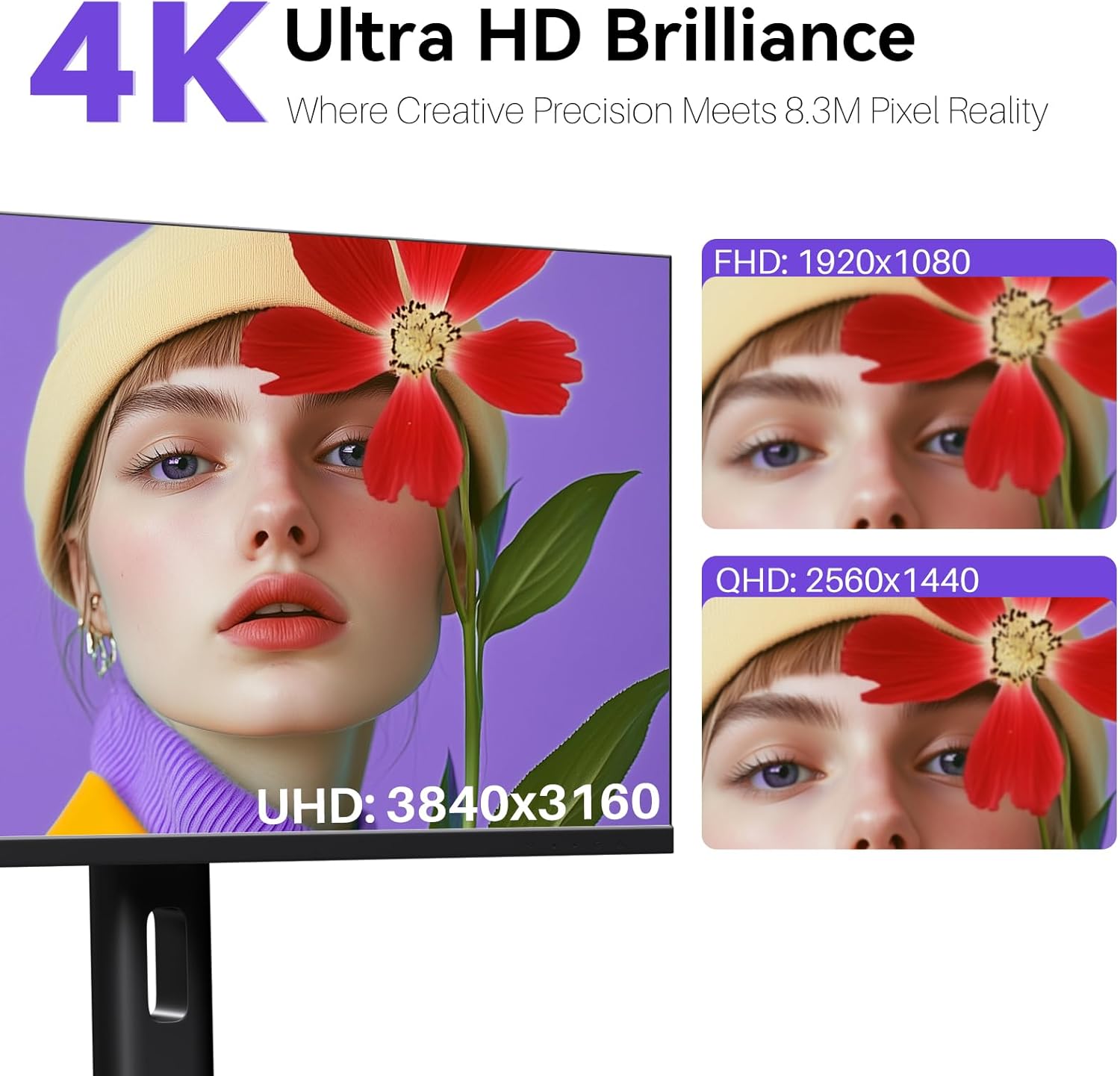
Image: A user's hand interacting with the monitor screen, highlighting the responsive 10-point touch experience.
- Basic Touch: Tap to click, swipe to scroll.
- Мультытач-жэсты: Use two fingers to zoom in/out, rotate, or pan, depending on the application.
- Touch Calibration (Windows Only): If the cursor does not align with your touch, calibration may be required. Go to Control Panel > Hardware and Sound > Tablet PC Settings > Calibrate. Follow the on-screen prompts.
6.4 Выкарыстанне ўбудаванай Webкамера
Інтэграваны webcam is automatically detected by most operating systems and video conferencing applications. No additional drivers are typically required.

Image: The monitor displaying a video conference call, showcasing its integrated webcam for seamless communication.
- Open your preferred video conferencing software (e.g., Zoom, Microsoft Teams, Skype).
- Select the integrated webcam as your video input device in the application's settings.
6.5 Adjusting Display Resolution
To set the resolution of the monitor (Windows):
- Right-click on your desktop and select "Display Settings."
- Find your monitor (if multiple displays are connected).
- Under "Display resolution," select the recommended resolution of 3840 x 2160.
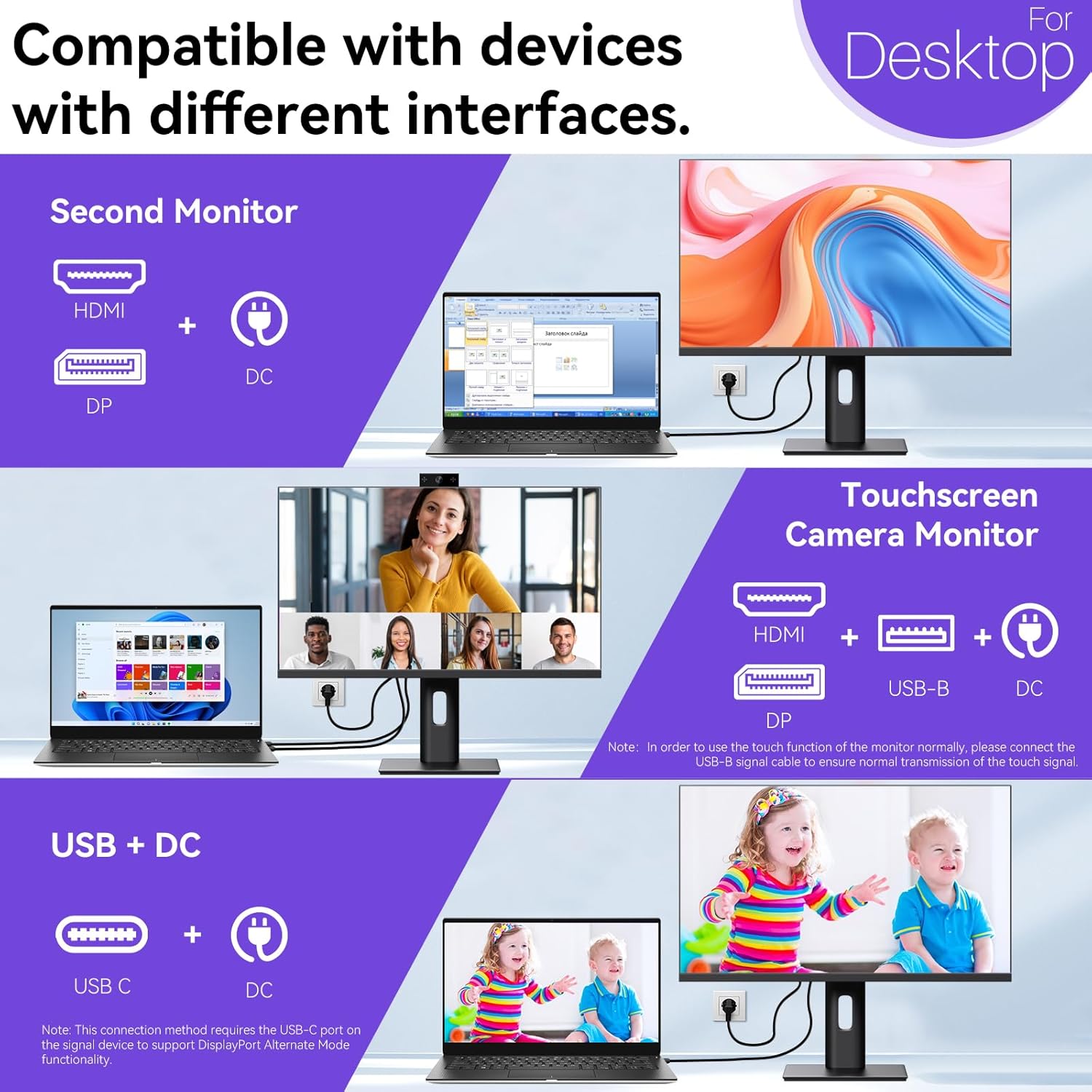
Image: A visual comparison demonstrating the superior clarity of 4K UHD (3840x2160) compared to FHD (1920x1080) and QHD (2560x1440) resolutions.
7. Тэхнічнае абслугоўванне
- Ачыстка экрана: Акуратна працярыце экран мяккай тканінай без ворса. Для ўстойлівых плям злёгку працярыцеampПрацярыце тканіну вадой або спецыяльным растворам для чысткі экранаў. Не распыляйце вадкасць непасрэдна на экран.
- Ачыстка Casing: Выкарыстоўвайце мяккую сухую тканіну для чысткі манітора casing.
- захоўванне: If storing the monitor for an extended period, disconnect it from power, pack it in its original packaging, and store it in a cool, dry place.
8. Выпраўленне непаладак
If you encounter issues with your monitor, refer to the following troubleshooting guide. For problems not listed, please contact customer support.
| праблема | Магчымая прычына | Рашэнне |
|---|---|---|
| Няма выявы на экране | Адключаны кабель харчавання; адключаны відэакабель; выбрана няправільная крыніца ўваходнага сігналу. | Ensure power cable is securely connected. Check video cable (HDMI/DP/USB-C) connections. Select correct input source via OSD menu. |
| Сэнсарны экран не рэагуе | USB-B cable not connected; USB-C port not supporting DisplayPort Alternate Mode; Device incompatibility (e.g., iPhone). | Ensure the USB-B to USB-A cable is connected from the monitor to your computer. If using USB-C, verify your device's USB-C port supports DisplayPort Alternate Mode. Note: Touch function is not supported when connected to an iPhone due to iOS system restrictions. |
| Cursor moves incorrectly (Windows) | Touchscreen calibration required. | Perform touchscreen calibration: Go to Control Panel > Hardware and Sound > Tablet PC Settings > Calibrate. |
| Webкамера не выяўлена | USB connection issue; Software settings. | Ensure all necessary USB cables are connected. Check your application's settings to select the correct webкулачок. |
9. Тэхнічныя характарыстыкі
| Асаблівасць | Дэталь |
|---|---|
| Марка | Пісічэнь |
| Нумар мадэлі | 27INTSCMR-4K |
| Памер экрана | 27 цалі |
| дазвол | 3840 x 2160 пікселяў (4K UHD 2160p) |
| Суадносіны бакоў | 16:9 |
| Яркасць выявы | 400 Кандэла |
| Апісанне паверхні экрана | Глянцавы |
| Памеры прадукту | 14.37 х 24.21 х 16.54 цалі |
| Вага прадмета | 16.59 фунта |
| Вытворца | Shenzhen Konowa Electronics Co., LTD |
| Сувязь | HDMI, DisplayPort, USB-C, USB-B (for touch), USB-A (x2), Audio Port |
10. Гарантыя і падтрымка
This product comes with a manufacturer's warranty. Please refer to the warranty card included in your package for specific terms and conditions. For technical support or inquiries, please contact Pisichen customer service at support_2308@163.com. When contacting support, please provide your model number and a detailed description of the issue, including any relevant pictures or videos.