
Уводзіны
This manual provides essential information for setting up, operating, maintaining, and troubleshooting your HP 15-inch Laptop. Designed for everyday use, this laptop combines performance with a user-friendly experience, featuring an Intel Pentium Processor, 4GB DDR4 RAM, 128GB SSD, and Windows 11 OS.
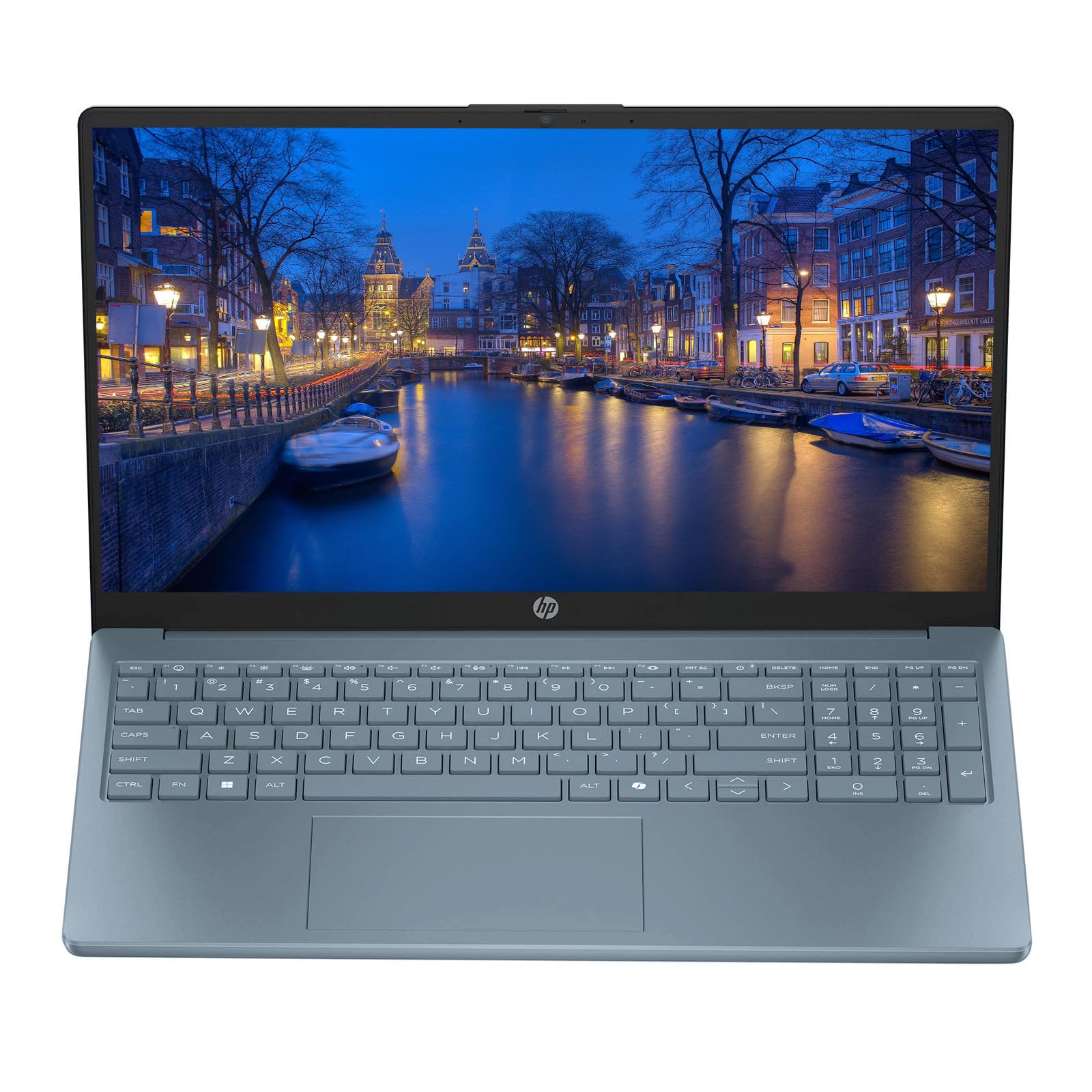
Figure 1: HP 15-inch Dale Blue Laptop
The HP 15-inch laptop is a versatile device suitable for various tasks, from browsing the web and managing emails to streaming videos and working on documents. Its lightweight design and robust features make it an ideal companion for home, school, or on-the-go use.
Відэа 1: Скончанаview of the HP 15.6-inch Laptop, highlighting its sleek design and reliable performance for everyday tasks.
Настройка
1. Распакаванне і першапачатковы агляд
Carefully remove your laptop and all accessories from the packaging. Inspect for any visible damage. The box should contain the HP 15-inch Laptop and an AC Charger.
2. Connecting the AC Charger
Connect the AC charger to the laptop's power port and then to a power outlet. Allow the laptop to charge for at least 30 minutes before initial use, or until the battery indicator shows sufficient charge.

Figure 2: Connecting the AC Charger to the HP Laptop
3. First Power On and Windows 11 Setup
Press the power button located on the keyboard. Follow the on-screen instructions to complete the Windows 11 setup process. This includes selecting your language, connecting to a Wi-Fi network, and creating a user account.
Video 2: Demonstrating the fast boot-up and initial setup of the HP laptop, highlighting its quick responsiveness.
Кіраванне ноўтбукам HP
1. Клавіятура і сэнсарная панэль
The laptop features a comfortable and responsive keyboard for efficient typing. The integrated touchpad supports multi-touch gestures for navigation. You can also connect an external mouse via USB.

Малюнак 3: Раскладка клавіятуры і сэнсарнай панэлі
2. Асаблівасці дысплея
The 15-inch HD Micro-Edge IPS Display offers clear visuals for all your content. Its micro-edge design maximizes screen space, enhancing your viewing experience for videos, documents, and web прагляд.
3. Сувязь
Your HP laptop is equipped with various ports and wireless capabilities:
- USB Type-C: 1 port for modern peripherals and fast data transfer.
- USB тыпу A: 2 ports for standard USB devices.
- HDMI: 1 порт для падлучэння знешніх дысплеяў або праектараў.
- Камбінаваны раз'ём для навушнікаў/мікрафона: Для ўваходу і выхаду гуку.
- Ultra-Fast 6th Gen Wi-Fi: For reliable wireless internet connection.
- Bluetooth: Для падключэння бесправадных аксесуараў.
4. Інтэграваны Webкамера
The laptop includes an integrated webcam for video calls and online meetings. Ensure proper lighting for optimal video quality.
Video 3: Demonstrating the ease of operation and various features of the HP laptop, including keyboard and screen interaction.
Тэхнічнае абслугоўванне
1. Уборка
Для чысткі экрана і вонкавых паверхняў выкарыстоўвайце мяккую тканіну без ворса. Для выдалення ўстойлівых плям злёгкуampпрацярыце тканіну вадой або сродкам для ачысткі экрана. Пазбягайце агрэсіўных хімічных рэчываў.
2. Абнаўленне праграмнага забеспячэння
Regularly check for and install Windows 11 updates to ensure optimal performance, security, and access to the latest features. Navigate to Налады > Цэнтр абнаўлення Windows кіраваць абнаўленнямі.
3. Сыход за батарэяй
Каб падоўжыць тэрмін службы акумулятара, пазбягайце экстрэмальных тэмператур і частай поўнай разрадкі акумулятара. Для працяглага захоўвання зараджайце акумулятар прыкладна да 50%.
4. Фізічная абарона
While lightweight, handle your laptop with care. Use a protective sleeve or bag when transporting it to prevent scratches and impacts.
Ліквідацыю непаладак
1. Ноўтбук не ўключаецца
- Ensure the AC charger is securely connected to both the laptop and a working power outlet.
- Праверце, ці гарыць індыкатар адаптара харчавання.
- Паспрабуйце ўтрымліваць кнопку харчавання 15-20 секунд, каб выканаць жорсткі скід.
2. Павольная прадукцыйнасць
- Зачыніце непатрэбныя праграмы, якія працуюць у фонавым рэжыме.
- Праверце і ўсталюйце ўсе чакаючыя абнаўлення Windows.
- Ensure your storage (SSD) is not nearly full.
- Перазагрузіце ноўтбук.
3. Праблемы з падключэннем да Wi-Fi
- Toggle Wi-Fi off and on in Windows settings.
- Перазапусціце свой Wi-Fi маршрутызатар.
- Пераканайцеся, што ваш ноўтбук знаходзіцца ў зоне дзеяння сігналу Wi-Fi.
4. Blue Screen Errors
Blue screen errors can indicate a software or hardware issue. Note down any error codes displayed and search for solutions online or contact HP Support.
Тэхнічныя характарыстыкі
| Асаблівасць | Дэталь |
|---|---|
| Марка | HP |
| Назва мадэлі | Ноўтбук HP 15 цалі |
| Памер экрана | 15 цалі |
| Колер | Dale Blue (other variants available) |
| Мадэль працэсара | Pentium (up to 3.68 GHz) |
| Аператыўная памяць | 4 ГБ DDR4 |
| Памер жорсткага дыска | 128 ГБ SSD |
| Аперацыйная сістэма | Windows 11 |
| Графічная карта | Убудаваная Intel UHD Graphics |
| Сувязь | Wi-Fi (802.11ac), Bluetooth, 1x USB Type-C, 2x USB Type-A, 1x HDMI |
| Webкамера | Інтэграваны Webкамера |
| Dimensions (L x W x Thickness) | 11.8"Д х 8.08"Ш х 0.95"Т |
| Аксэсуары ў камплекце | Зарадная прылада пераменнага току |

Figure 4: HP 15-inch Laptop in Scarlet Red
The HP 15-inch laptop is available in various colors, including Dale Blue and Scarlet Red, offering a personalized touch to your computing experience.
Гарантыя і падтрымка
Інфармацыя аб гарантыі
This product comes with a 30-Day Warranty. Please refer to the warranty card included in your packaging for detailed terms and conditions.
Падтрымка кліентаў
Каб атрымаць тэхнічную дапамогу, ліквідацыю непаладак або прэтэнзіі па гарантыі, звярніцеся ў афіцыйную службу падтрымкі HP. website or contact their customer service. Keep your product's serial number and proof of purchase handy for faster service.